Stream Density Testing#
This article explains how to run density tests in ViPPET and interpret the results.
A density test finds the maximum number of streams that can run while keeping the target
minimum FPS per stream. Compared to a standard performance test (fixed stream count),
density testing increases the load and searches for the highest stable stream count that
still meets your FPS requirement.
Therefore, it answers the question: How many concurrent streams can this platform sustain at my required FPS floor?
Density Modes#
Density testing supports two modes. The mode is selected automatically from the request shape — no API version change is required.
Mode |
When to use it |
Search variable |
|---|---|---|
Classic |
One or more pipelines tested together; you want the platform’s total stream capacity for a workload mix. |
Total stream count, distributed across pipelines using their per-pipeline |
Mixed |
Exactly two pipelines; one pipeline has a fixed input stream count, the other one is grown by the search. |
Stream count of the incremented pipeline only. The fixed pipeline keeps its |
Mode selection is driven by the new optional streams field on each pipeline spec:
If no spec sets
streams, the request runs in classic mode.If exactly one of two specs sets
streams, the request runs in mixed mode.Any other combination (one spec with
streams, three specs, both withstreams, etc.) is rejected with HTTP 400.
Both modes use the same exponential-growth + binary-search algorithm and the same pass/fail
criterion (fps_floor). Only the meaning of the search variable differs.
Density Testing Algorithm#
The density testing algorithm is designed to find the maximum number of concurrent video streams that can be processed while maintaining a minimum performance threshold (FPS floor). The algorithm uses a two-phase approach:
Phase 1: Exponential Growth#
Start with
search_value = 1and run the pipeline.Double
search_valueafter each successful run that meets the FPS threshold.Continue exponentially (
1 -> 2 -> 4 -> 8 -> 16...) until the per-stream FPS drops below the specifiedfps_floor.Track the best configuration that still meets the performance requirements.
Phase 2: Binary Search Refinement#
Switch to binary search once performance drops below the threshold.
Set bounds:
Lower bound = last successful
search_value(N/2).Upper bound = current failing
search_value(N).
Bisect the range and test the midpoint.
Adjust bounds based on results:
If
FPS >= threshold: update best config, move lower bound up.If
FPS < threshold: move upper bound down.
Continue until bounds converge.
The meaning of search_value depends on the mode:
Classic mode —
search_valueis the total stream count across all pipelines.Mixed mode —
search_valueis the stream count of the incremented pipeline only. The fixed pipeline keeps itsstreamsvalue on every iteration; total stream count isfixed_streams + search_value.
Stream Distribution#
Stream distribution differs per mode:
Classic mode — Multiple pipelines can be tested simultaneously. Stream allocation is proportional based on
stream_rateratios (must sum to100%). Rounding handling: the last pipeline gets remaining streams to account for rounding errors.Mixed mode — Exactly two pipelines. The pipeline that sets
streamsis pinned to that value on every iteration. The other pipeline starts at1stream and is incremented by the algorithm.stream_rateis ignored in mixed mode.
Algorithm result#
The algorithm returns the optimal configuration with:
Maximum number of streams that meet the FPS requirement.
Distribution of streams across pipelines.
Achieved per-stream FPS.
Output file paths for video results (from the best-passing iteration).
Latency statistics (avg/min/max) when latency metrics are enabled.
Running Density Testing#
Density testing helps you find the maximum number of concurrent streams that still meet a required FPS floor.
Step 1: Test Configuration#
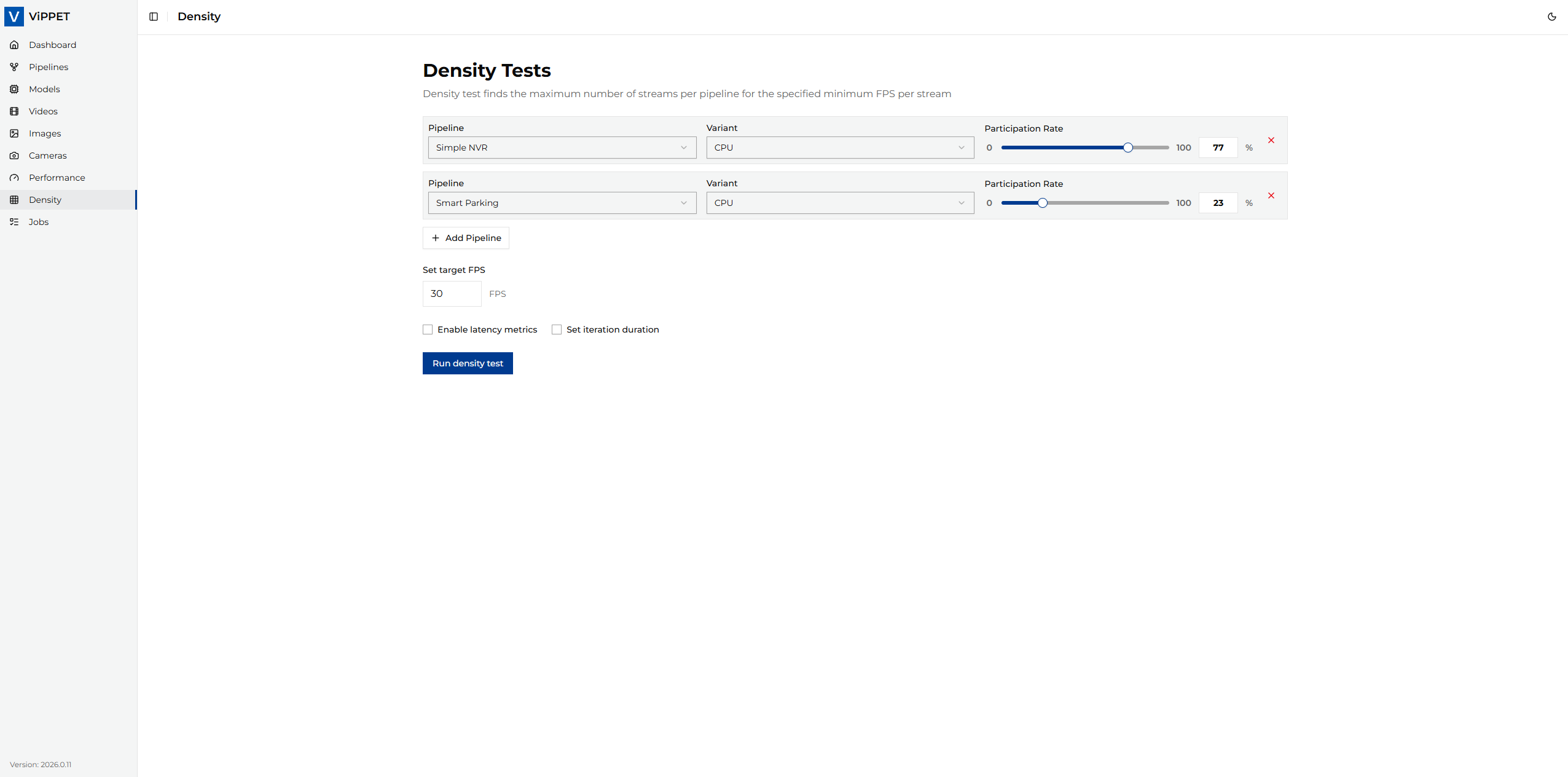
Before running the test, configure the workload in the Density tab.
Classic mode configuration#
Open the Density tab.
Set FPS Floor — minimum acceptable per-stream FPS (for example,
30).Add one or more pipelines.
For each pipeline, set Stream Rate so all pipelines sum to
100%.Leave Streams unset on every pipeline (this keeps the request in classic mode).
Set Max runtime — duration of each iteration in seconds (for example,
10).
Parameter |
Description |
Example |
|---|---|---|
FPS Floor |
Minimum acceptable per-stream FPS. The algorithm stops when it cannot maintain this threshold. |
|
Stream Rate |
Percentage of total streams allocated to this pipeline. All rates must sum to 100%. |
Pipeline A: |
Max runtime |
How long each iteration runs before measuring FPS (seconds). Longer iterations provide more stable measurements. |
|
Output mode |
|
|
Enable latency metrics |
When enabled, measures end-to-end pipeline latency (avg/min/max) per reporting interval. |
|
Note
USB cameras are not supported in density testing because the algorithm needs to spawn multiple copies of the same pipeline, which is not possible with a single physical camera device.
Mixed mode configuration#
Use mixed mode when one pipeline must run at a known, fixed input stream count and you want to find out how many streams of a second pipeline the platform can run on top of it.
Open the Density tab.
Set FPS Floor — minimum acceptable per-stream FPS (for example,
30).Add exactly two pipelines.
On the pipeline you want to pin, set Streams to a positive integer (the fixed input stream count). Leave Streams unset on the other pipeline — that one will be incremented by the search.
Stream Rate is ignored in mixed mode and can be left at any value.
Set Max runtime as in classic mode.
Parameter |
Description |
Example |
|---|---|---|
FPS Floor |
Minimum acceptable per-stream FPS. The algorithm stops when it cannot maintain this threshold. |
|
Streams (fixed pipeline) |
Fixed input stream count for the pinned pipeline. Must be a positive integer. |
|
Streams (grown pipeline) |
Leave unset. The search starts at |
(unset) |
Max runtime |
How long each iteration runs before measuring FPS (seconds). |
|
Output mode |
|
|
Enable latency metrics |
When enabled, measures end-to-end pipeline latency (avg/min/max) per reporting interval. |
|
Note
Mixed mode is restricted to exactly two pipelines with exactly one of
them setting streams. The backend rejects any other combination with HTTP 400.
Step 2: Running the Test#
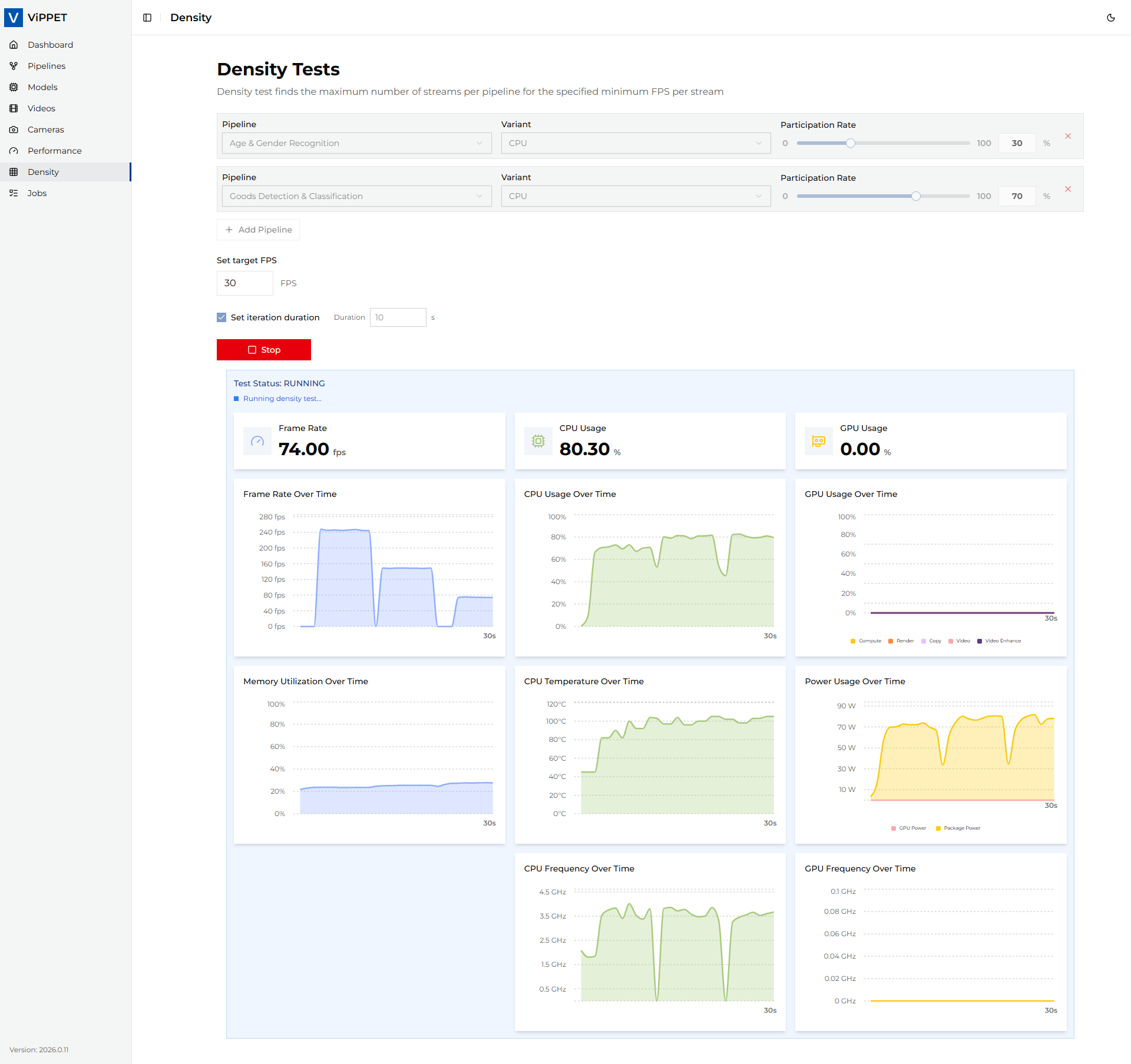
After configuration, click Run density test.
What happens during execution:
ViPPET starts the search variable at
1and runs the pipelines formax_runtimeseconds.In classic mode the search variable is the total stream count; in mixed mode it is the stream count of the incremented pipeline (the fixed pipeline keeps its
streamsvalue).If per-stream FPS ≥
fps_floor, the search variable doubles (exponential growth phase).When FPS drops below
fps_floor, ViPPET switches to binary search to refine the exact maximum.The process ends when the algorithm converges on the best stable configuration.
Progress is reported in real time via the job status details.
Important
If you cancel a density test while it is running, the job is marked as FAILED. Partial density results are not reported because the algorithm has not yet converged on a reliable answer.
Step 3: Interpreting Test Results#
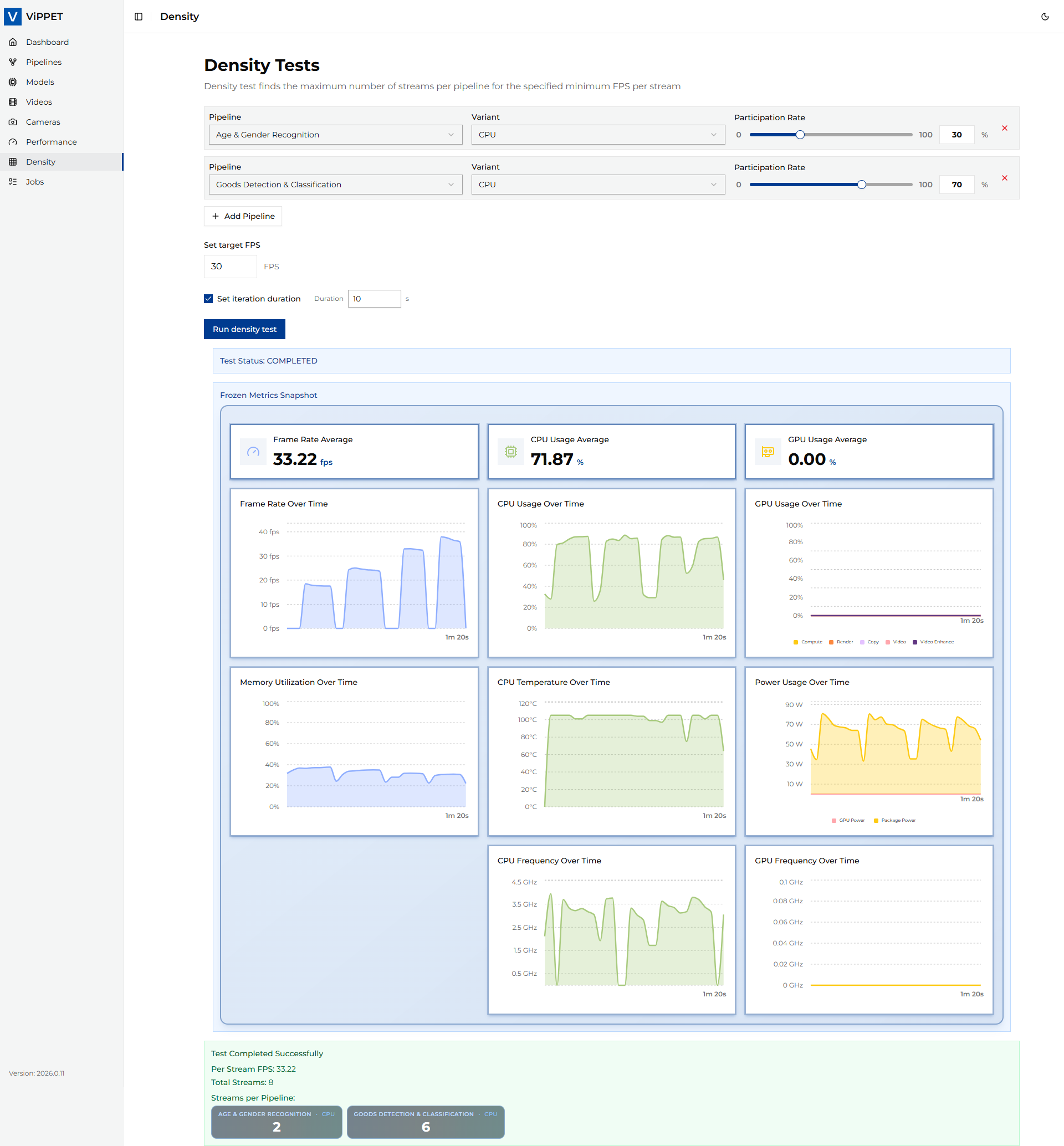
When the job completes, ViPPET reports the best configuration that met the FPS floor:
Result |
Description |
|---|---|
Per Stream FPS |
Achieved FPS per stream in the best configuration (≥ fps_floor) |
Total Streams |
Maximum number of concurrent streams that sustained the required FPS |
Streams per Pipeline |
Distribution of streams across pipelines (see note below) |
Output videos |
Paths to output files from the best iteration (if output mode was |
Latency (avg / min / max) |
End-to-end pipeline latency in milliseconds, reported when latency metrics are enabled |
Streams per Pipeline interpretation:
Classic mode — values follow the per-pipeline
stream_rateratios.Mixed mode — the fixed pipeline keeps its
streamsvalue; the other pipeline shows the highest stream count that still metfps_floor.
Comparing results across platforms#
Use density results to compare hardware capabilities:
Higher total streams at the same FPS floor indicates better density — the platform can handle more workloads.
Per-stream FPS should stay at or above the configured floor.
For stable comparison between platforms, keep the same FPS floor, input video, and pipeline configuration.
Compare results across devices (CPU vs GPU vs NPU) using the same test profile.
When comparing mixed mode results, keep the fixed pipeline’s
streamsvalue identical across platforms — otherwise you are measuring a different workload.
Example: reading density results#
Classic mode. If you set fps_floor = 30 and the test reports total_streams = 12 with
per_stream_fps = 31.5:
The platform can run 12 concurrent streams of this pipeline while maintaining at least 30 FPS per stream.
At 13 streams, per-stream FPS dropped below 30, so the algorithm reported 12 as the maximum.
The actual measured FPS (31.5) slightly exceeds the floor — this is the result from the best-passing iteration.
Mixed mode. If you pin pipeline A to streams = 4, leave pipeline B for incrementing,
set fps_floor = 30, and the test reports total_streams = 7 with per_stream_fps = 30.8
and per-pipeline counts [A: 4, B: 3]:
Pipeline A always ran with 4 streams (the pinned value).
The platform could additionally sustain 3 streams of pipeline B while keeping every stream at or above 30 FPS.
At 4 streams of pipeline B (so 8 streams in total) the per-stream FPS dropped below 30, so the algorithm reported 3 as the maximum for pipeline B.