Get Started with Scenescape#
Time to Complete: 30-45 minutes
Get Started#
Prerequisites#
Verify you meet the System Requirements.
Install Prerequisites such as Docker and other required software.
Step 1: Get Scenescape#
Note that these operations must be executed when logged in as a standard (non-root) user. Do NOT use root or sudo.
Download the Scenescape software archive from open-edge-platform/scenescape.
Extract the Scenescape archive on the target Ubuntu system. Change directories to the extracted Scenescape folder.
cd scenescape-<version>
Clone the repository and change directories to the cloned repository:
git clone https://github.com/open-edge-platform/scenescape.git -b main
cd scenescape/
Note: The default branch is main. To work with a stable release version, list the available tags and checkout a specific version tag:
git tag
git checkout <tag-version>
Step 2: Build Scenescape container images#
Build container images:
make
The build may take around 15 minutes depending on target machine. This step generates common base docker image and docker images for all microservices.
By default, a parallel build is being run with the number of jobs equal to the number of processors in the system.
Optionally, the number of jobs can be adjusted by setting the JOBS variable, e.g. to achieve sequential building:
make JOBS=1
(Optional): Build dependency list of Scenescape container images#
make list-dependencies
This step generates dependency lists. Two separate files are created for system packages and Python packages per each microservice image.
Step 3: Deploy Scenescape demo to the target system#
Before deploying the demo of Scenescape for the first time, please set the environment variable SUPASS with the super user password for logging into Scenescape. Important: This should be different than the password for your system user.
export SUPASS=<password>
make demo
Step 4: Verify a successful deployment#
If you are running remotely, connect using https://<ip_address> or https://<hostname>, using the correct IP address or hostname of the remote Scenescape system. If accessing on a local system use https://localhost. If you see a certificate warning, click the prompts to continue to the site. For example, in Chrome click “Advanced” and then “Proceed to <ip_address> (unsafe)”.
Note: These certificate warnings are expected due to the use of a self-signed certificate for initial deployment purposes. This certificate is generated at deploy time and is unique to the instance.
Logging In#
Enter “admin” for the user name and the value you typed earlier for SUPASS.
Docker Compose Profiles#
Scenescape uses Docker Compose profiles to organize services into logical groups. When starting or stopping services, you must specify the same profile(s) used during deployment.
The following profiles are available:
Profile |
Description |
|---|---|
|
Scene Controller in default mode (analytics + tracking). Used by |
|
Scene Controller in analytics-only mode (without tracking). |
|
Enables mapping and cluster-analytics services. |
|
Enables mapping service only. |
|
Enables cluster-analytics service only. |
|
Enables the VDMS visual database service (used for re-identification). |
|
Enables the tracker service. |
Profiles can be specified on the command line with --profile:
docker compose --profile controller up -d
Multiple profiles can be combined:
docker compose --profile controller --profile experimental up -d
Alternatively, profiles can be set via the COMPOSE_PROFILES environment variable:
export COMPOSE_PROFILES=controller
docker compose up -d
For multiple profiles, use a comma-separated list:
export COMPOSE_PROFILES=controller,experimental
docker compose up -d
For more details, see the Docker Compose profiles documentation and the COMPOSE_PROFILES environment variable reference.
Note: The
--profileflags used withdocker compose downmust match those used when starting the services. Otherwise, containers started under a specific profile will remain running.
Stopping the System#
To stop the containers, use the following command in the project directory (see Docker Compose Profiles for details on choosing profiles):
docker compose --profile controller down --remove-orphans
Starting the System#
To start after the first time, use the following command in the project directory:
docker compose --profile controller up -d
Summary#
Scenescape was downloaded, built and deployed onto a fresh Ubuntu system. Using the web user interface, Scenescape provides two scenes by default that can be explored running from stored video data.
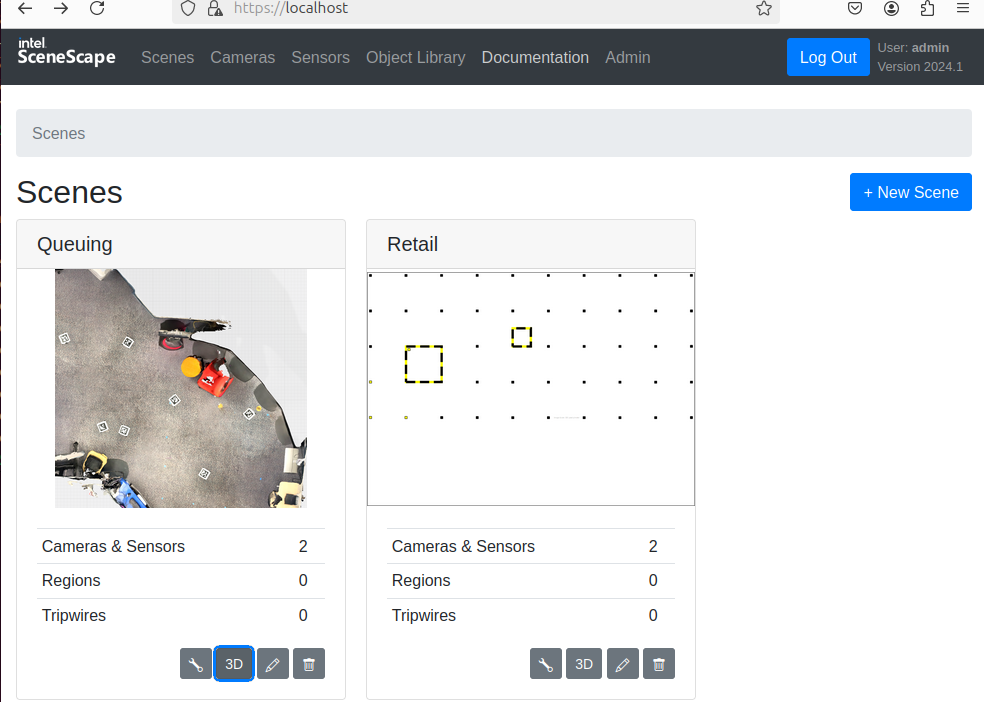
Note: The “Documentation” menu option allows you to view Scenescape HTML version of the documentation in the browser.
Next Steps#
Check the How-to Guides for step-by-step instructions on how to perform specific tasks in Scenescape.
Explore other topics#
How to Define Object Properties: Step-by-step guide for configuring the properties of an object class.
How to enable reidentification: Step-by-step guide to enable reidentification.
Geti AI model integration: Step-by-step guide for integrating a Geti trained AI model with Scenescape.
Running License Plate Recognition with 3D Object Detection: Step-by-step guide for running license plate recognition with 3D object detection.
How to Configure DL Streamer Video Pipeline: Step-by-step guide for configuring DL Streamer video pipeline.
Model configuration file format: Model configuration file overview.
How to Manage Files in Volumes: Step-by-step guide for managing files in Docker and Kubernetes volumes.
Additional Resources#
How to upgrade Scenescape: Step-by-step guide for upgrading from an older version of Scenescape.
How Scenescape converts Pixel-Based Bounding Boxes to Normalized Image Space
Hardening Guide for Custom TLS: Optimizing security posture for a Scenescape installation.