Use Scenescape 3D UI for Camera Calibration#
This guide provides step-by-step instructions to use the Scenescape 3D UI to manage and calibrate cameras in a 3D scene. By completing this guide, you will:
Navigate the 3D UI.
Add, modify, or delete cameras.
Calibrate cameras interactively within a 3D scene.
This task is important for developers or customers using Scenescape to visually manage and align camera data with 3D environments. If you’re new to Scenescape, see the Scenescape README.
Prerequisites#
Before you begin:
Scenescape Installed: Scenescape must be installed and accessible via your browser.
3D Scene Loaded: A glTF/GLB file should be uploaded and attached to a scene.
Permissions: Ensure you have permissions to create or modify camera data.
Steps to Use the 3D UI#
Step 1: Launch the 3D UI#
Log in to Scenescape.
On the homepage, identify a scene and click its
3Dbutton.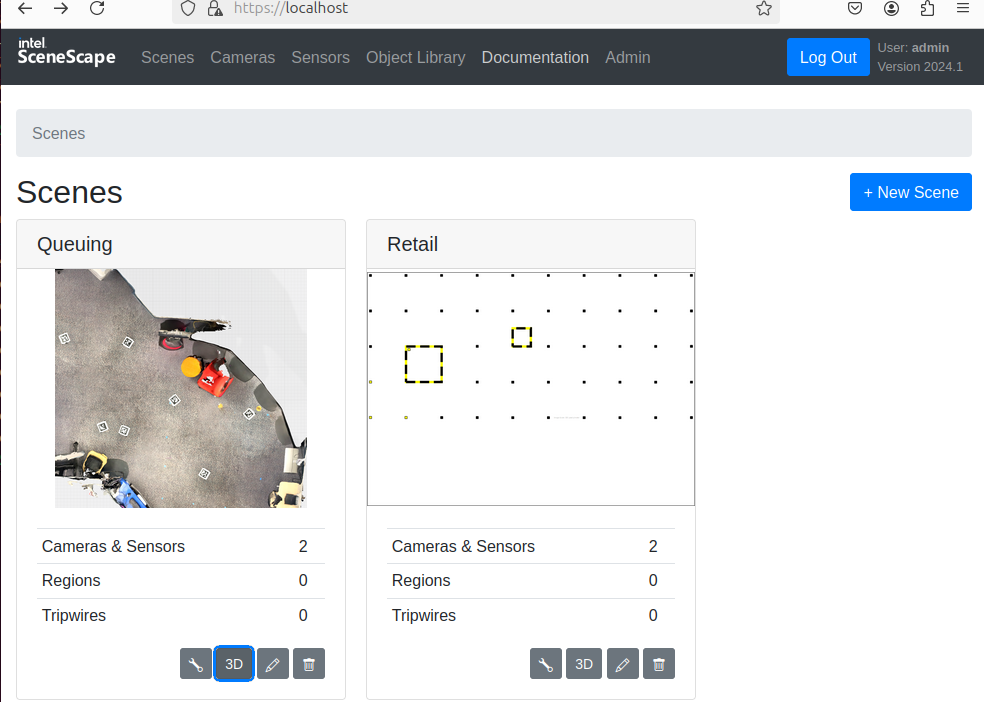
You will be directed to the 3D UI view.
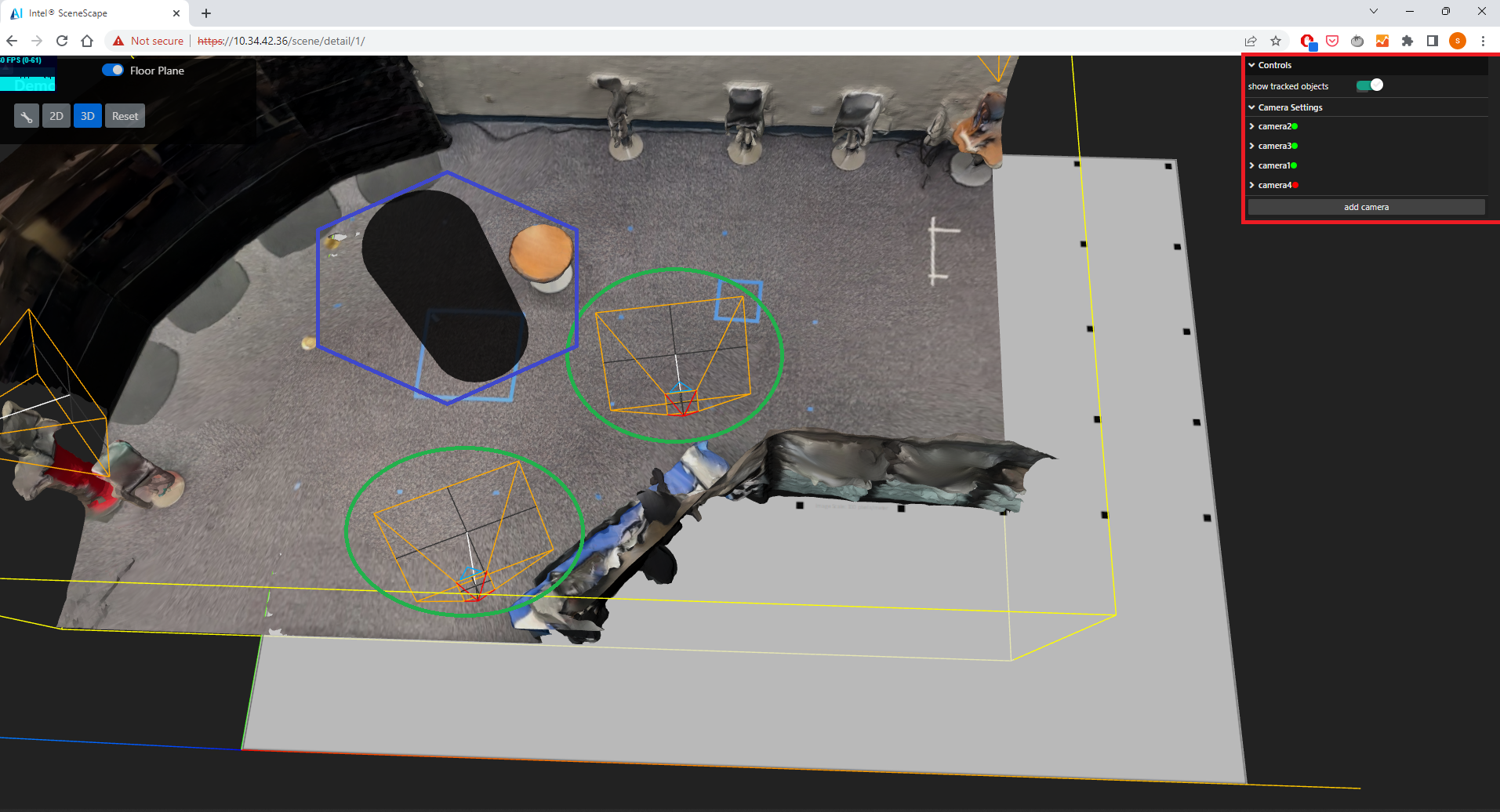
Expected Results:
Scene loads with camera icons, tracked objects, and a glTF/GLB background.
Step 2: Add or Modify a Camera#
Click on
Add Camerato place a new camera.Select a camera by clicking its icon in the scene.
Use transform tools to rotate or move the camera.
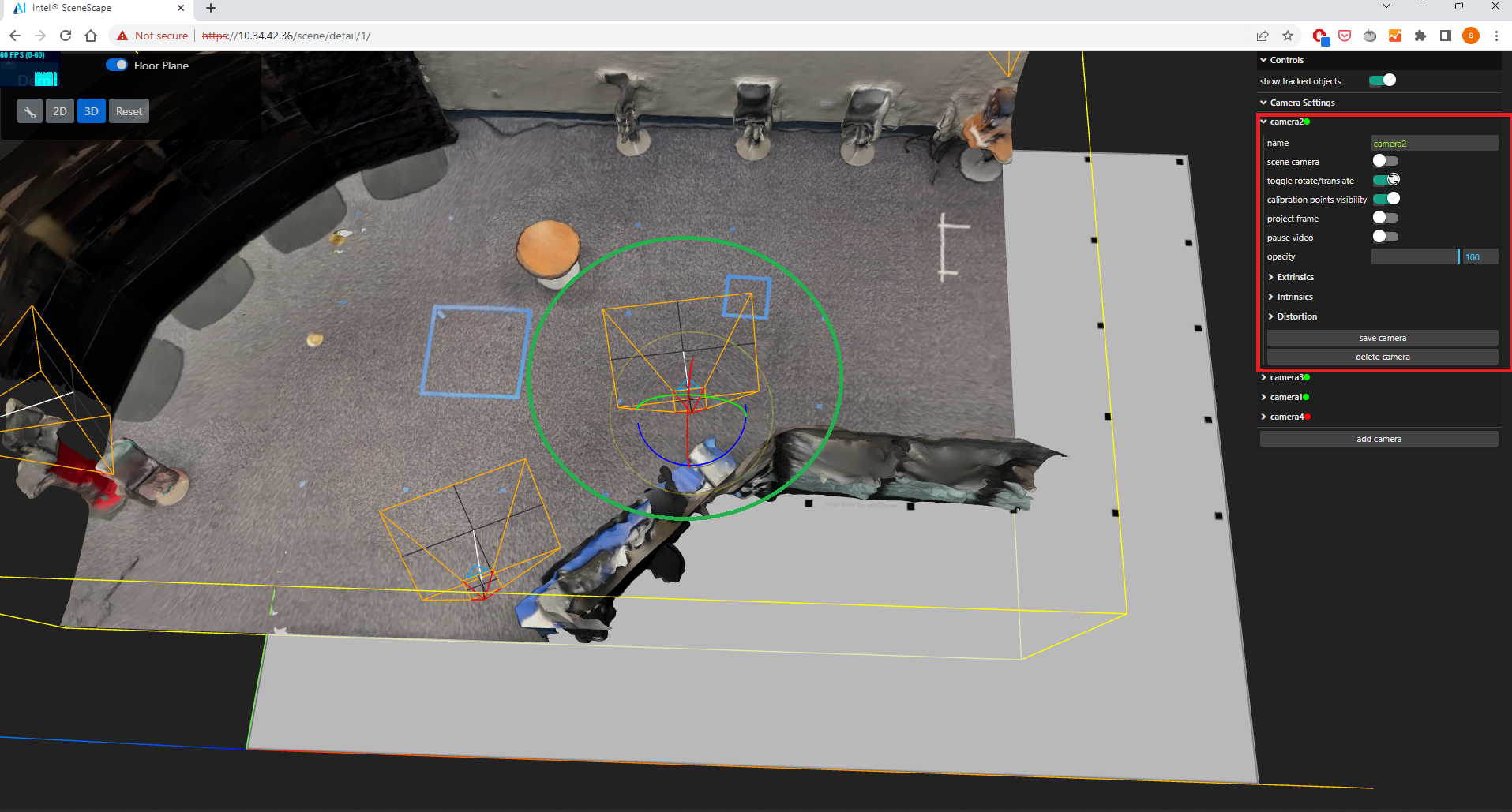 Camera Settings (all cameras):
project all sensors: Turn projections on or off for every camera and LiDAR/radar sensor at once.
all cameras opacity: Set projection transparency for every camera at once (default 80%).
Camera Control Panel Options:
name: Assign a custom name.
show sensor: Toggle visibility of the camera or LiDAR frustum/mesh in the 3D scene.
scene camera: Set view to this camera’s perspective (cameras only; not shown for LiDAR/radar).
toggle rotate/translate: Switch between rotation and translation tools.
project frame: Display camera frame projected into the 3D scene.
pause video: Pause live camera feed.
opacity: Adjust projection transparency (default 80%).
extrinsics/intrinsics/distortion: Configure camera settings.
save camera: Persist the current camera configuration.
delete camera: Remove selected camera.
Step 3: Calibrate the Camera#
Ensure camera is facing the scene for proper projection.
Enable
project frame.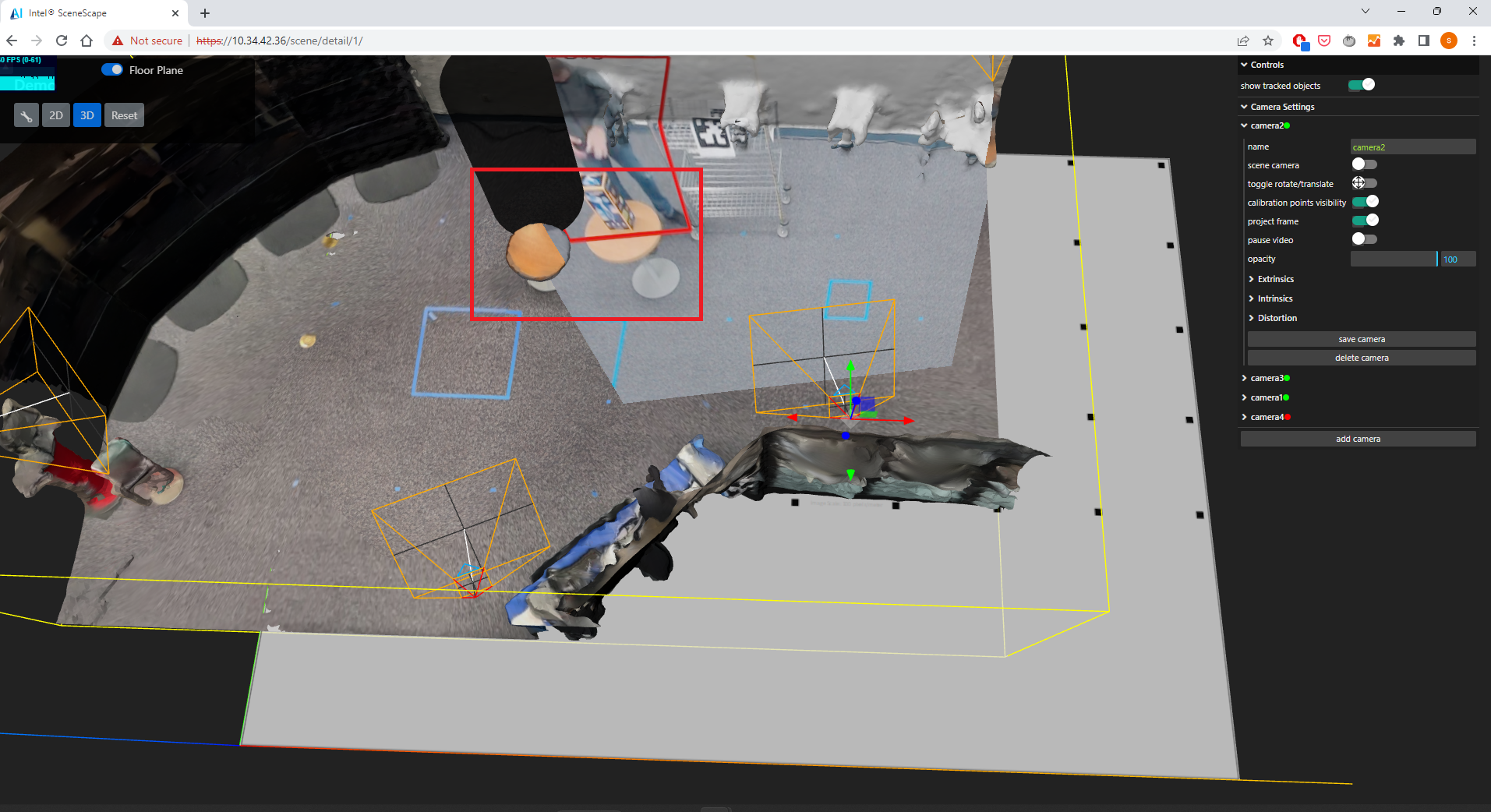
Double-click on the projected image area to create a calibration point. Repeat until four points are added.
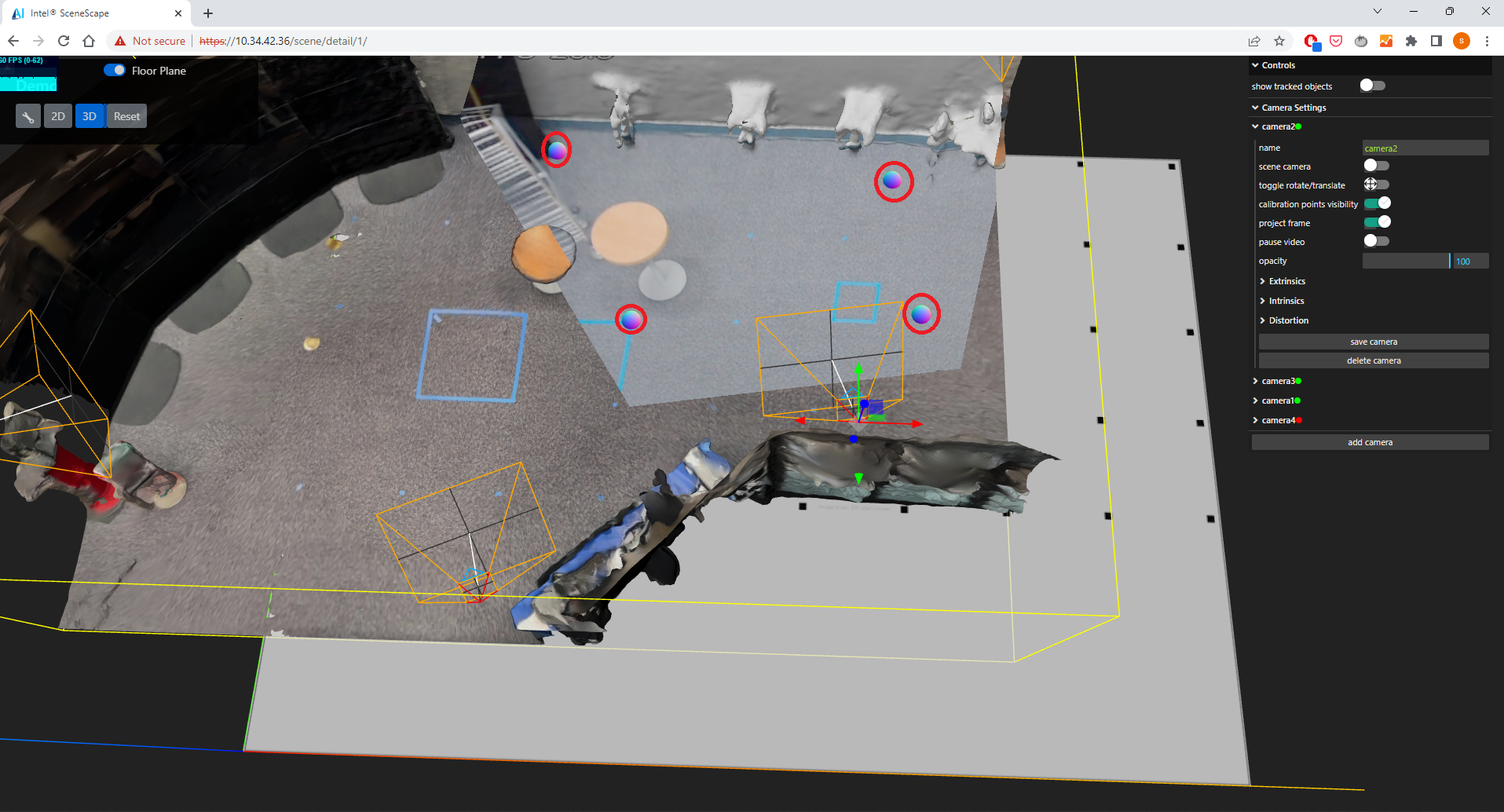
Drag the calibration spheres to align the projection with the 3D scene.
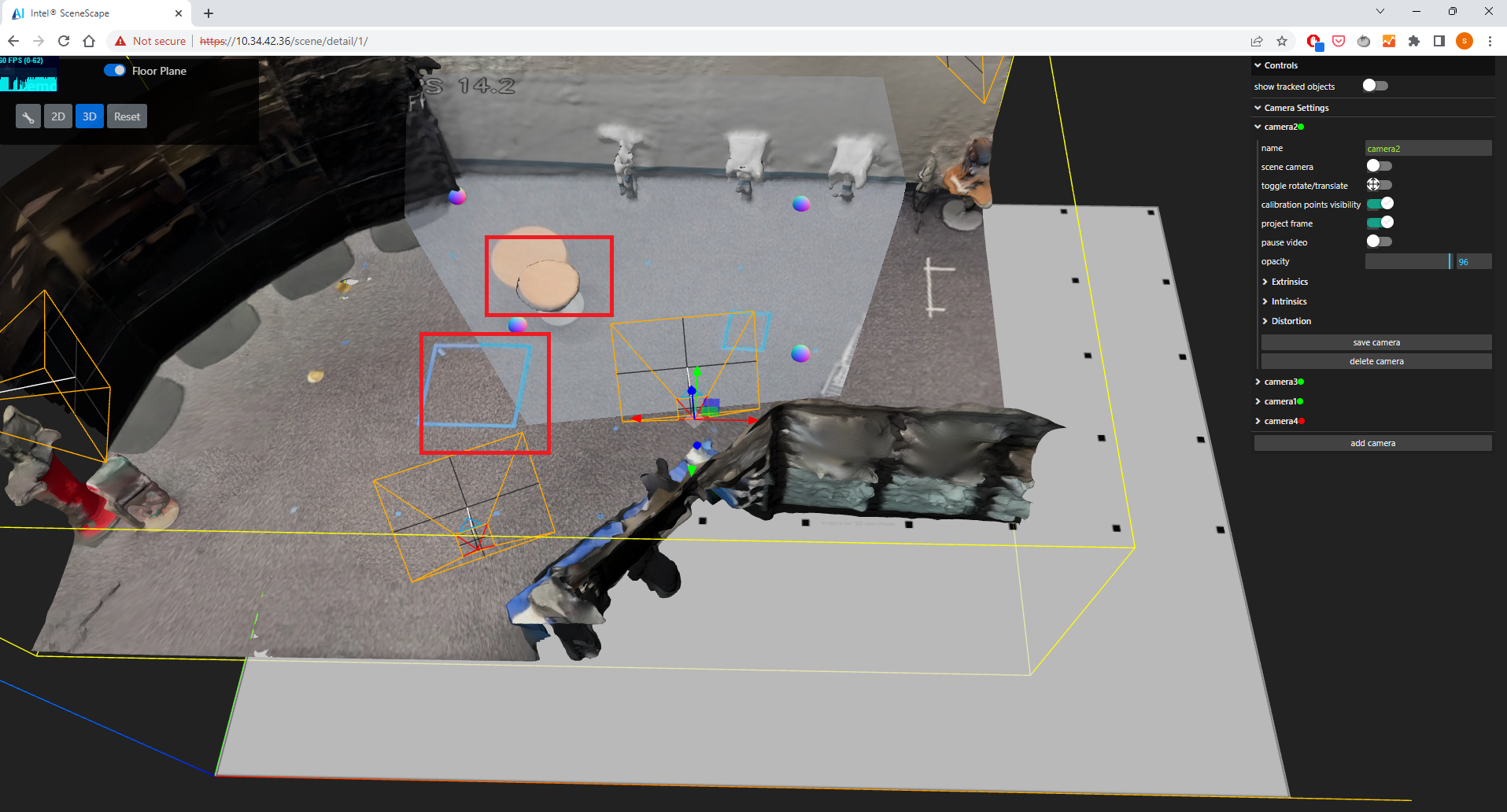
Click save to persist the calibration.
Tips:
Choose distinct, identifiable image features.
Space calibration points apart for better accuracy.
Configuration Options#
Parameter |
Purpose |
Expected Values |
|---|---|---|
camera_name |
Custom label for the camera |
String |
extrinsics |
Camera position and orientation |
Matrix or 3D transform values |
intrinsics |
Lens configuration |
fx, fy, cx, cy, etc. |
distortion |
Lens distortion coefficients |
k1, k2, p1, p2, etc. |
opacity |
Transparency of projected image |
0.0 (transparent) to 1.0 (solid); default 0.8 |
project all sensors |
Toggle projections for all cameras and LiDAR/radar sensors |
On / Off |
all cameras opacity |
Set projection opacity for all cameras |
0–100 (percent); default 80 |
project point cloud |
Show live sensor point cloud in the 3D scene |
On / Off (requires a publisher that answers |
point size |
Rendered size of each cloud point |
metres (default 0.12) |
point cloud opacity |
Transparency of the point cloud |
0–100 (percent); default 85 |
Troubleshooting#
Issue: If you use 3D UI Camera Calibration, the 8-points in 2D UI Camera Calibration will no longer be consistent with the current pose.
Issue: A point-correspondence camera appears far above or below the scene.
Check the saved point matches, lens intrinsics, and distortion coefficients. The shared pose solver rejects outliers with RANSAC and initializes iterative refinement from that estimated pose. This preserves the useful starting solution when removing a point makes the remaining geometry poorly conditioned. It applies to both manual and AprilTag-generated point matches. Inspect reprojection error and the physical camera location before saving; a finite pose alone does not establish a correct calibration. The 2D calibration page uses a separate fitting endpoint. With all lens parameters locked (including locks imposed by the point count), it uses SQPNP to initialize a pose-only iterative reprojection refinement rather than recalibrating the lens with
calibrateCamera, avoiding its unstable pose initialization. A low fit RMS with no visible projection can also indicate a preview handoff error: the 2D page must convert the fitted translation from scaled map coordinates to viewport metres and retain that fit across video frames. When the image resolution changes, the updated principal point is retained for Save even after the preview fit completes.