Stream Frames over WebRTC#
DL Streamer Pipeline Server supports streaming the frames over WebRTC protocol using a MediaMTX media server.
There is a dedicated docker compose file for demonstrating WebRTC streaming for DL Streamer Pipeline Server. It is available in DL Streamer Pipeline Server’s github repository, under the “docker” folder, i.e., [WORKDIR]/edge-ai-libraries/microservices/dlstreamer-pipeline-server/docker/docker-compose-mediamtx.yml
Once a pipeline is started, DL Streamer Pipeline Server sends a stream of images through WebRTC protocol to WebRTC browser client. This is done via the MediaMTX server used for signaling.
Note
As an optional recommendation, Coturn server can be used to facilitate NAT traversal and ensure that the WebRTC stream is accessible on a non-native browser client and helps in cases where firewall is enabled. See example usage of Coturn server in WebRTC streaming here
Below is the necessary configuration to be aware of (or modify accordingly based on your deployment) in [WORKDIR]/edge-ai-libraries/microservices/dlstreamer-pipeline-server/docker/.env (They will be consumed appropriately in [WORKDIR]/edge-ai-libraries/microservices/dlstreamer-pipeline-server/docker/docker-compose-mediamtx.yml):
WHIP_SERVER_IP=<HOST_IP> # It should be the IP address of the machine on which an open MediaMTX container is running.
WHIP_SERVER_PORT=8889 # It is the port which is configured for the MediaMTX server. Default port is 8889.
To run it on GPU/NPU you must first grant the container user access to GPU/NPU device(s).Because Docker Compose does not evaluate shell expressions, you need to determine the render group ID on the host system and define/export it as an environment variable before running Docker Compose. You can add group ID in [WORKDIR]/edge-ai-libraries/microservices/dlstreamer-pipeline-server/docker/.env or export it using below command:
export RENDER_GID=$(stat -c "%g" /dev/dri/render* | head -1)
After setting all the above information, we can start the WebRTC streaming:
Start the services:
docker compose -f docker-compose-mediamtx.yml up
Open another terminal and start a pipeline in DL Streamer Pipeline Server with the below curl command:
    curl http://localhost:8080/pipelines/user_defined_pipelines/pallet_defect_detection -X POST -H 'Content-Type: application/json' -d '{
    "source": {
        "uri": "file:///home/pipeline-server/resources/videos/warehouse.avi",
        "type": "uri"
    },
    "destination": {
        "metadata": {
            "type": "file",
            "path": "/tmp/results.jsonl",
            "format": "json-lines"
        },
        "frame": {
            "type": "webrtc",
            "peer-id": "pallet-defect-detection"
        }
    },
    "parameters": {
        "detection-properties": {
            "model": "/home/pipeline-server/resources/models/geti/pallet_defect_detection/deployment/Detection/model/model.xml",
            "device": "CPU"
        }
    }
}'
Open
http://<HOST_IP>:8889/<peer-id>in your browser to view the WebRTC stream: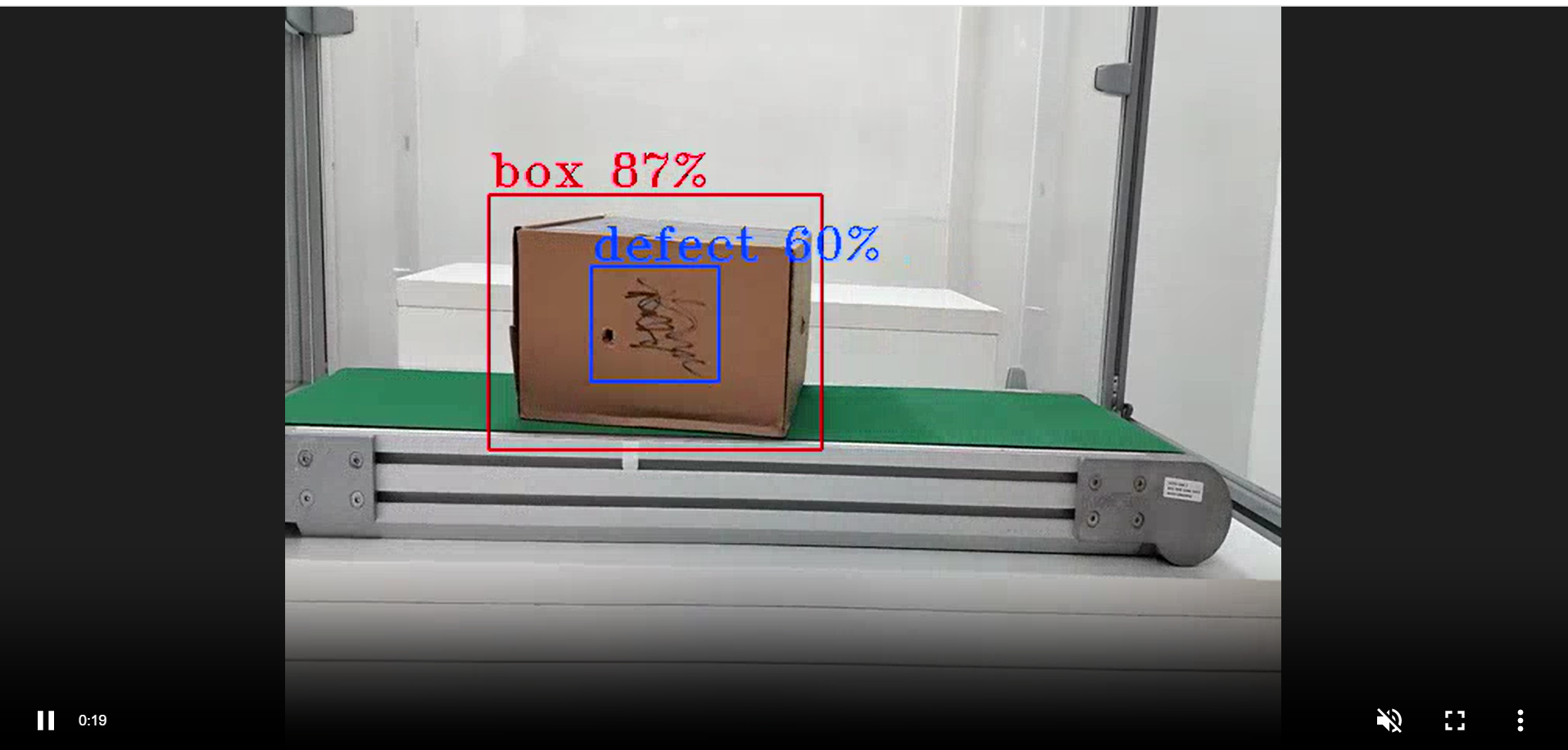
Note
You can control WebRTC frame overlays using overlay and overlay-properties in destination.frame.
If
"overlay": true,gvawatermarkis applied.If
"overlay": false,gvawatermarkis not applied andoverlay-propertiesis ignored.If your pipeline in config.json already contains custom
gvawatermarksettings, use"overlay": falseto avoid applying watermark twice.
Example Webrtc frame destination with overlay-properties:
"frame": {
    "type": "webrtc",
    "peer-id": "pallet-defect-detection",
    "overlay": true,
    "overlay-properties": {
        "font-scale": 1.5,
        "draw-txt-bg": false,
        "thickness": 3
    }
}
Note
If you are using 4K or high resolution video make sure to increase the bitrate to
avoid choppy video streaming. You can set the bitrate by adding "bitrate" : 5000 with the
WebRTC configurations in your Curl command.
  "frame": {
                  "type": "webrtc",
                  "peer-id": "pallet-defect-detection",
                  "bitrate": 5000
              }
Note
MediaMTX may fail to stream if the pipeline initialization takes longer than 10
seconds. To resolve this, you can increase the WHIP_SERVER_TIMEOUT value in the
[WORKDIR]/edge-ai-libraries/microservices/dlstreamer-pipeline-server/docker/.env file.