Install Guide Windows#
This page describes steps required to install Deep Learning Streamer Pipeline Framework on Windows.
For building Deep Learning Streamer Pipeline Framework from source code, follow the advanced installation guide.
Prerequisites#
Windows 11 x64 or later
Download and update GPU and NPU drivers from Intel® Driver & Support Assistant
Step 1: Download the Installer#
Go to DL Streamer releases page on GitHub.
Navigate to the Assets section and download the installer package named dlstreamer-<version>-win64.exe.
Step 2: Run the Installer#
Run the dlstreamer-<version>-win64.exe file and follow the on-screen instructions.
The installer also supports silent installation via command line, follow the instructions in the advanced installation guide for details.
License Agreement#
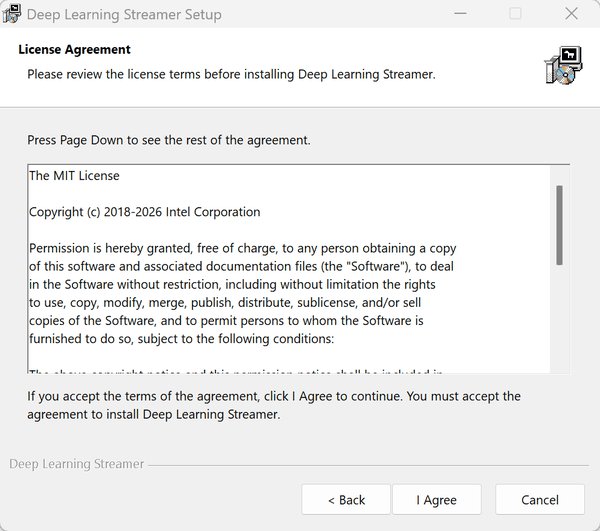
DL Streamer is licensed under the MIT License. Accept the license agreement and proceed with the installation.
Choose Install Location#
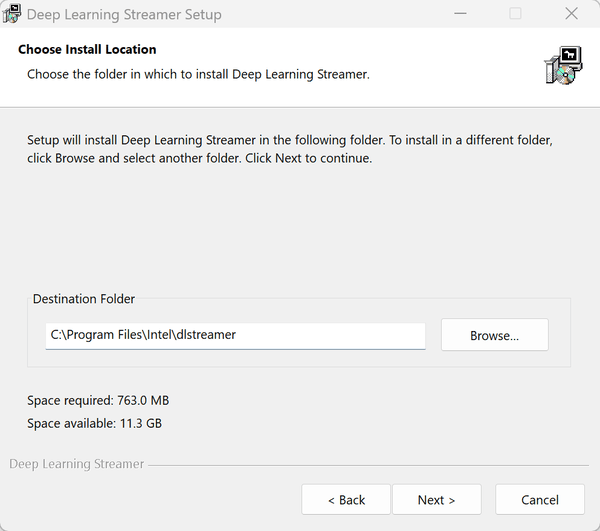
The default installation folder is %ProgramFiles%\Intel\dlstreamer,
you can choose a different location.
Choose Components#
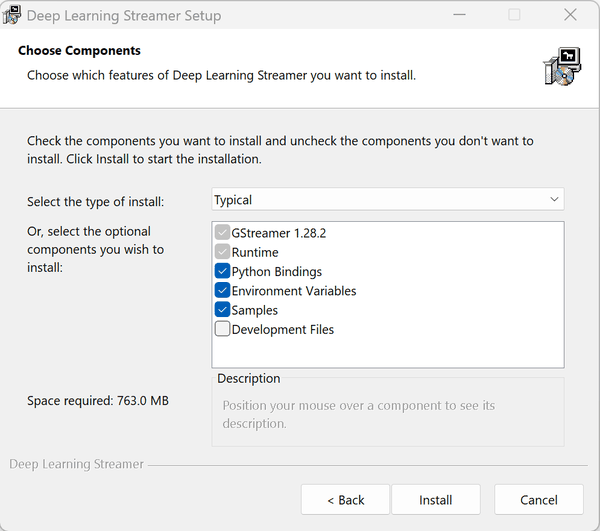
The installer provides the following components:
Component |
Description |
|---|---|
GStreamer |
GStreamer multimedia framework (system-wide installation). |
Runtime |
DL Streamer runtime libraries and plugins. |
Python Bindings |
Python binding library and files. |
Environment Variables |
Set up |
Samples |
Sample applications and scripts. |
Development Files |
Header files and import libraries for building C++ applications with DL Streamer. |
Three installation types are available: Typical (default): All default components; Full: All components including Development Files; Minimal: Only required components.
Note: Incompatible GStreamer installations (MinGW or 32-bit variants) must be uninstalled before proceeding.
Installation Process#
Click “Install” to start the installation process. The installer will copy files, set environment variables, and perform necessary configurations.
The installer configures the following for the current user if selected (values shown for default install path):
Variable |
Value |
|---|---|
|
|
|
|
Added to |
|
Added to |
|
Alternatively, use the PowerShell script to set up the environment variables for the current session.
.\scripts\setup_dls_env.ps1
[Optional] Step 3: Setup Python Environment#
DL Streamer Python bindings (gstgva) support Python 3.9 and above.
The gvapython GStreamer element used with gst-launch-1.0 requires Python 3.12.
Download and install Python from the official website.
Make sure to select the option to add Python to PATH during installation.
Install Python Dependencies#
cd $env:DLSTREAMER_DIR
python -m pip install -r requirements.txt
Run the Python environment setup script#
cd $env:DLSTREAMER_DIR
.\scripts\setup_python_env.ps1
The script will auto-configure the current PowerShell session by setting:
PYTHONPATHto include<gstreamer_python>\Lib\site-packagesand thegstgvadirectory.PYGI_DLL_DIRSto the GStreamerbinfolder ($env:GSTREAMER_1_0_ROOT_MSVC_X86_64\bin).GI_TYPELIB_PATHto the DL Streamer typelib directory (lib\girepository-1.0).
The environment changes apply to the current session only. Re-run the script for new sessions.
Next Steps#
You are ready to use Deep Learning Streamer. For further instructions to run sample pipeline(s), please go to the tutorial. There is need to manually download models.
* Other names and brands may be claimed as the property of others.