Use Scenescape 2D UI for Manual Camera Calibration#
This guide provides step-by-step instructions to manually calibrate cameras in Scenescape using the 2D UI. By completing this guide, you will:
Configure camera intrinsic parameters using
docker-compose.yml.Use 2D UI tools to align views with map data.
Understand advanced calibration options such as focal length estimation.
This task is essential for accurate spatial positioning and analytics in Scenescape. If you’re new to Scenescape, see Scenescape README.
Prerequisites#
Before You Begin, ensure the following:
Scenescape Deployment: Deploy Scenescape using one of the deployment guides.
Access and Permissions: Ensure you have appropriate access to edit configuration files or interact with the UI.
Steps to Manually Calibrate Cameras#
1. Calibrate Using 2D User Interface#
Log in to Scenescape.
You will be presented with a Scenes page. Click on a scene.
Once a scene clicked, click on a camera to calibrate.
You will see 2 view ports, a camera view port and map view port. Both view ports will have at least four matched point sets.
Notes:
Both views support panning by clicking and dragging the mouse and zooming by scrolling the mouse wheel.
To add a point to a view, double click on a valid location in the view.
To remove a point, right click on the point.
To move a point, click and drag the point to the desired location.
Adjust the points to refine the camera’s alignment with the scene.
Click Save Camera to persist the calibration.
Use Reset Points to clear all points (if needed).
Notes:
To add new points after clicking reset, refer to the instructions in step 4 above.
You must reset points if the scene map, translation, or rotation changes.
Expected Result: The projection aligns with the scene based on user-defined calibration.
2. Use Advanced Calibration Features#
When six or more point pairs exist:
Uncheck the lock value boxes next to
Intrinsics fxandIntrinsics fyto unlock focal length estimation.Once the values are unlocked, the focal length will be estimated when adding and dragging calibration points.
To set values manually, enter them directly and re-check lock value boxes to prevent overwriting.
Expected Result: Accurate focal length estimates update in the UI.
When eight or more point pairs exist:
Uncheck the lock value boxes next to the distortion coefficients you want to estimate (
K1,K2,P1,P2,K3). You may also unlockIntrinsics fxandIntrinsics fyto estimate focal length.Add or drag calibration points to update the unlocked estimates, then click Save Camera to persist them. Locked coefficients retain their existing values.
To enter a coefficient manually, unlock its field, type the value, and save before moving the calibration points again (which would recalculate unlocked fields).
Expected Result: Unlocked coefficients update in the UI and are saved with the camera.
The fit status reports how many point pairs were used, the fit RMS reprojection error, and each pair’s final reprojection error in pixels. A high-contrast ✕ mark (with a white/black ring) flags pairs rejected by RANSAC using a reprojection threshold scaled by the scene map resolution (pixels per meter; 10 px at 100 px/m, tighter when the map is coarser and looser when it is finer); a white ring alone (dashed in the camera view) marks pairs that remain in the fit but have a final residual above that threshold. Point fill colors stay as their identity colors so diagnostics stay readable on red or orange points. Rejected pairs are excluded from the preview pose and are not saved with the camera. If RANSAC cannot find at least four usable pairs, all pairs are used in the fit and the status says so; pairs RANSAC still flagged retain the high-contrast ✕ and ring for review. When map or camera points are too concentrated (a thin line on a 2D map, lacking depth on a 3D map, or covering too little of the image), a separate warning block shows concrete layout steps: drag map points into a wide triangle or rectangle, spread camera points toward the corners and edges, and include near and far scene pairs. Fit/RANSAC summary and per-point reprojection details stay in their own block. Low RMS on a small cluster can still misalign the rest of the view and produce poor distortion estimates. Reprojection error is a review aid, not a guarantee of calibration accuracy.
Note: A single view with eight points may not constrain all five distortion coefficients reliably. Spread points across the image and unlock only the parameters the data can support. Saved distortion is used for camera pose and scene projections; it does not automatically undistort the video stream in Docker deployments.
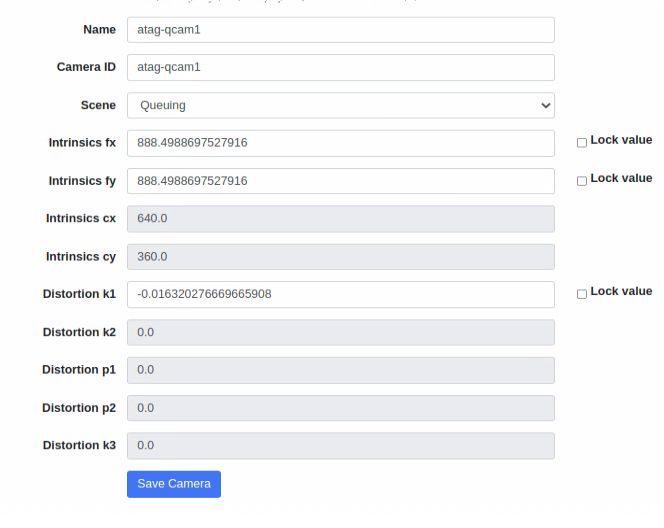
Figure 1: Computed Camera Intrinsics
3. Calibration Best Practices#
When calibrating cameras in Scenescape, follow these best practices for optimal results:
Distribute Points Evenly: Place calibration points across the entire field of view, not just in one area.
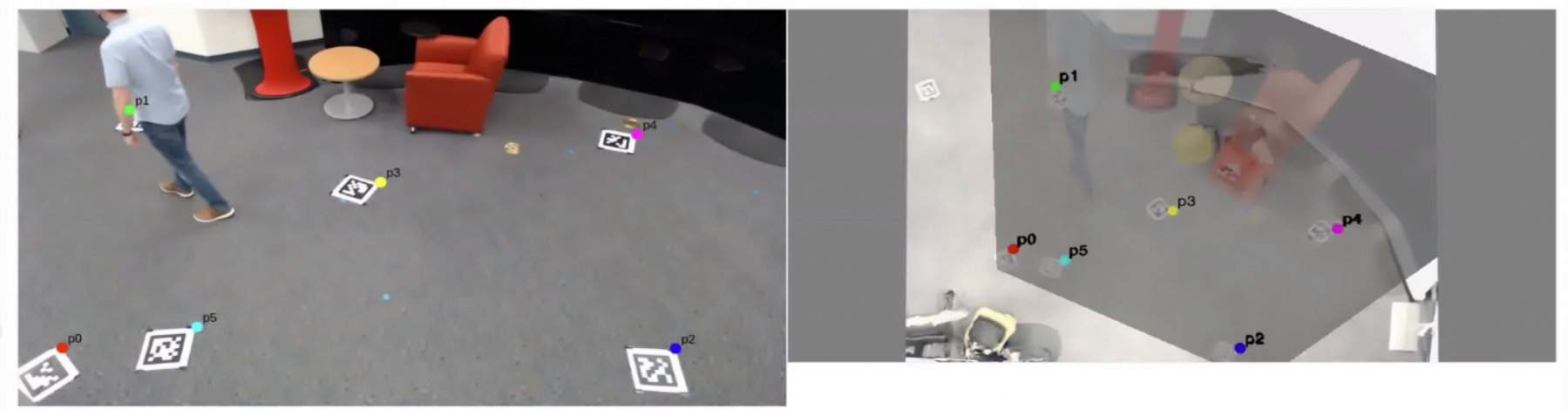
Figure 2: Evenly Distributed Calibration Points
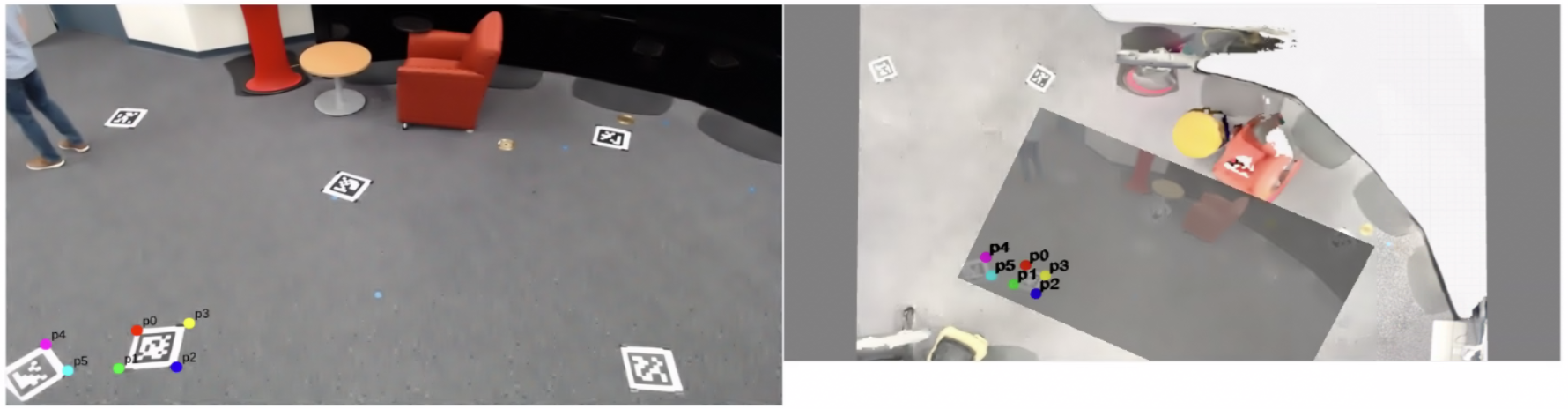
Figure 3: Poorly Distributed Calibration Points
Avoid Collinear Points: Avoid having any 3 points being collinear, as it creates an under-constrained problem and lead to inaccurate calibration results.
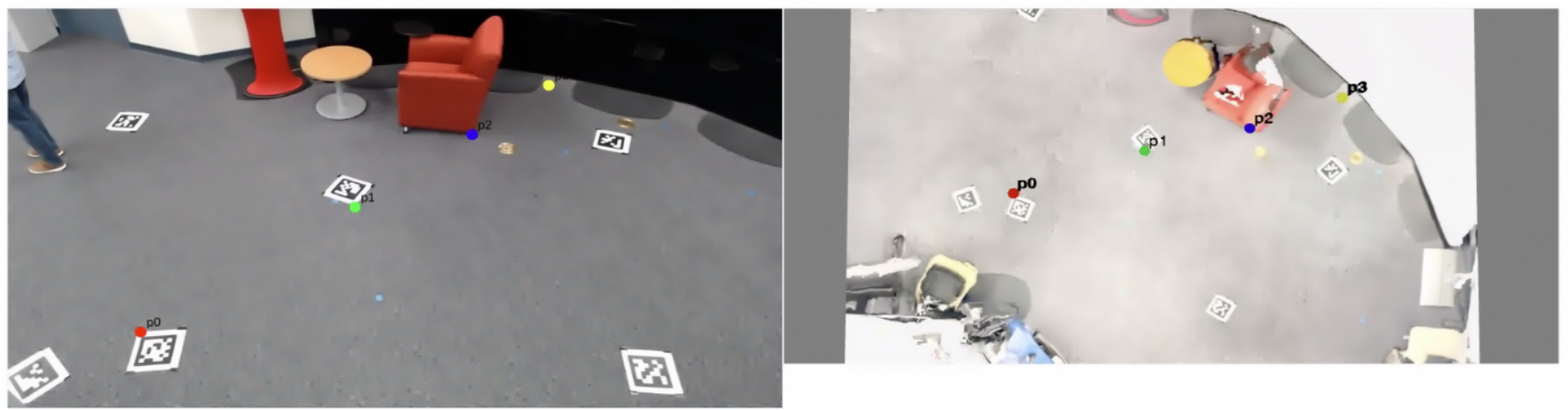
Figure 4: Collinear Calibration Points
Aim for 8+ Point Pairs: More point pairs generally produce better calibration results.
Re-calibrate After Camera Movement: Any physical camera adjustments require recalibration.
For challenging scenes, consider using physical calibration targets in the environment before capturing footage.