OpenVINO™ Tutorial on Multi-camera Object Detection using RealSense™ Depth Camera D457 and D3CMCXXX-115-084 Camera#
In this tutorial, the multi-camera use case is demonstrated using an Axiomtek Robox500 ROS 2 AMR Controller and four RealSense™ Depth Camera D457 or D3CMCXXX-115-084. Here, the four cameras are connected to the Industrial Gigabit Multimedia Serial Link™ (GMSL) supported Axiomtek Robox500 ROS 2 AMR Controller through GMSL/FAKRA (female-to-female) cables, which provide high-bandwidth video transmission.
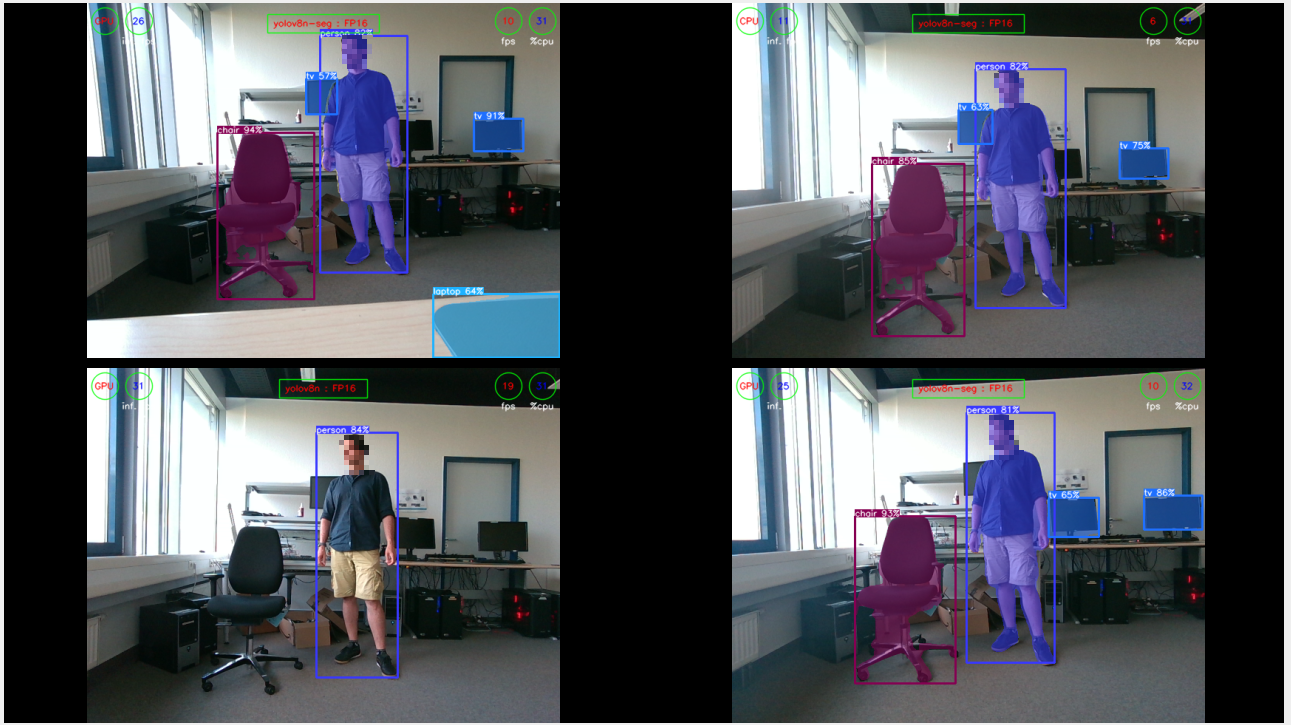
Four instances of AI-based applications for object detection and object segmentation are run in parallel using four Intel® RealSense™ camera streams. Further in this tutorial, the Ultralytics YOLOv8 object detection model is downloaded and used for object detection and object segmentation. The tutorial can be run on an Axiomtek Robox500 ROS 2 AMR Controller consisting of either a 12th Gen Intel® Core™ i7-1270PE processor or a 13th Gen Intel® Core™ i7-1370PE processor, both with 28W TDP and an Intel® Iris® Xe Integrated Graphics Processing Unit.
The setup looks like as described in the table below.
Intel® RealSense™ Depth Camera D457 Multi-camera Object detection setup
Camera |
AI model |
AI Workload |
Device |
|---|---|---|---|
Camera-1 |
YOLOv8n-seg:FP16 |
Object detection & segmentation |
GPU |
Camera-2 |
YOLOv8n-seg:FP16 |
Object detection & segmentation |
CPU |
Camera-3 |
YOLOv8n:FP16 |
Object detection |
GPU |
Camera-4 |
YOLOv8n-seg:FP16 |
Object detection & segmentation |
GPU |
The following steps are required in order to run the MultiCam Demo AMR Controller to support four Intel® RealSense™ Depth Camera D457, and D3CMCXXX-115-084
Source Code#
The source code of this component can be found here: Multicamera-Demo.
Prerequisites#
Complete the get started guide before continuing.
Complete the GMSL setup guide before continuing.
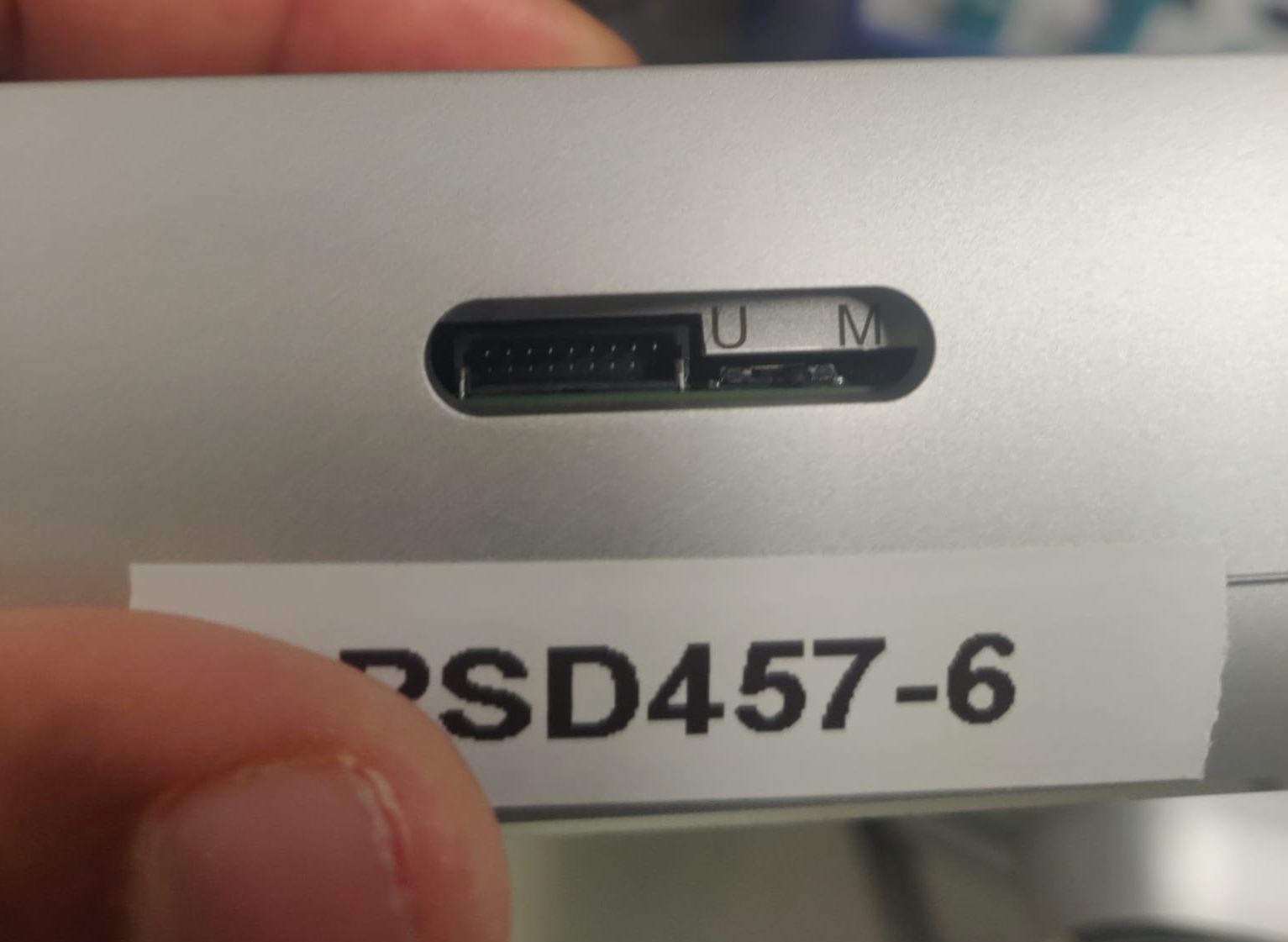
Note: If using D457 select the “MIPI” mode of the Intel® RealSense™ Depth Camera D457 by moving the select switch on the camera to “M”, as shown in the picture below.
Install librealsense2 and realsense2 tools#
sudo apt install -y ros-jazzy-librealsense2-tools
sudo apt install -y ros-humble-librealsense2-tools
Install UV#
curl -LsSf https://astral.sh/uv/install.sh | sh
Source uv#
source $HOME/.local/bin/env
Load the Intel IPU Driver#
sudo modprobe intel-ipu7-isys
sudo modprobe intel-ipu6-isys
Install and run multi-camera object detection tutorial using the Intel® RealSense™ Depth Camera D457#
Install#
Install the multi-camera object detection tutorial by using the following command.
sudo apt install -y ros-jazzy-pyrealsense2-ai-demo
sudo apt install -y ros-humble-pyrealsense2-ai-demo
Setup uv venv#
cd /opt/ros/jazzy/share/pyrealsense2-ai-demo
cd /opt/ros/humble/share/pyrealsense2-ai-demo
uv sync
Once the virtual env is setup download the yolo model
source .venv/bin/activate
./scripts/generate_ai_models.sh
This will take couple minutes
Run the tutorial#
Run the below commands to start the tutorial.
cd /opt/ros/jazzy/share/pyrealsense2-ai-demo
# Source the ros2 jazzy
source /opt/ros/jazzy/setup.bash
source /opt/intel/oneapi/setvars.sh
Realsense/D457:
Note The different config files can be used to select the number of cameras from a minimum of one camera to a maximum of four cameras.
config_ros2_v4l2_rs-color-0.jsconfig file to run the tutorial with one camera
config_ros2_v4l2_rs-color-0_1.jsconfig file to run the tutorial with two cameras
config_ros2_v4l2_rs-color-0_2.jsconfig file to run the tutorial with three cameras
config_ros2_v4l2_rs-color-0_3.jsconfig file to run the tutorial with four cameras
RealSense cameras present various sensor streams in /dev. It is necessary to select which sensor stream to use with the application. In this example, we will use the single camera stream config_ros2_v4l2_rs-color-0.js configuration and update the field source: "/dev/video-rs-color-0" to select the YUYV stream from the connected RealSense camera.
rgb_video_devices=($(for dev in /dev/v4l/by-id/*; do v4l2-ctl -d "${dev}" --list-formats | grep -q 'YUYV' && readlink -f "${dev}"; done))
echo "Detected video devices: ${rgb_video_devices[@]}"
cat ./config/config_ros2_v4l2_rs-color-0.js | tail -n +5 | jq '.[0].source = "'"${rgb_video_devices[0]}"'"' > ./config/config_camera.json
# Run the pyrealsense2-ai-demo tutorial for four camera input streams
uv run src/pyrealsense2_ai_demo_launcher.py --config=config/config_camera.json
D3CMCXXX-115-084:
# Run the pyrealsense2-ai-demo tutorial for four camera input streams
uv run src/pyrealsense2_ai_demo_launcher.py --config=config/config_isx031_4cameras.js
source /opt/intel/oneapi/setvars.sh
# Source the ros2 humble
source /opt/ros/humble/setup.bash

# Run the pyrealsense2-ai-demo tutorial for four camera input streams (you might have to change the config to match to the correct /dev/video*)
uv run src/pyrealsense2_ai_demo_launcher.py --config=config/config_ros2_v4l2_rs-color-0_3.js
All the four cameras are started after approximately 15-20 secs, as shown in the below picture.
Troubleshooting and workarounds#
GPU driver not found even after the GPU driver is installed.
sudo intel_gpu_top
intel_gpu_top: ../tools/intel_gpu_top.c:1909: init_engine_classes: Assertion `max >=0` failed.
Aborted
Solution: The issue is resolved by creating the following symbolic link.
sudo ln -s /lib/firmware/i915/adlp_guc_70.1.1.bin /lib/firmware/i915/adlp_guc_70.0.3.bin
Stability issue or GPU hang error. GPU Hang error is observed in the
dmesgand the application hangs when run for more than 10-15 minutes with three or more instances of AI workload is offloaded to GPU.[1228.692171] perf: interrupt took too long (3136 > 3126), lowering kernel.perf_event_max_sample_rate to 63750 [1675.286683] perf: interrupt took too long (3924 > 3920), lowering kernel.perf_event_max_sample_rate to 50750 [1828.865938] Asynchronous wait on fence 0000:00:02.0:gnome-shell[991]:2c6c0 timed out (hint:intel_atomic_commit_ready [i915]) [1831.944273] i915 0000:00:02.0: [drm] GPU HANG: ecode 12:1:8ed9fff2, in python3 [6414] [1831.944340] i915 0000:00:02.0: [drm] Resetting chip for stopped heartbeat on rcs0 [1831.944474] i915 0000:00:02.0: [drm] python3[6414] context reset due to GPU hang [1831.944563] i915 0000:00:02.0: [drm] GuC firmware i915/adlp_guc_70.0.3.bin version 70.1 [1831.944565] i915 0000:00:02.0: [drm] HuC firmware i915/tgl_huc_7.9.3.bin version 7.9 [1831.961857] i915 0000:00:02.0: [drm] HuC authenticated [1831.962252] i915 0000:00:02.0: [drm] GuC submission enabled [1831.962254] i915 0000:00:02.0: [drm] GuC SLPC enabled
Solution: The issue is resolved by adding the following kernel commandline argument into the grub file. This will disable the dynamic power management of the GPU.
# Add the following into the /etc/default/grub file
GRUB_CMDLINE_LINUX="i915.enable_dc=0"

# Save the file and update the grub
sudo update-grub

# Reboot the system.