Camera Setup#
RVC supports Intel® RealSense™ D4xx cameras, with many Exemplary Use Cases utilizing the D415 camera. Therefore, choosing the D415 for your project ensures most example use cases will run with minimal configuration.
Initial Setup#
Out of the box the Intel® RealSense™ cameras need to be updated to the latest firmware version. The most straight forward way to accomplish this is by using the RealSense Viewer. This software, part of the RealSense™ SDK 2.0, is a graphical user interface allowing one to view camera streams, edit configuration files, update firmware, and much more.
If you are running the exemplary use cases their docker containers have the realsense-viewer application installed, along with the entire librealsense2-util library. This is great for testing your camera from within the container but firmware updates are not supported in this manner. Therefore this action must be completed on your host machine, let’s start by checking if the tool is installed in your environment.
# try to open the viewer
realsense-viewer
Did the software launch? If yes, continue to the Firmware Update section. Otherwise, continue to RealSense Installation.
RealSense Installation#
On Ubuntu 22.04, one can build the librealsense2-utils and associated libraries from source or install each via the Advanced Package Tool (apt). APT is fairly straightforward and the recommended approach. If you require more fine-grained control, please review the documentation found on the library’s GitHub page.
# Ensure apt-transport-https is installed to allow apt to handle HTTPS repositories.
sudo apt-get install apt-transport-https

# Next, add the Intel RealSense GPG key and repository to your system.
sudo mkdir -p /etc/apt/keyrings
curl -sSf https://librealsense.realsenseai.com/Debian/librealsenseai.asc | gpg --dearmor | sudo tee /etc/apt/keyrings/librealsenseai.gpg > /dev/null
echo "deb [signed-by=/etc/apt/keyrings/librealsenseai.gpg] https://librealsense.realsenseai.com/Debian/apt-repo `lsb_release -cs` main" | sudo tee /etc/apt/sources.list.d/librealsense.list

# After adding the repository, update your package lists to include the new sources
sudo apt update

# Finally, install librealsense2-utils and other required packages.
sudo apt-get install librealsense2-dkms librealsense2-utils librealsense2-dev
If your selected camera is not plugged-in, do so now. Then run the realsense-viewer:
realsense-viewer
Firmware Update#
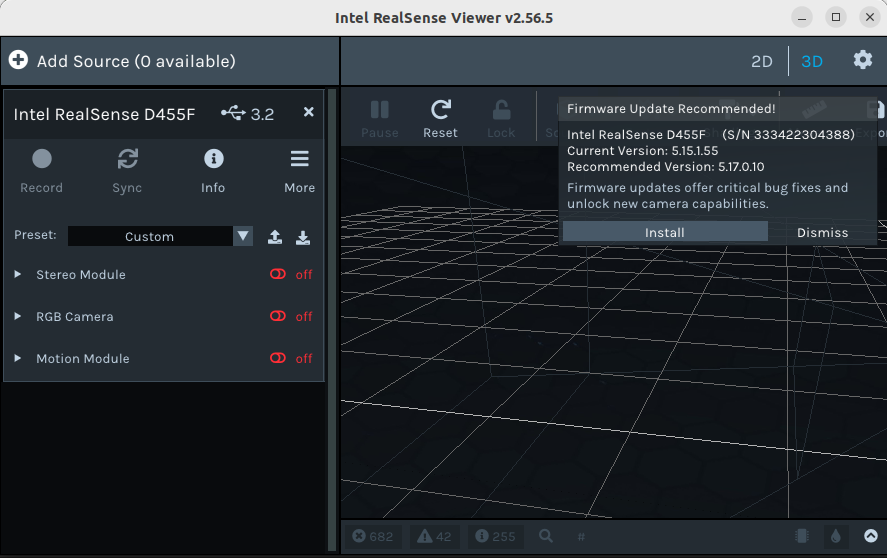
With the RealSense Viewer now launched, your attached camera configuration is displayed in the left menu, along with its available streams. Pay close attention to the camera title, it is imperative that you are using a cable which supports USB 3.2. This can be verified by ensuring “3.2” appears after your camera name (e.g. D415 USB 3.2) as is seen in the below image.
RealSense Viewer launched
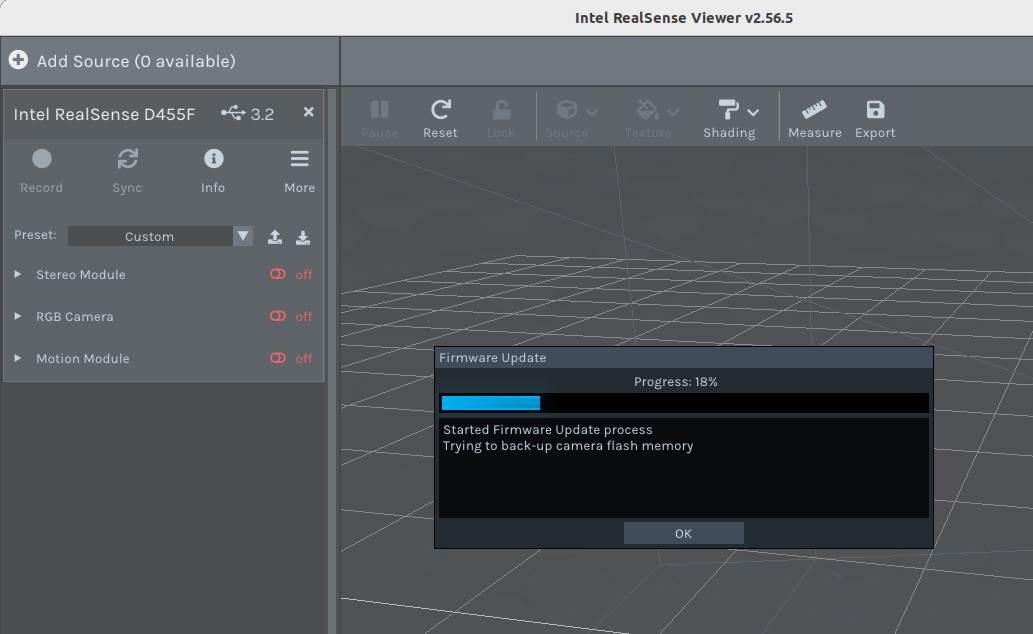
Notice in the above image there is also a firmware notification informing the user the camera needs an update. Click install and expand the update window to reveal the progress. You will be greeted with a pop-up window scrolling detailed information regarding the installation as seen below.
Firmware update progress display
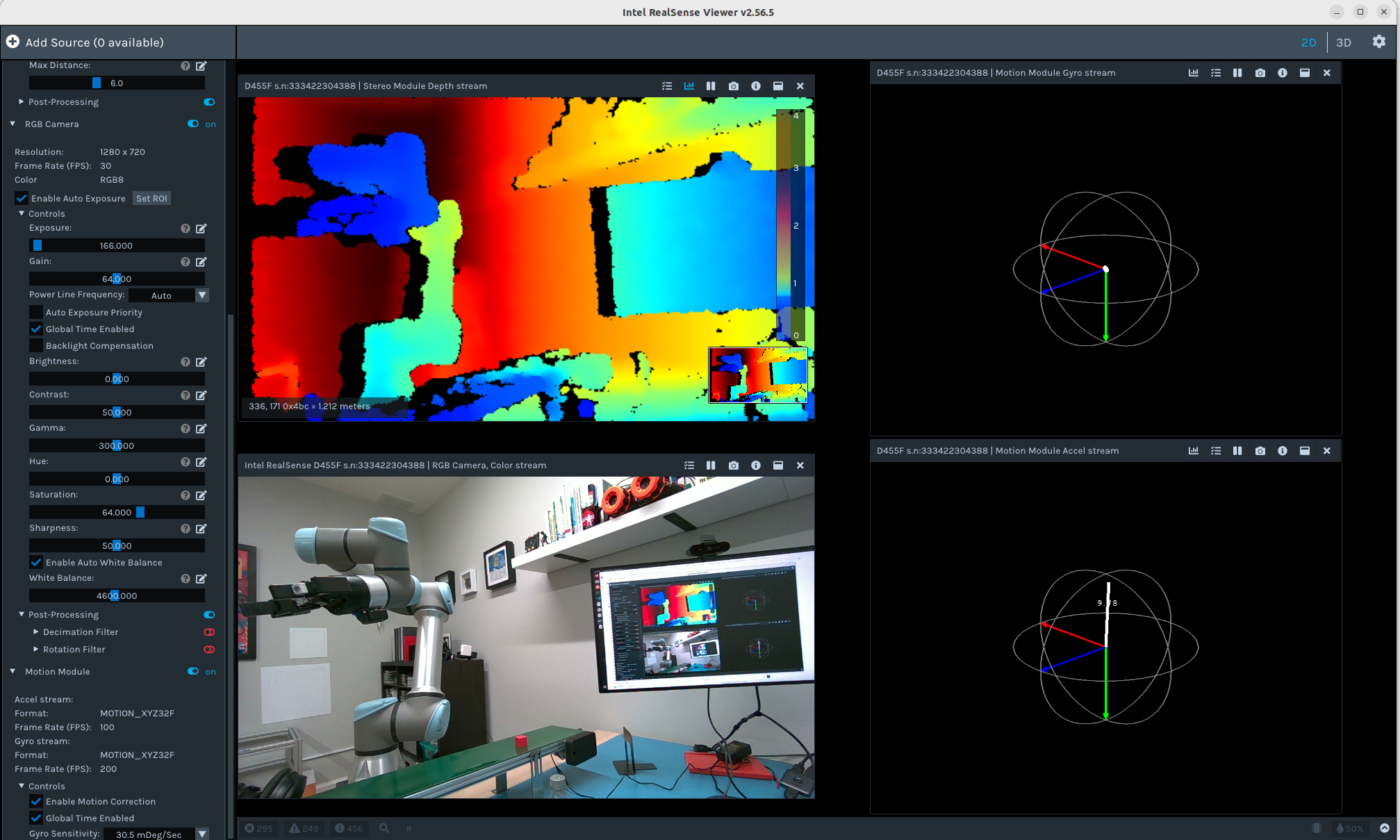
Once the process has completed, select 2D from the navigation bar in the upper right, then turn on each stream (e.g. stereo, RGB, motion) to reveal the output tiled within the window. See example output from updating a D455f below:
Stereo, RGB, and Motion sensors functioning as designed