LLM Robotics Demo#
We have built a code generation pipeline for robotics, interacting with a chat bot utilizing AI technologies such as large language models (Phi-4) and computer vision (SAM, CLIP). It will use the user’s voice or enter a text commands to provide a prompt to the robotics agent to generate corresponding actions.
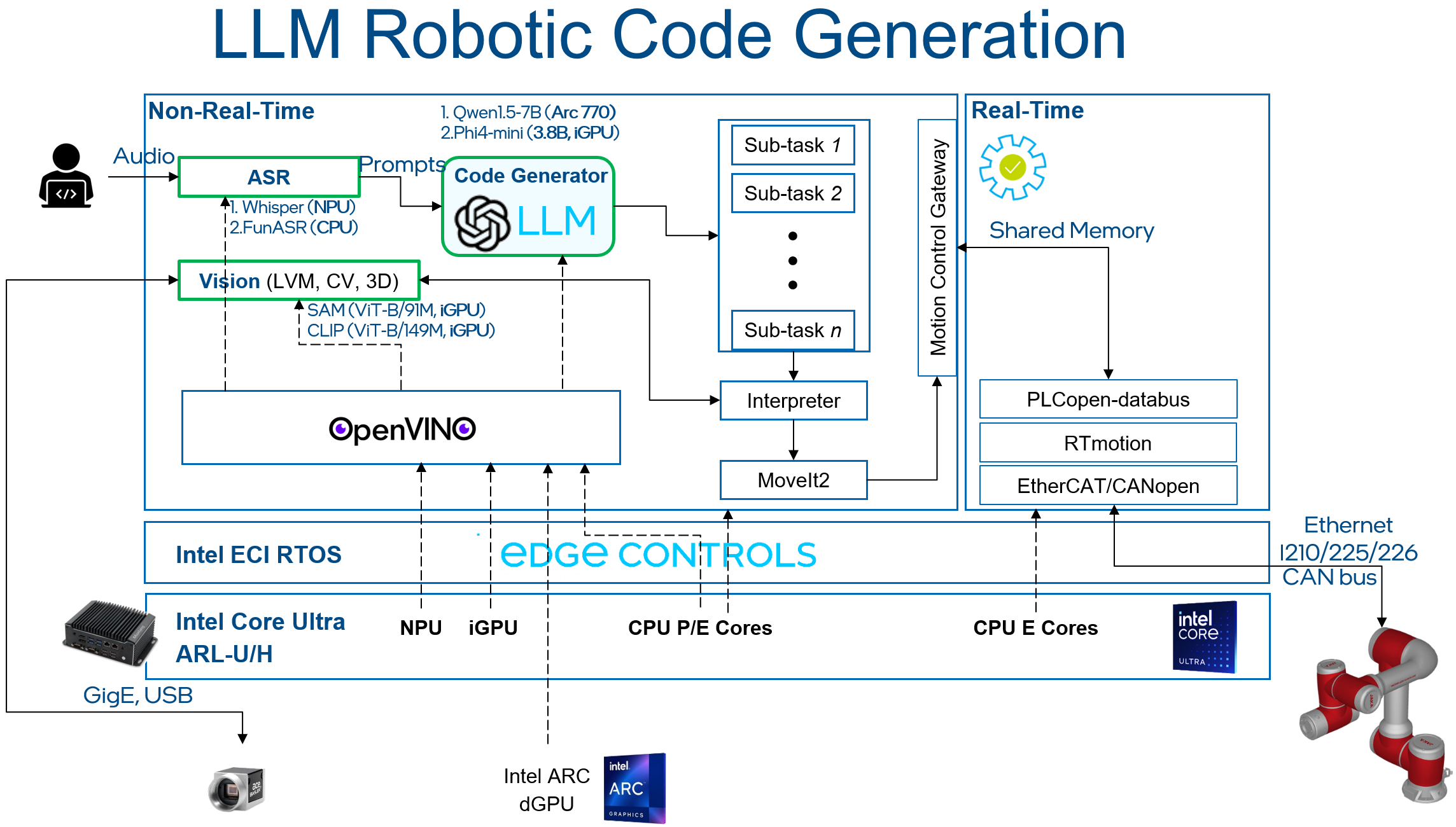
This tutorial will provide a step-by-step guide to set up a real-time system to control a JAKA robot arm with movement commands generated using an LLM. The picture below shows the architecture of the demo:
Component Documentation#
Comprehensive documentation on this component is available here: Link
Prerequisites#
Make sure you have all the prerequisites and installation in Installation & Setup and also ensure you have the following prerequisites:
Specification |
Recommended |
|---|---|
Processor |
Intel® Core™ Ultra X7 Processor 358H |
Storage |
256G |
Memory |
LPDDR5, 6400 MHz, 32G × 2 |
JAKA robot arm setup#
This section will provide a step-by-step guide to setup a simulation JAKA robot-arm ROS2 application.
Install PLCopen library#
Install dependency:
sudo apt install libeigen3-dev python3-pip python3-venv cmake python3-pymodbus libxcb-cursor0
Install PLCopen library:
sudo apt install libshmringbuf libshmringbuf-dev plcopen-ruckig plcopen-ruckig-dev plcopen-motion plcopen-motion-dev plcopen-servo plcopen-servo-dev plcopen-databus plcopen-databus-dev
Install ROS2 Jazzy#
Install dependency:
sudo apt update && sudo apt install -y locales curl gnupg2 lsb-release
Setup the |Intel| oneAPI APT repository:
sudo -E wget -O- https://apt.repos.intel.com/intel-gpg-keys/GPG-PUB-KEY-INTEL-SW-PRODUCTS.PUB | gpg --dearmor | sudo tee /usr/share/keyrings/oneapi-archive-keyring.gpg > /dev/null
echo "deb [signed-by=/usr/share/keyrings/oneapi-archive-keyring.gpg] https://apt.repos.intel.com/oneapi all main" | sudo tee /etc/apt/sources.list.d/oneAPI.list
sudo apt update
Setup the public ROS2 APT repository:
sudo curl -sSL https://raw.githubusercontent.com/ros/rosdistro/master/ros.key  -o /usr/share/keyrings/ros-archive-keyring.gpg
echo "deb [arch=$(dpkg --print-architecture) signed-by=/usr/share/keyrings/ros-archive-keyring.gpg] http://packages.ros.org/ros2/ubuntu $(source /etc/os-release && echo $UBUNTU_CODENAME) main" | sudo tee /etc/apt/sources.list.d/ros2.list > /dev/null
sudo bash -c 'echo -e "Package: *\nPin: origin eci.intel.com\nPin-Priority: -1" > /etc/apt/preferences.d/isar'
sudo apt update
Install ROS2 Jazzy packages:
sudo apt install -y python3-colcon-common-extensions python3-argcomplete python3-pykdl
sudo apt install -y ros-jazzy-desktop ros-jazzy-moveit* ros-jazzy-osqp-vendor ros-jazzy-ament-cmake-google-benchmark librange-v3-dev ros-jazzy-ros-testing
sudo bash -c 'echo -e "Package: *\nPin: origin eci.intel.com\nPin-Priority: 1000" > /etc/apt/preferences.d/isar'
Install JAKA robot arm application#
Download the source code of JAKA robot arm:
cd ~/Downloads/
sudo apt source ros-jazzy-pykdl-utils ros-jazzy-jaka-bringup ros-jazzy-jaka-description ros-jazzy-jaka-hardware ros-jazzy-jaka-moveit-config ros-jazzy-jaka-moveit-py ros-jazzy-run-jaka-moveit ros-jazzy-run-jaka-plc
Create workspace for robot arm source code:
mkdir -p ~/ws_jaka/src
cp -r ~/Downloads/ros-jazzy-jaka-bringup-3.2.0/robot_arm/ ~/ws_jaka/src
Build JAKA robot arm source code:
cd ~/ws_jaka/ && source /opt/ros/jazzy/setup.bash
touch src/robot_arm/jaka/jaka_servo/COLCON_IGNORE
colcon build
FunASR setup#
This section will provide a step-by-step guide to setup a Fundamental End-to-End Speech Recognition Toolkit (FunASR) server.
Install dependency#
sudo apt-get install cmake libopenblas-dev libssl-dev portaudio19-dev ffmpeg git python3-pip -y
Add OpenVINO™ speech model to FunASR#
Install FunASR environment:
sudo apt install funasr
cd /opt/funasr/
sudo bash install_funasr.sh
Install the
asr-openvinomodel script:sudo chown -R $USER /opt/funasr/ mkdir /opt/funasr/FunASR/funasr/models/intel/ cp -r <path_to_llm-robotics-demo>/asr-openvino-demo/models/* /opt/funasr/FunASR/funasr/models/intel/
Create a virtual FunASR Python environment:
cd /opt/funasr/
python3 -m venv venv-asr
source venv-asr/bin/activate
pip install modelscope==1.17.1 onnx==1.16.2 humanfriendly==10.0 pyaudio websocket==0.2.1 websockets==12.0 translate==3.6.1 kaldi_native_fbank==1.20.0 onnxruntime==1.18.1 torchaudio==2.4.0 openvino==2024.3.0
Build
asr-openvinomodel:cd /opt/funasr/FunASR/ pip install -e ./ python ov_convert_FunASR.py cp -r ~/.cache/modelscope/hub/iic/speech_seaco_paraformer_large_asr_nat-zh-cn-16k-common-vocab8404-pytorch <path_to_llm-robotics-demo>/asr-openvino-demo/
Quantitative model using
ovc:cd <path_to_llm-robotics-demo>/asr-openvino-demo/speech_seaco_paraformer_large_asr_nat-zh-cn-16k-common-vocab8404-pytorch/ ovc model.onnx --output_model=model_bb_fp16 ovc model_eb.onnx --output_model=model_eb_fp16
Modify the
configuration.jsonfile of the speech model:# modify model_name_in_hub.ms & file_path_metas.init_param { "framework": "pytorch", "task" : "auto-speech-recognition", "model": {"type" : "funasr"}, "pipeline": {"type":"funasr-pipeline"}, "model_name_in_hub": { "ms":"", "hf":""}, "file_path_metas": { "init_param":"model_bb_fp16.xml", "config":"config.yaml", "tokenizer_conf": {"token_list": "tokens.json", "seg_dict_file": "seg_dict"}, "frontend_conf":{"cmvn_file": "am.mvn"}} }
Reinstall the
funasrmodel of FunASR:cd /opt/funasr/FunASR/ pip uninstall funasr pip install -e ./
MeloTTS setup#
This section will provide a step-by-step guide to setup a MeloTTS server.
Install dependencies#
# System packages
sudo apt-get install -y python3-venv build-essential python3-dev git-all libgl1-mesa-dev ffmpeg

# Create and activate virtual environment
cd <path_to_llm-robotics-demo>/tts-openvino-demo/
python3 -m venv venv-tts
source venv-tts/bin/activate

# Install Python dependencies
pip install -r requirement.txt --extra-index-url https://download.pytorch.org/whl/cpu
Prepare model assets#
Export OpenVINO™ IR models#
Follow below OpenVINO™ notebook to export and save OpenVoice2 + MeloTTS IR models:
Arrange local runtime files#
# Create target directory
mkdir -p ~/ov_models/TTS/

# Copy model assets
cp -r <path_to_openvino_notebooks>/notebooks/openvoice2-and-melotts/checkpoints ~/ov_models/TTS/
cp -r <path_to_openvino_notebooks>/notebooks/openvoice2-and-melotts/MeloTTS ~/ov_models/TTS/
cp -r <path_to_openvino_notebooks>/notebooks/openvoice2-and-melotts/openvino_irs ~/ov_models/TTS/
cp -r <path_to_openvino_notebooks>/notebooks/openvoice2-and-melotts/OpenVoice ~/ov_models/TTS/
Prepare Torch Hub offline cache (manual, with expected tree layout)#
# Build a Torch Hub-like directory structure under Downloads
mkdir -p ~/Downloads/torch_hub_local/hub
cd ~/Downloads/torch_hub_local/hub

# Download fixed tag v3.0
git clone --depth 1 --branch v3.0 https://github.com/snakers4/silero-vad.git snakers4_silero-vad_v3.0

# Create compatibility link (some hubconf paths still reference *_master)
ln -sfn snakers4_silero-vad_v3.0 snakers4_silero-vad_master

# Optional trusted marker file
touch trusted_list

# Copy cache under ov_models/TTS for centralized management
cp -r ~/Downloads/torch_hub_local ~/ov_models/TTS/
LLM and vision models setup#
This section will provide a step-by-step guide to setup a virtual Python environment to run LLM demo.
Setup a virtual environment for application#
Install the
pippackages for LLM:cd <path_to_llm-robotics-demo>/LLM/ python3 -m venv venv-llm source venv-llm/bin/activate pip install -r requirement.txt
Set the environment variable:
# If you have connection issue on HuggingFace in PRC, please set-up the networking environment by following commands:
export HF_ENDPOINT="https://hf-mirror.com"
# transformers offline: export TRANSFORMERS_OFFLINE=1
Setup the SAM model#
Follow the OpenVINO™ documentation below to export and save SAM model:
Modify the loading PATH of models to the exported model path, the default path is:
# <path_to_llm-robotics-demo>/LLM/utils/mobilesam_helper.py:L91-L92
ov_sam_encoder_path = os.path.join(home_dir, "ov_models/sam_image_encoder.xml")
ov_sam_predictor_path = os.path.join(home_dir, "ov_models/sam_mask_predictor.xml")
Setup the CLIP model#
Follow the OpenVINO™ documentation below to export and save
CLIP (ViT-B) model:
Modify the loading PATH of models to the exported model path, the default path is:
# <path_to_llm-robotics-demo>/LLM/utils/mobilesam_helper.py:L90
clip_model_path = os.path.join(home_dir, "ov_models/clip-vit-base-patch16/FP16/openvino_model.xml")
Setup the Phi-4-mini-instruct-int8-ov model#
Follow the below commands to download Phi-4-mini-instruct-int8-ov
models:
sudo apt install git-lfs
mkdir ~/ov_models && cd ~/ov_models
GIT_LFS_SKIP_SMUDGE=1 git clone https://hf-mirror.com/OpenVINO/Phi-4-mini-instruct-int8-ov
git lfs pull
# If git lfs pull fails, use huggingface_hub to download the model instead.
Set the environment variable:
Modify the loading PATH of models to the exported model path, the default path is:
# <path_to_llm-robotics-demo>/LLM/llm_bridge.py:L31
self.model_path = os.path.join(home_dir, "ov_models/Phi-4-mini-instruct-int8-ov")
For Qwen3-8B-int8-ov model, follow the same deployment steps as Phi-4-mini-instruct-int8-ov; place the model files under ~/ov_models and update model_path accordingly.
Run pipeline#
This section will provide a step-by-step guide to launch LLM robotics demo.
Prepare System#
Please connect the following items to the |Core| Ultra IPC.
Item |
Explanation |
Link |
|---|---|---|
Camera |
RealSense™ Depth Camera D435 |
https://www.realsenseai.com/products/stereo-depth-camera-d435/ |
USB Mic |
Audio input device of FunASR, 16k sampling rate |
UGREEN CM564 |
Launch LLM Robotic Demo#
The LLM Robotic demo includes the real-time component, non-real-time ROS2 component, and non-real-time LLM component.
Important: Please ensure a stable network connection before running the demo. The FunASR and LLM applications require an active network connection.
Launch the OpenVINO™ FunASR server:
source /opt/funasr/venv-asr/bin/activate
python3 /opt/funasr/FunASR/runtime/python/websocket/funasr_wss_server.py --port 10095 --certfile "" --keyfile "" --asr_model <path_to_llm-robotics-demo>/asr-openvino-demo/speech_seaco_paraformer_large_asr_nat-zh-cn-16k-common-vocab8404-pytorch/
Launch the OpenVINO™ MeloTTS server:
source <path_to_venv-tts>/bin/activate
python3 <path_to_llm-robotics-demo>/tts-openvino-demo/tts_server.py --host 0.0.0.0 --port 10096
Launch the real-time application:
# affinity real time application to core 3
sudo taskset -c 3 /opt/plcopen/plc_rt_pos_rtmotion
If the real-time application launches successfully, the terminal will show the following:
Axis 0 initialized.
Axis 1 initialized.
Axis 2 initialized.
Axis 3 initialized.
Axis 4 initialized.
Axis 5 initialized.
Function blocks initialized.
Launch the JAKA robot arm ROS2 node:
source ~/ws_jaka/install/setup.bash
ros2 launch jaka_moveit_py jaka_motion_planning.launch.py
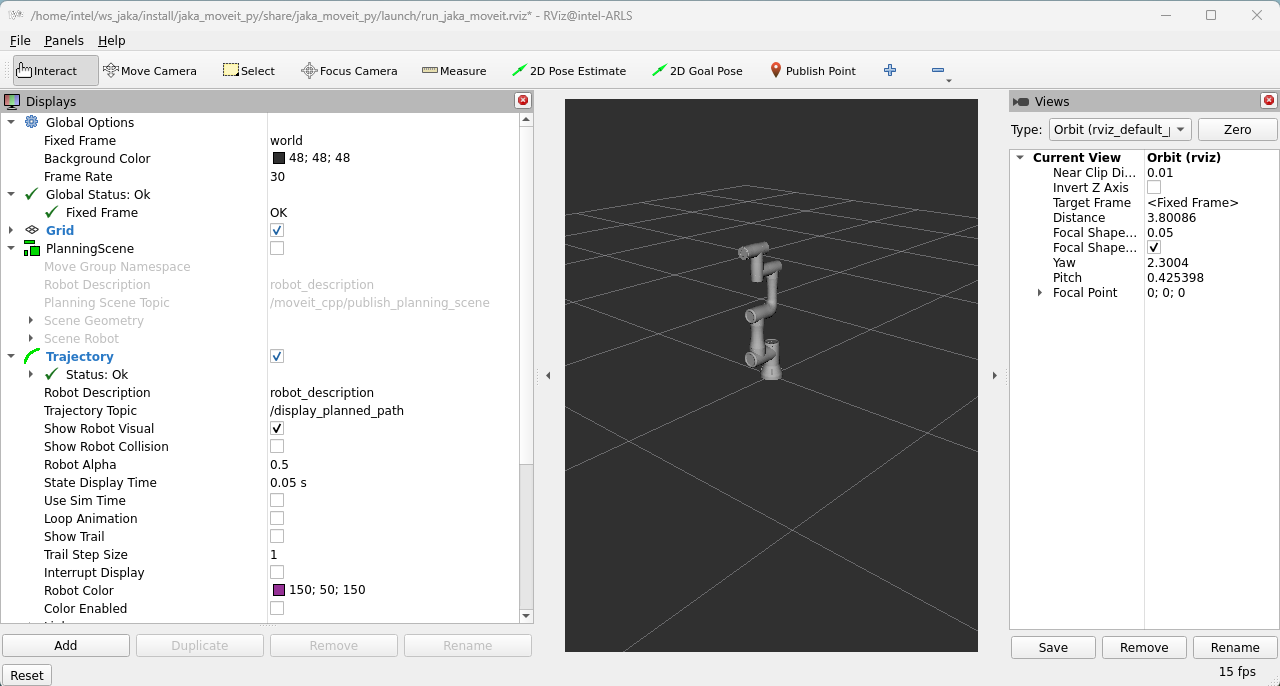
If the ROS2 node launches successfully, RVIZ2 will display the following:
Launch the LLM application:
cd <path_to_llm-robotics-demo>/LLM/
source venv-llm/bin/activate
python main.py
If the LLM application launches successfully, the demo UI will display the following:
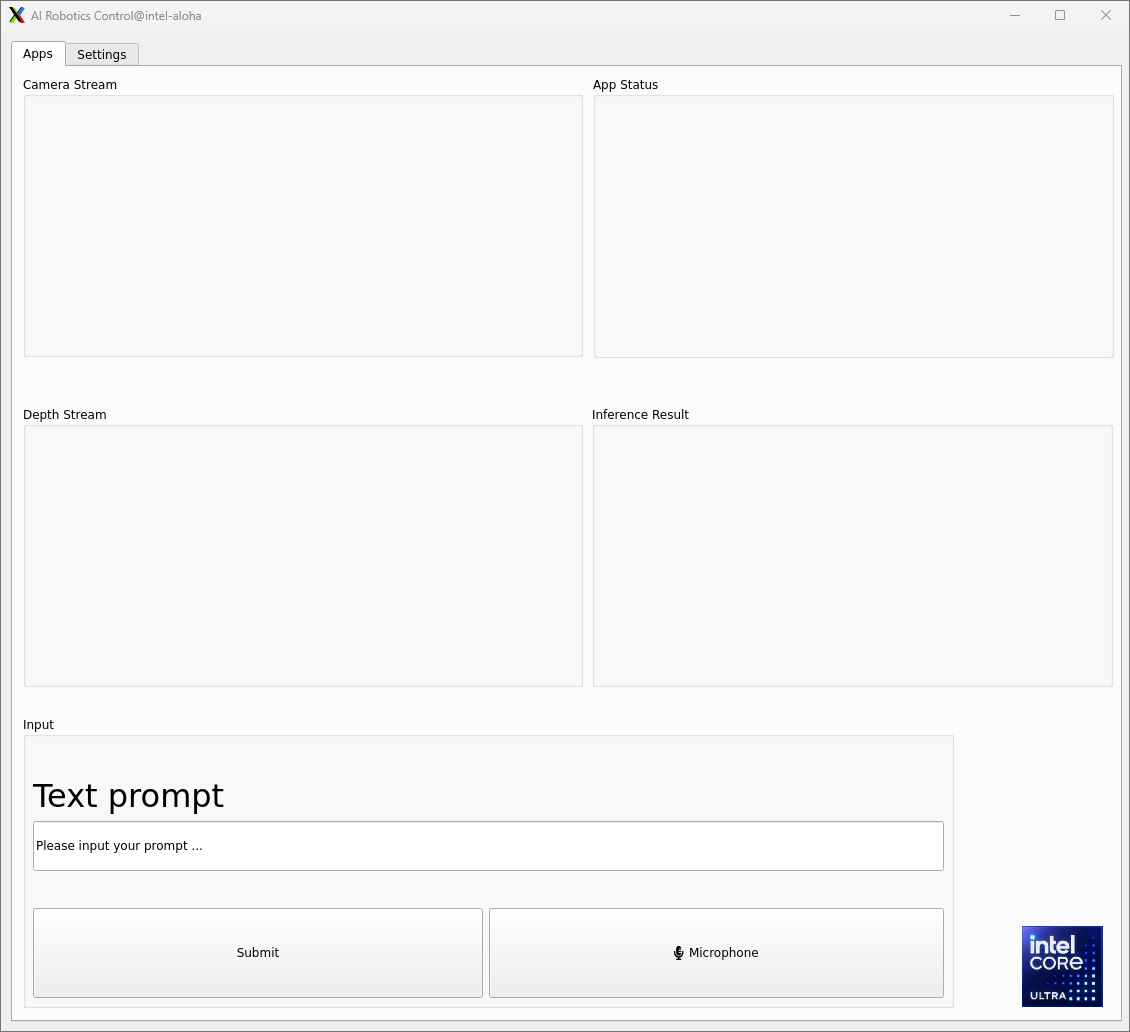
Camera Stream & Depth Stream: displays the real-time color and depth streams from the camera.
App status: indicates the status and outcome of code generation.
Inference Result: presents the results from the SAM and CLIP models.
Text prompt: enter prompts in English via keyboard or in Chinese using the microphone. Press the “Submit” button to start the inference process.
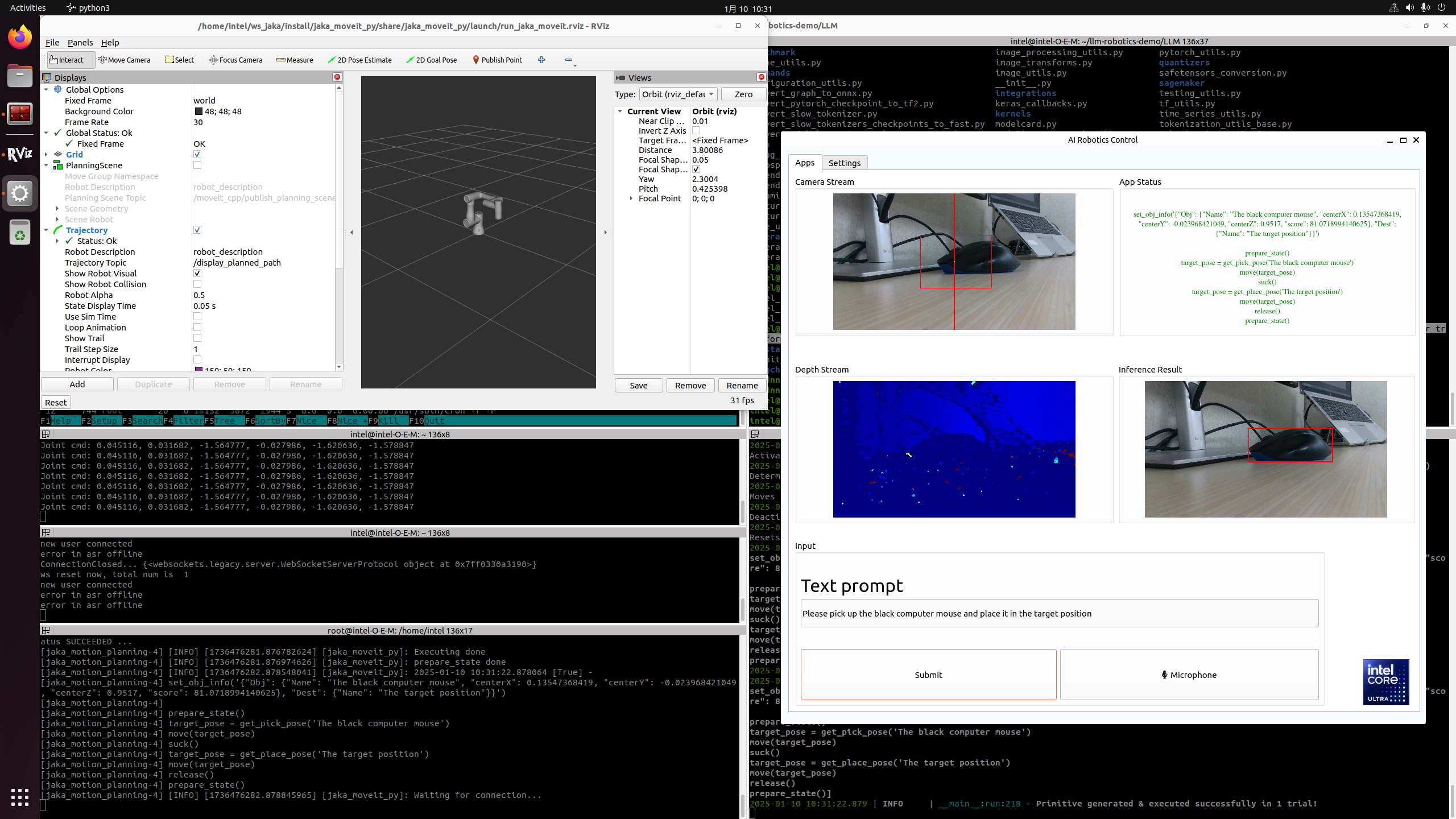
Attach a demo picture with the prompt (Please pick up the black computer mouse and place it in the target position) as shown below: