Install Autonomous Mobile Robot Deb packages#
This section details steps to install Autonomous Mobile Robot Deb packages.
Note: Before proceeding, ensure that you have first prepared the target system`.
Ensure you have successfully followed the steps to Install ROS distribution:
apt list --installed | grep ros-jazzy-ros-base
The output should look like this:
ros-jazzy-ros-base/jammy,now 0.10.0-1jammy.20240217.113903 amd64 [installed,automatic]apt list --installed | grep ros-humble-ros-base
The output should look like this:
ros-humble-ros-base/jammy,now 0.10.0-1jammy.20240217.113903 amd64 [installed,automatic]Before using the Autonomous Mobile Robot APT repositories, update the APT packages list:
sudo apt update
The APT package manager will download the latest list of packages available for all configured repositories.

If the APT package manager is unable to connect to the repositories, follow these APT troubleshooting tips:
Make sure that the system has network connectivity.
Make sure that port 80 is not blocked by a firewall.
Configure an APT proxy (if network traffic routes through a proxy server).
To configure an APT proxy, add the following lines to a file at
/etc/apt/apt.conf.d/proxy.conf(replace the placeholder as per your specific user and proxy server)::Acquire:http:Proxy "http://user:password@proxy.server:port/"; Acquire:https:Proxy "http://user:password@proxy.server:port/";
To ensure proper proxy settings for other tools required during the package installation add the the required proxy settings to
/etc/environment:http_proxy=http://user:password@proxy.server:port https_proxy=http://user:password@proxy.server:port no_proxy="localhost,127.0.0.1,127.0.0.0/8"
After setting the proxy values in
/etc/apt/apt.conf.d/proxy.confand/etc/environmentyou will have to reboot the device, so these settings become effective.
Choose the Autonomous Mobile Robot Deb package to install.
ros-jazzy-robotics-sdk The standard version of the Autonomous Mobile Robot. This package includes almost everything except for a handful of tutorials and bag files.
ros-jazzy-robotics-sdk-complete The complete version of the Autonomous Mobile Robot. It also includes those items excluded from the standard version. Please note that the complete SDK downloads approximately 20GB of additional files.
ros-humble-robotics-sdk The standard version of the Autonomous Mobile Robot. This package includes almost everything except for a handful of tutorials and bag files.
ros-humble-robotics-sdk-complete The complete version of the Autonomous Mobile Robot. It also includes those items excluded from the standard version. Please note that the complete SDK downloads approximately 20GB of additional files.
Install the chosen Autonomous Mobile Robot Deb package
Note: Before you install Robotics SDK (or any other packages that depend on OpenVINO), please read the information in OpenVINO installation instructions.
Install command example:
sudo apt install ros-jazzy-robotics-sdk
To install Robotics SDK on ROS Humble, you have to install Gazebo 11 from OpenRobotics PPA first:
sudo add-apt-repository ppa:openrobotics/gazebo11-gz-cli
sudo apt update
Then, install Robotics SDK:
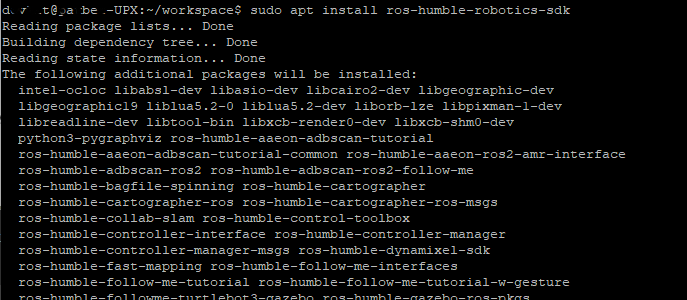
sudo apt install ros-humble-robotics-sdk
The standard version of the Autonomous Mobile Robot should generally download and install all files within just a few minutes. The complete version of the Autonomous Mobile Robot will take several more minutes and consume significantly more network bandwidth.
The actual installation time will vary greatly based primarily upon the number of packages that need to be installed and the network connection speed.
Before using the Autonomous Mobile Robot APT repositories, update the APT packages list:
sudo apt update
The APT package manager will download the latest list of packages available for all configured repositories.
Note: If the APT package manager is unable to connect to the repositories, follow these APT troubleshooting tips:
Make sure that the system has network connectivity.
Make sure that port 80 is not blocked by a firewall.
Configure an APT proxy (if network traffic routes through a proxy server).
To configure an APT proxy, add the following lines to a file at
/etc/apt/apt.conf.d/proxy.conf(replace the placeholder as per your specific user and proxy server)::Acquire:http:Proxy “http://user:password@proxy.server:port/”; Acquire:https:Proxy “http://user:password@proxy.server:port/”;
To ensure proper proxy settings for other tools required during the package installation add the the required proxy settings to
/etc/environment::http_proxy=http://user:password@proxy.server:port https_proxy=http://user:password@proxy.server:port no_proxy=”localhost,127.0.0.1,127.0.0.0/8”
After setting the proxy values in
/etc/apt/apt.conf.d/proxy.confand/etc/environmentyou will have to reboot the device, so these settings become effective.
Choose the Autonomous Mobile Robot Deb package to install.
ros-jazzy-aaeon-adbscan-tutorial AAEON Robot ADBSCAN mapping with FastMapping algorithm using Intel® RealSense™ camera.
ros-jazzy-aaeon-ros2-amr-interface Lightweight package to get AMRs working with ROS 2.
ros-jazzy-adbscan-ros2 Adaptive Density-based Spatial Clustering of Applications with Noise (ADBSCAN) for ROS 2.
ros-jazzy-adbscan-ros2-follow-me Enable a robot to follow a specific person or target based on Adaptive DBScan clustering and gesture based motion control.
ros-jazzy-collab-slam-avx2 Collaborative SLAM for AVX2 CPU instruction accelerated package on supported Intel Core processors
ros-jazzy-collab-slam-lze Collaborative SLAM for GPU Level-Zero accelerated package on supported Intel processors with integrated graphics
ros-jazzy-collab-slam-sse Collaborative SLAM for SSE-only CPU instruction accelerated package on supported Intel Atom processors
ros-jazzy-cslam-tutorial-all Collaborative SLAM all tutorials.
ros-jazzy-fast-mapping Allen Fast Mapping, a ROS 2 package for real-time scene modeling from sequential depth images from prerecorded ROS 2 bag.
ros-jazzy-follow-me-tutorial Follow-Me application with ADBSCAN using Intel® RealSense™ camera.
ros-jazzy-followme-turtlebot3-gazebo An adaptation of TurtleBot3 robot simulation by Intel to include a multi robot environment to demo the follow me algorithm.
ros-jazzy-its-planner Intelligent Sampling and Two-Way Search.
ros-jazzy-its-relocalization-bringup Re-localization bring up package.
ros-jazzy-picknplace-simulation Meta Package for pick n place simulation deb files.
ros-jazzy-realsense2-tutorial-demo Intel® RealSense™ camera tutorial with sample application.
ros-jazzy-wandering Wandering application.
ros-jazzy-wandering-tutorials Meta-package for Intel® Wandering application tutorials.
ros-humble-aaeon-adbscan-tutorial AAEON Robot ADBSCAN mapping with FastMapping algorithm using Intel® RealSense™ camera.
ros-humble-aaeon-ros2-amr-interface Lightweight package to get AMRs working with ROS 2.
ros-humble-adbscan-ros2 Adaptive Density-based Spatial Clustering of Applications with Noise (ADBSCAN) for ROS 2.
ros-humble-adbscan-ros2-follow-me Enable a robot to follow a specific person or target based on Adaptive DBScan clustering and gesture based motion control.
ros-humble-collab-slam-avx2 Collaborative SLAM for AVX2 CPU instruction accelerated package on supported Intel Core processors
ros-humble-collab-slam-lze Collaborative SLAM for GPU Level-Zero accelerated package on supported Intel processors with integrated graphics
ros-humble-collab-slam-sse Collaborative SLAM for SSE-only CPU instruction accelerated package on supported Intel Atom processors
ros-humble-cslam-tutorial-all Collaborative SLAM all tutorials.
ros-humble-fast-mapping Allen Fast Mapping, a ROS 2 package for real-time scene modeling from sequential depth images from prerecorded ROS 2 bag.
ros-humble-follow-me-tutorial Follow-Me application with ADBSCAN using Intel® RealSense™ camera.
ros-humble-followme-turtlebot3-gazebo An adaptation of TurtleBot3 robot simulation by Intel to include a multi robot environment to demo the follow me algorithm.
ros-humble-its-planner Intelligent Sampling and Two-Way Search.
ros-humble-its-relocalization-bringup Re-localization bring up package.
ros-humble-picknplace-simulation Meta Package for pick n place simulation deb files.
ros-humble-realsense2-tutorial-demo Intel® RealSense™ camera tutorial with sample application.
ros-humble-wandering Wandering application.
ros-humble-wandering-tutorials Meta-package for Intel® Wandering application tutorials.
Install the chosen Autonomous Mobile Robot Deb package.
Note: Before you install
ros-jazzy-robotics-sdk-complete(or any other packages that depend on OpenVINO), please read the information on OpenVINO installation.Install command example:
sudo apt install <package-name>
To run Autonomous Mobile Robot in a Docker container you must have Docker installed on your system. You can go with an existing installation or start with a fresh install.
Install Docker
Follow the Install Docker_Engine on Ubuntu OS guide, to install Docker on your target system.
After uninstalling any old Docker Engine versions you have the option to:
Install using the convenience script
Now you are ready to set up a Dockerfile that you can use to create your own Autonomous Mobile Robot Docker image.
Follow the Dockerfile reference to learn how to create and launch your Docker image.
Example of installing the Robotics SDK inside a Docker container
Note: The following example is provided as a reference only. Modify for your specific needs and environment, include for instance any proxy settings that may be necessary.
Sample Dockerfile
The Dockerfile defines the content of your Docker image.
# Create image from ROS2 Jazzy base
FROM ros:jazzy-ros-base-jammy

ENV DEBIAN_FRONTEND=noninteractive

# Install bootstrap packages
RUN apt-get update \
   && apt-get install --no-install-recommends -y git apt-utils wget \
   && rm -rf /var/lib/apt/lists/*

# Add APT gpg key
RUN bash -c 'wget -q -O- https://eci.intel.com/repos/gpg-keys/GPG-PUB-KEY-INTEL-ECI.gpg | tee /usr/share/keyrings/eci-archive-keyring.gpg > /dev/null'

# Add ECI APT repo
RUN bash -c 'echo "deb [signed-by=/usr/share/keyrings/eci-archive-keyring.gpg] https://eci.intel.com/repos/$(lsb_release -sc) isar main" | tee /etc/apt/sources.list.d/eci.list'
RUN bash -c 'echo "deb-src [signed-by=/usr/share/keyrings/eci-archive-keyring.gpg] https://eci.intel.com/repos/$(lsb_release -sc) isar main" | tee -a /etc/apt/sources.list.d/eci.list'
RUN bash -c 'echo -e "Package: *\nPin: origin eci.intel.com\nPin-Priority: 1000" | tee /etc/apt/preferences.d/isar'

# Add AMR APT repo
RUN bash -c 'echo "deb [trusted=yes] https://amrdocs.intel.com/repos/$(lsb_release -sc) amr main" | tee /etc/apt/sources.list.d/amr.list'
RUN bash -c 'echo "deb-src [trusted=yes] https://amrdocs.intel.com/repos/$(lsb_release -sc) amr main" | tee -a /etc/apt/sources.list.d/amr.list'
RUN bash -c 'echo -e "Package: *\nPin: origin amrdocs.intel.com\nPin-Priority: 1001" | tee /etc/apt/preferences.d/isar'

# Add oneAPI APT repo
RUN bash -c 'wget -q -O- https://apt.repos.intel.com/intel-gpg-keys/GPG-PUB-KEY-INTEL-SW-PRODUCTS.PUB | gpg --dearmor | tee /usr/share/keyrings/oneapi-archive-keyring.gpg'
RUN bash -c 'echo "deb [signed-by=/usr/share/keyrings/oneapi-archive-keyring.gpg] https://apt.repos.intel.com/oneapi all main" | tee /etc/apt/sources.list.d/oneAPI.list'
RUN bash -c 'echo -e "Package: intel-oneapi-runtime-*\nPin: version 2024.1.*\nPin-Priority: 1001" > /etc/apt/preferences.d/oneAPI'

# Add RealSense APT repo
RUN bash -c 'mkdir -p /root/.gnupg'
RUN bash -c 'gpg --no-default-keyring --keyring /usr/share/keyrings/realsense-archive-keyring.gpg --keyserver hkp://keyserver.ubuntu.com:80 --recv-keys F6E65AC044F831AC80A06380C8B3A55A6F3EFCDE'
RUN bash -c 'echo "deb [signed-by=/usr/share/keyrings/realsense-archive-keyring.gpg] https://librealsense.intel.com/Debian/apt-repo $(lsb_release -sc) main" | tee /etc/apt/sources.list.d/realsense2.list'

# Add OpenVINO APT repo
RUN bash -c 'wget -O- https://apt.repos.intel.com/intel-gpg-keys/GPG-PUB-KEY-INTEL-SW-PRODUCTS.PUB | gpg --dearmor | sudo tee /usr/share/keyrings/openvino-archive-keyring.gpg'
RUN bash -c 'echo "deb [signed-by=/usr/share/keyrings/openvino-archive-keyring.gpg] https://apt.repos.intel.com/openvino/2023 ubuntu22 main" | sudo tee /etc/apt/sources.list.d/intel-openvino-2023.list'
RUN bash -c 'echo "deb [signed-by=/usr/share/keyrings/openvino-archive-keyring.gpg] https://apt.repos.intel.com/openvino/2024 ubuntu22 main" | sudo tee /etc/apt/sources.list.d/intel-openvino-2024.list'

RUN bash -c 'echo -e "\nPackage: openvino-libraries-dev\nPin: version 2024.2.0*\nPin-Priority: 1001" | sudo tee /etc/apt/preferences.d/intel-openvino'
RUN bash -c 'echo -e "\nPackage: openvino\nPin: version 2024.2.0*\nPin-Priority: 1001" | sudo tee -a /etc/apt/preferences.d/intel-openvino'
RUN bash -c 'echo -e "\nPackage: ros-jazzy-openvino-wrapper-lib\nPin: version 2024.2.0*\nPin-Priority: 1002" | sudo tee -a /etc/apt/preferences.d/intel-openvino'
RUN bash -c 'echo -e "\nPackage: ros-jazzy-openvino-node\nPin: version 2024.2.0*\nPin-Priority: 1002" | sudo tee -a /etc/apt/preferences.d/intel-openvino'

# Ignore flann version 1.19
RUN bash -c 'echo -e "\nPackage: libflann*\nPin: version 1.19.*\nPin-Priority: -1\n\nPackage: flann*\nPin: version 1.19.*\nPin-Priority: -1" >> /etc/apt/preferences.d/isar'

# Populate debconf database with GPU selection for liborb-lze to eliminate the need for prompt
ARG GPU_GEN=gen12lp
RUN echo "liborb-lze liborb-lze/march select ${GPU_GEN}" | debconf-set-selections
RUN echo "liborb-lze:amd64 liborb-lze/march select ${GPU_GEN}" | debconf-set-selections

# Install robotics-sdk package
RUN apt-get update \
   && apt-get install -y ros-jazzy-robotics-sdk \
   && rm -rf /var/lib/apt/lists/*

# Add render group as necessary
ARG RENDER_ID=109
RUN if [ $(getent group render) ] ; then echo 'exists' ; else groupadd --gid ${RENDER_ID} render ; fi

# Config environ
ARG DOCKER_USER=amr
ARG DOCKER_USER_UID=1000
ARG DOCKER_USER_GROUPS=sudo,video,audio,plugdev,dialout,render

ENV DOCKER_USER         ${DOCKER_USER}
ENV DOCKER_USER_UID     ${DOCKER_USER_UID}
ENV HOME_DOCKER_USER    /home/${DOCKER_USER}
ENV WORKSPACE_DIR       ${HOME_DOCKER_USER}/workspace

# Create User
SHELL ["/bin/bash", "-xo", "pipefail", "-c"]
USER root
RUN useradd --create-home --shell /bin/bash --gid root --uid ${DOCKER_USER_UID} --groups ${DOCKER_USER_GROUPS} ${DOCKER_USER} \
   && passwd -d root \
   && passwd -d ${DOCKER_USER} \
   && echo "${DOCKER_USER} ALL=(ALL) NOPASSWD:ALL" | tee /etc/sudoers.d/${DOCKER_USER} \
   && echo 'export DISPLAY=":1"' >> /home/${DOCKER_USER}/.bashrc \
   && echo 'source /opt/ros/jazzy/setup.bash' >> /home/${DOCKER_USER}/.bashrc

# Create workspace folder
RUN mkdir -p ${WORKSPACE_DIR} && chown ${DOCKER_USER}:${DOCKER_USER_UID} ${WORKSPACE_DIR}
WORKDIR ${WORKSPACE_DIR}

USER ${DOCKER_USER}

CMD ["/bin/bash"]
# Create image from ROS2 Humble base
FROM ros:humble-ros-base-jammy

ENV DEBIAN_FRONTEND=noninteractive

# Install bootstrap packages
RUN apt-get update \
   && apt-get install --no-install-recommends -y git apt-utils wget \
   && rm -rf /var/lib/apt/lists/*

# Add APT gpg key
RUN bash -c 'wget -q -O- https://eci.intel.com/repos/gpg-keys/GPG-PUB-KEY-INTEL-ECI.gpg | tee /usr/share/keyrings/eci-archive-keyring.gpg > /dev/null'

# Add ECI APT repo
RUN bash -c 'echo "deb [signed-by=/usr/share/keyrings/eci-archive-keyring.gpg] https://eci.intel.com/repos/$(lsb_release -sc) isar main" | tee /etc/apt/sources.list.d/eci.list'
RUN bash -c 'echo "deb-src [signed-by=/usr/share/keyrings/eci-archive-keyring.gpg] https://eci.intel.com/repos/$(lsb_release -sc) isar main" | tee -a /etc/apt/sources.list.d/eci.list'
RUN bash -c 'echo -e "Package: *\nPin: origin eci.intel.com\nPin-Priority: 1000" | tee /etc/apt/preferences.d/isar'

# Add AMR APT repo
RUN bash -c 'echo "deb [trusted=yes] https://amrdocs.intel.com/repos/$(lsb_release -sc) amr main" | tee /etc/apt/sources.list.d/amr.list'
RUN bash -c 'echo "deb-src [trusted=yes] https://amrdocs.intel.com/repos/$(lsb_release -sc) amr main" | tee -a /etc/apt/sources.list.d/amr.list'
RUN bash -c 'echo -e "Package: *\nPin: origin amrdocs.intel.com\nPin-Priority: 1001" | tee /etc/apt/preferences.d/isar'

# Add oneAPI APT repo
RUN bash -c 'wget -q -O- https://apt.repos.intel.com/intel-gpg-keys/GPG-PUB-KEY-INTEL-SW-PRODUCTS.PUB | gpg --dearmor | tee /usr/share/keyrings/oneapi-archive-keyring.gpg'
RUN bash -c 'echo "deb [signed-by=/usr/share/keyrings/oneapi-archive-keyring.gpg] https://apt.repos.intel.com/oneapi all main" | tee /etc/apt/sources.list.d/oneAPI.list'
RUN bash -c 'echo -e "Package: intel-oneapi-runtime-*\nPin: version 2024.1.*\nPin-Priority: 1001" > /etc/apt/preferences.d/oneAPI'

# Add RealSense APT repo
RUN bash -c 'mkdir -p /root/.gnupg'
RUN bash -c 'gpg --no-default-keyring --keyring /usr/share/keyrings/realsense-archive-keyring.gpg --keyserver hkp://keyserver.ubuntu.com:80 --recv-keys F6E65AC044F831AC80A06380C8B3A55A6F3EFCDE'
RUN bash -c 'echo "deb [signed-by=/usr/share/keyrings/realsense-archive-keyring.gpg] https://librealsense.intel.com/Debian/apt-repo $(lsb_release -sc) main" | tee /etc/apt/sources.list.d/realsense2.list'

# Add OpenVINO APT repo
RUN bash -c 'wget -O- https://apt.repos.intel.com/intel-gpg-keys/GPG-PUB-KEY-INTEL-SW-PRODUCTS.PUB | gpg --dearmor | sudo tee /usr/share/keyrings/openvino-archive-keyring.gpg'
RUN bash -c 'echo "deb [signed-by=/usr/share/keyrings/openvino-archive-keyring.gpg] https://apt.repos.intel.com/openvino/2023 ubuntu22 main" | sudo tee /etc/apt/sources.list.d/intel-openvino-2023.list'
RUN bash -c 'echo "deb [signed-by=/usr/share/keyrings/openvino-archive-keyring.gpg] https://apt.repos.intel.com/openvino/2024 ubuntu22 main" | sudo tee /etc/apt/sources.list.d/intel-openvino-2024.list'

RUN bash -c 'echo -e "\nPackage: openvino-libraries-dev\nPin: version 2024.2.0*\nPin-Priority: 1001" | sudo tee /etc/apt/preferences.d/intel-openvino'
RUN bash -c 'echo -e "\nPackage: openvino\nPin: version 2024.2.0*\nPin-Priority: 1001" | sudo tee -a /etc/apt/preferences.d/intel-openvino'
RUN bash -c 'echo -e "\nPackage: ros-humble-openvino-wrapper-lib\nPin: version 2024.2.0*\nPin-Priority: 1002" | sudo tee -a /etc/apt/preferences.d/intel-openvino'
RUN bash -c 'echo -e "\nPackage: ros-humble-openvino-node\nPin: version 2024.2.0*\nPin-Priority: 1002" | sudo tee -a /etc/apt/preferences.d/intel-openvino'

# Ignore flann version 1.19
RUN bash -c 'echo -e "\nPackage: libflann*\nPin: version 1.19.*\nPin-Priority: -1\n\nPackage: flann*\nPin: version 1.19.*\nPin-Priority: -1" >> /etc/apt/preferences.d/isar'

# Populate debconf database with GPU selection for liborb-lze to eliminate the need for prompt
ARG GPU_GEN=gen12lp
RUN echo "liborb-lze liborb-lze/march select ${GPU_GEN}" | debconf-set-selections
RUN echo "liborb-lze:amd64 liborb-lze/march select ${GPU_GEN}" | debconf-set-selections

# Install robotics-sdk package
RUN apt-get update \
   && apt-get install -y ros-humble-robotics-sdk \
   && rm -rf /var/lib/apt/lists/*

# Add render group as necessary
ARG RENDER_ID=109
RUN if [ $(getent group render) ] ; then echo 'exists' ; else groupadd --gid ${RENDER_ID} render ; fi

# Config environ
ARG DOCKER_USER=amr
ARG DOCKER_USER_UID=1000
ARG DOCKER_USER_GROUPS=sudo,video,audio,plugdev,dialout,render

ENV DOCKER_USER         ${DOCKER_USER}
ENV DOCKER_USER_UID     ${DOCKER_USER_UID}
ENV HOME_DOCKER_USER    /home/${DOCKER_USER}
ENV WORKSPACE_DIR       ${HOME_DOCKER_USER}/workspace

# Create User
SHELL ["/bin/bash", "-xo", "pipefail", "-c"]
USER root
RUN useradd --create-home --shell /bin/bash --gid root --uid ${DOCKER_USER_UID} --groups ${DOCKER_USER_GROUPS} ${DOCKER_USER} \
   && passwd -d root \
   && passwd -d ${DOCKER_USER} \
   && echo "${DOCKER_USER} ALL=(ALL) NOPASSWD:ALL" | tee /etc/sudoers.d/${DOCKER_USER} \
   && echo 'export DISPLAY=":1"' >> /home/${DOCKER_USER}/.bashrc \
   && echo 'source /opt/ros/humble/setup.bash' >> /home/${DOCKER_USER}/.bashrc

# Create workspace folder
RUN mkdir -p ${WORKSPACE_DIR} && chown ${DOCKER_USER}:${DOCKER_USER_UID} ${WORKSPACE_DIR}
WORKDIR ${WORKSPACE_DIR}

USER ${DOCKER_USER}

CMD ["/bin/bash"]
Sample create script
Run the create script to create your Docker image based on the Dockerfile.
#!/bin/bash
cd "$( dirname "$0" )"

sudo apt install -y intel-gpu-tools debconf-utils

echo -e ""
sudo intel_gpu_top -L

echo -e "\nSelect the Intel integrated GPU present on this system. Suggested value is shown in the output above."
echo "  1. gen9  2. gen11  3. gen12lp"

while :; do
   read -p "Select GPU Generation (1, 2, or 3): " NBR
   [[ $NBR =~ ^[0-9]+$ ]] || { continue; }
   if ((NBR >= 1 && NBR <= 3)); then
      if [ $NBR = "1" ]; then
            GPU_GEN=gen9
      fi
      if [ $NBR = "2" ]; then
            GPU_GEN=gen11
      fi
      if [ $NBR = "3" ]; then
            GPU_GEN=gen12lp
      fi
      break
   fi
done

docker rmi robotics-sdk:latest 2>/dev/null
docker build --no-cache --build-arg="GPU_GEN=$GPU_GEN" --build-arg="RENDER_ID=$(getent group render | cut -d: -f3)" -f Dockerfile -t robotics-sdk .
Sample launch script
Launches the Docker image in Docker container.
#!/bin/bash
cd "$( dirname "$0" )"

docker run -it --rm -v /dev:/dev:ro --name robotics-sdk --network=host --privileged robotics-sdk:latest
Install one of the following packages based upon your processor type:
Intel SSE-only CPU instruction accelerated package for Collaborative SLAM (installed by default):
# Required for Intel® Atom® processor-based systems
sudo apt-get install ros-jazzy-collab-slam-sse
# Required for Intel® Atom® processor-based systems
sudo apt-get install ros-humble-collab-slam-sse
Intel AVX2 CPU instruction accelerated package for Collaborative SLAM:
# Works only on Intel® Core™ processor-based systems
sudo apt-get install ros-jazzy-collab-slam-avx2
# Works only on Intel® Core™ processor-based systems
sudo apt-get install ros-humble-collab-slam-avx2
Intel GPU Level-Zero accelerated package for Collaborative SLAM:
# Works only on 9th, 11th or 12th Generation Intel® Core™ processors with Intel® Iris® Xe Integrated Graphics or Intel® UHD Graphics
sudo apt-get install ros-jazzy-collab-slam-lze
# Works only on 9th, 11th or 12th Generation Intel® Core™ processors with Intel® Iris® Xe Integrated Graphics or Intel® UHD Graphics
sudo apt-get install ros-humble-collab-slam-lze
During the installation of the above packages, you will see a dialogue asking you for the GPU generation of your system:
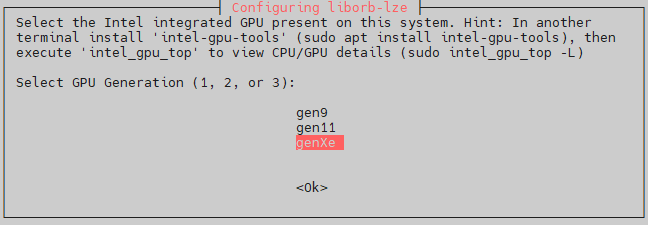
In this dialogue, select the GPU Generation according to the following table depending on your processor type. If you are unsure, it’s safe to select
genXe.GPU Generation
Processors
genXeIntel® Core™ Ultra Processors
13th Generation Intel® Core™ Processors
12th Generation Intel® Core™ Processors
11th Generation Intel® Core™ Processors
Intel® Processor N-series (products formerly Alder Lake-N)gen11Products formerly Ice Lake
gen9Products formerly Skylake
If you want to redisplay this dialogue, you have to uninstall the
liborb-lzepackage using the commands below. This will also remove the packages that depend on theliborb-lzepackage. Then you can install theliborb-lzepackage again and the dialogue will be redisplayed:sudo apt remove --purge liborb-lze echo PURGE | sudo debconf-communicate liborb-lze sudo apt install liborb-lze
Since the
liborb-lzepackage is one of the fundamental dependencies of the Autonomous Mobile Robot, you will have to re-install the Intel GPU Level-Zero accelerated package for Collaborative SLAM (ros-jazzy-collab-slam-lze) as described above.