Simulating wandering#
In this software reference, you’ll simulate the wandering pipeline. This pipeline is built of multiple components available in the Robotics AI Suite, showcasing how to simulate a complex perception and navigation workload in Gazebo.
wandering is a fully-autonomous robotics pipeline, allowing a robot to map the space around it and actually navigate to make sure its map is complete, all without human intervention. You can consider it as a demonstration of what combining multiple ingredients from Intel Robotics AI Suite can create out of the box, and give you an idea of how you can use them in your own robotics use-case.
Architecture#
Wandering combines sensor input, SLAM and mapping, navigation, and robot control. It continuously updates an occupancy map, chooses unexplored frontiers, and sends navigation goals through Nav2 while avoiding obstacles identified by the perception pipeline.
Components#
RTAB-Map creates and updates the environment map.
Nav2 plans and executes movement toward exploration goals.
WanderingMapperselects unexplored frontiers.GoalCatchersendsNavigateToPosegoals to Nav2.
Source Code#
The Wandering source code is available with the Robotics AI Suite.
Run the Gazebo Simulation#
This tutorial shows a TurtleBot3 Waffle robot performing autonomous mapping of the TurtleBot3 robot world in the Gazebo simulation. For more information about TurtleBot3 Waffle robot, refer to TurtleBot3 documentation.
Prerequisites#
Complete the Getting Started guide before continuing.
Run the Sample Application#
If your system has an Intel® GPU, follow the steps in the Getting Started guide to enable the GPU for simulation. This step improves Gazebo simulation performance.
Install dependencies:
sudo apt-get install ros-jazzy-rtabmap-ros
sudo apt-get install ros-humble-rtabmap-ros
Install the Wandering Gazebo tutorial:
sudo apt-get install ros-jazzy-wandering-gazebo-tutorial
sudo apt-get install ros-humble-wandering-gazebo-tutorial
Execute the command below to start the tutorial:
ros2 launch wandering_gazebo_tutorial wandering_gazebo.launch.py
Expected output:
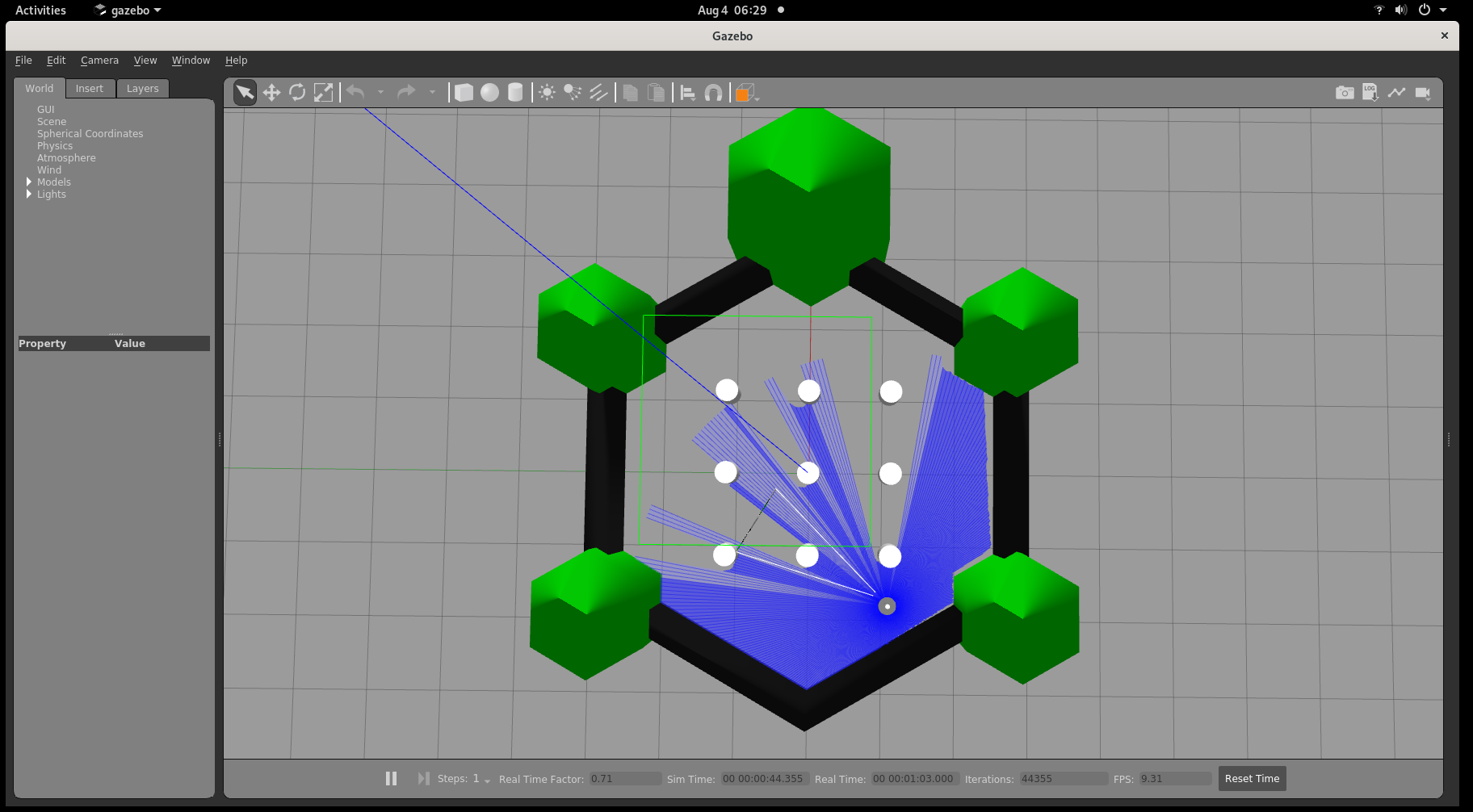
Gazebo client, rviz2 and RTAB-Map applications start and the robot starts wandering inside the simulation. See the simulation snapshot:
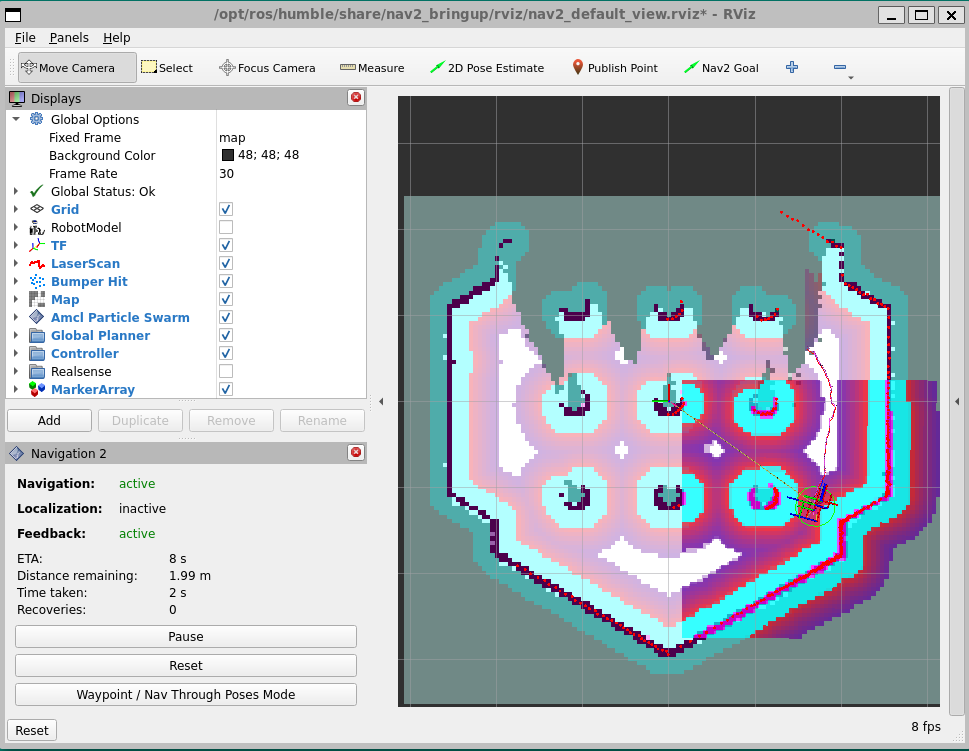
Rviz2 shows the mapped area and the position of the robot:
To enhance performance, set the real-time update to 0 by following the steps below:
In Gazebo’s left panel, go to the World Tab, and click Physics.
Change the real time update rate to 0.
To conclude, use
Ctrl-cin the terminal where you are executing the command.
Troubleshooting#
For general robot issues, refer to the troubleshooting guide.
Next Steps#
You’ve completed the simulation-focused software references. Continue to the deployment learning path to run the Wandering workflow on a physical robot.