UEFI Secure Boot#
UEFI Secure Boot is a security standard designed to make sure that a device boots using only software that is trusted. It prevents a class of attacks in which the attacker modifies the system software, rendering it untrustworthy. When UEFI Secure Boot is enabled, the system firmware (BIOS) requires that all software involved during the boot process (EFI applications, bootloaders [GRUB], kernel) are signed by an authorized signer. The signature of each boot component is verified as they are loaded, forming a chain of trust. If any signature is found to be invalid (or nonexistent), the boot process terminates, thereby preventing unauthorized software from being used during the boot process.
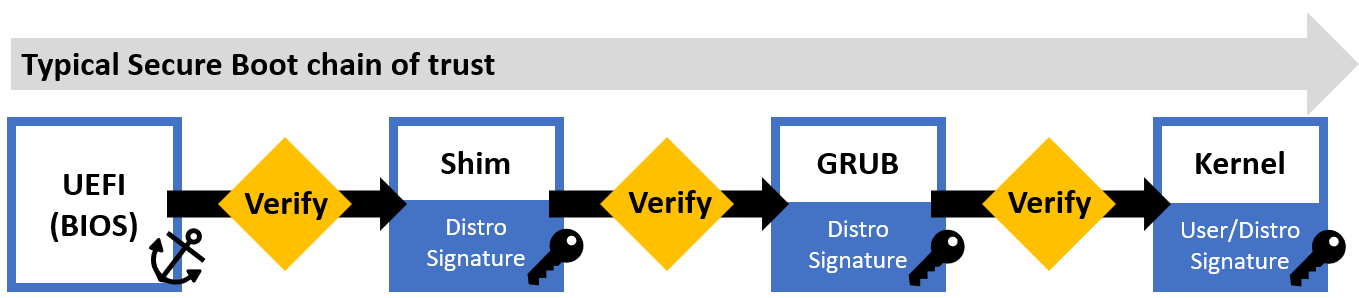
Upon boot, if Secure Boot is enabled, the UEFI will verify the first stage bootloader (Shim). If verification passes, the shim will verify and launch the GRUB bootloader, which verifies and starts the Linux kernel. At this point, the system will have fully booted. As an optional measure of extra security, kernel modules can also be signed and verified by the kernel. Note: The implementation of Secure Boot described in this guide does not cover signed kernel modules.
Enabling UEFI Secure Boot#
This guide will help you enable Secure Boot on your system a Linux kernel.
Install the necessary tools and signed bootloader packages:
sudo apt install openssl sbsigntool efitools mokutil shim-signed grub-efi-amd64-signed
Create a new private key and certificate pair which will be used to sign an authenticate the Linux kernel. You will be asked to
Enter PEM pass phrase:. You may use any phrase. This phrase is needed to decrypt the private key and will be requested throughout the remaining steps.sudo openssl req --new -x509 -newkey rsa:2048 -keyout MOK.priv -outform DER -out MOK.der -days 36500 -subj "/CN=ECI/"
There should be two files,
MOK.derandMOK.priv, available upon creation:$ ls MOK* MOK.der MOK.priv
Convert the certificate from
DERformat toPEMformat:sudo openssl x509 -inform der -in MOK.der -out MOK.pem
There should be a new file named
MOK.privavailable after conversion.Sign the currently booted Linux kernel with the certificate. You will be prompted to
Enter PEM pass phrase. Enter the phrase used to create the certificate.sudo sbsign --key MOK.priv --cert MOK.pem "/boot/vmlinuz-$(uname -r)" --output "/boot/vmlinuz-$(uname -r)-signed"
There should be a new kernel file with
-signedappended to the name. This is the signed kernel which will be loaded during the Secure Boot chain.$ ls /boot/vmlinuz-$(uname -r)* /boot/vmlinuz-5.10.115-rt67-intel-ese-standard-lts-rt+ /boot/vmlinuz-5.10.115-rt67-intel-ese-standard-lts-rt+-signed
NOTE: The
$(uname -r)command is used to capture the name of the current booted Linux kernel. If you want to use a different Linux kernel for Secure Boot, then modify the command to use the different Linux kernel name.Update the GRUB configuration to add the signed Linux kernel to the boot menu:
sudo update-grubUse the
mokutiltool to queue the certificate to be enrolled as a Machine Owner Key. This will enable the signed Linux kernel to be authenticated during the boot process. You will be prompted toinput password:. Enter the phrase used to create the certificate.sudo mokutil --import MOK.der
You can verify that the certificate is queued for enrollment using the following command:
sudo mokutil --list-new
Reboot the system to complete the certificate enrollment:
sudo rebootThe Machine Owner Key management occurs during boot time before the Linux kernel has been started. A direct connection or virtual console is required. It is not possible to SSH into the machine at this point. Once the Shim UEFI key management screen is present, a key must be pressed to enter Machine Owner Key management. If this opportunity is missed, the key must be enrolled again (once Linux has booted up) using the instructions above.
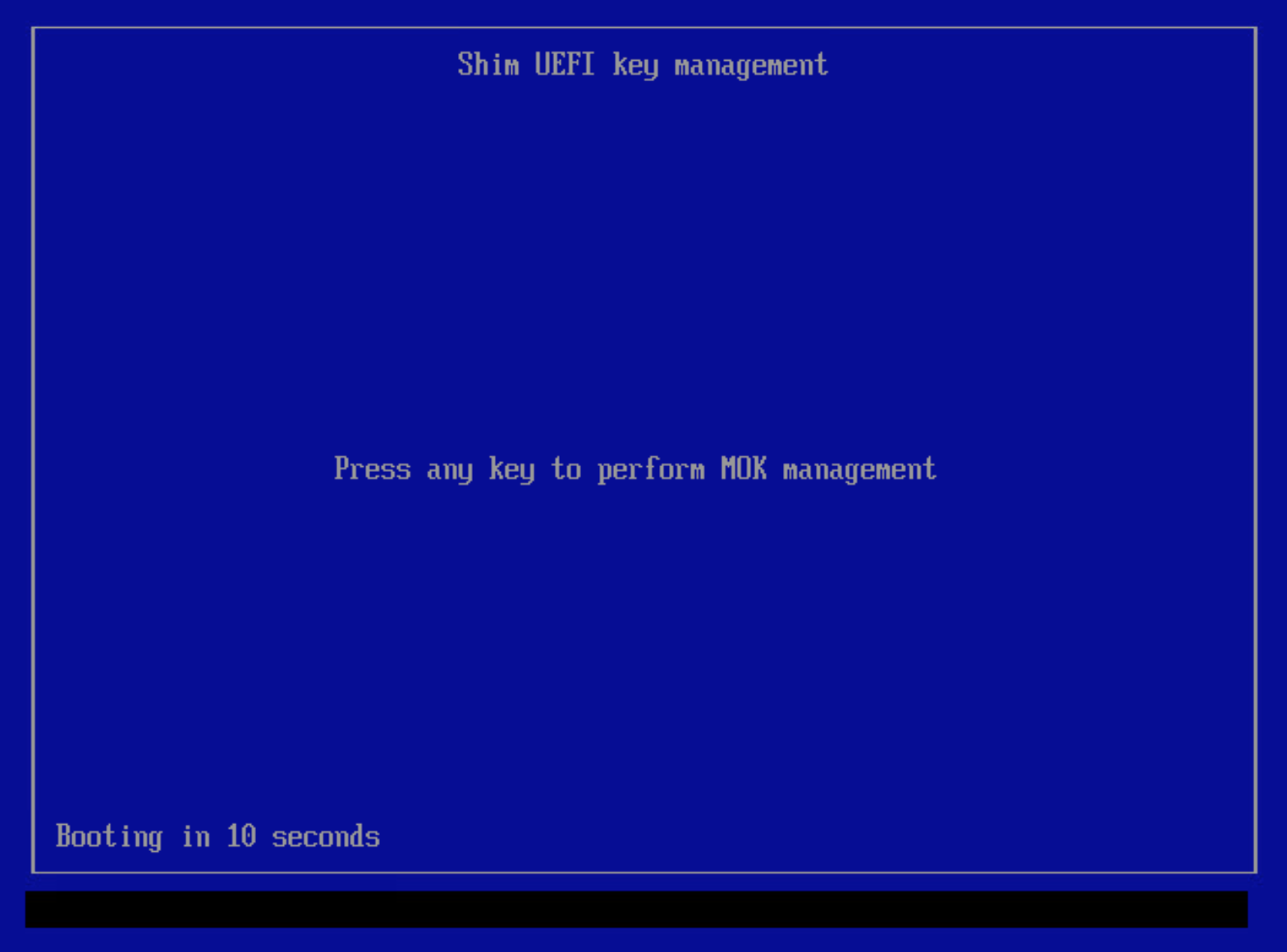
If the UEFI key manager does not appear after rebooting, see UEFI key manager does not appear for troubleshooting steps.
After entering the management tool, select
Enroll MOKto enroll the queued certificate: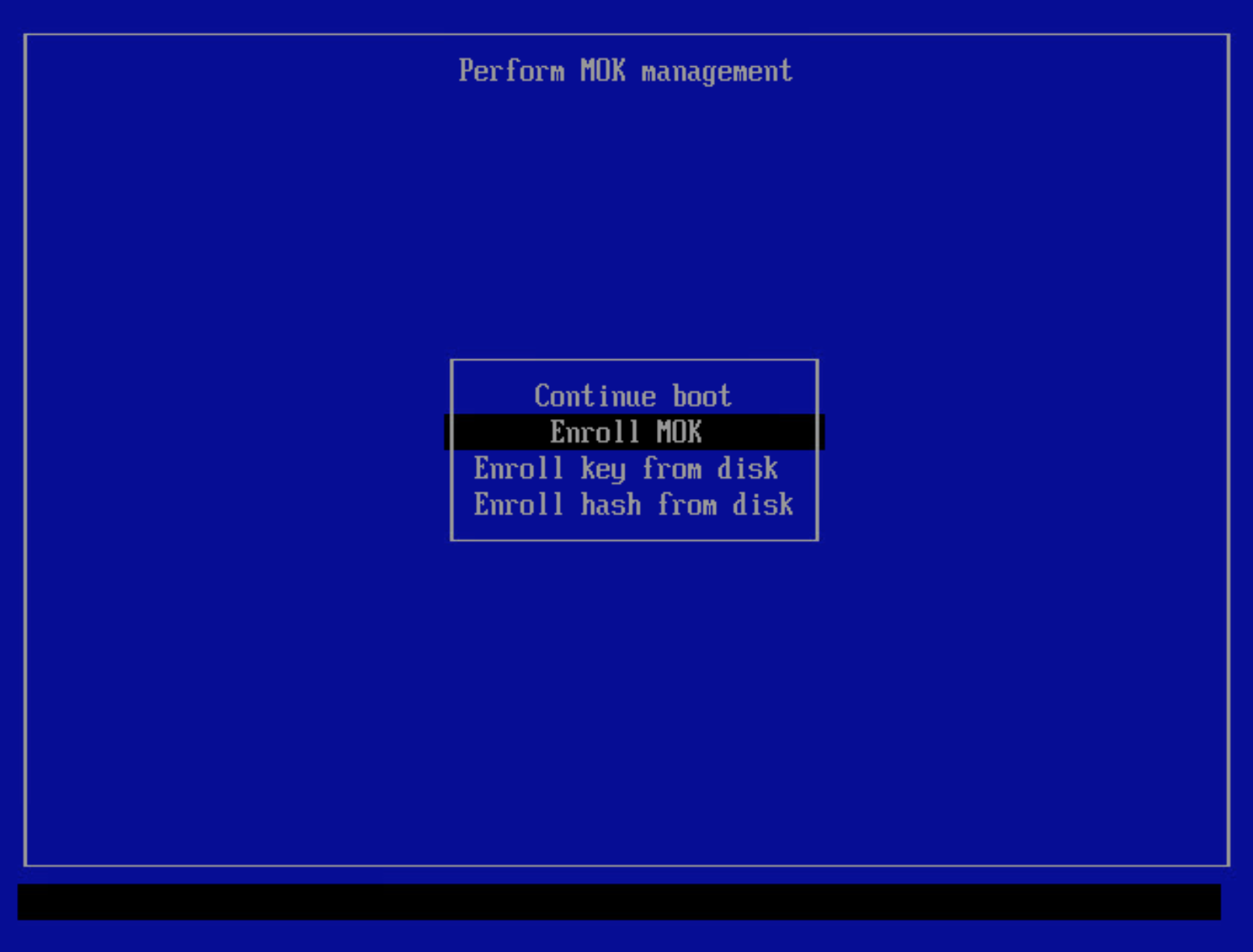
The tool will list the certificates queued for enrollment. You may view the certificates if you like. When ready, select
Continue.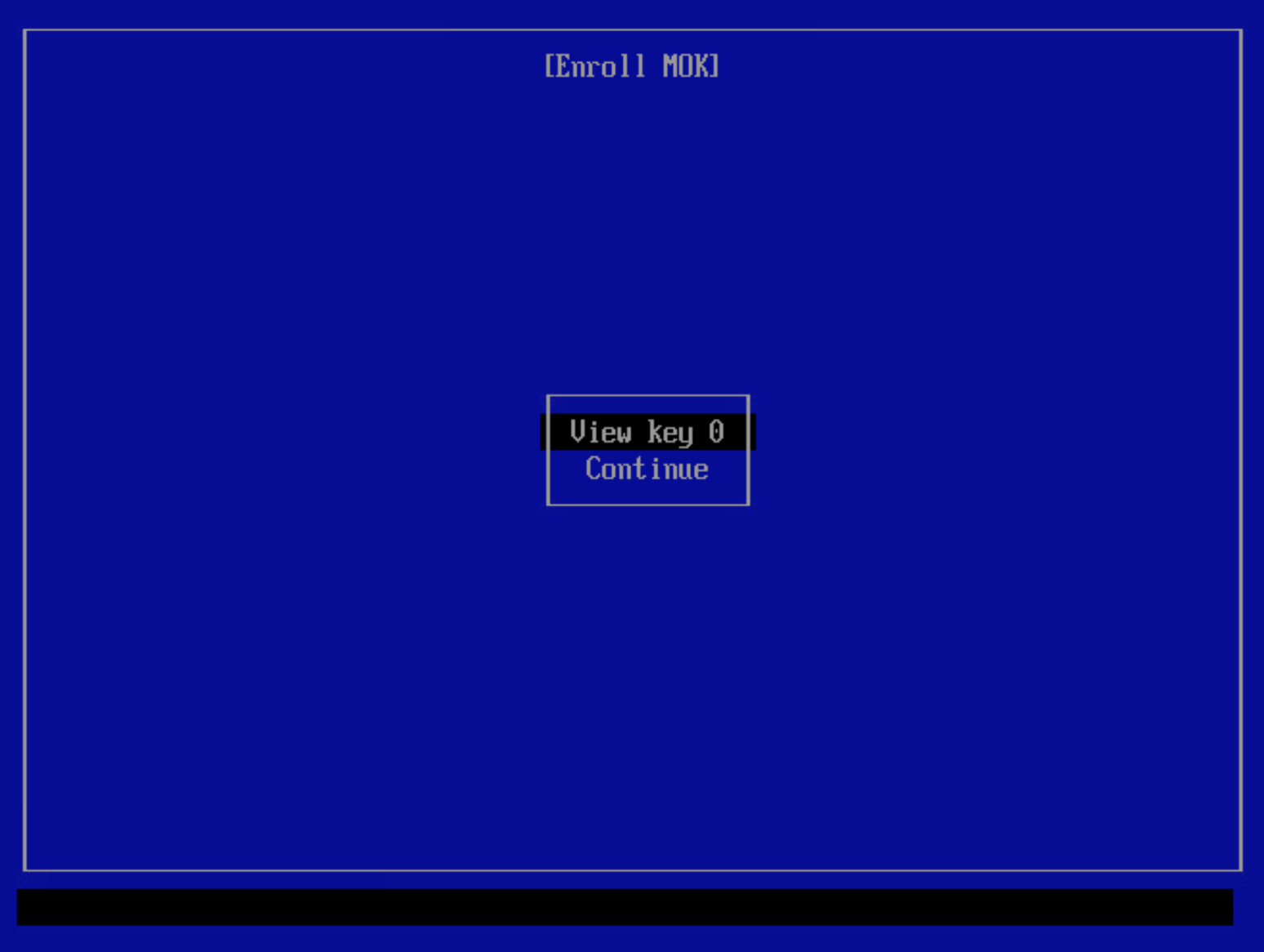
Select
Yesto enroll the certificates.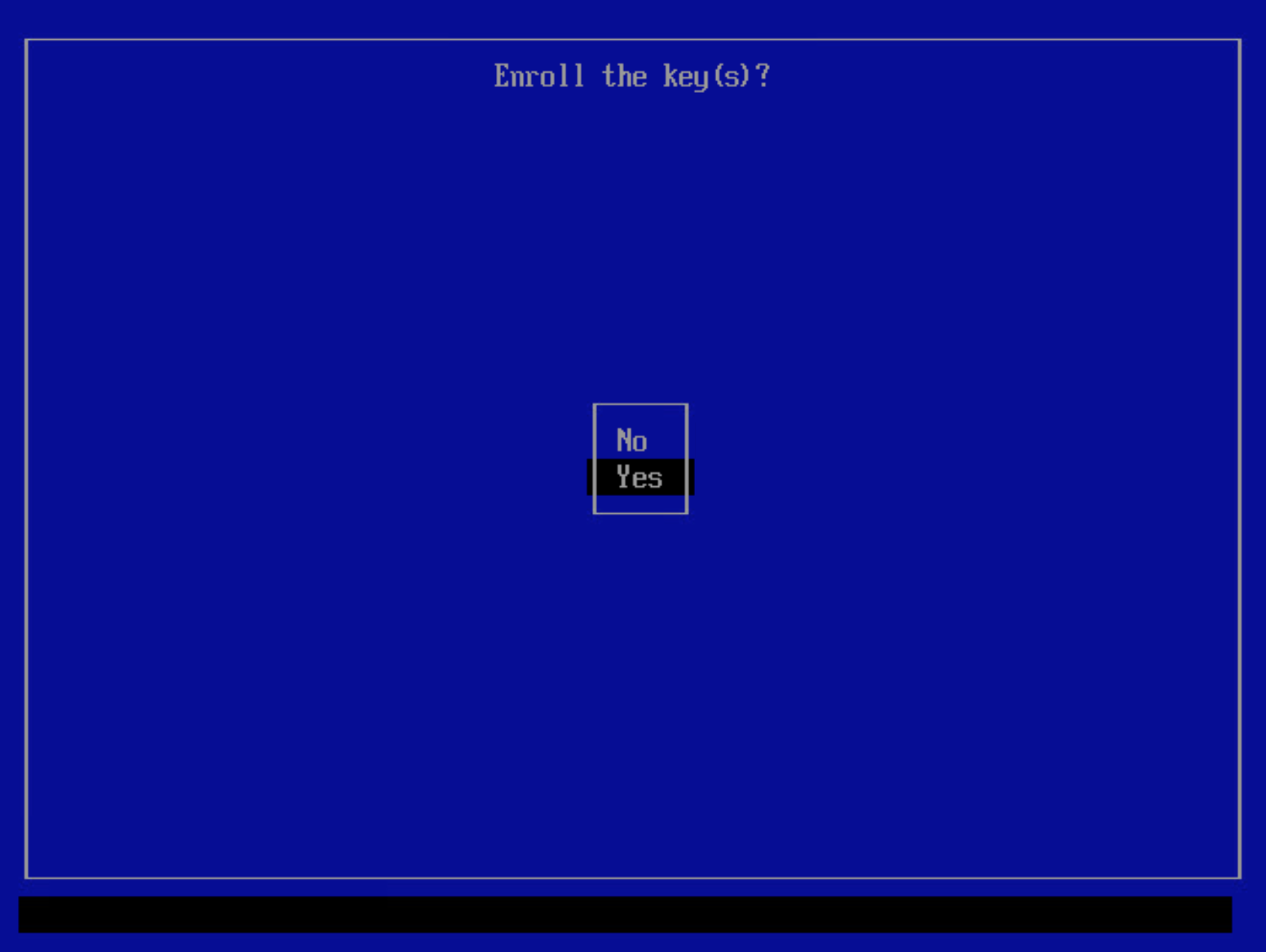
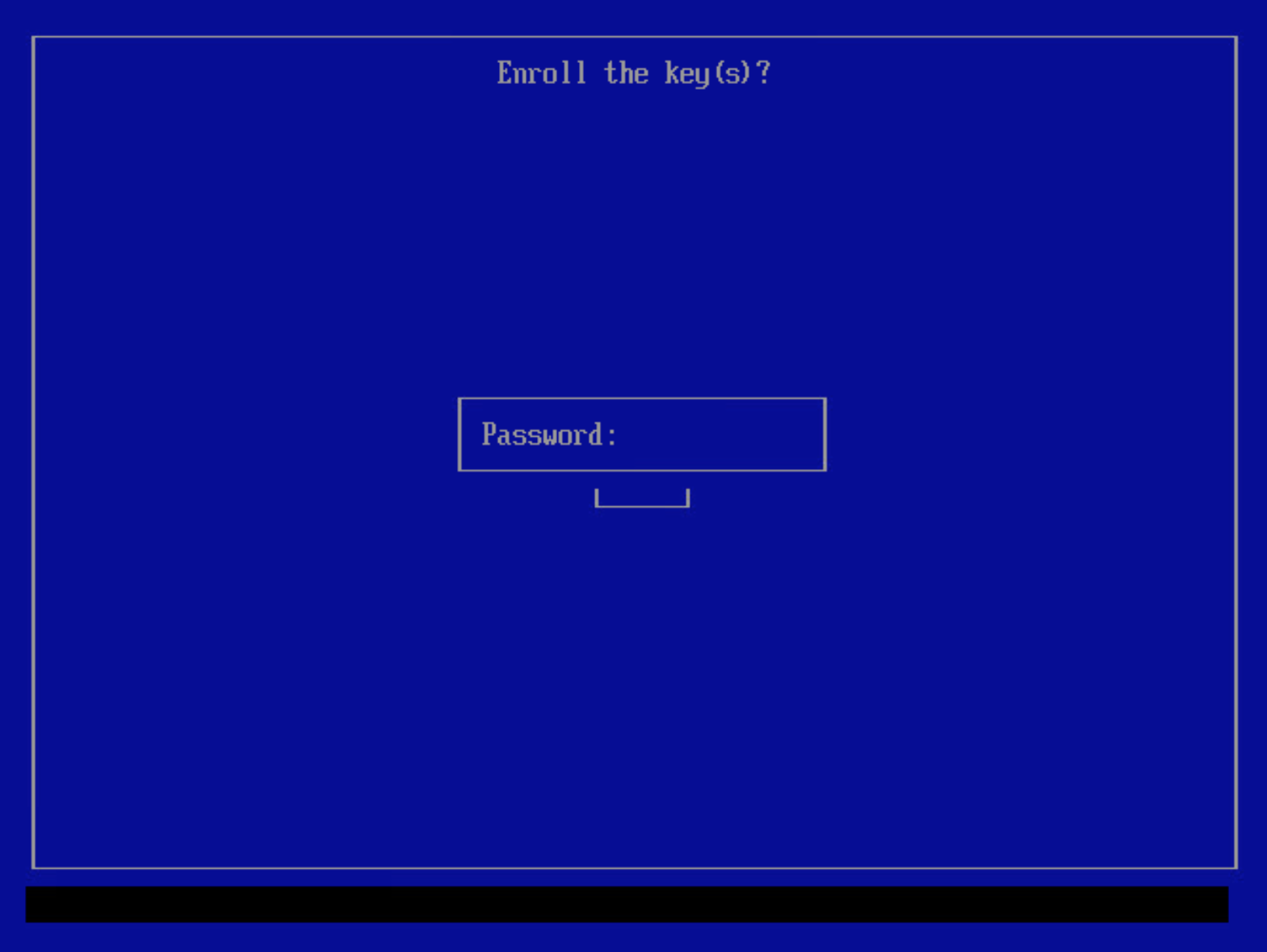
You will be prompted to input a password. Enter the phrase used to create the certificate.
Select
Rebootto reboot the system with the new certificate enrolled.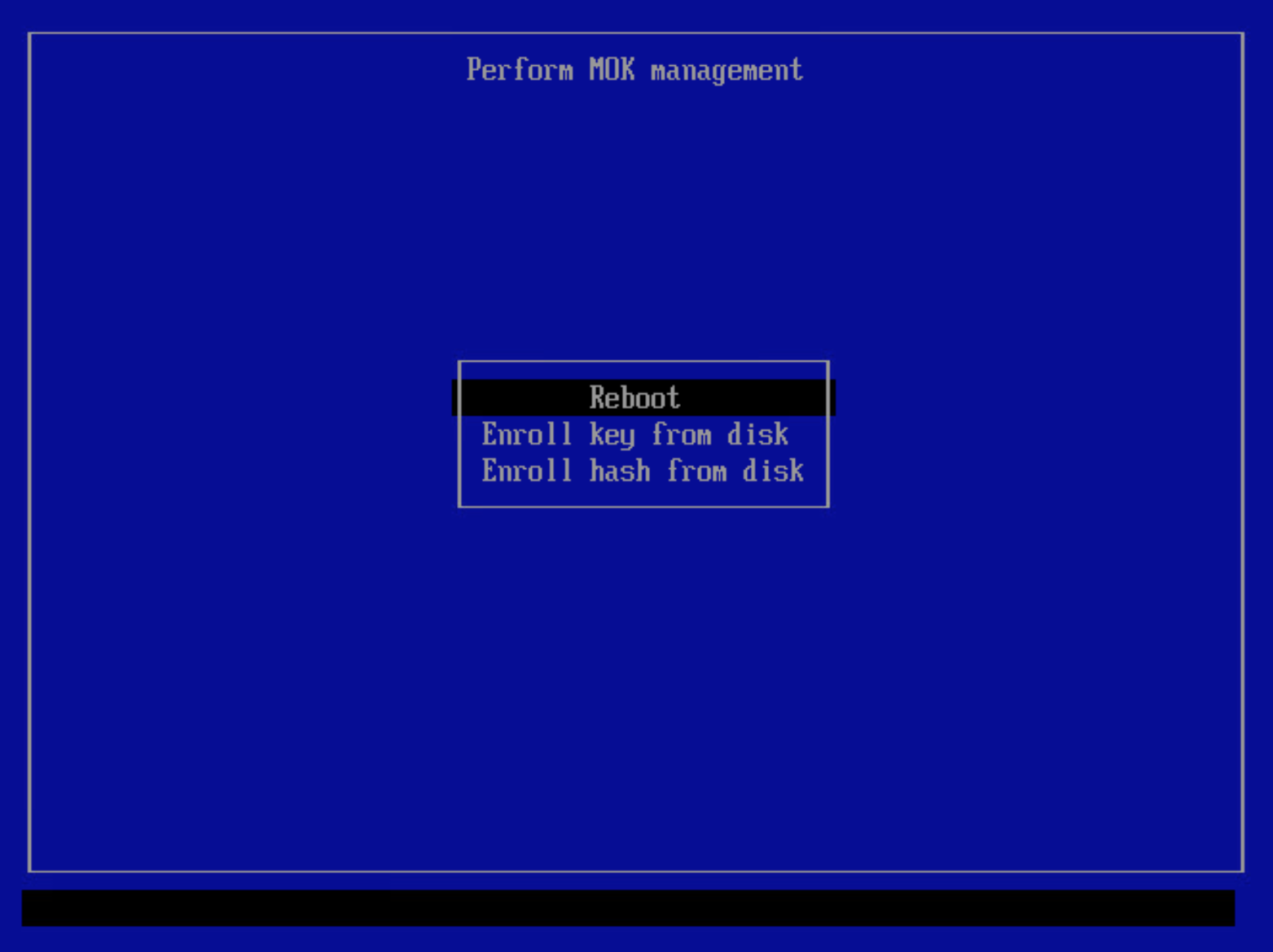
As the system is rebooting, access the BIOS (typically pressing the Delete or F2 keys while booting will open the BIOS menu).
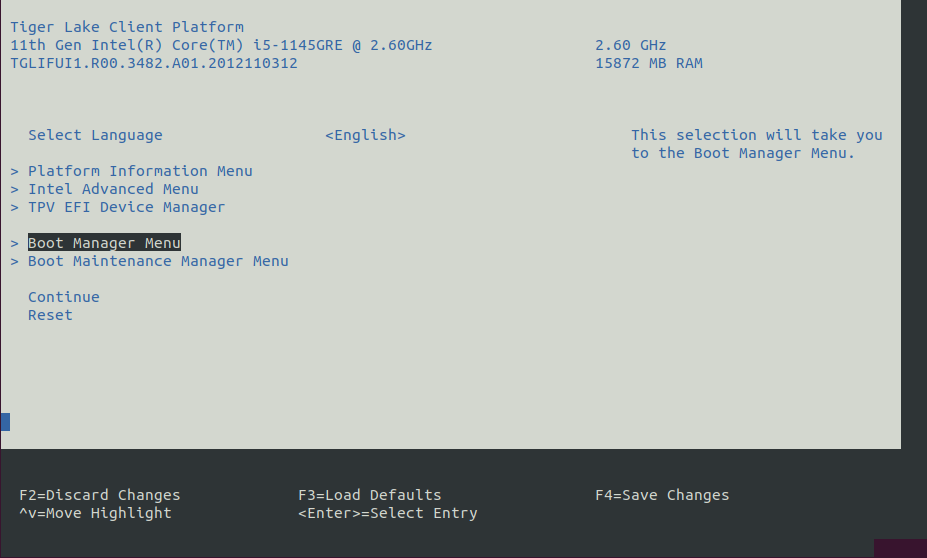
Navigate to the Secure Boot section in the BIOS. Each BIOS is different, but typically there is a menu labeled
SecurityorSecure Boot. EnableSecure Boot. Note,Secure Boot Modecan be set to any value, as this will not impact the enrolled certificate.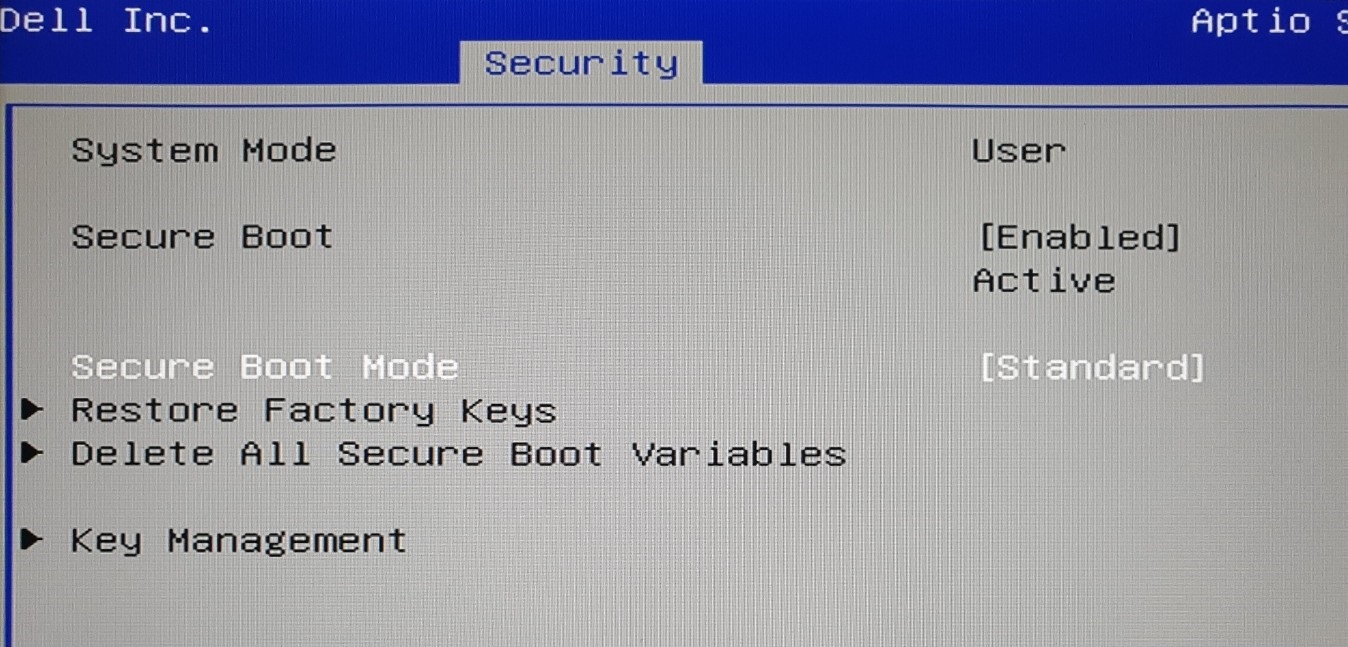
Save and exit the BIOS to boot the system with Secure Boot enabled. When the GRUB bootloader appears, select the signed Linux kernel. You may need to enter an
Advanced optionsmenu if the signed Linux kernel is not immediately present in the list. Note, on Ubuntu-based systems, you may need to press Esc at boot to get the GRUB bootloader to appear.If the bootloader does not appear and/or you receive an error message about a Secure Boot violation, then it is possible the Debian/Ubuntu distribution certificate is not enrolled. Normally the distribution certificate is enrolled when the distribution is installed for the first time, but this could be missing in the case of virtualized systems or other edge cases. See Enrolling distribution certificate for troubleshooting steps.
After the system is booted, login and verify that Secure Boot is enabled:
mokutil --sb-stateIf Secure Boot is successfully enabled, the command will print
SecureBoot enabled.$ mokutil --sb-state SecureBoot enabled
Troubleshooting UEFI Secure Boot#
You may encounter trouble when enabling UEFI Secure Boot. The topics below present typical solutions to the most common problems.
UEFI key manager does not appear#
The UEFI key manager is part of the Shim bootloader. Therefore, if the Shim bootloader is not invoked, the UEFI key manager will not appear. In this situation, the most probable cause is that the Shim boot loader is not the first entry in the UEFI boot list (not to be confused with the GRUB menu). The solution is to simply reorder the UEFI boot list such that the Shim bootloader is first.
Boot into Linux and open a terminal.
Verify the current UEFI boot list and order:
efibootmgr -vThe command will output something similar to the following:
BootCurrent: 0000
Timeout: 3 seconds
BootOrder: 0001,0000
Boot0000* debian	HD(1,GPT,4627fcc1-6782-4594-8b41-8014d1131769,0x800,0x100000)/File(\EFI\DEBIAN\SHIMX64.EFI)
Boot0001* debian	HD(1,GPT,4627fcc1-6782-4594-8b41-8014d1131769,0x800,0x100000)/File(\EFI\DEBIAN\GRUBX64.EFI)..BO
In this example, the
BootOrderis listed as0001,0000. The Shim bootloader is associated toBoot0000, and GRUB is associated toBoot0001. Since0001appears before0000in theBootOrder, the system is currently configured to boot GRUB before the Shim bootloader. TheBootOrderneeds to be modified to boot the Shim0000before GRUB0001.Modify the UEFI boot list so the Shim bootloader is first:
sudo efibootmgr -o 0000,0001
Verify the changes have been applied:
efibootmgr -vBootCurrent: 0000 Timeout: 3 seconds BootOrder: 0000,0001 Boot0000* debian HD(1,GPT,4627fcc1-6782-4594-8b41-8014d1131769,0x800,0x100000)/File(\EFI\DEBIAN\SHIMX64.EFI) Boot0001* debian HD(1,GPT,4627fcc1-6782-4594-8b41-8014d1131769,0x800,0x100000)/File(\EFI\DEBIAN\GRUBX64.EFI)..BO
Reboot the system to boot the Shim bootloader, and subsequently the UEFI key manager.
sudo reboot
Enrolling distribution certificate#
If the bootloader does not appear and/or you receive an error message about a Secure Boot violation, then it is possible the Debian/Ubuntu distribution certificate is not enrolled. Normally the distribution certificate is enrolled when the distribution is installed for the first time, but this could be missing in the case of virtualized systems or other edge cases.
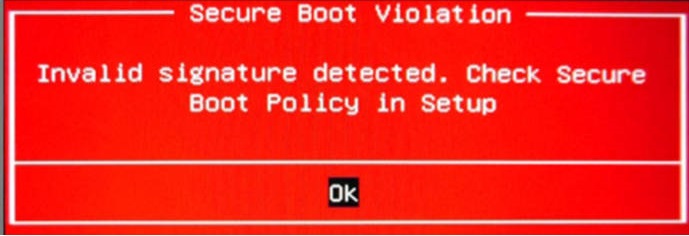
The solution is to enroll the distribution certificate so that the signed Shim and GRUB bootloaders can be authenticated.
Disable Secure Boot in the BIOS, boot into Linux normally, and open a terminal.
Create the distribution certificate file. Select the tab corresponding to your distribution:
Execute the following command to create the distribution certificate for Debian:
echo '-----BEGIN CERTIFICATE-----
MIIDnjCCAoagAwIBAgIRAO1UodWvh0iUjZ+JMu6cfDQwDQYJKoZIhvcNAQELBQAw
IDEeMBwGA1UEAxMVRGViaWFuIFNlY3VyZSBCb290IENBMB4XDTE2MDgxNjE4MDkx
OFoXDTQ2MDgwOTE4MDkxOFowIDEeMBwGA1UEAxMVRGViaWFuIFNlY3VyZSBCb290
IENBMIIBIjANBgkqhkiG9w0BAQEFAAOCAQ8AMIIBCgKCAQEAnZXUi5vaEKwuyoI3
waTLSsMbQpPCeinTbt1kr4Cv6maiG2GcgwzFa7k1Jf/F++gpQ97OSz3GEk2x7yZD
lWjNBBH+wiSb3hTYhlHoOEO9sZoV5Qhr+FRQi7NLX/wU5DVQfAux4gOEqDZI5IDo
6p/6v8UYe17OHL4sgHhJNRXAIc/vZtWKlggrZi9IF7Hn7IKPB+bK4F9xJDlQCo7R
cihQpZ0h9ONhugkDZsjfTiY2CxUPYx8rr6vEKKJWZIWNplVBrjyIld3Qbdkp29jE
aLX89FeJaxTb4O/uQA1iH+pY1KPYugOmly7FaxOkkXemta0jp+sKSRRGfHbpnjK0
ia9XeQIDAQABo4HSMIHPMEEGCCsGAQUFBwEBBDUwMzAxBggrBgEFBQcwAoYlaHR0
cHM6Ly9kc2EuZGViaWFuLm9yZy9zZWN1cmUtYm9vdC1jYTAfBgNVHSMEGDAWgBRs
zs5+TGwNH2FJ890n38xcu0GeoTAUBglghkgBhvhCAQEBAf8EBAMCAPcwEwYDVR0l
BAwwCgYIKwYBBQUHAwMwDgYDVR0PAQH/BAQDAgGGMA8GA1UdEwEB/wQFMAMBAf8w
HQYDVR0OBBYEFGzOzn5MbA0fYUnz3SffzFy7QZ6hMA0GCSqGSIb3DQEBCwUAA4IB
AQB3lj5Hyc4Jz4uJzlntJg4mC7mtqSu9oeuIeQL/Md7+9WoH72ETEXAev5xOZmzh
YhKXAVdlR91Kxvf03qjxE2LMg1esPKaRFa9VJnJpLhTN3U2z0WAkLTJPGWwRXvKj
8qFfYg8wrq3xSGZkfTZEDQY0PS6vjp3DrcKR2Dfg7npfgjtnjgCKxKTfNRbCcitM
UdeTk566CA1Zl/LiKaBETeru+D4CYMoVz06aJZGEP7dax+68a4Cj2f2ybXoeYxTr
7/GwQCXV6A6B62v3y//lIQAiLC6aNWASS1tfOEaEDAacz3KTYhjuXJjWs30GJTmV
305gdrAGewiwbuNknyFWrTkP
-----END CERTIFICATE-----' | \
openssl x509 -inform pem -out distribution.der -outform DER
Execute the following command to create the distribution certificate for Ubuntu:
echo '-----BEGIN CERTIFICATE-----
MIIENDCCAxygAwIBAgIJALlBJKAYLJJnMA0GCSqGSIb3DQEBCwUAMIGEMQswCQYD
VQQGEwJHQjEUMBIGA1UECAwLSXNsZSBvZiBNYW4xEDAOBgNVBAcMB0RvdWdsYXMx
FzAVBgNVBAoMDkNhbm9uaWNhbCBMdGQuMTQwMgYDVQQDDCtDYW5vbmljYWwgTHRk
LiBNYXN0ZXIgQ2VydGlmaWNhdGUgQXV0aG9yaXR5MB4XDTEyMDQxMjExMTI1MVoX
DTQyMDQxMTExMTI1MVowgYQxCzAJBgNVBAYTAkdCMRQwEgYDVQQIDAtJc2xlIG9m
IE1hbjEQMA4GA1UEBwwHRG91Z2xhczEXMBUGA1UECgwOQ2Fub25pY2FsIEx0ZC4x
NDAyBgNVBAMMK0Nhbm9uaWNhbCBMdGQuIE1hc3RlciBDZXJ0aWZpY2F0ZSBBdXRo
b3JpdHkwggEiMA0GCSqGSIb3DQEBAQUAA4IBDwAwggEKAoIBAQC/WzoWdO4hXa5h
7Z1WrL3e3nLz3X4tTGIPrMBtSAgRz42L+2EfJ8wRbtlVPTlU60A7sbvihTR5yvd7
v7p6yBAtGX2tWc+m1OlOD9quUupMnpDOxpkNTmdleF350dU4Skp6j5OcfxqjhdvO
+ov3wqIhLZtUQTUQVxONbLwpBlBKfuqZqWinO8cHGzKeoBmHDnm7aJktfpNS5fbr
yZv5K+24aEm82ZVQQFvFsnGq61xX3nH5QArdW6wehC1QGlLW4fNrbpBkT1u06yDk
YRDaWvDq5ELXAcT+IR/ZucBUlUKBUnIfSWR6yGwk8QhwC02loDLRoBxXqE3jr6WO
BQU+EEOhAgMBAAGjgaYwgaMwHQYDVR0OBBYEFK2RmQvCKrH1FwSMI7ZlWiaONFpj
MB8GA1UdIwQYMBaAFK2RmQvCKrH1FwSMI7ZlWiaONFpjMA8GA1UdEwEB/wQFMAMB
Af8wCwYDVR0PBAQDAgGGMEMGA1UdHwQ8MDowOKA2oDSGMmh0dHA6Ly93d3cuY2Fu
b25pY2FsLmNvbS9zZWN1cmUtYm9vdC1tYXN0ZXItY2EuY3JsMA0GCSqGSIb3DQEB
CwUAA4IBAQA/ffZ2pbODtCt60G1SGgODxBKnUJxHkszAlHeC0q5Xs5kE9TI6xlUd
B9sSqVb62NR2IOvkw1Hbmlyckj8Yc9qUaqGZOIykiG3B/Dlx0HR2FgM+ViM11VVH
WxodQcLTEkzc/64KkpxiChcBnHPgXrH9vNa1GRF6fs0+A35m21uoyTlIUf9T4Zwx
U5EbOxB1Axe65oECgJRwTEa3lLA9Fc0fjgLgaAKP+/lHHX2iAcYHUcSazO3dz6Nd
7ZK7vtH95uwfM1FzBL48crB9CPgB/5h9y5zgaTl3JUdxiLGNJ6UuqPc/X4Bplz6p
9JkU284DDgtmxBxtvbgnd8FClL38agq8
-----END CERTIFICATE-----' | \
openssl x509 -inform pem -out distribution.der -outform DER
Use the
mokutiltool to queue the distribution certificate to be enrolled as a Machine Owner Key. This will enable the signed Shim and GRUB bootloaders authenticated during the boot process. You will be prompted toinput password:. Enter any phrase. You will need to enter this phrase later when enrolling the certificate using the UEFI key manager.sudo mokutil --import distribution.der
You can verify that the certificate is queued for enrollment using the following command:
sudo mokutil --list-new
Follow the same steps used to enroll a custom certificate.