BIOS Configuration#
Overview#
This guide describes how to enable the camera and AI accelerator devices in the BIOS so the IPU, NPU, and MIPI cameras are available to the operating system. It also describes how to disable the Smart Fan for continuous cooling during validation.
Enter the BIOS#
Press ESC as the system boots to enter the BIOS setup screen.
Enable the IPU and NPU#
Navigate to the System I/O tab.
Enable the IPU and NPU devices.
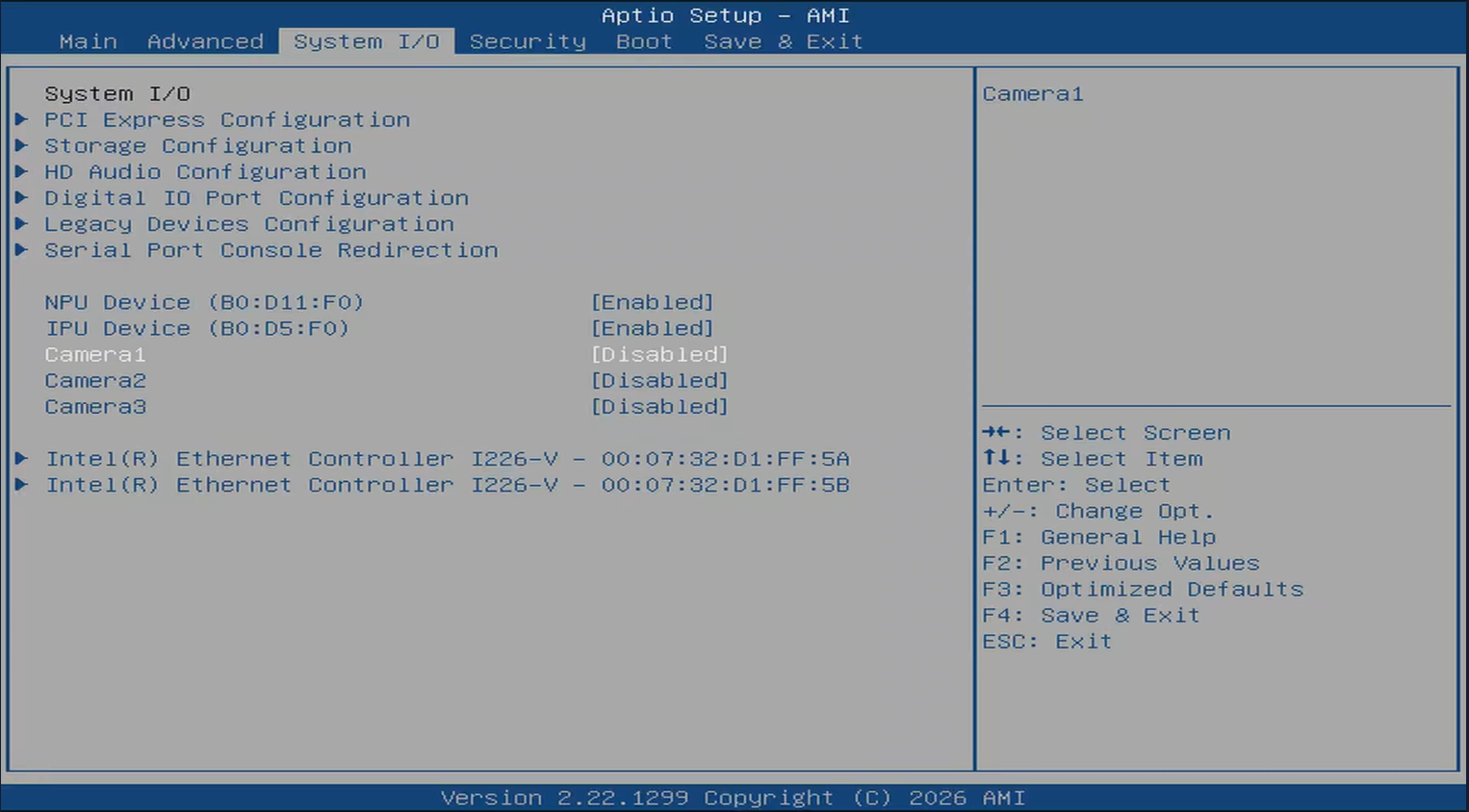
Note: On AMI BIOS 12 and above, the IPU, NPU, and MIPI camera settings are located under the System I/O tab. From the main page, press the right arrow key to reach System I/O.
Disable the Smart Fan (optional)#
Disable the Smart Fan to run the fan at continuous maximum speed.
Navigate to Hardware Monitor.
Set Smart Fan to Disabled.
Disabling the Smart Fan keeps the fan at maximum speed at all times. Use this for validation only.
Save and exit the BIOS to apply your changes.
Next Steps#
Supported Operating Systems — review the operating systems validated for this kit before installing your OS.