Performance testing#
This article covers performance testing in ViPPET. Users can test single pipelines as well as multiple pipelines running concurrently. Both testing modes provide the same metrics and optional output videos, allowing users to evaluate system performance under different workload conditions.
Test a single pipeline#
First, navigate to the Performance page. Then, select the pipeline you want to test and specify the number of streams to process. You can optionally enable saving the output videos generated during the test. Once all settings are configured, click Run performance test. While testing, real-time system metrics are displayed in the dashboard.
The application reports both Total FPS and Per Stream FPS metrics, and provides the output video from the test if Save output was enabled.
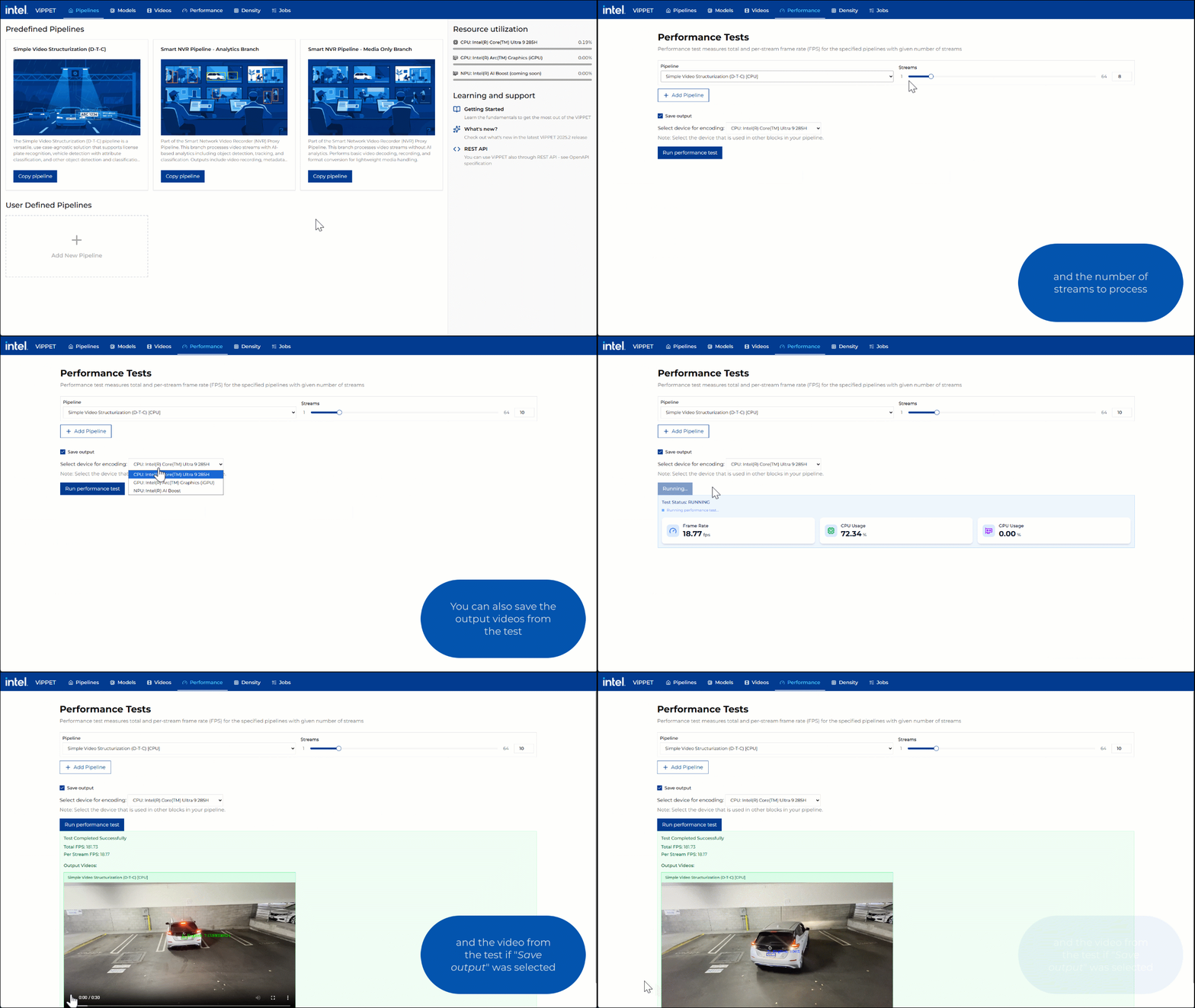 Figure 1: Performance testing of a single pipeline
Test multiple pipelines#
You can test multiple pipelines running concurrently. To run this type of test, select a pipeline from the list, then click + Add Pipeline and configure the number of streams for each pipeline. Once all settings are configured, click Run performance test. While testing, real-time system metrics are displayed in the dashboard.
As in the previous case, the application reports Total FPS and Per Stream FPS metrics, and provides the output videos from the test if Save output was enabled.
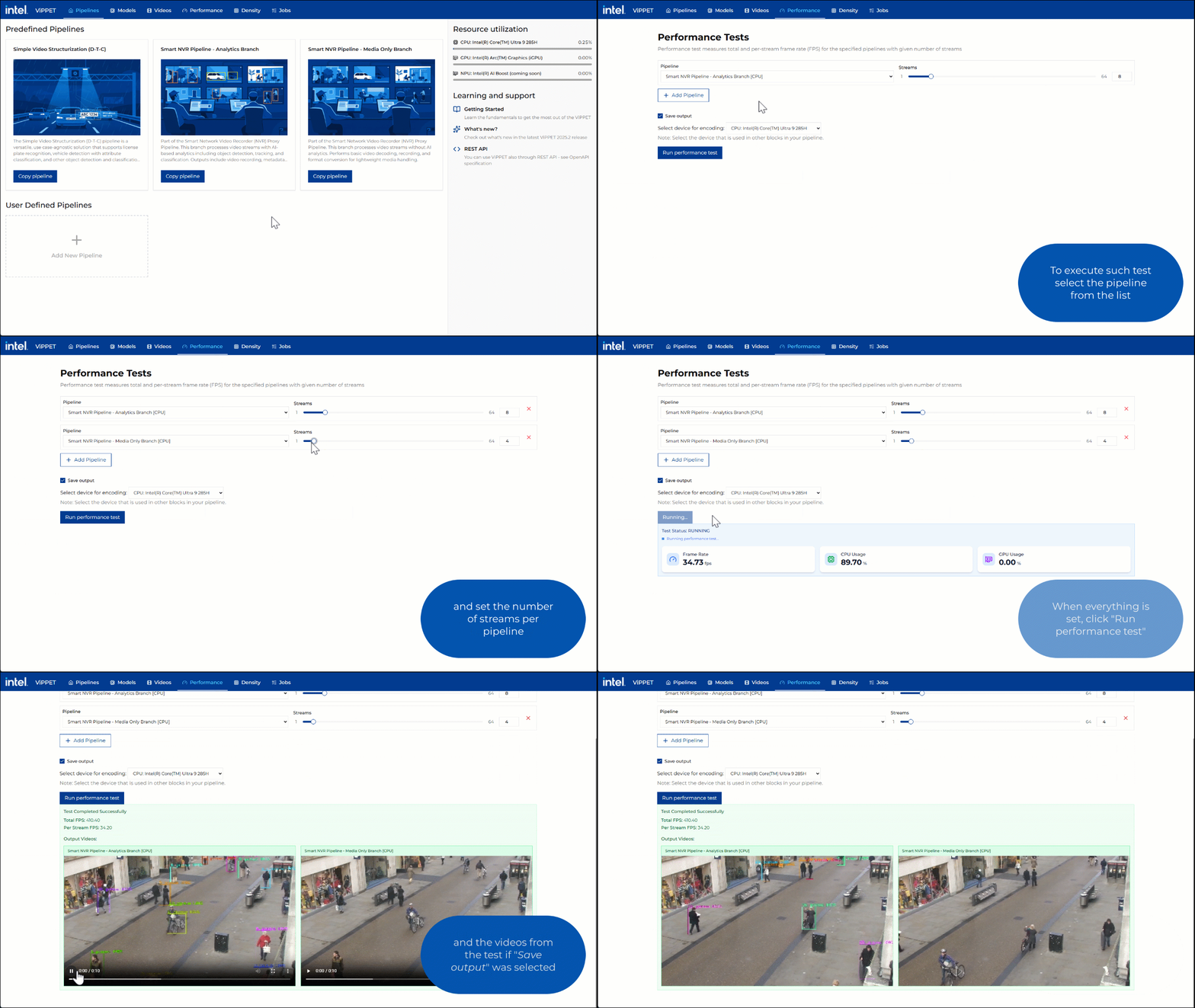 Figure 2: Performance testing of multiple pipelines