Integrate Scenescape with Smart NVR#
This guide describes how to integrate Intel® Scenescape with Smart NVR for enhanced traffic monitoring using live data from the Smart Intersection application.
Overview#
Smart NVR integrates with Intel® Scenescape to enable:
Real-time object counting and tracking (vehicles, pedestrians)
Traffic flow analysis
Automated event routing based on count thresholds
Enhanced surveillance for smart intersection management
Prerequisites#
Docker and Docker Compose installed
VSS (Video Search and Summarization) running and reachable from the NVR machine
Deployment Modes#
Smart NVR with Scenescape supports two deployment modes:
Mode |
Description |
Command |
|---|---|---|
Single-Node |
All services (SI + NVR) on one machine |
|
Distributed Node |
SI on System 1, NVR on System 2 |
|
Single-Node Deployment#
In single-node mode, all services run on one machine. The setup script performs the following steps automatically:
Validates required environment variables
Configures DL Streamer and Frigate for Scenescape mode
Downloads demo videos and starts the MediaMTX RTSP streamer
Starts the Smart Intersection stack (runs
install.shon first launch)Starts the NVR stack and connects it to the Scenescape network
Set Environment Variables#
export NVR_SCENESCAPE=true
export VSS_IP=<vss_ip>
export VSS_PORT=<vss_port>                        # optional, default 12345
# export RTSP_STREAM_PORT=<rtsp port>      # optional, default 8554
# export MQTT_USER=<mqtt-username>         # optional, auto-generated if omitted
# export MQTT_PASSWORD=<mqtt-password>     # optional, auto-generated if omitted
Start#
source setup.sh start
Verify#
docker logs nvr-event-router | grep -i "scenescape\|subscribed"
# Expected:
#   Scenescape mode: starting multi-broker manager
#   [si1] subscribed to scenescape/data/camera/# at <host>:1883
The UI is available at http://<host_ip>:7860.
Distributed Node Deployment#
For distributed deployments where Smart Intersection runs on a dedicated machine (System 1) and the NVR stack runs on a separate machine (System 2), see Multiple Scenescape Deployment.
Stop Services#
source setup.sh stop     # stop all services
source setup.sh restart  # restart all services
For distributed node stop commands, see Multiple Scenescape Deployment.
Verify Integration#
docker logs nvr-event-router | grep -i "scenescape\|subscribed"
# Expected:
#   Scenescape mode: starting multi-broker manager
#   [si1] subscribed to scenescape/data/camera/# at <host>:1883
User Interface#
With Intel® Scenescape Enabled#
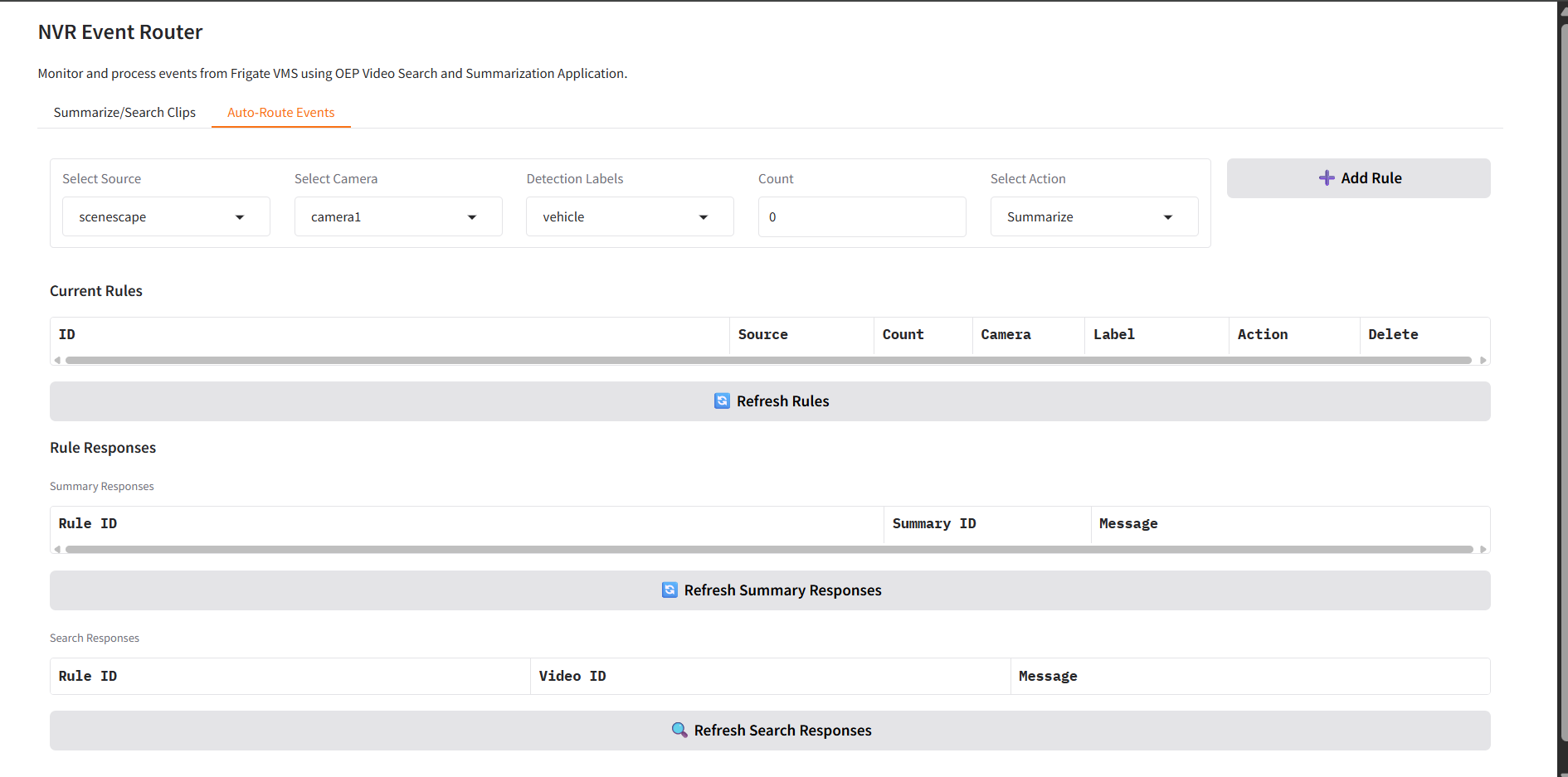
When Intel® Scenescape is enabled (NVR_SCENESCAPE=true):
Source dropdown shows only “scenescape” (Frigate source is not available in this mode)
Count field is visible and editable
Minimum count threshold for rule triggering can be configured (e.g., 5, 10, 15)
Rules table includes a “Count” column for tracking thresholds
Count validation enforces non-negative integers
Auto-Route Events Configuration#
Creating Rules#
Navigate to the Auto-Route Events tab
Source is pre-set to “scenescape”
Set Count: Define the minimum detection threshold (e.g., 5)
Select Camera: Choose the target camera
Choose Detection Label: Select the object type (“vehicle” or “pedestrian”)
Select Action: Choose “Summarize” or “Add to Search”
Click Add Rule
Rule Behavior Example#
Source: scenescape
Camera: camera1
Count: 5
Label: vehicle
Action: Summarize
This rule triggers video summarization when 5 or more vehicles are detected in camera1.
Troubleshooting#
Scenescape features not visible in UI
Verify that NVR_SCENESCAPE is set to true and restart the services:
echo $NVR_SCENESCAPE
export NVR_SCENESCAPE=true
source setup.sh restart
After restarting, perform a hard refresh in the browser (Ctrl+Shift+R or Cmd+Shift+R).
No Scenescape events received
# Check MQTT connectivity to the Scenescape broker
docker logs nvr-event-router | grep -i scenescape

# Verify Smart Intersection containers are running
docker ps | grep metro-vision-ai-app-recipe
Diagnostic commands
# Monitor live Scenescape MQTT messages
docker logs nvr-event-router -f | grep "scenescape"

# List all running containers with status
docker ps --format "table {{.Names}}\t{{.Status}}"

# Check container resource utilization
docker stats --no-stream --format "table {{.Name}}\t{{.CPUPerc}}\t{{.MemUsage}}"
Support#
When reporting issues, verify the following:
Environment variables — Confirm all required variables are exported:
env | grep -E "NVR_|SCENESCAPE|MQTT|VSS"MQTT connectivity — Check logs for:
[si1] subscribed to scenescape/data/camera/#Smart Intersection — Confirm SI containers are running:
docker ps | grep metroDistributed node — See Multiple Scenescape Deployment for connectivity and broker troubleshooting.
Resource utilization — Run
docker stats --no-streamto identify resource-constrained containers
For general Smart NVR issues, refer to the Troubleshooting Guide.