Get Started#
Smart NVR is a GenAI-powered video analytics application that transforms traditional network video recorders with intelligent event detection and real-time insights at the edge. This guide will walk you through deploying and configuring the application to extract valuable insights from your video data.
Prerequisites#
System Requirements#
System must meet minimum requirements.
VSS and Smart NVR can run on the same device using VSS Dual Mode, or on separate devices.
Deployment Option |
VSS Mode |
Minimum Devices |
|---|---|---|
Single device |
Dual Mode ( |
1 |
Separate VSS device |
Any mode |
2 |
Deploy VSS before starting Smart NVR. See VSS Documentation for setup instructions.
Software Dependencies#
Docker: Installation Guide
Must be configured to run without sudo (Post-install guide)
Git: Installation Guide
Quick Start#
Step 1: Build from Source#
Go to the target directory of your choice and clone the suite.
If you want to clone a specific release branch, replace main with the desired tag.
To learn more on partial cloning, check the Repository Cloning guide.
git clone --filter=blob:none --sparse --branch main https://github.com/open-edge-platform/metro-ai-suite.git
cd metro-ai-suite
git sparse-checkout set smart-nvr
cd smart-nvr
Step 2: Configure Environment#
Set up the required environment variables:
# Docker Registry Details
export REGISTRY_URL="intel"
export TAG="latest"

# VSS Service Endpoint (required)
export VSS_IP=<vss-device-ip>
export VSS_PORT=<vss-port>                         # optional, default 12345

# Optional — set only if needed
# export NVR_SCENESCAPE=false           # optional, default false; set to 'true' to enable Scenescape integration
# export http_proxy=<http-proxy>
# export https_proxy=<https-proxy>
# export no_proxy=<no_proxy>
# export MQTT_USER=<mqtt-username>      # auto-generated if omitted
# export MQTT_PASSWORD=<mqtt-password>  # auto-generated if omitted
Step 3: Launch Application#
# Start all services
source setup.sh start
The batch settings control how the NVR Event Router groups videos detected by the continuous-ingestion watcher, and how often it polls Pipeline Manager for asynchronous embedding-job completion. They do not affect single event-rule clips or video summarization.
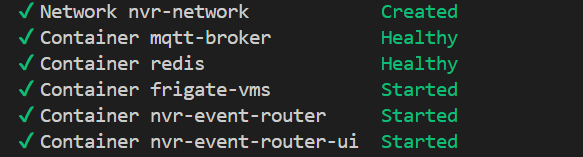
This launches all required containers:
Step 4: Access the Interface#
Open your browser and navigate to:
http://<host-ip>:7860
Step 5: Stop Services#
# Stop all services when done
source setup.sh stop
Scenescape Integration#
For traffic analytics capabilities with Scenescape (vehicle counting, traffic flow analysis), see the Scenescape Integration Guide.
Custom Build Configuration#
If using custom build flags, ensure the same environment variables are set before running the setup script.
Next Steps#
Explore Features: Learn about application capabilities in the How to Use Guide
Troubleshooting: If you encounter issues, check the Troubleshooting Guide