Get Started#
Loitering Detection leverages advanced AI algorithms to monitor and analyze real-time video feeds, identifying individuals lingering in designated areas. It provides a modular architecture that integrates seamlessly with various input sources and leverages AI models to deliver accurate and actionable insights.
By following this guide, you will learn how to:
Set up the sample application: Use Docker Compose to quickly deploy the application in your environment.
Run a predefined pipeline: Execute a pipeline to see loitering detection in action.
Access the application’s features and user interfaces: Explore the Grafana dashboard and DL Streamer Pipeline Server to monitor, analyze and customize workflows.
Prerequisites#
Verify that your system meets the minimum requirements.
Install Docker: Installation Guide. Enable running docker without “sudo”: Post Install
Install Git: Installing Git
Set up and first use#
Clone the Suite:
Go to the target directory of your choice and clone the suite. If you want to clone a specific release branch, replace
mainwith the desired tag. To learn more on partial cloning, check the Repository Cloning guide.git clone --filter=blob:none --sparse --branch main https://github.com/open-edge-platform/metro-ai-suite.git cd metro-ai-suite git sparse-checkout set metro-vision-ai-app-recipe cd metro-vision-ai-app-recipe/
Setup Application and Download Assets:
Use the installation script to configure the application and download required models:
./install.sh loitering-detection
Note
For environments requiring a specific host IP address (for example, when deploying across different network interfaces), you can explicitly specify the IP address:
./install.sh loitering-detection <HOST_IP>(Replace<HOST_IP>with your target IP address.)
Run the application#
Start the Application:
Download container images with Application microservices and run with Docker Compose:
docker compose up -d
Check Status of Microservices
- The application starts the following microservices. - To check if all microservices are in Running state: ```bash docker ps ```Expected Services:
Grafana Dashboard
DL Streamer Pipeline Server
MQTT Broker
Scenescape services (for Smart Intersection only)
Run Predefined Pipelines:
Start video streams to run video inference pipelines:
./sample_start.sh
To check the status of the pipelines:
./sample_status.sh
Stop pipelines
- To stop the pipelines without waiting for video streams to finish replay:Note
This will stop all the pipelines and the streams. DO NOT run this if you want to see loitering detection
./sample_stop.sh
View the Application Output:
Open a browser and go to
https://localhost/grafanato access the Grafana dashboard.Change the localhost to your host IP if you are accessing it remotely.
Log in with the following credentials:
Username:
adminPassword:
admin
Check under the Dashboards section for the application-specific preloaded dashboard.
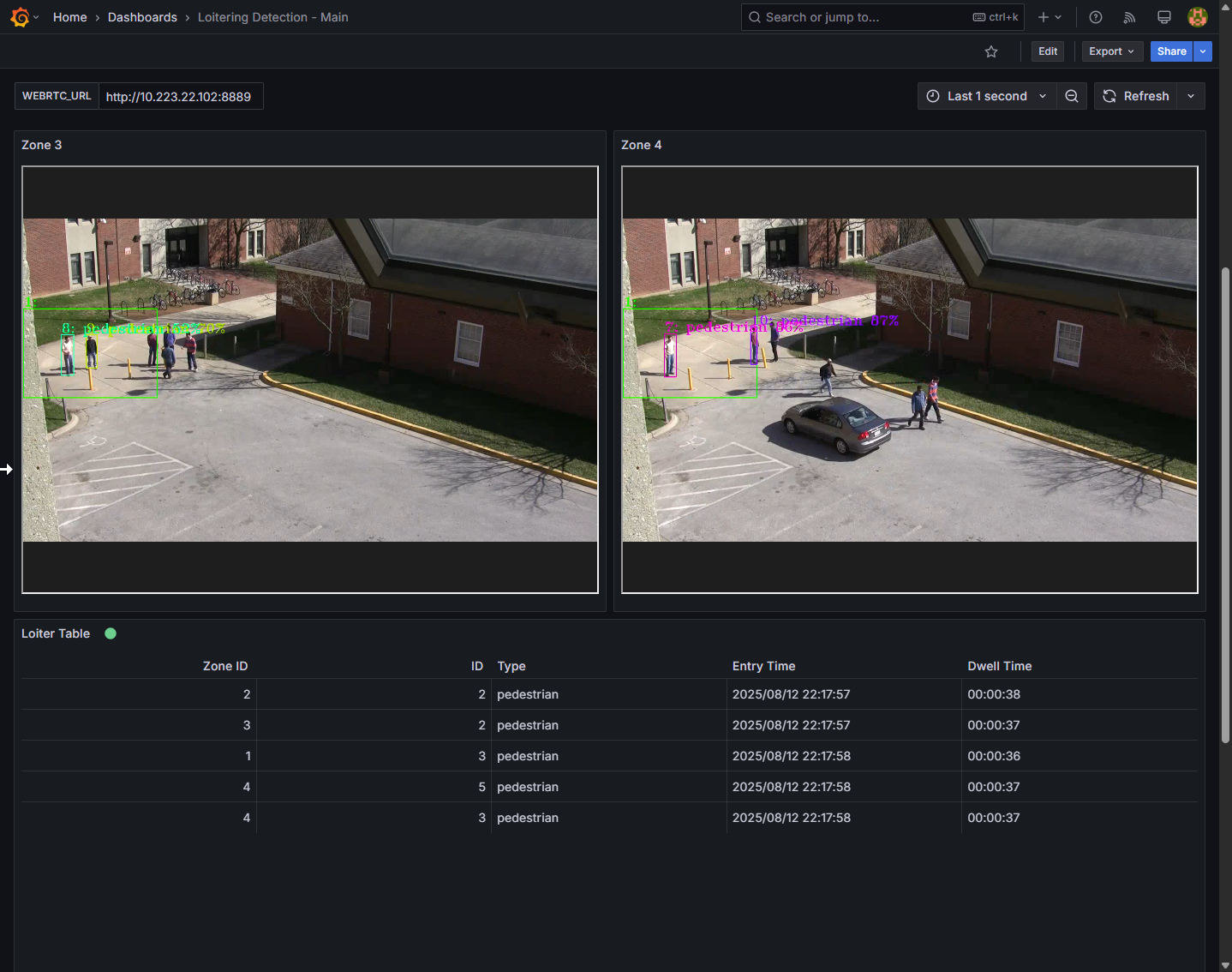
Expected Results: The dashboard displays real-time video streams with AI overlays and detection metrics.
Access the Application and Components#
Nginx Dashboard#
URL:
https://localhost
Grafana UI#
URL:
https://localhost/grafanaLog in with credentials:
Username:
adminPassword:
admin(You will be prompted to change it on first login.)
In Grafana UI, the dashboard displays detected people and cars
Note
In the default pipeline, we use
gvatrack tracking-type=zero-termelement. Zero-term tracking assigns unique object IDs and requires object detection to run on every frame (the pipelines here already run detection on every frame, so this is a direct drop-in). It uses image data for re-identification, unlike the imageless trackers.Note
Detection (
gvadetect) and tracking (gvatrack) always run on the full video frame — there is no element cropping input to the zone polygons. Only thegvaanalyticselement restricts its output to the configured zones: objects outside every zone are still detected and tracked, just not reported as present/dwelling in a zone.
DL Streamer Pipeline Server#
REST API:
https://localhost/api/pipelines/statusWebRTC:
https://localhost/mediamtx/object_tracking_1/
Tuning or disabling the dwell-time overlay#
The on-screen dwell-time dashboard text (drawn by loitering_watermark) is controlled by two
REST-overridable properties, set via loitering-watermark-properties in the launch payload used
by sample_start.sh — no code or pipeline changes needed:
loitering-threshold: dwell time (seconds) after which the overlay turns red. Default5.0. To change it, edit the"loitering-threshold"value in the payload insample_start.sh(or pass a different value in your owncurlcall using the same payload shape), then restart the pipelines so the new value takes effect:./sample_stop.sh ./sample_start.sh
Note
Pipeline parameters are only read when a pipeline starts, so editing the payload value alone does not affect an already-running pipeline — it must be restarted. [!IMPORTANT]
loitering-thresholdmust be a JSON number (e.g.7.0), not a quoted string ("7.0")quiet-mode: set to"true"to suppress the on-screen text entirely (e.g. to rely on the Grafana table only);"false"to re-enable it.
Example REST payload fragment (see sample_start.sh for the full launch payload):
{
  "parameters": {
    "loitering-watermark-properties": {
      "loitering-threshold": 7.0,
      "quiet-mode": "false"
    }
  }
}
This only affects the on-screen text; zone outlines/bounding boxes and the Grafana table are unaffected.
Stop the Application#
To stop the application microservices, use the following command:
docker compose down
Other Deployment Options#
Choose one of the following methods to deploy the Loitering Detection Sample Application:
Deploy Using Helm: Use Helm to deploy the application to a Kubernetes cluster for scalable and production-ready deployments.
Next Steps#
Troubleshooting#
Changing the Host IP Address
If you need to use a specific Host IP address instead of the one automatically detected during installation, you can explicitly provide it using the following command. Replace
<HOST_IP>with your desired IP address:./install.sh <HOST_IP>
Containers Not Starting:
Check the Docker logs for errors:
docker compose logs
No Video Streaming on Grafana Dashboard
Go to the Grafana “Video Analytics Dashboard”.
Click on the Edit option (located on the right side) under the WebRTC Stream panel.
Update the URL from
http://localhost:8083tohttp://host-ip:8083.
Failed Grafana Deployment
If unable to deploy the Grafana container successfully due to fail to GET “https://grafana.com/api/plugins/yesoreyeram-infinity-datasource/versions”: context deadline exceeded, please ensure the proxy is configured in the
~/.docker/config.jsonas shown below:"proxies": { "default": { "httpProxy": "<Enter http proxy>", "httpsProxy": "<Enter https proxy>", "noProxy": "<Enter no proxy>" } }
After editing the file, remember to reload and restart docker before deploying the microservice again.
systemctl daemon-reload
systemctl restart docker