Agentic Video Analytics with VSS#
Use a general-purpose AI agent to work with your Video Search and Summarization (VSS) deployment in plain language. Examples of agents are Claude Code, OpenClaw, Hermes Agent, and any other Model Context Protocol (MCP) client. With an agent, you can do these tasks without code:
Review incidents.
Find a person from a description or a photo.
Follow a person across live cameras.
Get video summaries in the format that you need.
This page is the reference. It explains how the parts connect, how to connect each agent, which skills VSS supplies, and which use cases you can try.
Quick start: For the recommended path, follow the tutorial Build Visual AI Agents with VSS. It sets up a local Hermes agent and a model on OpenVINO™ Model Server on one Intel host.
How It Works#
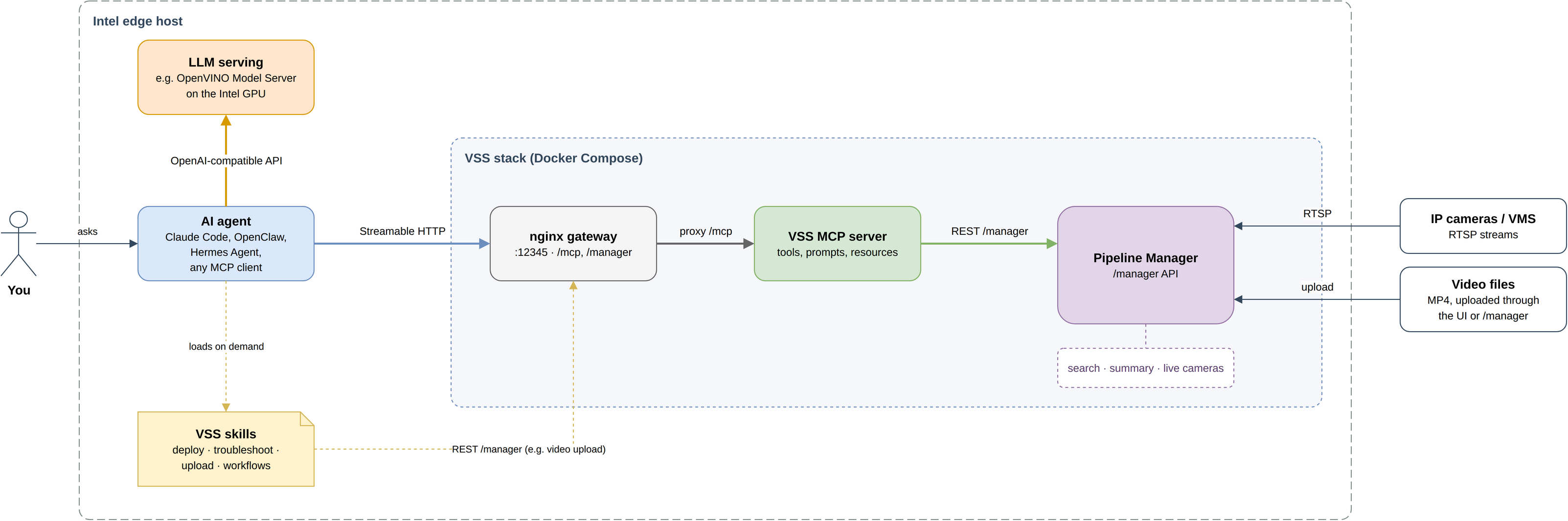
All the parts can run on one Intel edge host:
AI agent. It takes your request, plans the steps, and calls tools.
LLM serving. It runs the model that the agent uses. For example, OpenVINO Model Server runs the model on the Intel GPU. The agent connects to it through an OpenAI-compatible API.
VSS stack. It ingests, indexes, searches, and summarizes video. The
Video sources. IP cameras, or a video management system (VMS), send RTSP streams. You upload video files as MP4.
VSS gives the agent three interfaces. An agent can use any combination of them:
Interface |
What it gives the agent |
Where it is |
|---|---|---|
VSS MCP server |
Tools that the agent calls at run time. The tools list, find, and index videos. They search by text or image, watch a search live, and get the matching frame. They also manage cameras and summarize videos. |
Starts with every VSS deployment, at |
VSS skills |
Instructions that the agent loads only when a task needs them. They explain how to deploy, check, and repair VSS and its MCP server. They also describe the search and summary workflows as REST API calls. |
|
VSS REST API |
The HTTP API that the MCP server and the skills use. The agent calls it directly to upload videos and reference images. |
|
A typical setup connects the agent to the MCP server. It also adds the skills that deploy and maintain VSS.
When the MCP server starts, it reads which VSS features are enabled. It registers only the tools that the deployment supports. For example, on a search-only deployment, the agent does not see the summary tools.
Prerequisites#
A host that meets the system requirements, with the VSS source checked out.
An AI agent that supports MCP over Streamable HTTP. This page covers Claude Code, OpenClaw, and Hermes Agent. Other MCP clients use the same settings.
Network access from the agent’s machine to
http://<HOST_IP>:12345.
Note: The VSS MCP server has no authentication. Any user who can reach the VSS gateway can call its tools. Run VSS only on a trusted network.
Step 1: Start VSS#
Choose the deployment mode for the use cases that you want. Run all commands
from the application root,
sample-applications/video-search-and-summarization.
Mode |
Command |
Use cases on this page |
|---|---|---|
Search |
|
Incident review with search, person search by description or image, live cameras |
Summary |
|
Video summaries, customized summaries, incident review from a summary |
Dual UI |
|
All use cases on this page (recommended) |
Unified UI |
|
Summaries, and text search over summary content. No image search and no live cameras. |
You must source setup.sh. Do not run it as ./setup.sh. For model and
hardware options, see Get Started.
When the stack is ready, setup.sh prints the MCP URL. Check that VSS is
healthy, and see which features are on:
curl -s http://<HOST_IP>:12345/manager/health
curl -s http://<HOST_IP>:12345/manager/app/features
Step 2: Add Footage#
Upload videos#
Upload videos in the VSS UI at http://<HOST_IP>:12345/, or with the REST
API. Tags are one comma-separated field. Use tags to name the camera or the
place, because the agent filters searches by tag:
curl -s -X POST http://<HOST_IP>:12345/manager/videos \
  -F 'video=@/path/to/loading-dock.mp4' \
  -F 'tags=loading-dock,warehouse'
The response is {"videoId": "..."}.
VSS accepts only streamable MP4 files. If an upload returns 422, remux the
file and upload it again:
ffmpeg -i in.mp4 -c copy -movflags +faststart out.mp4
The MCP server does not have an upload tool, because it does not carry video
data. An agent that has a shell can run the curl command for you. The
standing instructions in Step 4
give the agent the endpoint. An agent without a shell gives you the command to
run.
In search modes, VSS can find a video only after it indexes the video. After you connect the agent in Step 3, you can give the full job to the agent:
“Upload the videos to VSS, tag them, then index them for search.”
The agent uploads each file with curl. Then it calls vss_index_video with
each videoId that VSS returned.
Tell the agent which videos to index. Do not ask it to index “everything that is not indexed”, for two reasons:
The indexed status of older videos can be unknown.
On a large library, that request starts an indexing job for every video.
Add live cameras (optional)#
Live RTSP cameras need the Search mode or the Dual UI mode. Add a camera on the Live Streams page of the VSS UI. Or, after you connect the agent, ask it:
“Add the camera
rtsp://<camera-host>:554/stream1named Lobby, with object detection on, and tag itlobby.”
The agent calls vss_add_stream. Then it calls vss_get_stream to make sure
that the camera state is running.
New footage becomes searchable about 10 to 30 seconds after VSS ingests it. With object detection on, VSS also embeds crops of detected people, vehicles, animals, and bags. These crops make the objects easier to find and track.
Using a VMS: If your cameras are in a video management system (VMS), get the RTSP URL of each camera from your VMS provider. Add that URL to VSS as a camera. VSS then searches the VMS footage in the same way.
Step 3: Connect Your Agent to the VSS MCP Server#
All agents use the same endpoint and transport:
Setting |
Value |
|---|---|
URL |
|
Transport |
Streamable HTTP |
Authentication |
None |
Claude Code#
claude mcp add --transport http vss http://<HOST_IP>:12345/mcp
claude mcp list            # vss shows "Connected"
To use VSS from every project, add --scope user. To write the server to a
shared .mcp.json file, add --scope project:
{
  "mcpServers": {
    "vss": { "type": "http", "url": "http://<HOST_IP>:12345/mcp" }
  }
}
In a session, /mcp lists the server and its tools.
OpenClaw#
openclaw mcp add vss --url http://<HOST_IP>:12345/mcp --transport streamable-http
openclaw mcp doctor vss --probe
The same entry in ~/.openclaw/openclaw.json is:
{
  mcp: {
    servers: {
      vss: {
        url: "http://<HOST_IP>:12345/mcp",
        transport: "streamable-http",
        enabled: true,
        // Searches and summaries can take a long time. Allow for it.
        requestTimeoutMs: 600000
      }
    }
  }
}
Hermes Agent#
Tip: The tutorial Build Visual AI Agents with VSS installs Hermes with a local model on OpenVINO Model Server. It also registers VSS with one command.
Add the server to ~/.hermes/config.yaml. An entry with a url uses
Streamable HTTP by default:
mcp_servers:
  vss:
    url: "http://<HOST_IP>:12345/mcp"
    enabled: true
Then test the connection:
hermes mcp test vss
If you change the configuration during a session, enter /reload-mcp to load
the change.
Other MCP clients#
Set the client to http://<HOST_IP>:12345/mcp with the Streamable HTTP
transport. To test the endpoint without a client, list the tools directly:
curl -s -X POST http://<HOST_IP>:12345/mcp \
  -H 'Content-Type: application/json' \
  -H 'Accept: application/json, text/event-stream' \
  -d '{"jsonrpc":"2.0","id":1,"method":"tools/list"}'
Check the connection#
Ask the agent “What can VSS do in this deployment?”. The agent calls
vss_get_deployment_info. It reports the enabled features and how many videos
are indexed.
Step 4: Add the VSS Skills#
A skill is a folder with a SKILL.md file. The agent loads a skill only when a
task needs it. VSS supplies two types of skills.
Deployment and operations skills. The MCP tools do not run VSS itself. These skills do:
Skill |
Use it to |
|---|---|
|
Start, stop, change modes, and clean up VSS with |
|
Check health, find the running mode, and find the cause of failing services |
|
Run, connect to, and debug the VSS MCP server, for example when tools are missing |
API workflow skills. These skills do the same search, indexing, camera, and summary work as the MCP tools, but with REST calls. Use them for an agent that does not use MCP, or for an agent that writes scripts against the API.
Skill |
Use it to |
|---|---|
|
Upload videos, create search embeddings, run searches, and manage live cameras with the REST API |
|
Start a summary, poll it, and get the result with the REST API |
Copy the skill folders from the VSS source tree into the skills directory of your agent. Run the commands from the application root:
SKILLS="vss-deploy vss-troubleshoot vss-mcp-integration"
# For REST-based work without MCP, also add:
# SKILLS="$SKILLS vss-search-index vss-summarize-video"

# Claude Code: personal skills (to share them in a project, use .claude/skills/ in the project)
mkdir -p ~/.claude/skills && for s in $SKILLS; do cp -r .github/skills/$s ~/.claude/skills/; done

# OpenClaw: workspace skills
mkdir -p ~/.openclaw/workspace/skills && for s in $SKILLS; do cp -r .github/skills/$s ~/.openclaw/workspace/skills/; done

# Hermes Agent
mkdir -p ~/.hermes/skills && for s in $SKILLS; do cp -r .github/skills/$s ~/.hermes/skills/; done
Then make sure that the agent loaded the skills:
Claude Code: Start a new session. The skills show in the
/command menu.OpenClaw: Run
openclaw skills list. Start a new session with/new.Hermes Agent: Start a new session. Each skill becomes a slash command, for example
/vss-troubleshoot.
Add your own skill#
You can write your own skill for a task that you do often. For example, a
loading-dock-shift-report skill can search the loading-dock cameras for
incidents during a shift and write a handover report. Use the VSS skills in
.github/skills/ as examples of the SKILL.md format, and install your skill
with the commands above.
Recommended: standing instructions for the agent#
Most agents accept standing instructions, for example a project instructions
file (AGENTS.md, CLAUDE.md) or a system prompt. The VSS MCP server sends
similar guidance when a client connects. But not every client gives this
guidance to the model. Without these instructions, smaller models often skip
the tags, skip the frame checks, and change clip URLs. Add these lines:
When using VSS:
- Use the `vss` MCP tools (`vss_*`) for every VSS question, starting with
  vss_get_deployment_info. Use the REST API only for what the tools don't
  cover, such as uploading video or image files.
- Upload a video with
  `curl -F video=@<file> -F tags=<tags> http://<HOST_IP>:12345/manager/videos`
  and a reference image with
  `curl -F image=@<file> http://<HOST_IP>:12345/manager/search/images`.
- Describe what to look for as it would appear on camera (clothing, colours,
  objects carried); do not search by names, faces, plate numbers or text.
- Put the camera/place in `tags` and the time range in `start`/`end`, not in
  the query text. Compute UTC times from vss_get_deployment_info.server_time_utc.
- Treat every hit as a possible match. Check it with vss_get_media_frame,
  passing the hit's `frame` object with every field unchanged, before
  reporting it.
- Give each clip `url` exactly as returned, with its start_s/end_s as text;
  never build or edit URLs.
- Ask before removing a camera.
Step 5: Try the Use Cases#
Each use case gives:
A prompt that you can change for your footage.
The steps that the agent does with the VSS tools.
The deployment mode that the use case needs.
Some clients support MCP prompts. These clients also show ready-made workflows
from the server: search_videos, monitor_camera, track_object, and
summarize_video.
1. Review incidents in a time window#
VSS does not have an incident classifier. The agent makes the incident list from the results that VSS returns. The agent can use two methods, and you can use both together.
A. Search-based review (Search or Dual UI mode). Use this method across many videos and cameras:
*”Review the loading-dock cameras for the last 2 hours. Look for a person lying on the floor, people fighting, a spill on the floor, and a person climbing over the fence. List each incident with the time, the camera.
The agent does these steps:
It calls
vss_list_tagsto find the tag for “loading-dock”. It callsvss_get_deployment_infoto change “last 2 hours” into UTCstartandendtimes.It runs one
vss_search_videofor each incident type. Each query is a short visual description, for example “person lying on the floor”. Queries do not contain negation or time words.It checks the best hits with
vss_get_media_frame. It removes the hits that do not show the incident.It puts the remaining hits in an incident list, in time order.
B. Summary-based review (Summary or Dual UI mode). Use this method to read one long recording from start to end:
“Summarize
night-shift-cam3.mp4with a focus on safety incidents, then list every incident from the timeline with its start time and a one-line description.”
The agent calls vss_resolve_video. Then it calls vss_summarize_video with
focus="safety incidents". It takes the incidents from the caption timeline
that VSS returns.
2. Find a person by description#
Mode: Search or Dual UI.
“Find a person in a dark blue jacket and grey trousers carrying a black backpack near the main entrance between 13:00 and 14:00 UTC today.”
The agent puts the place in tags, the time in start and end, and the
appearance in query. Then it calls vss_search_video.
VSS returns the best results first. Each hit has these fields:
url: a clip that you can play.start_sandend_s: the time range of the clip.observed_at: a UTC time. For live cameras (time_source: "live"), it is the capture time. For uploaded videos (time_source: "upload"), it is the upload time plus the offset in the video.
To get the hits as a timeline, ask for “newest first”. The agent sets
sort="newest". To check the hits, ask the agent to “show me the frame for
the top three hits”. The agent calls vss_get_media_frame.
3. Find a person by reference image#
Mode: Search or Dual UI. These modes have the frame-embedding index that image search needs.
Upload the reference photo. VSS accepts JPEG, PNG, or WebP files of up to 2 MB:
curl -s -X POST http://<HOST_IP>:12345/manager/search/images -F 'image=@person.jpg'
The response contains
imageIdandimageUrl.Give the reference to the agent:
“Search all cameras for the person in this image:
<imageUrl>.”The agent sends the reference as
imagetovss_search_video. VSS reads the image from its own storage, so the image data does not go through the agent. If the agent already has the image, for example as an attachment, it can send the image as adata:URL.Improve the search. If a clip shows the person more clearly than the original photo, save a still image from the clip and crop it to the person. Upload the crop as in step 1, and search again with the new
imageUrl.
To continue to follow the person on live cameras, see use case 4. Tracking can start directly from a hit.
When you no longer need a reference image, delete it:
curl -X DELETE http://<HOST_IP>:12345/manager/search/images/<imageId>.
VSS rejects external image URLs. This is intentional.
4. Track a person or object across live cameras#
Mode: Search or Dual UI, with one or more live cameras running.
“Track the person from hit 1 across all cameras for the next 15 minutes and tell me each time they show up.”
The agent does these steps:
It calls
vss_search_videoand sends the hit’sframeasfrom_hit. VSS searches with the detected crop from that hit, which is the closest match to that person.It calls
vss_watch_searchwith the new search’squery_id.It calls
vss_watch_searchagain with the returnednext_cursor. Each call waits until a new sighting arrives. The default wait is 30 seconds (wait_seconds). The agent reports only new sightings, with the camera, the time, and the clip.It checks the sightings with
vss_get_media_frame, because similar-looking people are common.It stops when the duration ends, or when you say “stop tracking” (
vss_stop_watch). Then it summarizes the route in time order.
If you do not give a duration, the watch stops by itself after 30 minutes, even if the agent stops calling.
You can also start from a description (“track a white van”) or from a reference image instead of a hit.
VSS refreshes the watched search when new footage arrives. The agent gets new sightings only while it continues to poll in the conversation.
To get fewer false matches, ask for strong matches only (“only report strong
matches”). The agent sets min_peak_score, for example 0.3. VSS saves this
value with the search and applies it to every refresh.
5. Summarize a video#
Mode: Summary, Dual UI, or Unified UI.
“Summarize the warehouse shift recording.”
The agent finds the video by name with vss_resolve_video. Then it calls
vss_summarize_video, which returns the full final summary of the video. To
see what happens at each time, ask for a timeline. The agent then gives the
chunk captions.
A long video can take longer than the tool’s wait budget. In that case, the
result contains completed=false. The agent gets the remaining part later
with vss_get_video_summary_timeline.
If the video is not in VSS, upload it first as described in Step 2. An agent that has a shell can upload it for you.
6. Get a customized summary#
Mode: Summary, Dual UI, or Unified UI.
You can change a summary at two levels:
What VSS looks for. The
focusoption moves the captions of each chunk toward the subject that you choose.How the agent shows the result. The agent changes the VSS timeline and summary into the report format that you describe.
“Summarize
dock-camera-morning.mp4, focusing on forklifts and pedestrians. Then write a shift handover report: a table of time, event, and risk level (low, medium, or high), followed by three recommended actions.”
The agent calls vss_summarize_video with
focus="forklifts and pedestrians". It makes the report from the timeline.
You can ask for other options in plain words:
Ask for |
Option that the agent sets |
|---|---|
“Just the timeline, faster” |
|
“Finer detail” or “coarser chunks” |
|
“Look at more frames per chunk” |
|
“Ignore the audio” |
|
“Summarize what’s said” (for videos with much speech) |
|
Tips for Good Results#
Describe the appearance, not the identity. Embeddings match appearance: clothing, colors, vehicle type, and carried objects. They cannot read names, faces, plate numbers, or text on the screen.
Search for one thing in each query. Run a different search for each thing. Do not use negation, for example “not wearing a hat”.
Use tags for places. Tag videos and cameras by location. The agent then filters by tag and does not guess the place from the query words.
vss_list_tagsshows the tags that exist.Know what the time window filters. For live cameras, the time is when VSS observed the footage. For uploaded videos, the time is when you added the footage to VSS, not the recording time in the file. To search uploaded files by content only, do not set
startandend.Read scores as a ranking. Each score is relative to the other results. A top hit does not prove a match. Check the frame.
If the search finds nothing, change one thing at a time: use simpler words, use a wider time window, or use fewer tags. Also make sure that the videos are indexed.
Responsible Use#
A search result shows visual similarity. It does not show identity, and VSS does not do face recognition. Treat each hit as a possible match until a person checks it.
Keep a person in the loop for decisions that affect people.
vss_remove_streamis the only destructive tool. It stops a camera and removes the camera registration. VSS keeps the recorded footage and the embeddings of that camera. Tell the agent to ask you before it removes a camera, or pause the camera instead.The agent does not need to repeat RTSP credentials. Keep camera URLs that contain credentials out of shared transcripts.
The MCP endpoint has no authentication. Expose the VSS gateway only on a trusted network.
Troubleshooting#
Symptom |
What to do |
|---|---|
The agent cannot connect |
Run |
Search or summary tools are missing |
The deployment mode does not enable them. Check |
|
The agent removed |
A camera state is |
VSS could not read the RTSP source and stopped trying again. Read |
Image search returns |
Image search needs the Search mode or the Dual UI mode. VSS rejects external image URLs. Upload the image with |
Searches return nothing |
The videos are not indexed yet (ask “which videos aren’t indexed?”), or the time window does not match. See Tips for Good Results. |
A summary is not complete |
The wait budget ended ( |
Upload fails with |
The file is not a streamable MP4. Remux it with |
The vss-troubleshoot and vss-mcp-integration skills guide the agent through
more detailed diagnosis. For server internals, configuration, and the full
tool list, see MCP Server and the
Troubleshooting guide.