Manage Live Cameras#
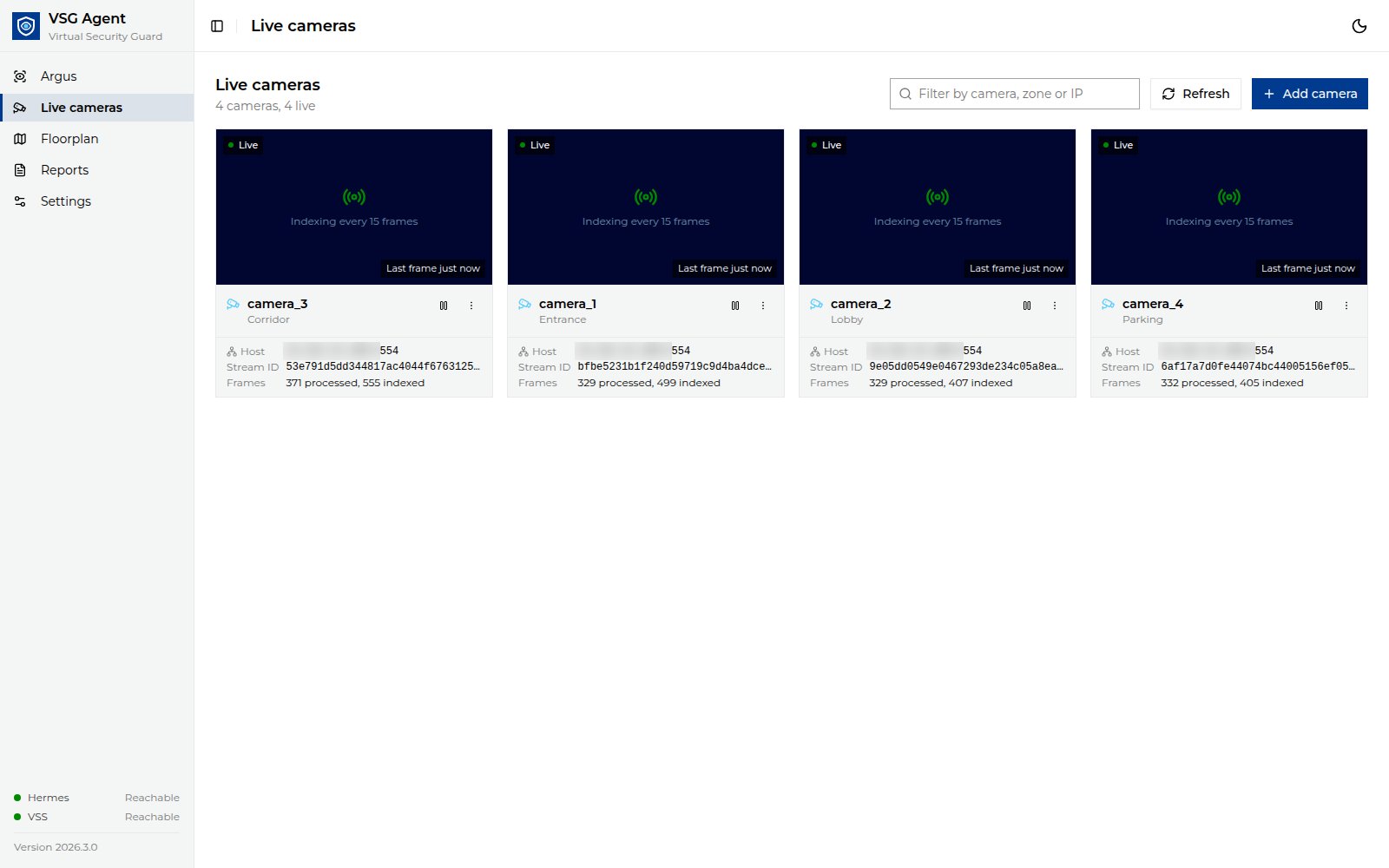
The Live cameras page lists the live RTSP streams registered in VSS
(/manager/streams). Live search is available only for cameras listed here.
Add a Camera#
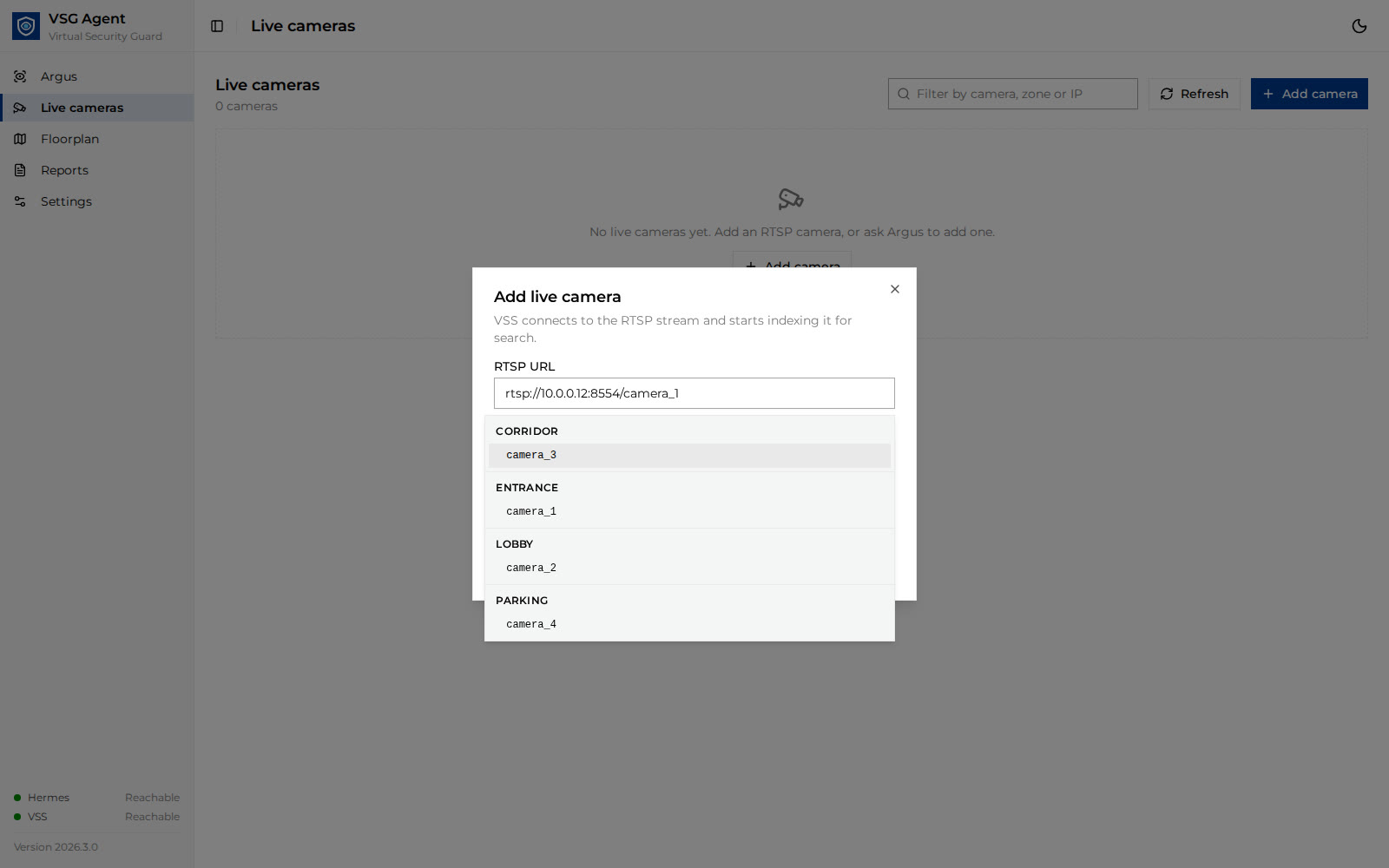
Click Add camera, or select a camera on the Floorplan and click Add live camera here. The Add live camera dialog opens.
Fill in:
RTSP URL, for example
rtsp://10.0.0.12:8554/lobby(must be reachable from the VSS host);Camera: the floorplan camera associated with this stream. The list is grouped by zone; cameras that already have a live stream are disabled. The camera name (for example
P_Lev_4_Main_Entry_ip_54) becomes the stream’s name and its only VSS tag; the camera’s zone becomes the stream description. A camera that has recorded footage from an earlier stream can be reused; the new stream keeps the same tag, so old and new footage are drawn at the same place;Index every N frames and Object detection to tune indexing.
Click Add camera. VSS starts ingesting the stream and the camera appears on the plan. Allow a minute or two before footage from the new camera appears in search results.
VSS tags determine which cameras are included in a search. Each live camera has exactly one tag, unique to its floorplan camera. Edit changes only the indexing settings. To move a stream to another floorplan camera, remove it and add it again at the new floorplan camera. Confirm the removal when prompted.
Edit, Pause, or Remove#
Use the pause or resume button on a camera card to pause the ingestion or resume it.
Open the card’s actions menu to Edit or Remove the camera.
Use the filter box to find cameras by camera name, zone, or IP, and select Refresh to reload the list.
If your network uses a proxy, add the RTSP hosts to no_proxy on the VSS
host.