Investigate a Person#
This guide shows how to investigate a person with Argus, the Virtual Security Guard Agent (VSG). On the Argus page, you can search, review matches, crop an image and search again, trace a route, start a live camera search, and generate a report. The Case file panel on the right displays the subject, review counts, and route.
1. Start a Search#
Open
http://<HOST_IP>:12346/argus. Click New to start a fresh investigation.Describe the person in your message, attach a photo, or do both. To attach a photo, use the image button or drag and drop the photo.
Press Enter or click the send button.
The console uploads the photo to VSS. A Hermes session is created for the
investigation, and an Argus run starts. Argus calls the VSS search tool and
replies with a short summary and potential matches, which the console displays
in a grid. The search covers all footage indexed by VSS, including uploaded
videos and footage already recorded by live cameras. Each match shows its camera
tag when available, for example, camera_1.
Your message appears on the right, with a photo above it. The VSG agent’s reply appears on the left, next to its eye icon. It contains a short summary of what the agent searched and found, followed by the review grid. The Case file panel on the right shows the subject and review counts.
Above each reply, the chips (small buttons above an agent reply that represent individual tool calls) show what the VSG agent did during that turn: which skills it loaded and which VSS tools it called. If there are three or more chips, they are collapsed under Used N tools. Click the label to expand the list, or click a chip to see the beginning of that tool’s result.
2. Review the Matches#
The grid shows the top six matches, three per row. Each card shows a frame
from the clip with the match reference (m1, m2, …), the clip time, and the
VSS relevance score. It also shows the camera, its zone, the date, and a
Confirm button. A confirmed card turns green; a false positive turns gray.
The VSG agent may mark recommended cards as Argus pick.
Click Show N more findings to reveal six more at a time, up to 20.
Click a thumbnail to open the clip player.
Click Confirm on every card that shows the subject. When you save a review with at least one confirmed match, shown but unconfirmed matches are sent to Argus as false positives. If none match, select None match; no feedback is sent.
Click Save N confirmed. If nothing matches, click None match. If matches are still hidden, the button reads None match, show N more and shows them first. This sends nothing and starts no new search. The footer offers Try another photo and Refine in chat, where you can describe clothing, name cameras, or give a time range.
If some VSS results could not be read, the grid says how many were left out. If none could be read, it shows Retry.
The footer counts what you confirmed, for example, 3 confirmed of 9, and shows how many sightings the investigation already has.
You can change only the latest grid. Update its review before searching again; the button then reads Update review and replaces that grid’s earlier verdicts. Earlier grids remain visible and read-only with the verdicts you sent. Each new grid starts with sightings already on the route confirmed.
Note
Argus can be wrong. Always confirm sightings against the footage before acting.
3. Play a Clip#
The clip player opens nearly full-screen at the matching segment. Below the video, it shows the match reference, camera, time, segment range, relevance score, and zone. The footer has Pause & crop person and Confirm. Confirm works the same as it does on the card. Press Esc to close the player.
4. Crop the Person and Search Again#
When a clip shows the subject clearly, use it as a better reference image:
In the clip player, click Pause & crop person. The frame freezes and dims, and a toolbar appears at the bottom of the frame.
Drag a rectangle around the person. Its size in video pixels appears above it. Drag inside it to move it, or click Redo to draw again. Use Frame
‹ ›buttons to move to a sharper frame. Press Esc or click Cancel to leave crop mode.Click Save crop (or press Enter).
The crop is taken at the video’s native resolution and uploaded to VSS. The VSG agent searches with that image, and a new grid appears. The crop becomes the Subject. The subject is always the latest image used for a search, or your latest search prompt if you did not use an image. It is the photo shown in the case file and report, and the image used for a live search.
5. Trace the Route#
After you confirm at least one sighting, a Route card appears in the chat, and the case file lists the stops. Confirmed sightings from all grids are deduplicated and sorted by time. The card stays in the chat for the rest of the investigation and draws the route on a small floorplan. Replay animates the route from camera to camera, and Open floorplan opens the Floorplan page. See Configure the Floorplan to map VSS cameras onto your plan.
6. Live Camera Search (Optional)#
The Route card offers Start live camera search when at least one live camera is connected. The text beside the button shows how many cameras it will watch and for how long. It does not watch them until you click the button. If no live camera is connected, neither the console nor the VSG agent offers a live search.
VSS watches live cameras for the subject, and the UI polls every 10 seconds. The eye in the Argus logo scans while the search runs.
Sightings appear in a live timeline, newest first. Detections on one camera that occur no more than a minute apart are grouped into one sighting. It has a start time, an end time (now while the person is still there), and a detection count. A new sighting is highlighted with a New badge for a few seconds.
Click Confirm on a sighting to add it to the route as one stop. The map changes only when you confirm.
Stop live search is always visible. When the search ends, the card shows how many sightings it found and how many you added. Show timeline opens the timeline in read-only mode, and Search again adds sightings to the same timeline. If VSS does not stop the search, the card shows Retry stop.
VSS keeps no history of a live search, so this browser saves the timeline with the investigation. Reopening the investigation from History restores the timeline and its confirmed stops. Another browser cannot see this data.
The search also stops automatically when it reaches the Live watch time limit (default: 30 minutes) or when there has been no new sighting for the Stop when quiet for duration (default: 10 minutes). You can change both settings on the Settings page.
Each timeline row shows a frame of the sighting, the camera, the start and end times, the zone, the detection count, and Confirm (Confirmed once added).
7. Write the Report#
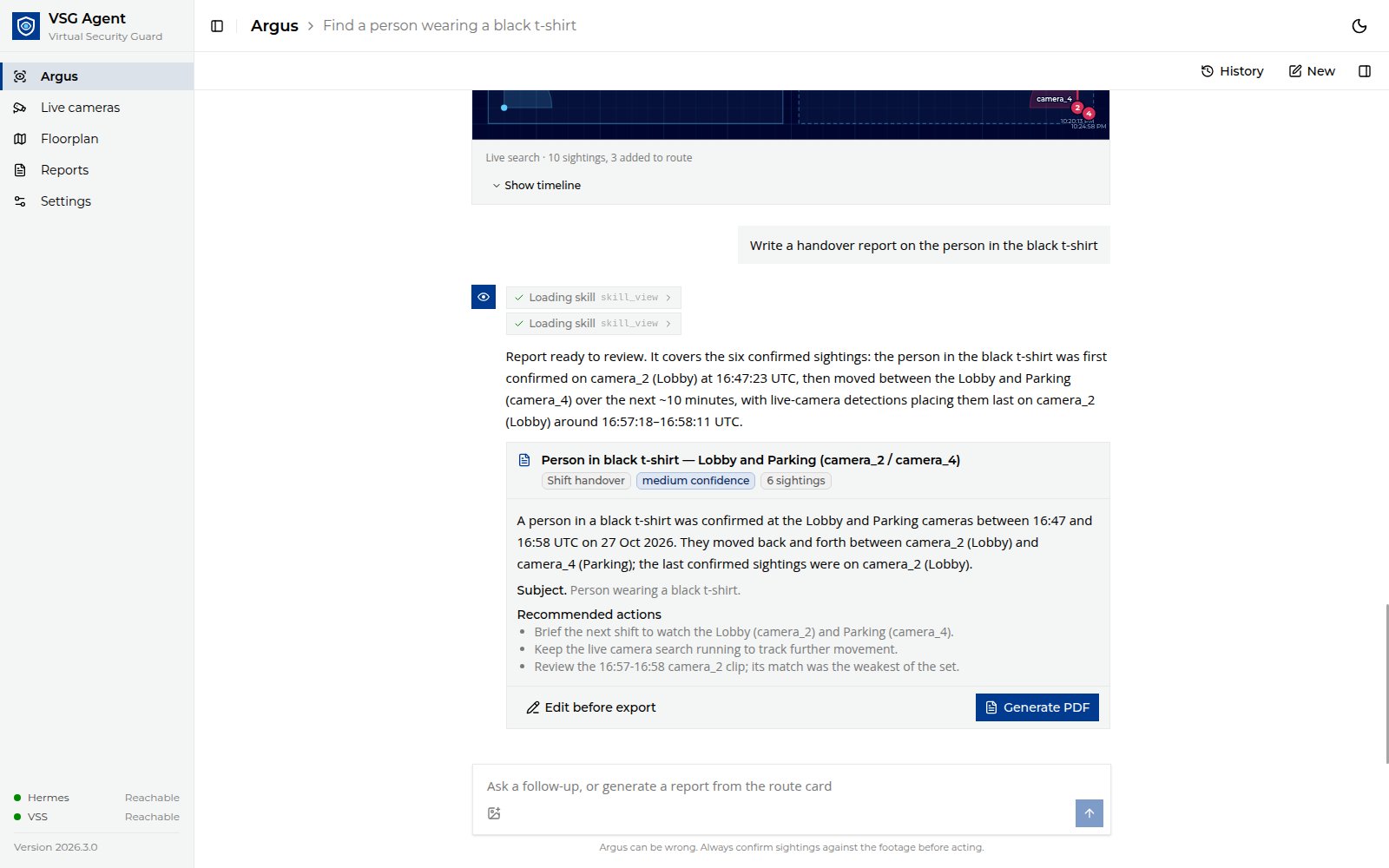
On the Route card, click Generate report and choose Handover report, Escalation report, or Short brief (or ask the VSG agent in chat). Your message appears on one line; the sighting list sent to the VSG agent appears under Details. The agent receives time-ordered sightings and movement between cameras, then replies with a draft:
Read the draft in the chat. Use Edit before export to change it.
Click Generate PDF, then Download. The exported PDF lists every confirmed sighting in time order, followed by a Movement section.
To guide the draft, type your own request. For example: “Write a handover report on the person in the black t-shirt.”
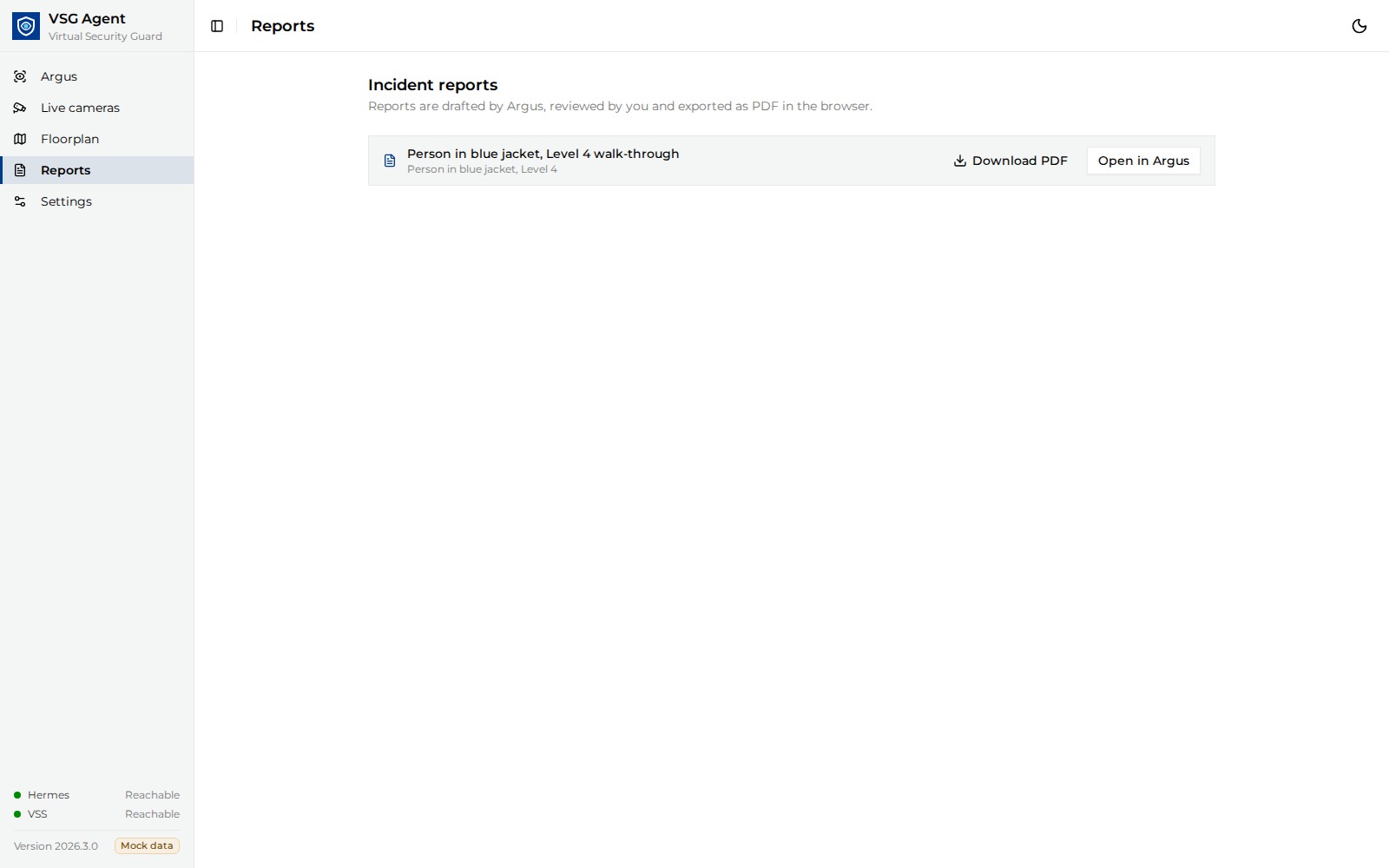
The browser creates the report files. The Reports page lists the latest report for each loaded investigation. Select Load older to check older investigations.
8. Reopen an Investigation#
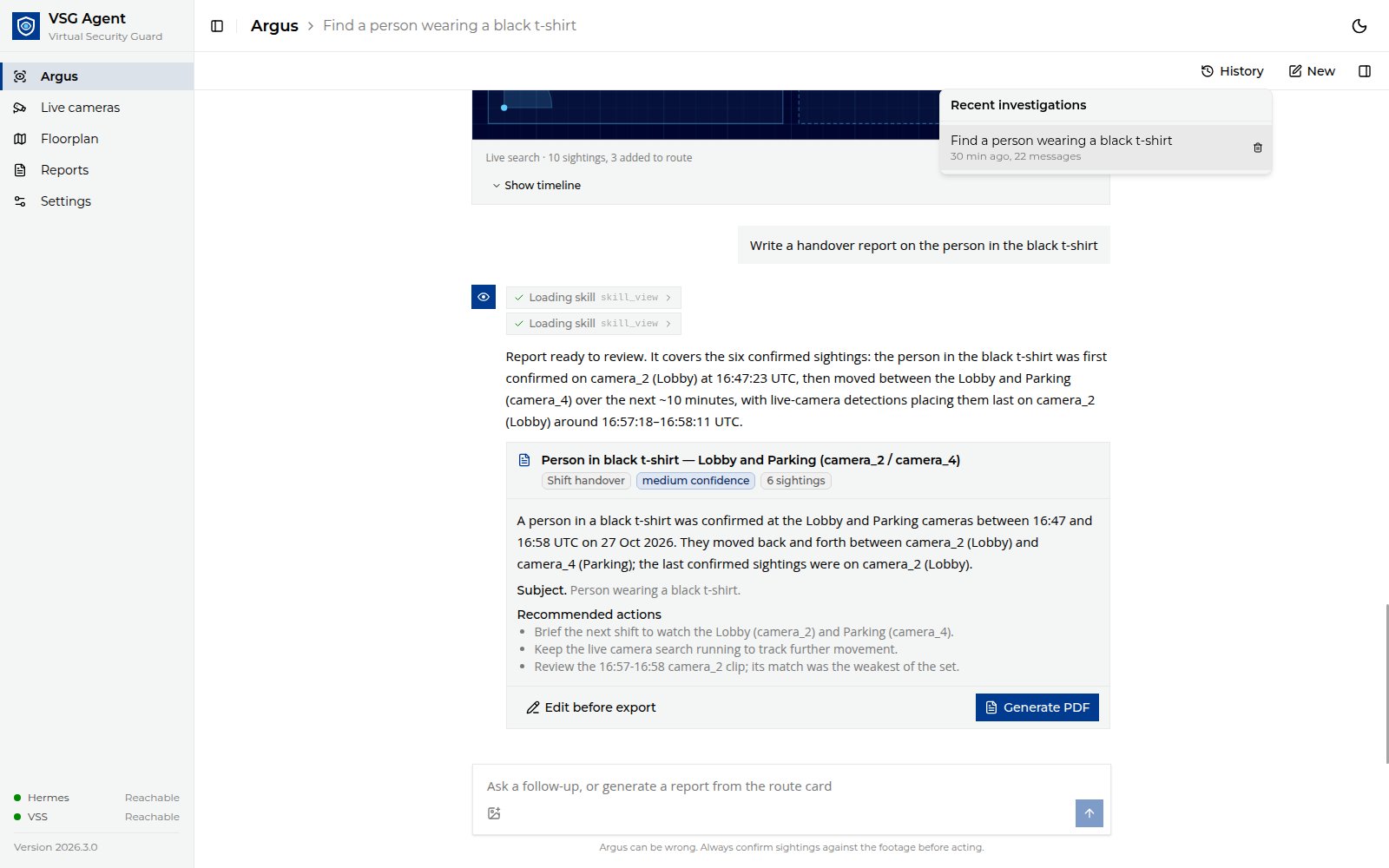
Each investigation is a Hermes session. Click History to reopen or delete an investigation.
Investigation Settings#
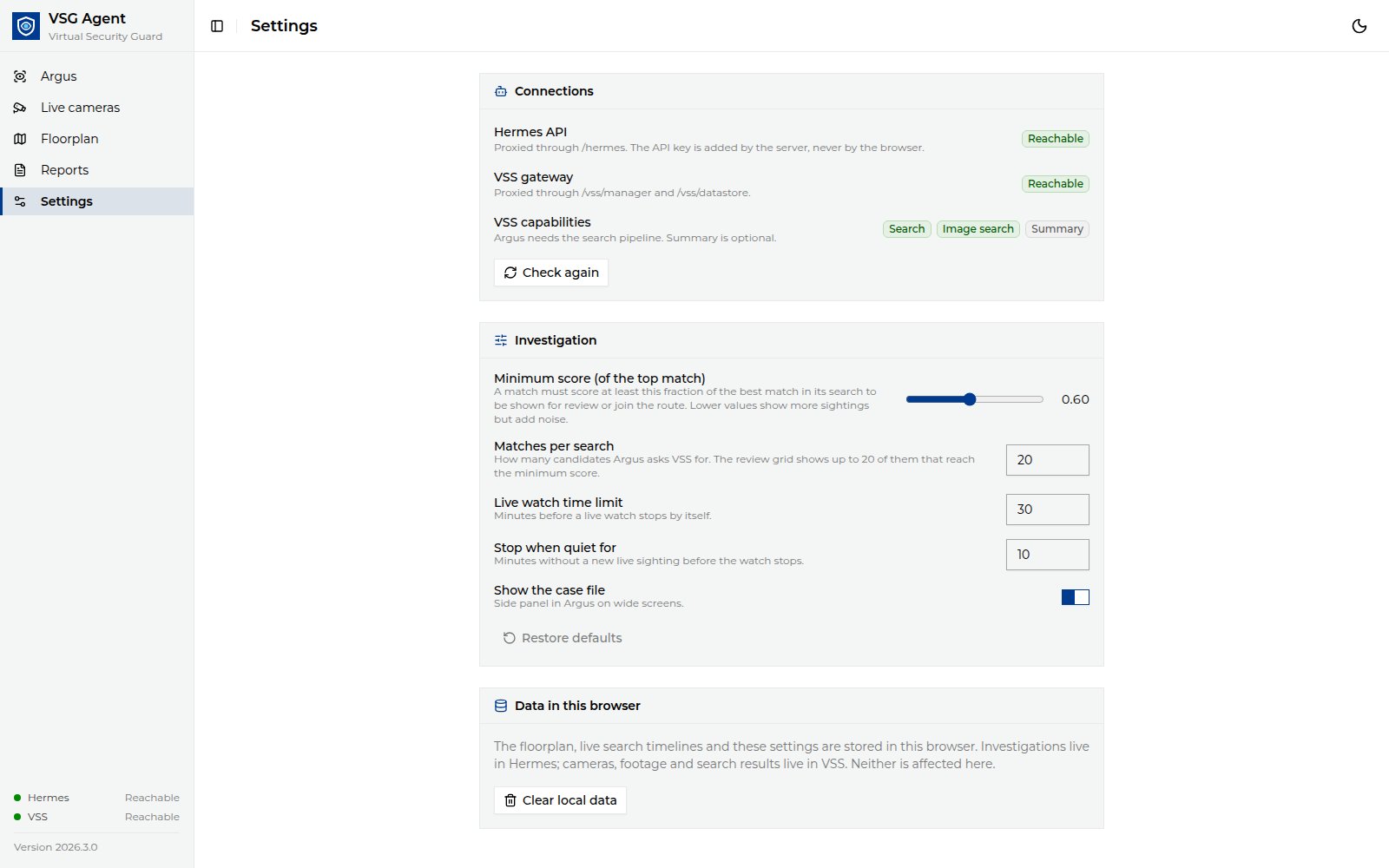
The Settings page shows the connection status and investigation parameters. The browser stores these parameters.
Setting |
Default |
Effect |
|---|---|---|
Minimum score (of the top match) |
|
Fraction of the best match’s score a match needs to be shown for review, appear as a live sighting, and join the route. Lower shows more sightings but adds noise. |
Matches per search |
|
Candidates the VSG agent asks VSS for. The grid shows up to 20 of them that reach the minimum score. |
Live watch time limit |
|
Live search stops by itself after this. |
Stop when quiet for |
|
Live search stops after this long without a new sighting. |
Show the case file |
on |
Side panel on wide screens. |
Clear local data removes what this browser stores: the floorplan, live search timelines, and the investigation settings listed in the table. Hermes sessions and VSS data are not affected.