Get Started#
This guide walks you through setting up and running the Smart Tolling application:
Install and launch the full application stack using the provided setup scripts.
Verify it is running by checking vehicle detections, dashboards, and events.
Learn where to change configuration (cameras, videos, scene data) for your own setup.
Important
This application ships without sample videos or scene data — see Bring Your Own Data for what to prepare before you start.
Need help running this application? Contact transportation.us@intel.com and we will help you get set up.
Prerequisites#
Before you begin, ensure the following:
System Requirements: Verify that the system meets the minimum requirements.
Docker Installation Complete: Install Docker. For installation instructions, see Get Docker.
Your Own Videos and Scene Data Ready: See Bring Your Own Data for the files you need to prepare.
Setup Guide#
1. Deploy the Source Code#
If you want to clone a specific release branch, replace main with the desired tag.
To learn more on partial cloning, check the Repository Cloning guide.
Clone the suite to your Edge Server:
git clone --filter=blob:none --sparse --branch main https://github.com/open-edge-platform/metro-ai-suite.git
cd metro-ai-suite
git sparse-checkout set metro-vision-ai-app-recipe/
cd metro-vision-ai-app-recipe/
2. Configure the Environment#
Verify the variables in .env match your camera RTSP endpoints.
3. Create the .yml File#
Generate the docker-compose.yml file:
./install.sh smart-tolling
4. Launch Services#
Start the application stack using Docker Compose:
export SUPASS=$(cat ./smart-tolling/src/secrets/supass)
docker compose up -d
To stop the application:
docker compose down -v
5. Verify Deployment#
Check the status of all containers:
docker compose ps
Accessing the Application#
Open a browser and go to the following endpoints. The application uses a self-signed HTTPS certificate, so your browser will show a security warning — use Google Chrome and accept it. After starting the stack, wait about a minute for the MQTT broker to come up before the UI shows live data.
Note
Passwords stored in secret files (e.g., supass, influxdb2-admin-token) are under
./smart-tolling/src/secrets/ (Docker).
Scenescape Web UI#
URL: https://localhost
Username:
adminPassword: Stored in
./smart-tolling/src/secrets/supass
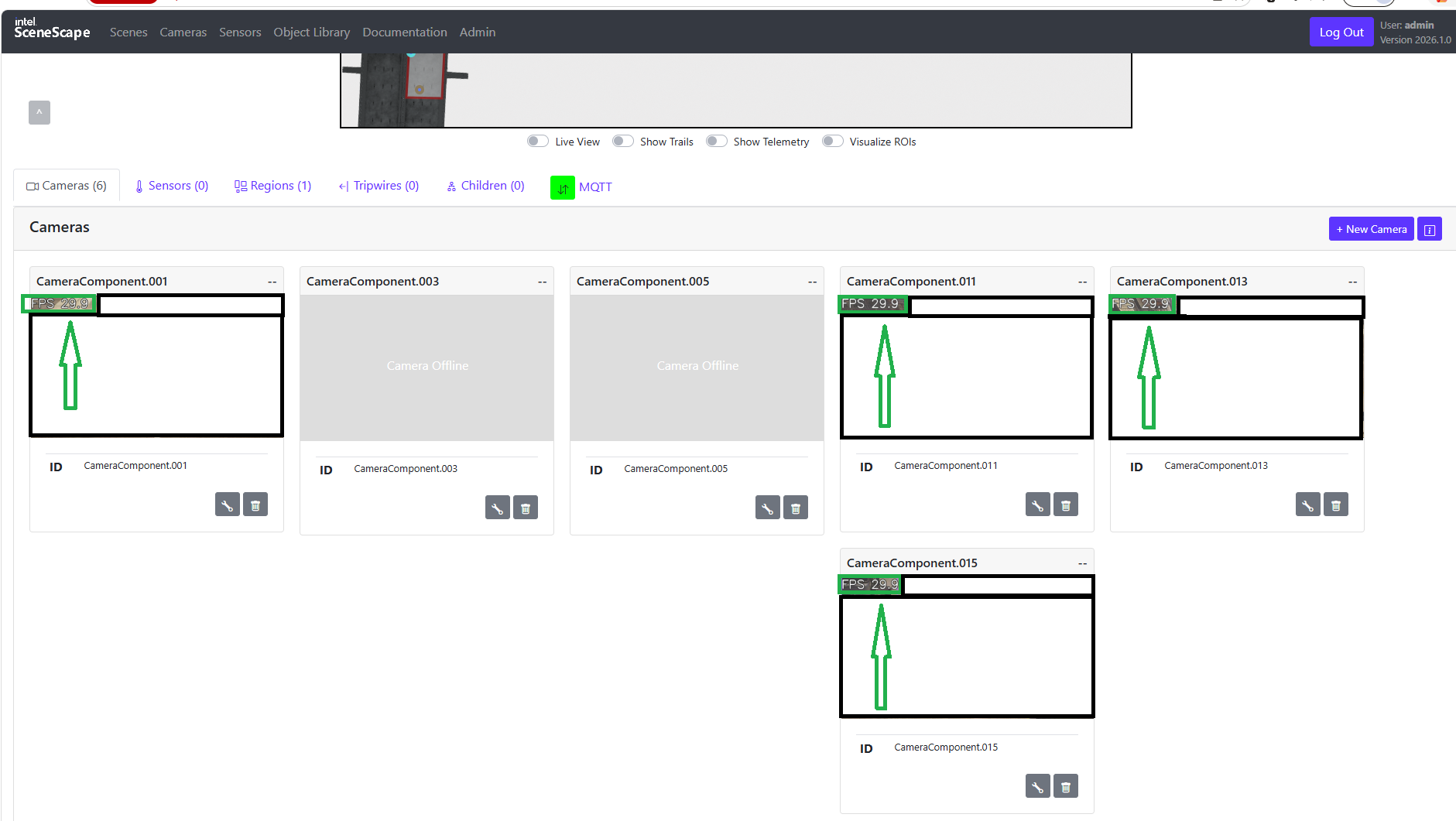
The example above shows 4 of the 6 camera streams running live at ~30 FPS, using the test videos used during development.
Grafana UI#
Username:
adminPassword:
admin(You will be prompted to change it on first login.)
Node-RED UI#
Username:
<your_nodered_username>(Check./smart-tolling/src/secrets/nodered/nodered-admin-username)Password:
<your_nodered_password>(Check./smart-tolling/src/secrets/nodered/nodered-admin-password)
InfluxDB UI#
Username: Stored in
./smart-tolling/src/secrets/influxdb2/influxdb2-admin-usernamePassword: Stored in
./smart-tolling/src/secrets/influxdb2/influxdb2-admin-password