Set Up Nx Witness#
This page prepares Nx Witness for VMS Adapter Plugin (VAP). When you finish, Nx Witness accepts API integrations, and you have checked that the analytics host reaches its REST API and the RTSP streams of its cameras.
For background on each component, see the overview.
Hosts#
Host |
OS |
Runs |
|---|---|---|
Nx Witness host |
Ubuntu 24.04 |
Nx Witness Server |
Client machine |
Windows or Ubuntu |
Nx Witness Desktop Client |
Analytics host |
Ubuntu 24.04 or 26.04 with Docker and Docker Compose, Intel GPU recommended |
VAP and the analytics apps |
The Nx Witness host, the client machine, and the analytics host can be the same machine.
Network#
From |
To |
Port |
Purpose |
|---|---|---|---|
VAP |
Nx Witness Server |
7001 |
REST API: cameras, integration, settings, analytics objects, bookmarks |
Analytics app |
Nx Witness Server |
7001 |
RTSP streams of the cameras |
Desktop Client |
Nx Witness Server |
7001 |
Administration and viewing |
Browser |
VAP |
3443 |
VAP dashboard (optional) |
The Nx Witness Server serves the REST API and RTSP on the same port, 7001 by default.
Step 1: Install Nx Witness Server#
Install Nx Witness Server on the Nx Witness host by following the Network Optix Ubuntu Linux OS Installation Guide.
During the first-time setup, you create the administrator account. Note its username and
password: VAP uses them as NX_USERNAME and NX_PASSWORD.
Step 2: Install the Desktop Client#
Install the Nx Witness Desktop Client on Windows or Ubuntu:
Ubuntu: follow the same Ubuntu Linux OS Installation Guide.
Windows: download the Windows x64 installer from the Nx Witness releases page.
Open the Desktop Client, and connect to <NX_HOST_IP>:7001 with the administrator account.
Step 3: Add cameras#
In the Desktop Client, right-click the server in the resource tree, and choose Add Device.
Add the cameras by entering their RTSP URLs or by discovering them on the network.
Check that each camera appears in the resource tree and plays live video.
Step 4: Allow digest authentication for the VAP user#
VAP signs in to Nx Witness with NX_USERNAME and NX_PASSWORD. Use an administrator
account: VAP registers and approves its integration with it.
The analytics pipelines read each camera through an RTSP URL that carries the same credentials:
rtsp://<NX_USERNAME>:<NX_PASSWORD>@<NX_HOST_IP>:7001/<device-uuid>?onvif_replay=true
The DL Streamer rtspsrc element authenticates with RTSP digest authentication, which newer
Nx Witness versions turn off by default. Turn it on for the VAP user:
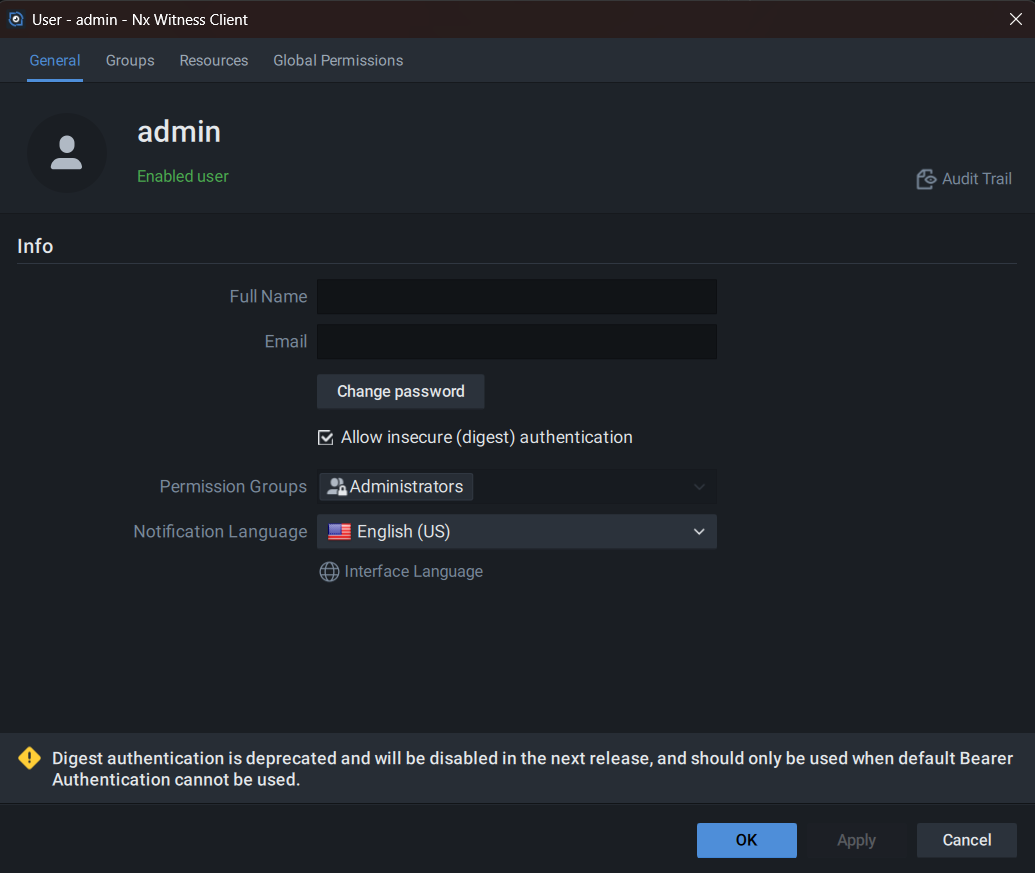
In the Desktop Client, open Main Menu (hamburger icon) → User Management.
Select the user VAP uses.
Under Info, check Allow insecure (digest) authentication, re-enter the password, and click OK.
Click Apply.
Important
Without digest authentication, every pipeline fails with 401 Unauthorized as soon as it
starts.
Step 5: Accept API integration requests#
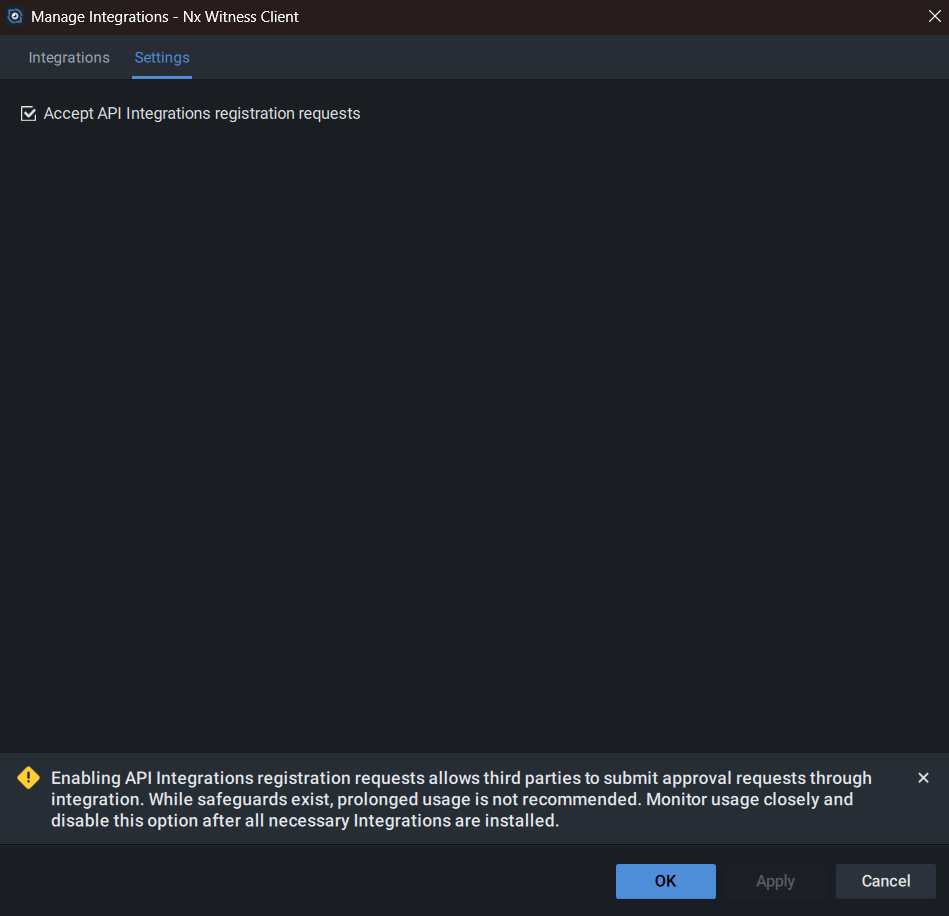
In the Desktop Client, open Main Menu → System Administration.
Click Integrations.
In the Manage Integrations window, open the Settings tab, and check Accept API Integrations registration requests.
Click OK.
Step 6: Check Nx Witness#
Run these checks from the analytics host. Replace <NX_HOST_IP>, <NX_USERNAME>, and
<NX_PASSWORD> with your values.
The REST API answers:
curl -k -s -o /dev/null -w 'HTTP %{http_code}\n' https://<NX_HOST_IP>:7001/api/moduleInformation
Expect
HTTP 200.Nx Witness lists your cameras. Note the
idof each camera you want to analyze:curl -k -u <NX_USERNAME>:<NX_PASSWORD> https://<NX_HOST_IP>:7001/rest/v4/devices \ | python3 -m json.tool | grep '"id"\|"name"'
A camera’s RTSP stream plays with digest authentication. Start a DL Streamer Pipeline Server container:
docker run -it --rm --net host --entrypoint bash intel/dlstreamer-pipeline-server:2026.2.0-ubuntu24
In the container, run the following, with a camera
idfrom the previous check as<device-uuid>:gst-launch-1.0 rtspsrc \ location="rtsp://<NX_USERNAME>:<NX_PASSWORD>@<NX_HOST_IP>:7001/<device-uuid>?onvif_replay=true" \ ! fakesink
A pipeline that runs for a few seconds without errors confirms the RTSP connection. A
401 Unauthorizederror means digest authentication is not on for this user (Step 4).
Note
If the analytics host uses a proxy, add <NX_HOST_IP> to no_proxy. VAP adds NX_HOST to
its own no_proxy automatically.