Loitering Events and Alarms#
This page turns Loitering Detection’s loitering occurrences into XProtect analytics events, and raises an alarm for each one in Smart Client’s Alarm Manager.
Prerequisites#
Loitering Detection running on an XProtect camera through VAP, as in Run Loitering Detection with XProtect.
Analytics events enabled in XProtect (Set Up XProtect and AI Bridge, Step 5).
Administrator access to Management Client.
How it works#
        flowchart LR
  P["Loitering Detection App"]
  P -- "loiterstatus row<br/>(one per loiterer)" --> V["VAP"]
  V -- "analytics event" --> A["AI Bridge<br/>dls_vision-events"]
  A --> E["XProtect<br/>Event Server"]
  E -- "alarm definition" --> M["Smart Client<br/>Alarm Manager"]
The Loitering Detection app publishes a row for each person who has stayed in the zone longer than
LOITERING_THRESHOLD_SEC. It repeats the row about once a second while the person stays.VAP turns each row into an analytics event and posts it to the app’s event topic,
dls_vision-events. VAP sends at most one event everyevent_min_interval_sseconds (default 10) for each person on each camera.AI Bridge forwards the event to the XProtect Event Server.
An alarm definition that triggers on the event raises an alarm.
Each event carries:
Field |
Value |
Shown in the alarm as |
|---|---|---|
Name |
|
Event data |
Class |
|
Event data |
Subclass |
|
Type |
Description |
e.g. |
Instructions |
Source |
The camera the pipeline runs on |
Source |
Zone |
The zone the person is in |
Tag |
Vendor |
|
Vendor |
Object |
The loiterer’s box and class, when VAP has seen the box in the last 5 seconds |
Outline on the alarm video |
XProtect does not use the event name or class to decide whether to raise an alarm; the alarm definition triggers on the analytics event that AI Bridge creates for the topic.
Step 1: Check that events are enabled in VAP#
In analytics_app_shim/object_detection/vap-config.yaml:
- type: object_detection
  app_id: "dls_vision"
  events_enabled: true
  # Must match DEST_TOPIC_SUFFIX in the recipe .env.
  event_topic_suffix: "${DLS_EVENT_TOPIC_SUFFIX:-loiterstatus}"
And in vms_shim/milestone/vap-config.yaml:
- name: milestone
  vendor_options:
    # Minimum seconds between events for the same person on the same camera.
    # 0 sends every row, about one event per second per loiterer.
    event_min_interval_s: 10
If you change either, generate the configuration again and recreate the backend:
./setup.sh --vms milestone --apps ld
docker compose up -d --force-recreate backend
Step 2: Find the analytics event in Management Client#
In Management Client, go to Rules and Events → Analytics Events.
Find the entry named
<app name> / <topic>, which is Loitering Detection / dls_vision-events. AI Bridge created it; you do not add it yourself.
If it is missing, restart the VAP backend to register the app again, then check again.
Step 3: Create the alarm definition#
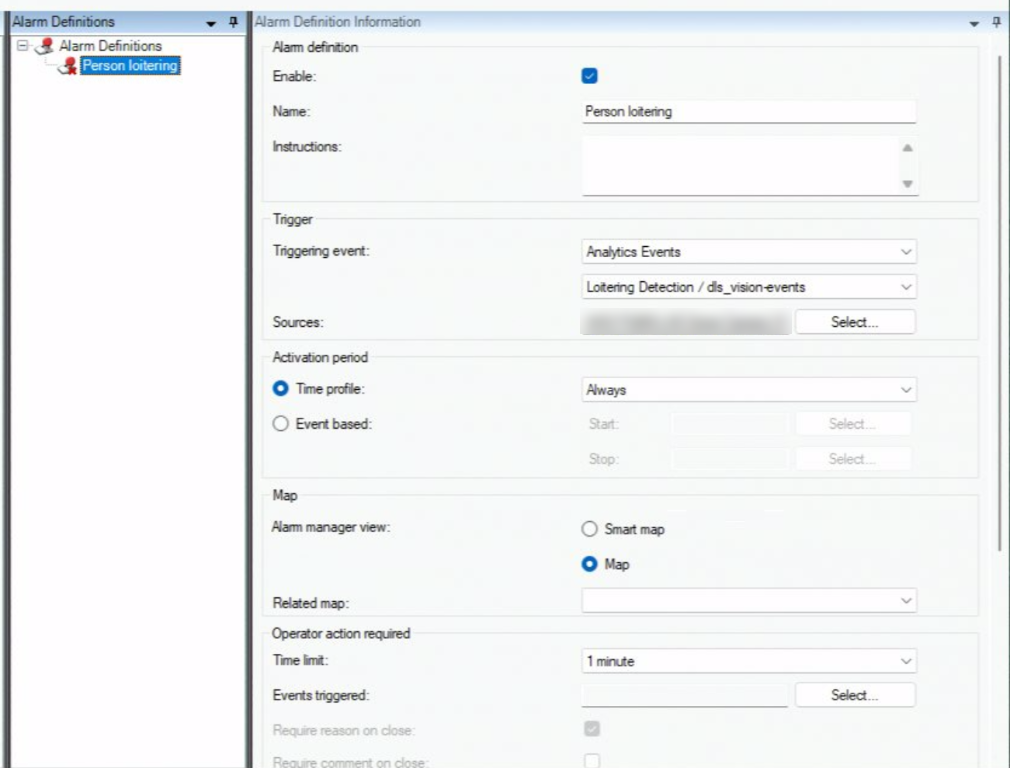
Go to Alarms → Alarm Definitions, right-click, and choose Add New.
Fill in:
Field
Value
Name
Any name, for example
Person loiteringTriggering event
Analytics Events, then Loitering Detection / dls_vision-events
Sources
The cameras running Loitering Detection
Time profile
Always, or your own schedule
Related cameras
The same cameras, so the alarm opens with video
Priority, category
As you need
Click Save.
Step 4: View alarms in Smart Client#
Open Smart Client and go to the Alarm Manager tab.
When someone loiters in the zone, an alarm appears in the list.
Double-click it to see the alarm details and the video around the alarm time.
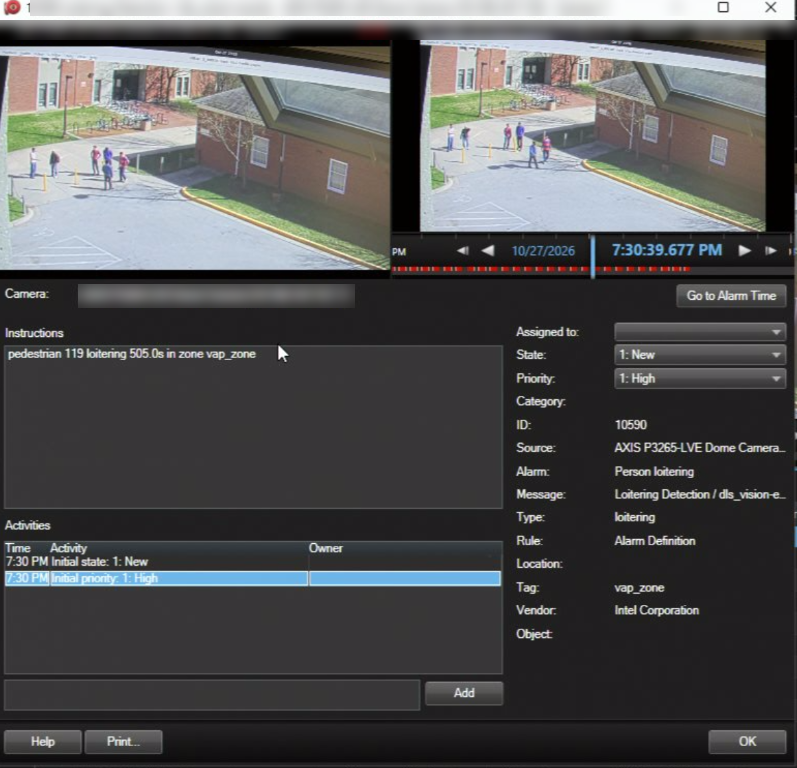
The alarm shows the alarm definition’s name, the event description under
Instructions, loitering as Type, and the zone as Tag.
AI Bridge creates the analytics event in XProtect when VAP registers the app.
NOTE: The Event Server does not always pick up a newly created or recreated event until it restarts; until then, events reach XProtect without raising alarms. If you do not see the alarms in this step, restart the Milestone XProtect Event Server service. Use the Event Server tray icon, or Windows Services.
Check the flow#
Each step logs what it does. Follow an event from VAP to XProtect:
VAP publishes the event:
docker compose logs -f backend | grep loitering_event_published
# loitering_event_published camera_id=milestone:<deviceId>/<streamId> result=True track_id=12 with_box=True
The line is also logged for events skipped by
event_min_interval_s, so it can appear more often than events reach XProtect.AI Bridge delivers it to the Event Server:
docker logs -f <aibridge-proxy-container> 2>&1 | grep "analytics event"
# Sending analytics event to 'http://<management-server>:22331/Central/AlarmServiceToken' succeeded.
If AI Bridge logs succeeded and no alarm appears, see
Troubleshooting.
Change the loitering threshold#
The threshold is set in two places, which should hold the same value:
Where |
Setting |
What it does |
|---|---|---|
Recipe |
|
Decides when the sidecar publishes a row, and so when an event is sent. |
VAP |
|
Sent to the pipeline at run start; turns the on-video dwell text red. |
After changing the recipe value, recreate the sidecar from metro-vision-ai-app-recipe:
docker compose up -d --no-deps --force-recreate mqtt-table-flattener
After changing the VAP value, recreate the backend and restart the pipeline.
Disable alarms#
In order to disable the alarm triggered from the events, open XProtect Management Client, Go to Alarms → Alarm Definitions, uncheck Enable. Click Save