How to Generate and Deploy Offline Package#
Overview#
The Offline Package Generator creates self-contained deployment packages for Metro Vision AI applications that can be deployed in environments without internet connectivity. This tool is specifically designed for environments with no internet connectivity where traditional cloud-dependent deployments are not feasible.
Prerequisites#
System Requirements#
Operating System: Linux (Ubuntu 20.04 or later)
Docker: Version 20.10.0 or higher
Docker Compose: Version 2.0.0 or higher
Storage Space: Minimum 15 GB available disk space
Memory: 8 GB RAM recommended
Internet Connection: Required for package generation only
Important: This process requires two environments - a connected system for package generation and an offline target system for deployment.
Step 1: Generate Offline Package#
Note: Perform this step on a system with internet connectivity.
Objective: Create a complete offline deployment package containing all necessary components for the Smart Parking application.
cd edge-ai-suites/metro-ai-suite/metro-vision-ai-app-recipe/smart-parking

./offline-package-generator.sh
What happens during generation:
Downloads and packages all Docker images (~2-3 GB)
Collects AI models and sample videos (~500 MB)
Gathers Grafana plugins and configurations (~100 MB)
Prepares deployment scripts and documentation
Creates a complete
offline-package/directory
Step 2: Prepare Package for Transfer#
Package the generated files for secure transport to offline environment
Objective: Create a compressed, transferable archive optimized for offline environments.
# Create a timestamped compressed package for easy identification
tar -czf smart-parking-offline-$(date +%Y%m%d-%H%M).tar.gz offline-package/

# Verify package integrity and size
ls -lh smart-parking-offline-*.tar.gz
tar -tzf smart-parking-offline-*.tar.gz | head -10

# Generate checksum for integrity verification
sha256sum smart-parking-offline-*.tar.gz > package-checksum.txt
Transfer the tar.gz package and checksum file to your offline environment:
Both files need to be transferred together for integrity verification
smart-parking-offline-YYYYMMDD-HHMM.tar.gz (main package)
package-checksum.txt (integrity verification file)
Transfer options for offline environments:
USB/External drive: Copy files to removable media
Secure network: Use SCP, SFTP, or approved file transfer protocols
Physical media: Burn to DVD/Blu-ray for highly secure environments
Satellite/RF links: For remote locations with limited connectivity
Step 3: Deploy in Offline Environment#
Execute deployment on the target system without internet connectivity
Objective: Deploy and start the Smart Parking application in a completely offline environment.
3.1 Extract and Prepare#
tar -xzf smart-parking-offline-*.tar.gz
sha256sum -c package-checksum.txt

cd offline-package/
ls -la
3.2 Load Docker Components#
chmod +x load-images.sh
./load-images.sh
docker images | grep -E "(grafana|influxdb|nginx|dlstreamer)"
3.3 Start the Application#
docker compose up -d
docker ps
Step 4: Run the Application#
4.1 Start Video Streams#
Start video streams to run video inference pipelines:
./sample_start.sh
4.2 Check Pipeline Status#
To check the status of the pipelines:
./sample_status.sh
Stop Pipelines
To stop the pipelines without waiting for video streams to finish replay:
./sample_stop.sh
NOTE: This will stop all the pipelines and the streams. DO NOT run this if you want to see smart parking detection.
4.3 View Application Output#
Open a browser and navigate to
https://127.0.0.1/grafanato access the Grafana dashboard.Change
127.0.0.1to your host IP if accessing remotely.
Log in with the following credentials:
Username:
adminPassword:
admin
Check under the Dashboards section for the application-specific preloaded dashboard.
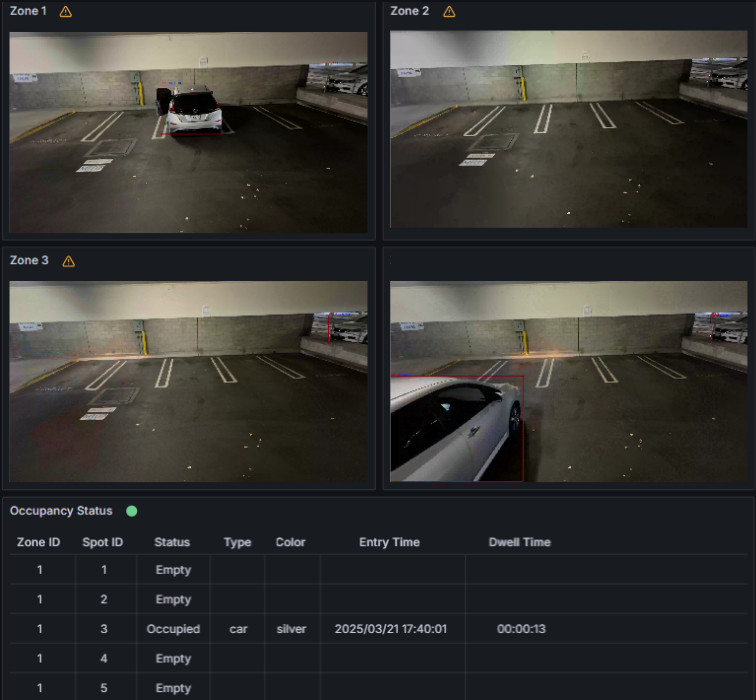
Expected Results: The dashboard displays real-time video streams with AI overlays and detection metrics.
Access Application Components#
Nginx Dashboard#
URL:
https://127.0.0.1
Grafana UI#
URL:
https://127.0.0.1/grafanaCredentials:
Username:
adminPassword:
admin(You will be prompted to change it on first login)
The dashboard displays detected cars in the parking lot.
NodeRED UI#
URL:
https://127.0.0.1/nodered/
DL Streamer Pipeline Server#
REST API: https://127.0.0.1/api/pipelines](https://127.0.0.1/api/pipelines)
Check Pipeline Status:
curl -k https://127.0.0.1/api/pipelines
WebRTC:
https://127.0.0.1/mediamtx/object_detection_1/
Stop the Application#
To stop the application microservices, use the following command:
docker compose down