Enable dTPM for Smart Intersection Security#
Prerequisites:
dTPM module must be physically connected to the PTL Board
Recommended: Infineon TPM (Xenon_4.1.0) for optimal Smart Intersection compatibility
Step 1: Download Required Components#
Download IFWI Firmware
Navigate to: IFWI Firmware Download Location
Download the IFWI file
You need to sign in to intel.com to get the access.
Extract the zip file.
Locate the binary file(*.bin) file according to your platform (e.g.,
858133_ptl-h-refbios_releasepackage\858133_ptl-h-refbios3332_52releasepackage\IFWI\CRB\ECG_PTL_PR04_XXXX-XXXODCA_RPRF_SEP5_11E50692_2025WW34.4.02_BI333252_CRB.bin)
Navigate to: MFIT Download Location
Download “Intel_CSME_SW_PTL_2540.8.40.0_Consumer_Corporate.zip” under “Intel_CSME_SW_PTL_2540.8.40.0_Consumer_Corporate”
Extract the downloaded zip file
“mfi.exe” will be located under “Intel_Silicon_FW_Kit_PTL-H12Xe_ES1_ES2_2025WW41.2.02\Tools\System_Tools\MFIT\Windows64”
Step 2: Configure IFWI with dTPM Support#
Launch MFIT Tool: Execute
mfit.exeand wait for the application to fully load.Decompose Original IFWI:
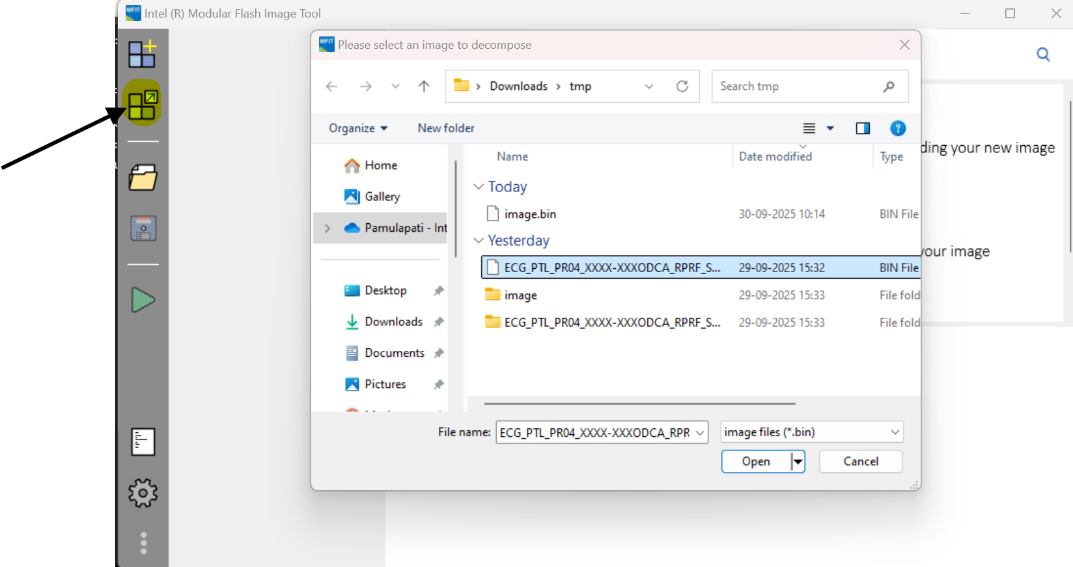
Click the “Decompose Image” button
Select the downloaded IFWI file from the extracted directory
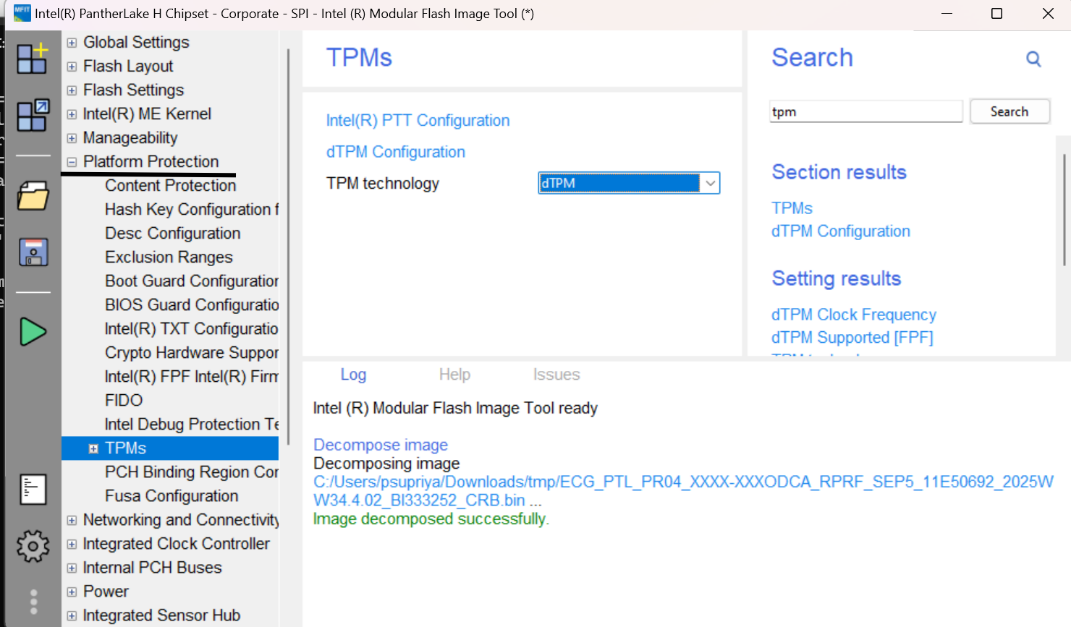
Wait for the decomposition process to complete modul
Enable dTPM Configuration & Build Image:
Navigate to “Platform Protection Features” section
Locate “TPM Technologies” subsection
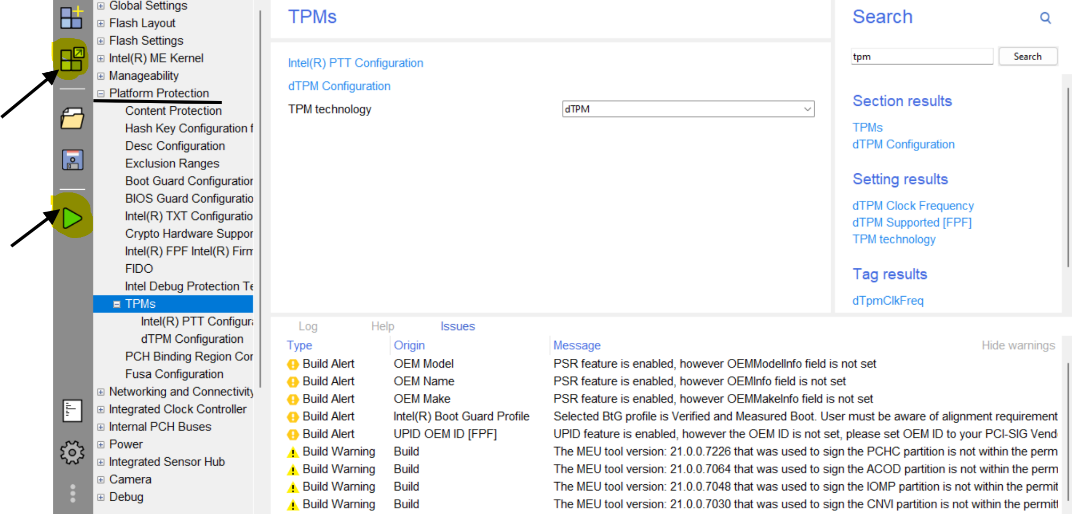
From the available TPM options, select “dTPM”
Click “Build Image” to generate the new firmware image
The tool will create a new IFWI file named
image.binin the same directoryVerify the
image.binfile has been successfully created
Step 3: Flash the Modified IFWI#
Important: Power OFF the PTL board before flashing
Prepare Flashing Environment:
Ensure the PTL board is properly connected to the flashing hardware
Verify DediProg or TTK3 is correctly configured and recognized
Flash the New IFWI:
Using your preferred flashing tool (DediProg or TTK3), load the newly generated
image.binfileInitiate the flashing process
Monitor the flashing progress for any errors
Power cycle the PTL board after successful flashing
Verify dTPM Functionality:
Check that dTPM functionality is enabled in the system BIOS/UEFI
Confirm dTPM is properly detected by the operating system