Publish Frames To S3 Storage#
Applications can take advantage of the S3 publish feature from DL Streamer Pipeline Server and use it to save frames to an S3 compatible storage.
Steps#
Note: For the purpose of this demonstration, we will be using MinIO as the S3 storage. The necessary compose configuration for MinIO microservice is already part of the Docker Compose file.
Setup the application to use the docker based deployment following this document.
Bring up the containers.
Note: If you are running multiple instances of the app, start the services using
./run.sh upinstead.docker compose up -d
Install the package
boto3in your python environment if not installed.It is recommended to create a virtual environment and install it there. You can run the following commands to add the necessary dependencies as well as create and activate the environment.
sudo apt update && \
sudo apt install -y python3 python3-pip python3-venv
python3 -m venv venv && \
source venv/bin/activate
Once the environment is ready, install
boto3with the following command.pip3 install --upgrade pip && \ pip3 install boto3==1.36.17
Note: DL Streamer Pipeline Server expects the bucket to be already present in the database. The next step will help you create one.
Create an S3 bucket using the following script.
Update the
HOST_IPand credentials with that of the running MinIO server. Usecreate_bucket.pyas the file name.import boto3 url = "http://<HOST_IP>:<MINIO_SERVER_PORT>" user = "<value of MINIO_ACCESS_KEY used in .env>" password = "<value of MINIO_SECRET_KEY used in .env>" bucket_name = "ecgdemo" client= boto3.client( "s3", endpoint_url=url, aws_access_key_id=user, aws_secret_access_key=password ) client.create_bucket(Bucket=bucket_name) buckets = client.list_buckets() print("Buckets:", [b["Name"] for b in buckets.get("Buckets", [])])
Run the above script to create the bucket.
python3 create_bucket.pyStart the pipeline with the following cURL command with
<HOST_IP>set to system IP. Ensure to give the correct path to the model as seen below. This example starts an AI pipeline.Note: If you are running multiple instances of the app, ensure to provide
NGINX_HTTPS_PORTnumber in the url for the app instance, i.e. replace<HOST_IP>with<HOST_IP>:<NGINX_HTTPS_PORT>If you are running a single instance and using anNGINX_HTTPS_PORTother than the default 443, replace<HOST_IP>with<HOST_IP>:<NGINX_HTTPS_PORT>.curl -k https://<HOST_IP>/api/pipelines/user_defined_pipelines/pallet_defect_detection_s3write -X POST -H 'Content-Type: application/json' -d '{ "source": { "uri": "file:///home/pipeline-server/resources/videos/warehouse.avi", "type": "uri" }, "destination": { "frame": { "type": "webrtc", "peer-id": "pdds3" } }, "parameters": { "detection-properties": { "model": "/home/pipeline-server/resources/models/pallet-defect-detection/deployment/Detection/model/model.xml", "device": "CPU" } } }'
Go to MinIO console on
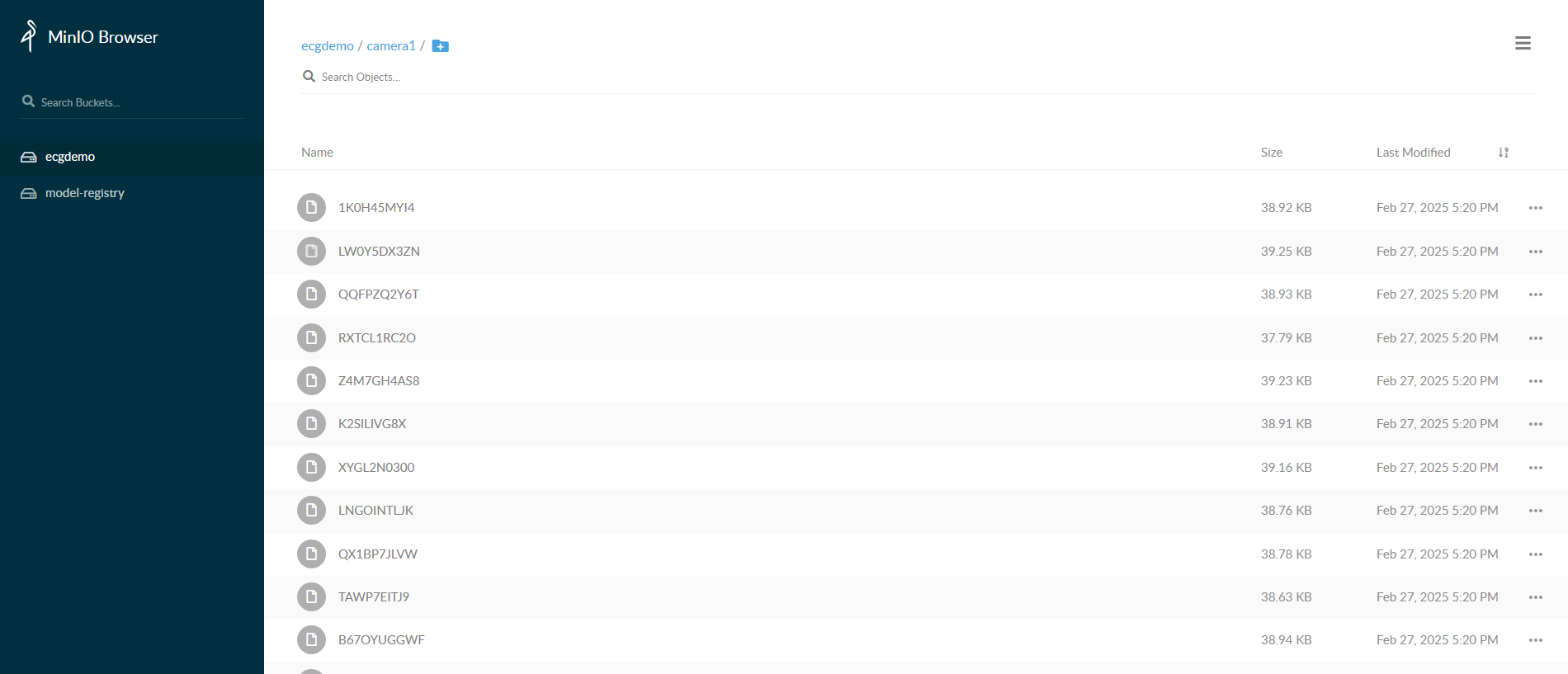
https://<HOST_IP>/minioand login withMINIO_ACCESS_KEYandMINIO_SECRET_KEYprovided in.envfile. After logging into console, you can go toecgdemobucket and check the frames stored.Note: If you are running multiple instances of the app, ensure to provide
NGINX_HTTPS_PORTnumber in the url for the app instance, i.e. replace<HOST_IP>with<HOST_IP>:<NGINX_HTTPS_PORT>If you are running a single instance and using an NGINX_HTTPS_PORT other than the default 443, replace<HOST_IP>with<HOST_IP>:<NGINX_HTTPS_PORT>.