Metro Vision AI SDK - Tutorial 5#
This tutorial will guide you through profiling and monitoring performance of Metro Vision AI workloads using command-line tools.
You’ll learn to use htop and a GPU monitor selected for your kernel driver to analyze system performance while running DL Streamer Pipeline Server or OpenVINO applications.
Prerequisites#
Ubuntu 24.04 LTS or Ubuntu 26.04 LTS
Docker installed and configured
Intel® Core™, Intel® Core™ Ultra and Intel integrated graphics card
Administrative privileges for performance monitoring
Internet connection for downloading model and video files
Step 1: Install Performance Monitoring Tools#
Install the required command-line performance monitoring tools:
# Update system packages
sudo apt update

# Install performance monitoring tools
sudo apt install -y htop intel-gpu-tools
Select the GPU monitoring tool by the active kernel driver, not the processor name:
lspci -k | grep -A3 -Ei "vga|display" | grep "Kernel driver"
Kernel driver |
GPU monitor |
Setup |
|---|---|---|
|
|
Included in the package installed above |
|
|
Use an installed recent IGT |
Check whether the selected monitor is available with command -v intel_gpu_top or command -v gputop.
The Ubuntu 24.04 intel-gpu-tools package (1.28) does not provide the required xe monitoring support.
If gputop is needed but unavailable, build the pinned IGT GPU Tools release below.
Otherwise, continue to Step 2.
sudo apt install -y git meson ninja-build pkg-config build-essential flex bison \
  libdrm-dev libkmod-dev libproc2-dev libdw-dev libpciaccess-dev libpci-dev libudev-dev \
  libcairo2-dev libpixman-1-dev libssl-dev libjson-c-dev libunwind-dev \
  libxmlrpc-core-c3-dev liblzma-dev libgsl-dev libasound2-dev python3-docutils

git clone --depth 1 --branch v2.6 https://gitlab.freedesktop.org/drm/igt-gpu-tools.git ~/igt-gpu-tools
cd ~/igt-gpu-tools
meson setup build -Dtests=disabled -Dman=disabled -Ddocs=disabled -Drunner=disabled
ninja -C build
sudo ninja -C build install
sudo ldconfig

# Verify that the monitor is installed
gputop -h
Step 2: Verify System Hardware#
Check your system hardware for monitoring:
# Check CPU information
lscpu | grep -E "Model name|CPU\(s\)"

# Check GPU availability
lspci | grep -i vga

# Check Intel GPU device files
ls -la /dev/dri/
Step 3: Start Your Metro Vision AI Workload#
Create and start a DL Streamer pipeline that continuously runs in the background for profiling:
Run this section from your regular non-root host shell, without sudo.
The containers use your host UID:GID so model files remain editable on the host, and the mounted workspace provides a writable home for model preparation.
These commands do not repair ownership of existing files created by root-run containers.
Only the host performance-monitoring tools in later steps need administrative privileges.
mkdir -p ~/oep/metro-vision-tutorial-5
cd ~/oep/metro-vision-tutorial-5

# Download sample video for object detection
wget -O bottle-detection.mp4 https://storage.openvinotoolkit.org/test_data/videos/bottle-detection.mp4

# Download YOLOv10s model using DL Streamer container
docker run --rm --user "$(id -u):$(id -g)" \
  -e HOME=/home/dlstreamer \
  -e http_proxy -e https_proxy -e no_proxy \
  -v "${PWD}:/home/dlstreamer/" \
  intel/dlstreamer:2026.2.0-ubuntu24 \
  bash -c "export MODELS_PATH=/home/dlstreamer && /opt/intel/dlstreamer/samples/download_public_models.sh yolov10s"

# Create a continuous DL Streamer pipeline script
cat > metro_vision_pipeline.sh << 'EOF'
#!/bin/bash
set -euo pipefail

if [[ "$(id -u)" -eq 0 ]]; then
    echo "Error: Run this script as your regular non-root user, without sudo." >&2
    exit 1
fi

# Metro Vision AI DL Streamer Pipeline for Performance Testing using Docker
CURRENT_DIR=$(pwd)
MODEL_PATH="$CURRENT_DIR/public/yolov10s/FP32/yolov10s.xml"
VIDEO_PATH="$CURRENT_DIR/bottle-detection.mp4"
DEVICE=GPU
RENDER_GROUP_ID=$(stat -c '%g' /dev/dri/renderD128)
CONTAINER_NAME="metro-vision-profile-$$"


echo "Starting Metro Vision AI Pipeline with Docker DL Streamer..."
echo "Model: $MODEL_PATH"
echo "Video: $VIDEO_PATH"
echo "Device: $DEVICE"

# Check if model and video exist
if [[ ! -f "$MODEL_PATH" ]]; then
    echo "Error: Model file not found at $MODEL_PATH"
    exit 1
fi

if [[ ! -f "$VIDEO_PATH" ]]; then
    echo "Error: Video file not found at $VIDEO_PATH"
    exit 1
fi


# Continuous loop to keep pipeline running
while true; do
    echo "$(date): Starting pipeline iteration..."

    # Run DL Streamer pipeline in Docker container with object detection
    docker run --rm \
        --name "$CONTAINER_NAME" \
        --user "$(id -u):$(id -g)" \
        --env HOME=/workspace \
        --device /dev/dri:/dev/dri \
        --group-add "$RENDER_GROUP_ID" \
        -v "$CURRENT_DIR:/workspace" \
        --env http_proxy \
        --env https_proxy \
        --env no_proxy \
        -w /workspace \
        intel/dlstreamer:2026.2.0-ubuntu24  \
        gst-launch-1.0 \
            filesrc location=/workspace/bottle-detection.mp4 ! \
            qtdemux ! h264parse ! avdec_h264 ! \
            videoconvert ! \
            gvadetect model=/workspace/public/yolov10s/FP32/yolov10s.xml device="$DEVICE" ! \
            gvafpscounter ! \
            fakesink sync=false

    echo "$(date): Pipeline ended, restarting in 2 seconds..."
    sleep 2
done
EOF

chmod +x metro_vision_pipeline.sh

# Start the pipeline in background
./metro_vision_pipeline.sh &
PIPELINE_PID=$!

echo "Metro Vision AI pipeline started with PID: $PIPELINE_PID"
echo "To stop: kill $PIPELINE_PID; docker stop metro-vision-profile-$PIPELINE_PID"
Note
This creates a continuously running Docker-based DL Streamer pipeline that processes real video using the YOLOv10s object detection model, providing a realistic AI workload for performance profiling. The pipeline runs in a Docker container with access to Intel GPU hardware.
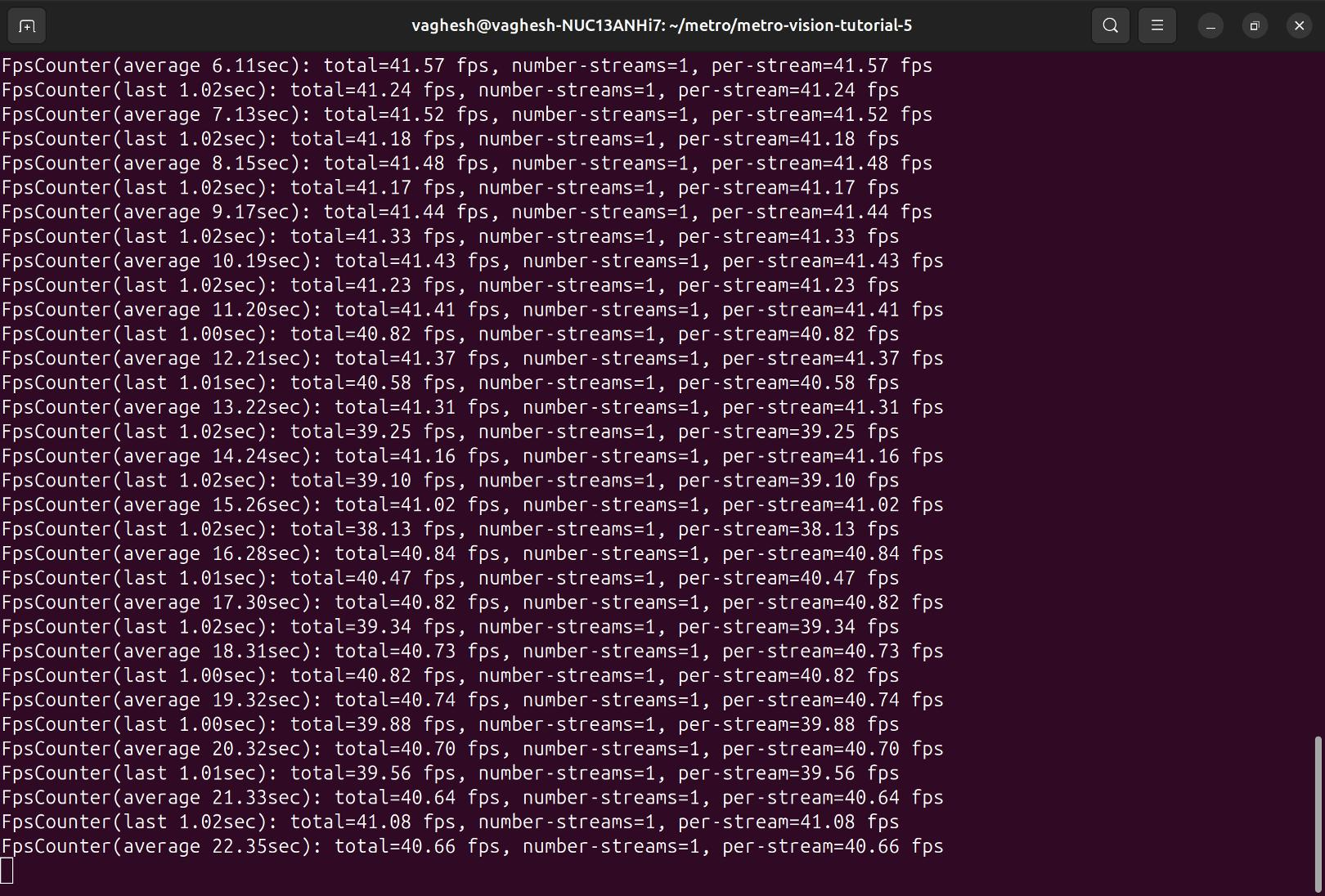
Expected Console Output:
Step 4: Monitor Overall System Performance with htop#
Launch htop to monitor real-time system performance:
# Start htop for real-time monitoring
htop
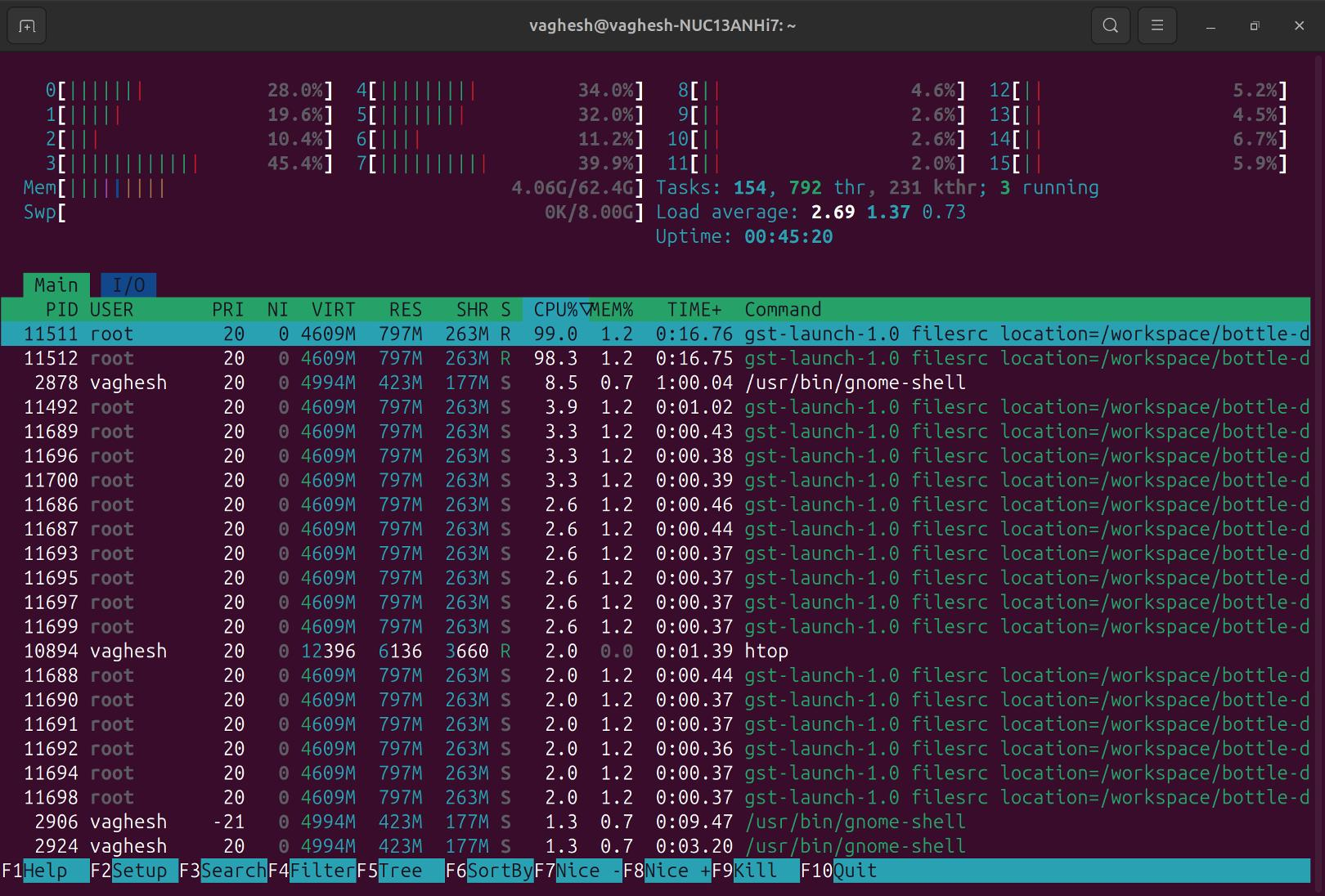
What to observe:
CPU usage per core (bars at the top)
Memory usage and available memory
Running processes sorted by CPU usage
Look for your Metro Vision AI processes
Key shortcuts in htop:
F6- Sort by different columns (CPU%, MEM%)F4- Filter processes by nameq- Quit htop
Expected Console Output:
Step 5: Monitor Intel GPU Performance#
In another host terminal, launch the monitor selected in Step 1 while the same workload runs:
Kernel driver |
Command |
|---|---|
|
|
|
|
Press q to exit the monitor.
What to observe:
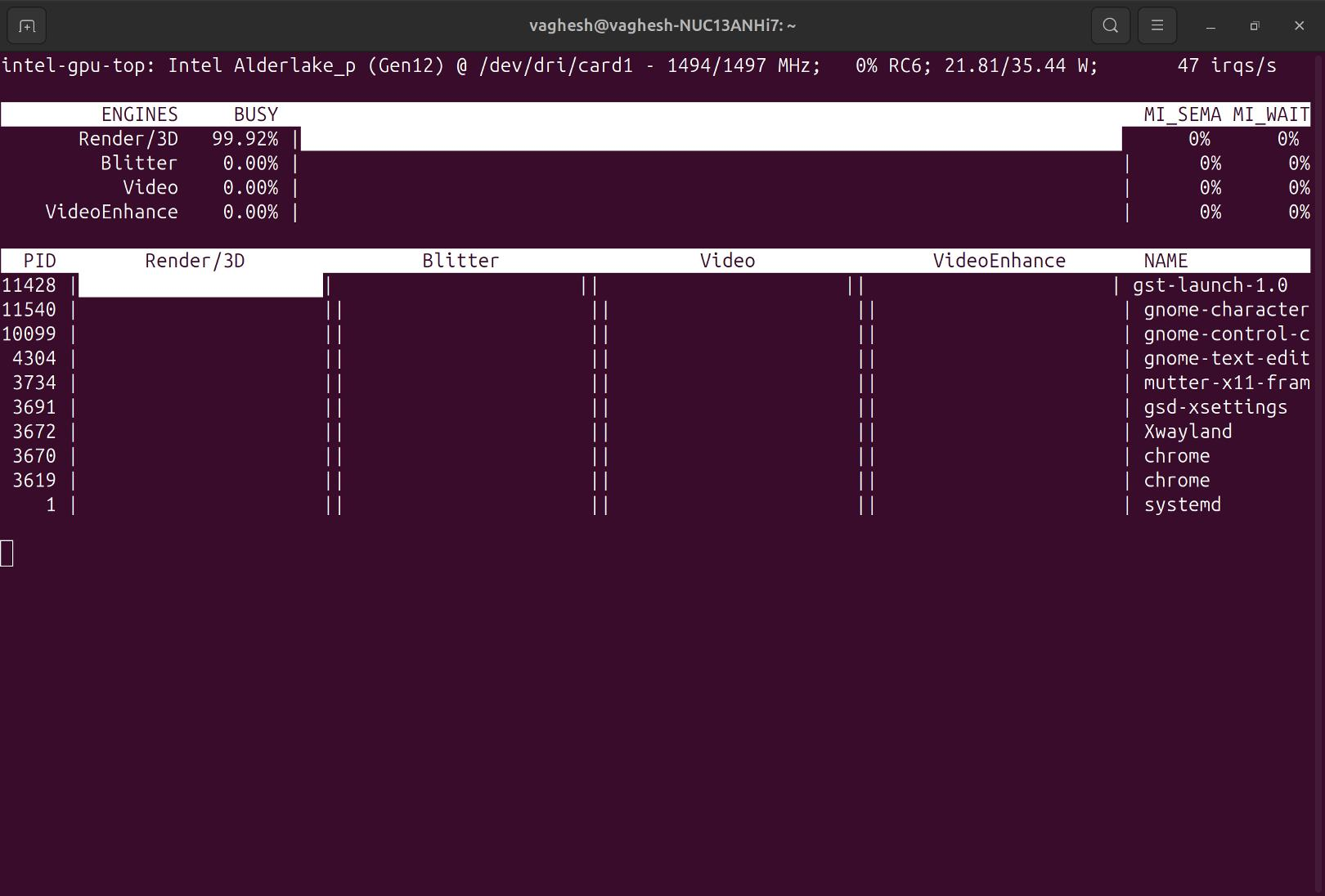
Compute (
ccs) or render/3D (rcs) engine activity during inference, depending on the GPUVideo (
vcs) and video enhancement (vecs) engine activityPer-process GPU memory and engine utilization where reported
GPU frequency, power consumption, and bandwidth where supported by the selected monitor
This workload uses avdec_h264 for CPU decoding, so it does not generate GPU video-decode activity.
On xe platforms, look for compute (ccs) activity from gst-launch-1.0.
Example intel_gpu_top output:
Example gputop output for the same workload:
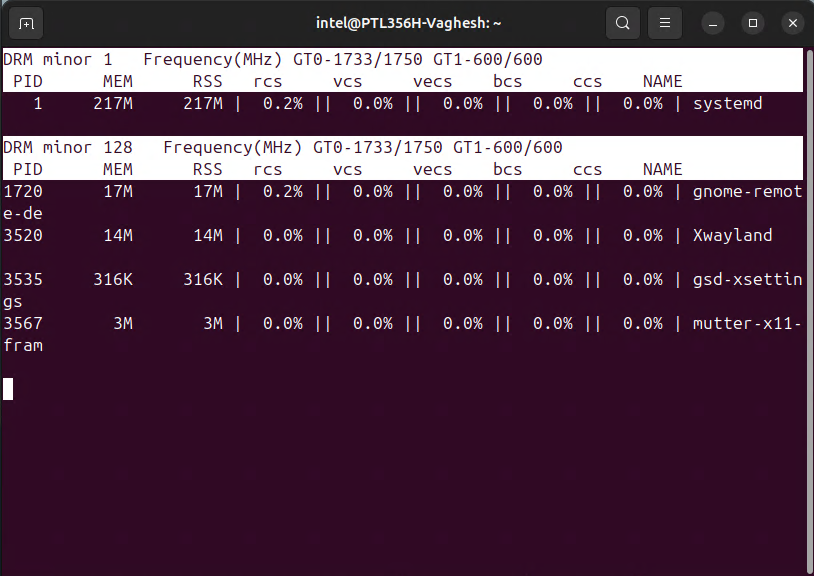
The columns identify compute (ccs), render/3D (rcs), video (vcs), video enhancement (vecs), and copy (bcs) engines.
Step 6: Stop the Running Pipeline#
When you are done profiling, stop the background pipeline:
# Stop the wrapper and its container from the same host shell
kill "$PIPELINE_PID"
docker stop "metro-vision-profile-$PIPELINE_PID"
Next Steps: Visual Pipeline and Platform Evaluation Tool (ViPPET)#
Now that you have learned to monitor AI workloads with command-line tools, take your performance analysis to the next level with ViPPET - a visual tool for evaluating and optimizing AI pipelines.
What is ViPPET?#
ViPPET (Visual Pipeline and Platform Evaluation Tool) is an interactive web-based application that helps you:
Visualize Pipeline Performance: See real-time metrics and graphs of your AI pipeline performance
Compare Configurations: Test different hardware devices (CPU, GPU, NPU) and model configurations
Benchmark Workloads: Measure throughput, latency, and resource utilization
Optimize Pipelines: Identify bottlenecks and tune parameters for better performance
Generate Reports: Create detailed performance reports for analysis and documentation
Getting Started with ViPPET#
To learn more and get started with ViPPET, visit the official documentation:
The documentation includes:
Installation instructions
Quick start guides
Tutorial videos
Pipeline configuration examples
Performance tuning best practices
Why Use ViPPET After This Tutorial?#
After using htop and your selected GPU monitor for basic monitoring, ViPPET provides:
Visual Analysis: Interactive charts instead of terminal output
Automated Testing: Run multiple benchmark scenarios automatically
Comparative Analysis: Side-by-side comparison of different configurations
Historical Data: Track performance trends over time
Export Capabilities: Generate professional reports for stakeholders
ViPPET complements the command-line monitoring skills you have learned in this tutorial by providing a comprehensive visual interface for deeper performance analysis and optimization.
Summary#
This tutorial provides a practical approach to profiling Metro Vision AI workloads using command-line tools:
What You have Learned:#
Installing Tools: Set up
htopand the GPU monitor appropriate for your kernel driverSystem Monitoring: Use
htopfor real-time CPU and memory monitoringGPU Profiling: Monitor Intel GPU performance with
intel_gpu_top(i915) orgputop(xe)Performance Analysis: Understand resource utilization patterns
Key Monitoring Points:#
CPU Usage: Monitor core utilization and identify bottlenecks
Memory Usage: Track memory consumption and avoid swapping
GPU Utilization: Monitor Intel GPU compute and render engine usage
Process Performance: Track specific AI application performance