Getting Started Guide#
This Get Started Guide explains how to install the Autonomous Mobile Robot.
Requirements#
Knowledge Requirements#
You are familiar with executing Linux commands.
ROS 2 background strongly recommended.
Hardware Requirements#
Intel® processors:
Intel® Core™ Ultra processors (Series 1-3)
11th-13th Generation Intel® Core™ processors with Intel® Iris® Xe Integrated Graphics or Intel® UHD Graphics
Intel Atom® processor with Intel® SSE4.1 support
Intel® Pentium® processor N4200/5, N3350/5, N3450/5 with Intel® HD Graphics
8 GB or more RAM
30 GB free space on hard drive
Canonical Ubuntu 24.04 LTS (Noble Numbat)
Intel® RealSense™ camera D435 or D457
Slamtec* RPLIDAR A3 2D LIDAR (optional)
Note: Intel does not recommend running simulations, like Gazebo*, on a physical robot.
1. Install Canonical Ubuntu OS#
Intel recommends a fresh installation of the Ubuntu distribution of the Linux OS for your target system, but this is not mandatory.
Install Ubuntu Ubuntu 24.04 (Noble Numat) or 22.04 (Jammy Jellyfish) based on your processor type. Your choice of OS version determines the compatible ROS distribution (Jazzy Jalisco or Humble Hawksbill, respectively).
Depending on your processor type, select one of the following Canonical Ubuntu 24.04 LTS variants:
Processor type |
Canonical Ubuntu 24.04 LTS variant |
ROS2 Compatibility |
|---|---|---|
Intel® Core™ Ultra Processors |
Ubuntu OS version 24.04 LTS (Noble Numat) Desktop image |
Jazzy |
Depending on your processor type, select one of the following Canonical Ubuntu 22.04 LTS variants:
Processor type |
Canonical Ubuntu 22.04 LTS variant |
ROS2 Compatibility |
|---|---|---|
11-13th Generation Intel® Core™ Processors, |
22.04 LTS image for Intel IoT platforms, available at Download Ubuntu image for Intel® IoT platforms |
Humble |
Visit the Canonical Ubuntu website to see the detailed installation instructions: Install Ubuntu desktop.
2. Install ROS 2 Distribution#
To install ROS 2 on your system, follow the ROS 2 setup guide:
2.1 Prepare your ROS 2 Environment#
In order to execute any ROS 2 command in a new shell, you first have to source
the ROS 2 setup.bash and set the individual ROS_DOMAIN_ID for your
ROS 2 communication graph.
source /opt/ros/jazzy/setup.bash
export ROS_DOMAIN_ID=42
source /opt/ros/humble/setup.bash
export ROS_DOMAIN_ID=42
Note: The value 42 serves just as an example. Use an individual ID for every ROS 2 node that is expected to participate in a given ROS 2 graph in order to avoid conflicts in handling messages.
Get more information about The ROS_DOMAIN_ID in:
2.2 Set up a permanent ROS 2 environment#
To simplify the handling of your system, you may add these lines to ~/.bashrc
file. In this way, the required settings are executed automatically
if a new shell is launched.
echo "source /opt/ros/jazzy/setup.bash" >> ~/.bashrc
echo "export ROS_DOMAIN_ID=42" >> ~/.bashrc
echo "source /opt/ros/humble/setup.bash" >> ~/.bashrc
echo "export ROS_DOMAIN_ID=42" >> ~/.bashrc
2.3 Important Notes#
If you miss to source the ROS 2 setup bash script, you will not be able to execute any ROS 2 command.
If you forget to set a dedicated
ROS_DOMAIN_ID, the ROS 2 command will be executed and may partially behave as expected. But you have to expect a diversity of unexpected behaviors too.Ensure you use the same
ROS_DOMAIN_IDfor every ROS 2 node that is expected to participate in a given ROS 2 graph.Ensure you use an individual
ROS_DOMAIN_IDfor every ROS 2 communication graph, in order to avoid conflicts in message handling.
3. Set up the Autonomous Mobile Robot APT Repositories#
This section explains the procedure to configure the APT package manager to use the hosted APT repositories.
Open a terminal prompt which will be used to execute the remaining steps.
Download the APT key to the system keyring:
sudo -E wget -O- https://eci.intel.com/repos/gpg-keys/GPG-PUB-KEY-INTEL-ECI.gpg | sudo tee /usr/share/keyrings/eci-archive-keyring.gpg > /dev/null
Add the signed entry to Autonomous Mobile Robot APT sources and configure the APT client to use the Autonomous Mobile Robot APT repositories:
echo "deb [signed-by=/usr/share/keyrings/eci-archive-keyring.gpg] https://eci.intel.com/repos/$(source /etc/os-release && echo $VERSION_CODENAME) isar main" | sudo tee /etc/apt/sources.list.d/eci.list > /dev/null
echo "deb-src [signed-by=/usr/share/keyrings/eci-archive-keyring.gpg] https://eci.intel.com/repos/$(source /etc/os-release && echo $VERSION_CODENAME) isar main" | sudo tee -a /etc/apt/sources.list.d/eci.list > /dev/null
echo "deb [signed-by=/usr/share/keyrings/eci-archive-keyring.gpg] https://amrdocs.intel.com/repos/$(source /etc/os-release && echo $VERSION_CODENAME) amr main" | sudo tee /etc/apt/sources.list.d/amr.list > /dev/null
echo "deb-src [signed-by=/usr/share/keyrings/eci-archive-keyring.gpg] https://amrdocs.intel.com/repos/$(source /etc/os-release && echo $VERSION_CODENAME) amr main" | sudo tee -a /etc/apt/sources.list.d/amr.list > /dev/null
Configure the Autonomous Mobile Robot APT repository to have higher priority over other repositories:
echo -e "Package: *\nPin: origin eci.intel.com\nPin-Priority: 1000" | sudo tee /etc/apt/preferences.d/isar
echo -e "Package: *\nPin: origin amrdocs.intel.com\nPin-Priority: 1001" | sudo tee /etc/apt/preferences.d/amr
Configure the Autonomous Mobile Robot APT repository to ignore FLANN 1.19 version
echo -e "\nPackage: libflann*\nPin: version 1.19.*\nPin-Priority: -1\n\nPackage: flann*\nPin: version 1.19.*\nPin-Priority: -1" | sudo tee -a /etc/apt/preferences.d/isar
Configure the APT repository of the Intel® oneAPI Base Toolkit:
wget -O- https://apt.repos.intel.com/intel-gpg-keys/GPG-PUB-KEY-INTEL-SW-PRODUCTS.PUB | gpg --dearmor | sudo tee /usr/share/keyrings/oneapi-archive-keyring.gpg > /dev/null
echo "deb [signed-by=/usr/share/keyrings/oneapi-archive-keyring.gpg] https://apt.repos.intel.com/oneapi all main" | sudo tee /etc/apt/sources.list.d/oneAPI.list > /dev/null
echo -e "Package: intel-oneapi-runtime-*\nPin: version 2025.3.*\nPin-Priority: 1001" | sudo tee /etc/apt/preferences.d/oneapi > /dev/null
For latest Intel silicon support, add the Canonical
kisakandkobukPrivate Package Archives (PPA):sudo -E add-apt-repository -y ppa:kisak/kisak-mesa sudo -E add-apt-repository -y ppa:kobuk-team/intel-graphics
sudo -E add-apt-repository -y ppa:kisak/kisak-mesa
4. Install OpenVINO™ Packages#
The following steps will add the OpenVINO™ APT repository to your package management.
Install the OpenVINO™ GPG key:
wget -O- https://apt.repos.intel.com/intel-gpg-keys/GPG-PUB-KEY-INTEL-SW-PRODUCTS.PUB | gpg --dearmor | sudo tee /usr/share/keyrings/openvino-archive-keyring.gpg > /dev/null
Add the Deb package sources for OpenVINO™ 2025. This will allow you to choose your preferred OpenVINO™ version to be installed.
echo "deb [signed-by=/usr/share/keyrings/openvino-archive-keyring.gpg] https://apt.repos.intel.com/openvino/2025 ubuntu24 main" | sudo tee /etc/apt/sources.list.d/intel-openvino-2025.list
echo "deb [signed-by=/usr/share/keyrings/openvino-archive-keyring.gpg] https://apt.repos.intel.com/openvino/2025 ubuntu22 main" | sudo tee /etc/apt/sources.list.d/intel-openvino-2025.list
Run the following commands to create the file
/etc/apt/preferences.d/intel-openvino.This will pin the OpenVINO™ version to 2025.3.0. Earlier versions of OpenVINO™ might not support inferencing on the NPU of Intel® Core™ Ultra processors.
echo -e "\nPackage: openvino-libraries-dev\nPin: version 2025.3.0*\nPin-Priority: 1001" | sudo tee /etc/apt/preferences.d/intel-openvino
echo -e "\nPackage: openvino\nPin: version 2025.3.0*\nPin-Priority: 1001" | sudo tee -a /etc/apt/preferences.d/intel-openvino
echo -e "\nPackage: ros-jazzy-openvino-wrapper-lib\nPin: version 2025.3.0*\nPin-Priority: 1002" | sudo tee -a /etc/apt/preferences.d/intel-openvino
echo -e "\nPackage: ros-jazzy-openvino-node\nPin: version 2025.3.0*\nPin-Priority: 1002" | sudo tee -a /etc/apt/preferences.d/intel-openvino
echo -e "\nPackage: openvino-libraries-dev\nPin: version 2025.3.0*\nPin-Priority: 1001" | sudo tee /etc/apt/preferences.d/intel-openvino
echo -e "\nPackage: openvino\nPin: version 2025.3.0*\nPin-Priority: 1001" | sudo tee -a /etc/apt/preferences.d/intel-openvino
echo -e "\nPackage: ros-humble-openvino-wrapper-lib\nPin: version 2025.3.0*\nPin-Priority: 1002" | sudo tee -a /etc/apt/preferences.d/intel-openvino
echo -e "\nPackage: ros-humble-openvino-node\nPin: version 2025.3.0*\nPin-Priority: 1002" | sudo tee -a /etc/apt/preferences.d/intel-openvino
If you decide to use a different OpenVINO™ version, ensure that all four packages (
openvino-libraries-dev,openvino,ros-jazzy-openvino-wrapper-lib, andros-jazzy-openvino-node) are pinned to the same OpenVINO™ version.
4.1 Install the OpenVINO™ Runtime and the ROS 2 OpenVINO™ Toolkit#
The following steps will install the OpenVINO™ packages:
Ensure all APT repositories are updated:
sudo apt update
Several Autonomous Mobile Robot tutorials allow you to perform OpenVINO™ inference on the integrated GPU device of Intel® processors. To enable this feature, install the Intel® Graphics Compute Runtime with the following command:
sudo apt install -y libze1 libze-intel-gpu1
Install the
debconf-utilities:sudo apt install debconf-utils
Clear any previous installation configurations:
sudo apt purge ros-jazzy-openvino-node
sudo apt autoremove -y
echo PURGE | sudo debconf-communicate ros-jazzy-openvino-node
sudo apt purge ros-humble-openvino-node
sudo apt autoremove -y
echo PURGE | sudo debconf-communicate ros-humble-openvino-node
Install the OpenVINO™ Runtime:
sudo apt install openvino
Install the the ROS 2 OpenVINO™ Toolkit:
sudo -E apt install ros-jazzy-openvino-node
sudo -E apt install ros-humble-openvino-node
During the installation of the “openvino-node” package, you will be prompted to decide whether to install the OpenVINO™ IR formatted models. Since some tutorials in the Autonomous Mobile Robot, which are based on OpenVINO™, depend on these models; it is crucial to respond with
Yesto this query.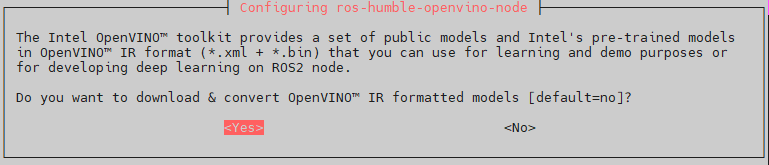
4.2 OpenVINO™ Re-Installation and Troubleshooting#
If you need to reinstall OpenVINO™ or clean your system after a failed installation, run the following commands:
sudo apt purge ros-jazzy-openvino-node
sudo apt autoremove -y
echo PURGE | sudo debconf-communicate ros-jazzy-openvino-node
sudo apt install ros-jazzy-openvino-node
sudo apt purge ros-humble-openvino-node
sudo apt autoremove -y
echo PURGE | sudo debconf-communicate ros-humble-openvino-node
sudo apt install ros-humble-openvino-node
5. Install Autonomous Mobile Robot Deb packages#
This section details steps to install Autonomous Mobile Robot Deb packages.
Before using the Autonomous Mobile Robot APT repositories, update the APT packages list:
sudo apt update
The APT package manager will download the latest list of packages available for all configured repositories.

Follow the instructions to install Gazebo:
sudo apt-get update
sudo apt-get install curl lsb-release gnupg

sudo -E curl https://packages.osrfoundation.org/gazebo.gpg --output /usr/share/keyrings/pkgs-osrf-archive-keyring.gpg
echo "deb [arch=$(dpkg --print-architecture) signed-by=/usr/share/keyrings/pkgs-osrf-archive-keyring.gpg] https://packages.osrfoundation.org/gazebo/ubuntu-stable $(lsb_release -cs) main" | sudo tee /etc/apt/sources.list.d/gazebo-stable.list > /dev/null
sudo apt-get update
sudo apt-get install gz-harmonic
sudo apt-get update
sudo apt-get install curl lsb-release gnupg

sudo -E add-apt-repository ppa:openrobotics/gazebo11-gz-cli
sudo -E curl https://packages.osrfoundation.org/gazebo.gpg --output /usr/share/keyrings/pkgs-osrf-archive-keyring.gpg
echo "deb [arch=$(dpkg --print-architecture) signed-by=/usr/share/keyrings/pkgs-osrf-archive-keyring.gpg] https://packages.osrfoundation.org/gazebo/ubuntu-stable $(lsb_release -cs) main" | sudo tee /etc/apt/sources.list.d/gazebo-stable.list > /dev/null
sudo apt-get update
Choose the Autonomous Mobile Robot Deb package to install.
ros-jazzy-robotics-sdk The standard version of the Autonomous Mobile Robot. This package includes almost everything except for a handful of tutorials and bag files.
ros-jazzy-robotics-sdk-complete The complete version of the Autonomous Mobile Robot. It also includes those items excluded from the standard version. Please note that the complete SDK downloads approximately 20GB of additional files.
ros-humble-robotics-sdk The standard version of the Autonomous Mobile Robot. This package includes almost everything except for a handful of tutorials and bag files.
ros-humble-robotics-sdk-complete The complete version of the Autonomous Mobile Robot. It also includes those items excluded from the standard version. Please note that the complete SDK downloads approximately 20GB of additional files.
Install the chosen Autonomous Mobile Robot Deb package
Install command example:
sudo apt install ros-jazzy-robotics-sdk
Intel oneAPI requires GCC >= 12, so upgrade GCC as well.
sudo apt install gcc-12 g++-12
sudo update-alternatives --install /usr/bin/gcc gcc /usr/bin/gcc-12 60 --slave /usr/bin/g++ g++ /usr/bin/g++-12
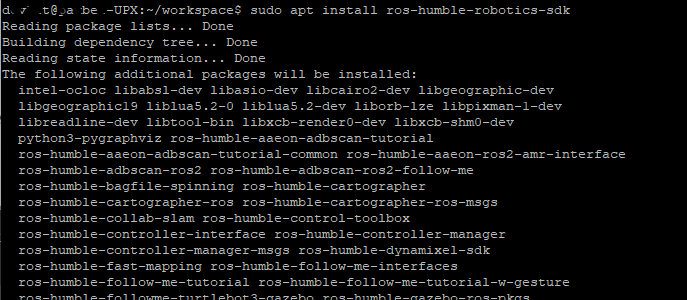
sudo apt install ros-humble-robotics-sdk
The standard version of the Autonomous Mobile Robot should generally download and install all files within just a few minutes. The complete version of the Autonomous Mobile Robot will take several more minutes and consume significantly more network bandwidth.
The actual installation time will vary greatly based primarily upon the number of packages that need to be installed and the network connection speed.
Install one of the following packages based upon your processor type:
Intel SSE-only CPU instruction accelerated package for Collaborative SLAM (installed by default):
# Required for Intel® Atom® processor-based systems
sudo apt-get install ros-jazzy-collab-slam-sse
# Required for Intel® Atom® processor-based systems
sudo apt-get install ros-humble-collab-slam-sse
Intel AVX2 CPU instruction accelerated package for Collaborative SLAM:
# Works only on Intel® Core™ processor-based systems
sudo apt-get install ros-jazzy-collab-slam-avx2
# Works only on Intel® Core™ processor-based systems
sudo apt-get install ros-humble-collab-slam-avx2
Intel GPU Level-Zero accelerated package for Collaborative SLAM:
# Works only on Intel® Core™ processors with Intel® Xe Integrated Graphics or Intel® UHD Graphics
sudo apt-get install ros-jazzy-collab-slam-lze
# Works only on Intel® Core™ processors with Intel® Xe Integrated Graphics or Intel® UHD Graphics
sudo apt-get install ros-humble-collab-slam-lze
During the installation of the above packages, you will see a dialogue asking you for the GPU generation of your system:
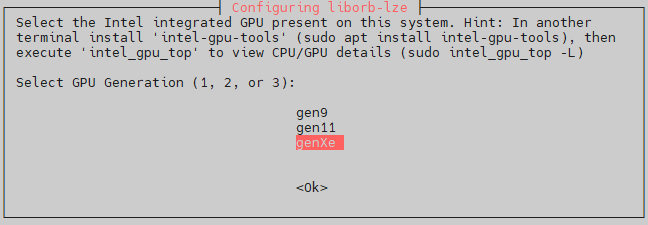
In this dialogue, select the GPU Generation according to the following table depending on your processor type. If you are unsure, it’s safe to select
genXe.GPU Generation
Processors
genXeIntel® Core™ Ultra Processors
11-13th Generation Intel® Core™ Processors
Intel® Processor N-series (products formerly Alder Lake-N)gen11Products formerly Ice Lake
gen9Products formerly Skylake
If you want to redisplay this dialogue, you have to uninstall the
liborb-lzepackage using the commands below. This will also remove the packages that depend on theliborb-lzepackage. Then you can install theliborb-lzepackage again and the dialogue will be redisplayed:sudo apt remove --purge liborb-lze echo PURGE | sudo debconf-communicate liborb-lze sudo apt install liborb-lze
Since the
liborb-lzepackage is one of the fundamental dependencies of the Autonomous Mobile Robot, you will have to re-install the Intel GPU Level-Zero accelerated package for Collaborative SLAM (ros-jazzy-collab-slam-lze) as described above.
6. Install RealSense™ Camera SDK#
RealSense™ SDK is a cross-platform library for RealSense™ depth cameras. The SDK allows depth and color streaming, and provides intrinsic and extrinsic calibration information. The library also offers synthetic streams (pointcloud, depth aligned to color and vise-versa), and a built-in support for record and playback of streaming sessions.
RealSense™ SDK includes support for ROS and ROS 2, allowing you access to commonly used robotic functionality with ease.
Register the server’s public key:
sudo mkdir -p /etc/apt/keyrings
curl -sSf https://librealsense.intel.com/Debian/librealsense.pgp | sudo tee /etc/apt/keyrings/librealsense.pgp > /dev/null
Add RealSense to the list of repositories:
echo "deb [signed-by=/etc/apt/keyrings/librealsense.pgp] https://librealsense.intel.com/Debian/apt-repo $(lsb_release -cs) main" | sudo tee /etc/apt/sources.list.d/librealsense.list
Update your APT repository caches after setting up the repository:
sudo apt update
Configure APT preferences to pin the RealSense version:
This step pins the RealSense SDK to validated versions that ensure compatibility with ROS 2 and the tutorials in this documentation. This prevents automatic upgrades during
apt upgradethat could introduce compatibility issues.echo -e "Package: librealsense2*\nPin: version 2.56.5-0~realsense.17055\nPin-Priority: 1001" | sudo tee /etc/apt/preferences.d/librealsense
echo -e "Package: librealsense2*\nPin: version 2.55.1-0~realsense.12474\nPin-Priority: 1001" | sudo tee /etc/apt/preferences.d/librealsense
Install the RealSense drivers and libraries:
sudo apt install librealsense2-dkms
sudo apt install librealsense2
Note: The pinned version ensures stability across tutorials. To upgrade in the future, update the version in
/etc/apt/preferences.d/librealsensebefore installing.
7. Install Intel® GPU Driver on Intel® Core™ Ultra Processors#
If you want to run OpenVINO™ inferencing applications on the GPU device of Intel® Core™ Ultra processors, you need to install the Intel® GPU driver. If your system does not have an Intel® Core™ Ultra Processor, you should skip this step.
Install mesa packages from
kisakPPA:sudo apt install libegl-mesa0 libgl1-mesa-dri libgbm1 libglx-mesa0 mesa-libgallium mesa-va-drivers mesa-va-drivers mesa-vdpau-drivers mesa-vulkan-drivers xwayland
sudo apt install libegl-mesa0 libgl1-mesa-dri libgbm1 libglx-mesa0 mesa-va-drivers mesa-va-drivers mesa-vdpau-drivers mesa-vulkan-drivers xwayland
Install the latest Linux kernel:
sudo apt install linux-intel-rt-experimental
Install the
eci-customizationspackage to populate the GRUB menu with the latest Linux kernel:sudo apt install eci-customizations
Install GuC and HuC Linux firmware package:
sudo apt install linux-firmware
8. Install the Intel® NPU Driver on Intel® Core™ Ultra Processors#
If you want to run OpenVINO™ inferencing applications on the NPU device of Intel® Core™ Ultra processors, you need to install the Intel® NPU driver. If your system does not have an Intel® Core™ Ultra Processor, you should skip this step.
General information on the Intel® NPU driver can be found on the Linux NPU Driver website. The driver consists of the following packages:
intel-driver-compiler-npu: Intel® driver compiler for NPU hardware; the driver compiler enables compilation of OpenVINO™ IR models using the Level Zero Graph Extension API.intel-fw-npu: Intel® firmware package for NPU hardware.intel-level-zero-npu: Intel® Level Zero driver for NPU hardware; this library implements the Level Zero API to interact with the NPU hardware.
Note: The installation instructions on the Linux NPU Driver website download the
*.debfiles for these components, and install the packages from the downloaded files. In consequence, you won’t get any upgrades for these packages without manual interaction. For this reason, it’s better to use packages from an APT package feed, as it is described in the following.
The packages of the Intel® NPU driver are provided by the APT package feed, which you have added to your system when you setup the APT package repositories earlier. This APT package feed also provides all dependencies of the Intel® NPU driver packages.
To install the Intel® NPU driver, complete the following steps:
Install the NPU packages:
sudo apt-get install intel-level-zero-npu intel-driver-compiler-npu
Add your user account to the
rendergroup:sudo usermod -a -G render $USER
After this step, log-out (or reboot) and log-in again. Verify that your account belongs to the
rendergroup now:groups $USER
Set the render group for
acceldevice:sudo chown root:render /dev/accel/accel0 sudo chmod g+rw /dev/accel/accel0
This step must be repeated each time when the module is reloaded or after every reboot. To avoid the manual setup of the group for the
acceldevice, you can configure the followingudevrules:sudo bash -c "echo 'SUBSYSTEM==\"accel\", KERNEL==\"accel*\", GROUP=\"render\", MODE=\"0660\"' > /etc/udev/rules.d/10-intel-vpu.rules" sudo udevadm control --reload-rules sudo udevadm trigger --subsystem-match=accel
Now, you can check that the device has been set up with appropriate access rights. Verify that you can see the
/dev/accel/accel0device and that the device belongs to therendergroup:$ ls -lah /dev/accel/accel0 crw-rw---- 1 root render 261, 0 Jul 1 13:10 /dev/accel/accel0
9. Reboot to load latest Linux kernel and firmware#
sudo reboot
Installation Troubleshooting#
Support Forum#
If you encounter difficulties, visit the Support Forum for assistance.
APT Package Manager#
If the APT package manager is unable to connect to the repositories, follow these APT troubleshooting tips:
Make sure that the system has network connectivity.
Make sure that port 80 is not blocked by a firewall.
Configure an APT proxy (if network traffic routes through a proxy server).
To configure an APT proxy, add the following lines to a file at
/etc/apt/apt.conf.d/proxy.conf(replace the placeholder as per your specific user and proxy server)::Acquire:http:Proxy "http://user:password@proxy.server:port/"; Acquire:https:Proxy "http://user:password@proxy.server:port/";
To ensure proper proxy settings for other tools required during the package installation add the the required proxy settings to
/etc/environment:http_proxy=http://user:password@proxy.server:port https_proxy=http://user:password@proxy.server:port no_proxy="localhost,127.0.0.1,127.0.0.0/8"
After setting the proxy values in
/etc/apt/apt.conf.d/proxy.confand/etc/environmentyou will have to reboot the device, so these settings become effective.