Advanced Setup Guide#
This guide is the configuration reference for the Smart Classroom desktop app on Windows, with troubleshooting and uninstall steps. To install the app, see Get Started on Windows.
Where the Configuration Lives#
Edit the settings on the Configuration screen. They are saved to
%LOCALAPPDATA%\SmartClassroom\config.yaml, which Show file opens. The screen
covers the settings most people change; for a setting it does not list, edit
config.yaml directly.
Important
Configuration changes take effect the next time the backend starts. Select Restart backend when it is offered after you save, or restart it on the Services screen.
Configure the Application#
A. Enable Feature Configuration#
The application uses a modular feature architecture. You can enable or disable individual features through the features: block in config.yaml. Only enabled features are initialized at startup: they load their required models, register their API routes, and start their associated services.
features:
  asr:                { enabled: true }   # Speech-to-text transcription
  summary:            { enabled: true }   # AI class summary / report
  mindmap:            { enabled: true }   # Mind map generation
  topic_segmentation: { enabled: true }
  video_analytics:    { enabled: true }   # Video ingestion / analytics
  board_ocr:          { enabled: true }   # OCR of the teacher's display (IFPD)
  content_search:     { enabled: true }   # Multimodal search + RAG service (port 9011)
  qa:                 { enabled: true }   # RAG-based Q&A over uploaded materials
  grading:            { enabled: true }   # VLM-based exam paper grading
  report:             { enabled: true }   # Class report generation (.docx, PDF export)
B. Default Configuration#
By default, the project uses Whisper for transcription, and summarization runs on the shared OpenVINO™ vision-language model configured under models.text_gen. You can modify these settings in config.yaml:
asr:
  provider: openvino            # Supported: openvino, openai, funasr
  name: whisper-base         # Options: whisper-tiny, whisper-small, paraformer-zh etc.
  device: CPU                 # Whisper currently supports only CPU
  temperature: 0.0

summarizer:
  mode: dialog                # Supported: dialog, teacher, hybrid

text_gen:                     # Shared by summary, mindmap, segmentation and Q&A
  provider: vlm
  vlm_name: Qwen/Qwen3-VL-8B-Instruct
  device: GPU                 # Options: GPU or CPU
  weight_format: int4         # Supported: fp16, int4, int8
  max_new_tokens: 5120        # Maximum tokens to generate
For choosing the text-generation model and enabling DFlash, see the VLM/LLM Serving Guide.
C. Chinese Audio Transcription#
For Chinese audio transcription, switch to FunASR with Paraformer in config.yaml:
asr:
  provider: funasr
  name: paraformer-zh
Please also set the language to Chinese at the app level:
app:
  language: zh
D. Content Search Configuration#
Upload Size Limits can be adjusted under the content_search section:
content_search:
  storage:
    document_max_mb: 100    # maximum upload size for documents (MB)
    video_max_mb: 1024      # maximum upload size for videos (MB)
Document OCR: To also extract text from images embedded in uploaded documents, turn on OCR for content search:
content_search:
  ocr_enabled: true
Note
This flag affects only document ingestion. Board OCR uses OCR independently and is not affected.
E. Board OCR Configuration#
Board OCR extracts text from the teacher’s interactive display (IFPD) during a session, feeding the board summary and class report. It has the following configurations:
board_ocr:
  frame_rate: "1/3"    # frames per second sampled from the board video
  debug: false         # keep the uncleaned board_ocr_raw.txt alongside the output
Note
When Board OCR is enabled, the AI-generated class summary automatically gains an extra “Board / IFPD Content” section that summarizes the text captured from the display, in addition to the sections derived from the audio transcript.
F. Speaker Diarization Setup (Optional)#
Speaker diarization labels each transcript line with the speaker who said it. Two backends are available:
Backend |
Gated access |
Speed (CPU) |
Notes |
|---|---|---|---|
|
Yes, Hugging Face token required (none with |
~0.43x realtime |
Detects overlapping speech |
|
No |
~0.01x realtime |
FunASR VAD + CAM++, requires the FunASR setup from section C |
Steps a-c below set up the default pyannote backend. Skip them when models.model_hub is
modelscope: ModelScope serves the same pyannote files without a token. Skip to step d for CAM++.
a. Request model access on Hugging Face#
Pyannote diarization models require gated access.
Request access here:
Pyannote Speaker Diarization Community v1
Click “Request Access” on the model page and wait for approval.
b. Create a Hugging Face access token#
After approval:
Go to the Hugging Face Access Token page.
Create a Read access token.
Copy the generated token.
c. Configure the Hugging Face token#
In the desktop app, open Configuration, go to Speech recognition, turn on Speaker diarization, and enter the token in Hugging Face token. The app stores the token without showing it again.
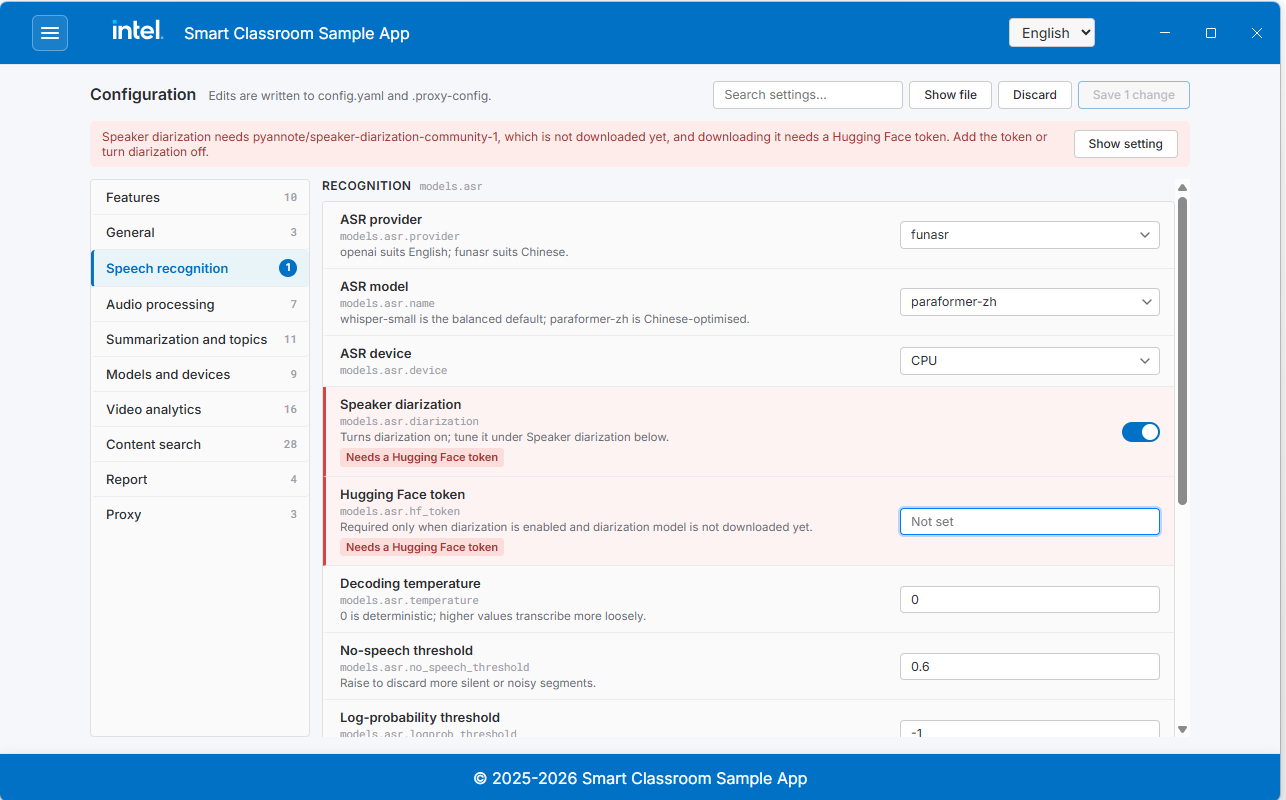
To edit the file directly instead, set diarization: true under models.asr in
config.yaml, then add your Hugging Face token:
models:
  asr:
    diarization: true
    hf_token: "hf_your_access_token_here"
Note
The diarization model downloads automatically on next startup once diarization: true is set.
d. CAM++ backend (FunASR only)#
campplus needs no token and no gated access, but it requires provider: funasr and
name: paraformer-zh from section C. Its speaker and VAD models are downloaded on first use from
the hub that models.model_hub selects, and reused offline afterwards.
models:
  asr:
    diarization: true
  diarization:
    backend: campplus
e. Whole-file processing (FunASR only)#
By default audio is transcribed and diarized in chunks, which streams results to the UI while
the recording is still being processed. Setting chunking: false processes the whole recording
in a single pass instead: speaker clustering sees all the speech at once, at the cost of no
intermediate results. It also requires provider: funasr and name: paraformer-zh, and is
ignored for microphone capture, where the recording is not available up front.
audio_preprocessing:
  chunking: false
Install LibreOffice (Optional, Feature-Dependent)#
LibreOffice (the soffice executable) is an optional dependency used by two features. Install it only if you enable a feature that needs it:
report— PDF report export: The class report is generated as a.docxfile. When you download it as PDF, the server converts the.docxusing LibreOffice in headless mode (soffice --convert-to pdf). If LibreOffice is not installed,.docxdownload still works normally and only the PDF download returns501 (PDF export unavailable).content_search— legacy document parsing: Ingesting legacy Office formats (.doc,.ppt,.xls) requires LibreOffice to convert them. Modern formats (.docx,.pptx,.xlsx) do not need it. If LibreOffice is missing, uploading a legacy format is rejected with a message asking you to install it or convert to a modern format.
If you enable either use case, download and install LibreOffice from https://www.libreoffice.org/download/, then make sure the soffice executable is available on your system PATH. Restart the backend afterwards.
To verify the executable is discoverable, run this in PowerShell:
Get-Command soffice
Network Requirements#
Proxy: If you are behind a proxy, set
HTTP_PROXYandHTTPS_PROXYon the Configuration screen under Proxy.Model downloads: Stable access to
huggingface.cois required to download pre-trained models.Model hub:
models.model_hub(Model hub on the Configuration screen) selects Hugging Face or ModelScope for the models published with identical files on both: OpenVINO IR for text generation, pyannote, the FunASR VAD and CAM++ models, PaddleOCR and the grading layout model. FunASR Paraformer and punctuation always come from ModelScope. Whisper exports, other model exports and speculative-decoding drafters always come from Hugging Face. The backend log warns when a download goes to the hub you did not select.Hugging Face mirror: set
models.hf_endpoint(Hugging Face mirror) to a mirror such ashttps://hf-mirror.com. AnHF_ENDPOINTenvironment variable takes precedence.Windows long paths: Model downloads with deep paths can fail when long paths are disabled. Select Enable on the Windows long paths row of the Setup screen.
Troubleshooting#
In the steps below, the models folder is %LOCALAPPDATA%\SmartClassroom\models.
Stop the backend before you delete it.
Backend fails to start or stops unexpectedly: Open Services and read the backend’s live logs, or select Open folder to see the log files. Then open Setup and select Re-check: a row marked Missing, Outdated, or Failed names what to fix. Copy diagnostics copies the full check list for a bug report.
Error:
Port for tensor name cache_position was not found.This means the models were not configured correctly. To fix this:Delete the
modelsfolder.Open Setup and select Upgrade on the Python environment row.
Start the backend again. The models are downloaded and converted again.
Application crash during bring-up on Intel® Core™ Ultra Series 3 and Intel® Core™ Series 3 processors without any error indication: Sometimes OpenVINO™ GenAI models may crash on newer hardware. Try running the model on CPU by setting
device: CPUundermodels.text_geninconfig.yaml.Tokenizer load issue:
If you see this error:
Either openvino_tokenizer.xml was not provided or it was not loaded correctly. Tokenizer::encode is not available
Delete the
modelsfolder and start the backend again.Error:
CL_OUT_OF_RESOURCESduring summarization of longer audio inputs: Summarization of longer transcripts may require additional GPU memory. If this error occurs, increase the GPU memory allocation in the Intel® Graphics Software application under the Graphics tab before rerunning the workflow.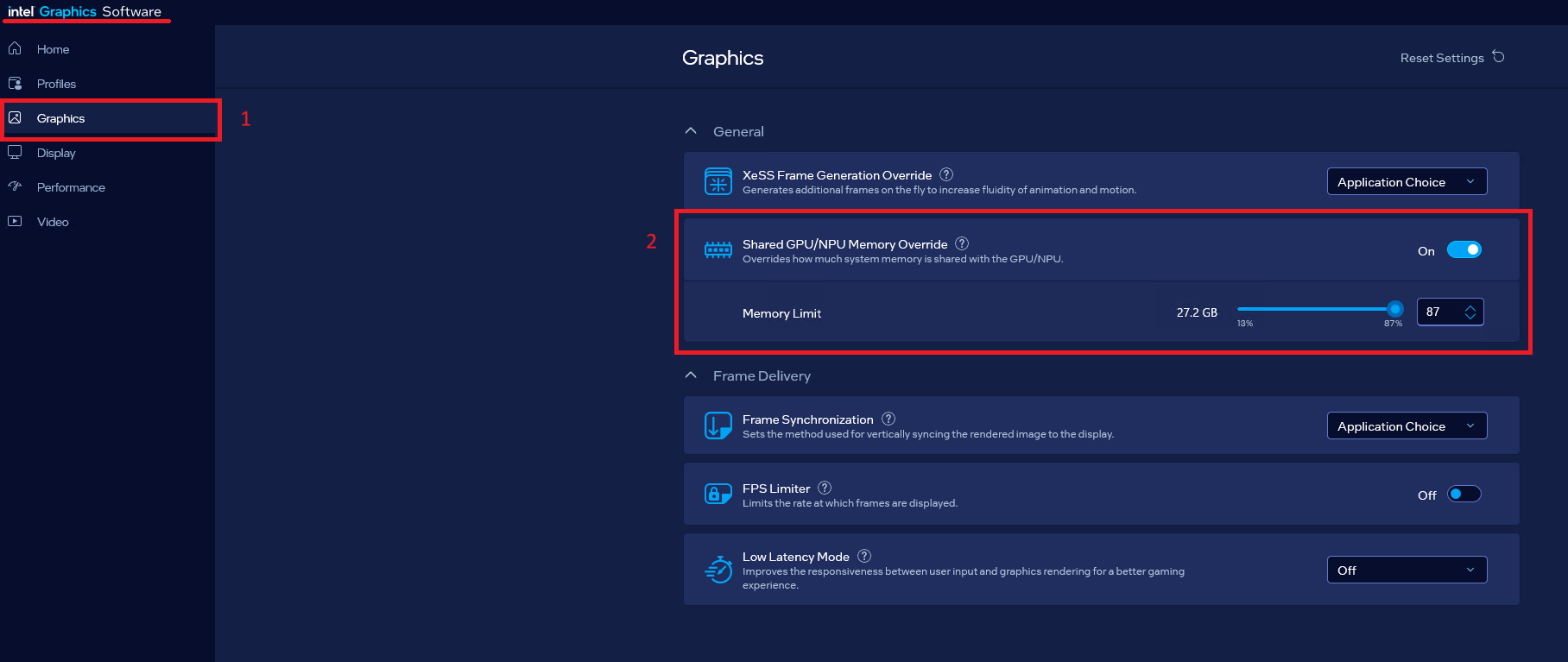
Known Issues#
Live Video Monitoring Timeout: Live video monitoring sessions stop automatically after 45 minutes unless you reload the page to start a new session.
Stream End Notification: When video streaming ends, a “Stream not found” message appears on the screen, indicating that the stream has concluded.
Do Not Reload During Active Streaming: Do not reload the page while the stream is active. Reloading terminates the session, and you lose the current stream. Wait until the “Stream not found” notification appears before reloading.
Video Ready Notification: If the URL is configured in the settings, the notification will display “Video Ready” unless the screen is reloaded. Reloading the screen will reset the session and the notification.
Uninstall the Application#
To uninstall the desktop app:
Stop the backend on the Services screen and close the app.
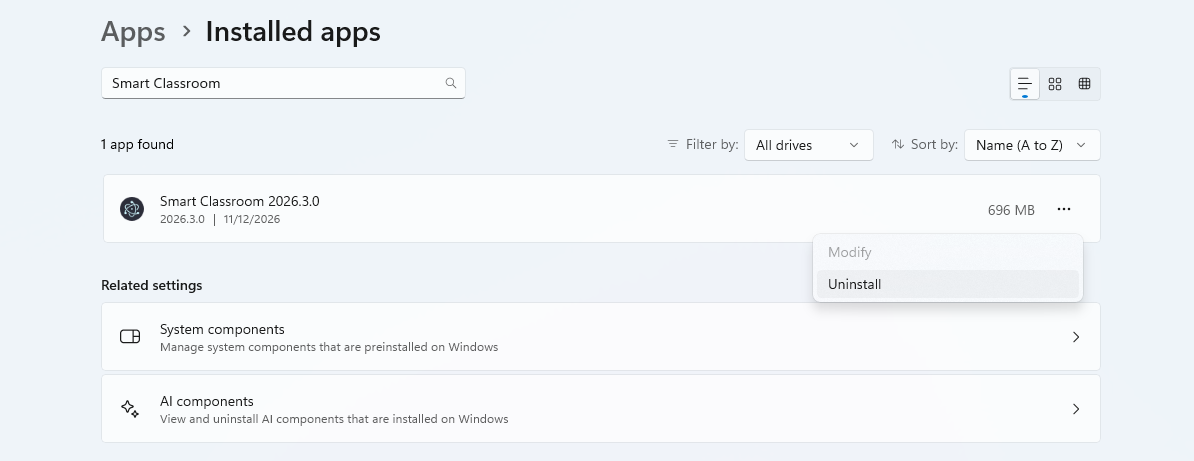
Open Settings > Apps > Installed apps, find Smart Classroom, and select Uninstall.
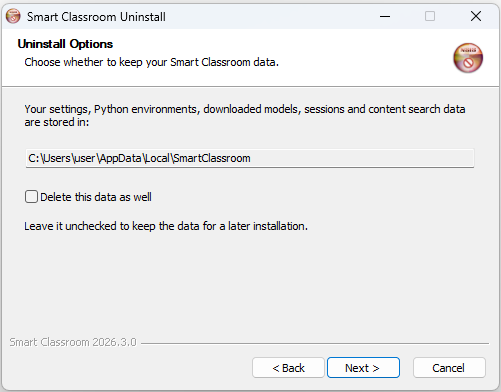
On the Uninstall Options page, choose what happens to your data in
%LOCALAPPDATA%\SmartClassroom(settings, Python environments, models, sessions, and content search data):Leave Delete this data as well unchecked to keep it for a later installation.
Check it to delete the folder too. If some files are in use, the uninstaller tells you to delete the folder after restarting Windows.
The option only covers the data of the Windows user running the uninstaller. Other users of an installation for everyone keep their data.
Learn More#
System Requirements: Hardware, software, supported models, and weight formats.
Get Started: Quick installation and setup instructions.
Application Flow: End-to-end application flow.
Content Search Flow: The flow of the content search functionality.