Content Search Flow#
The Content Search feature supports file upload and ingestion, multimodal search (text and image queries), and Q&A over retrieved content. To enter the Content Search view, click the Content Search button in the top navigation bar on the Smart Classroom main screen:
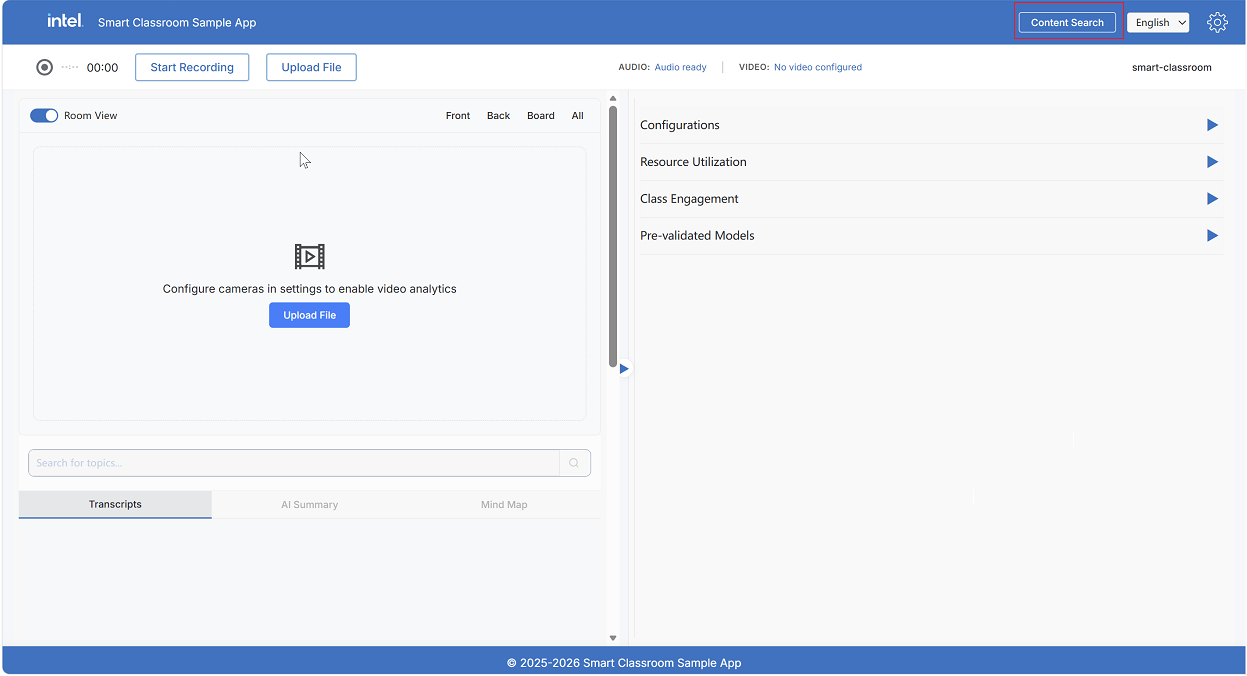
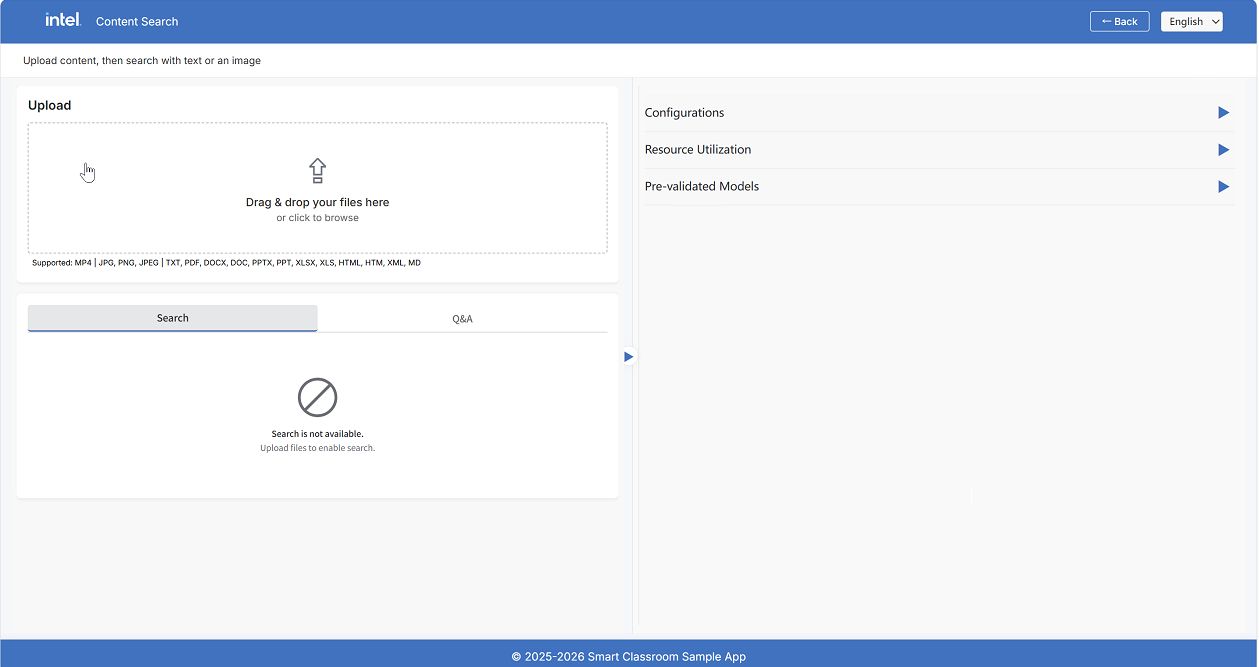
The Content Search view page is split into two panels:
Left Panel
Upload - Ingest files (videos, documents, and images) into the vector database
Search and Q&A - Query uploaded content using text or image search, or through natural language
Results - Display search results with type filtering, relevance scores, and content previews
Right Panel
Configurations - Platform and software configuration for Content Search services
Resource Utilization - Live monitoring of CPU, GPU, memory, and power utilization
Pre-validated Models - Models used by Content Search, including Vision-Language Model (VLM), visual embedding, document embedding, and reranker
Step 1: Upload Files#
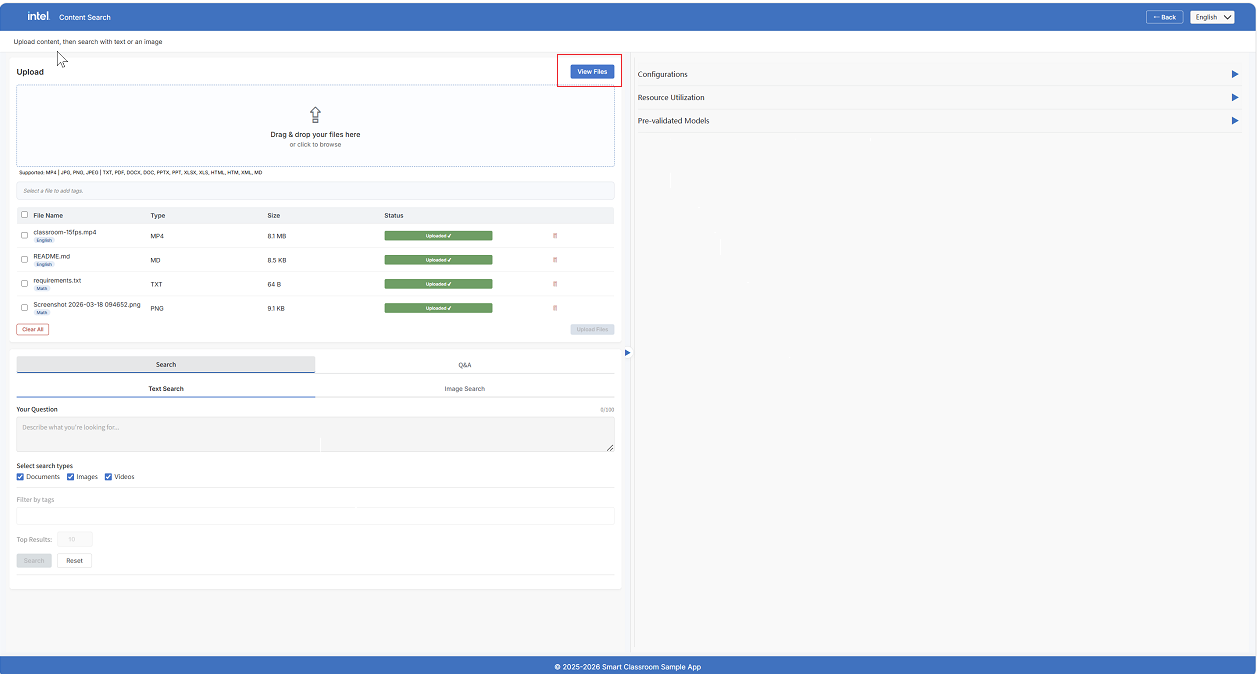
Click Upload Files to browse, or drag and drop files into the drop zone:
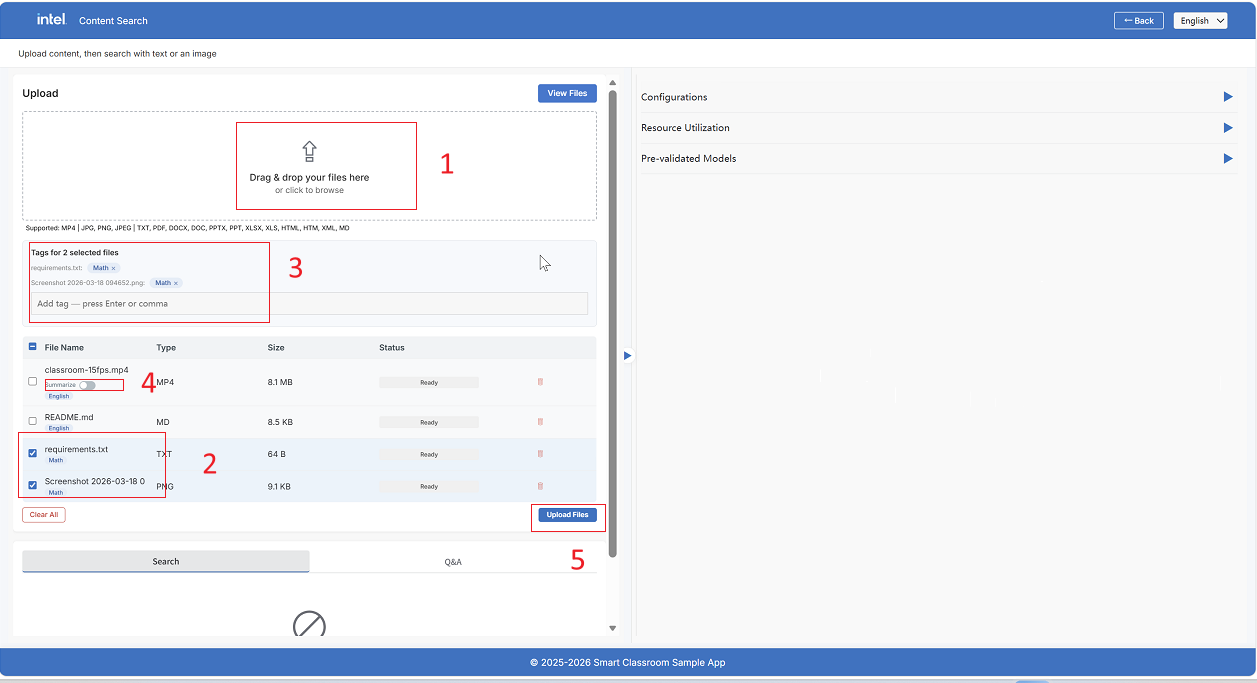
Select files using checkboxes to manage file tags
Add tags to selected files before the upload
Video options - Toggle the summarization of MP4 files
Search and Q&A tabs - Available after the upload completes
Supported file formats:
Type |
Formats |
|---|---|
Video |
|
Document |
|
Image |
|
Tag Files#
Before uploading files, you can add tags to organize your content:
Select one or more files using the checkboxes in the file table
Type a tag in the tag input field and press Enter or comma to add it
Tags appear as chips that can be removed by clicking x
Note
Tags can be added or removed only while the file is in the Staged state (before upload). Once uploaded, tags are locked.
Toggle Video Summarization#
For .mp4 files, a Summarize toggle appears next to the file name. When enabled, the system
uses a VLM to generate text summaries of video chunks. This enables richer
text-based search over the video content.
Upload Files#
Click the Upload Files button at the bottom to start processing all staged files. Each file goes through the ingestion pipeline:
Documents - Text extraction with Optical Character Recognition (OCR) for handwritten or scanned content, semantic chunking, and embedding
Images - Contrastive Language-Image Pretraining (CLIP) embedding for visual similarity search
Videos - Time-based chunking, frame sampling, VLM summarization if enabled, and both text and visual embedding
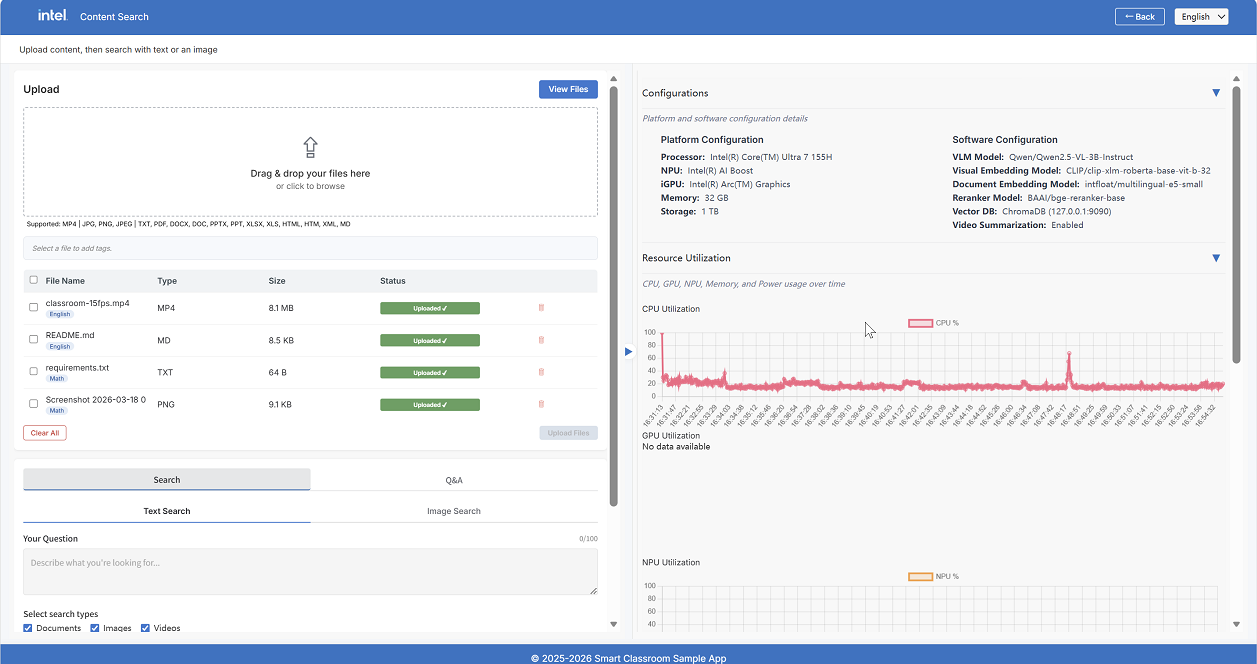
The status column shows the current state: Staged -> Processing -> Completed (or Failed).
Manage Files#
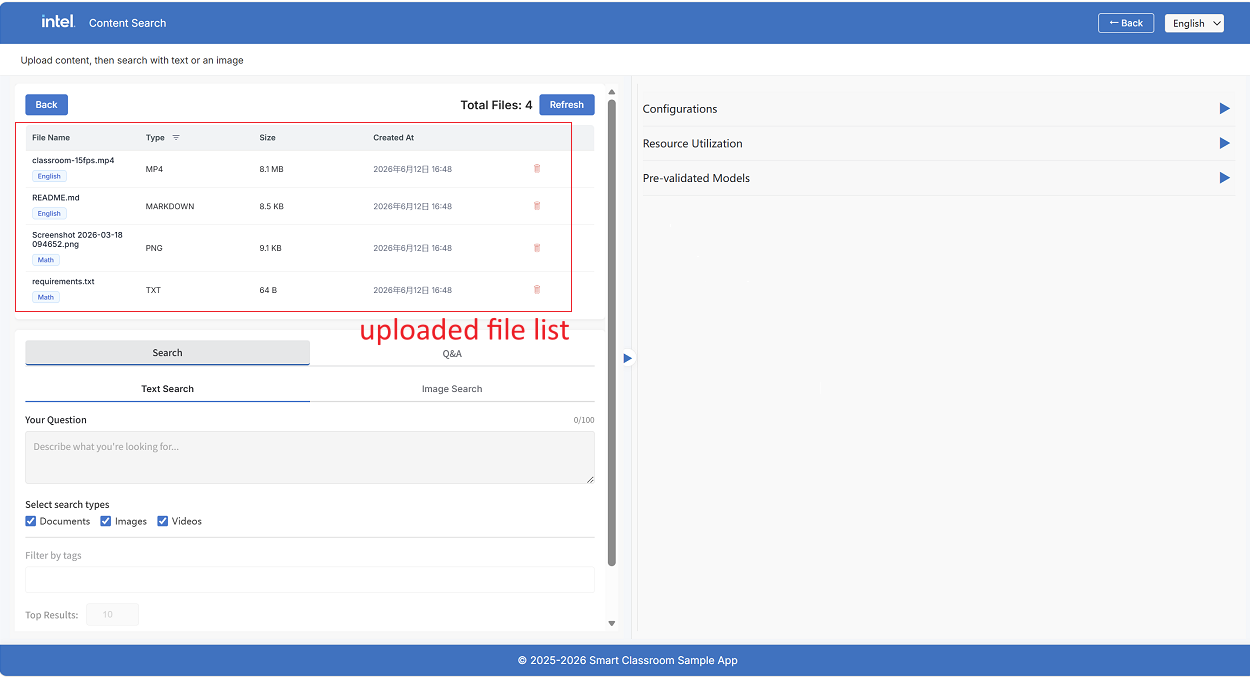
After uploading files, click View Files to open the File Manager:
The File Manager shows all files currently stored on the server:
Step 2: Search for Text and Images#
After at least one file upload is complete, the Search tab becomes available.
Search for Text#
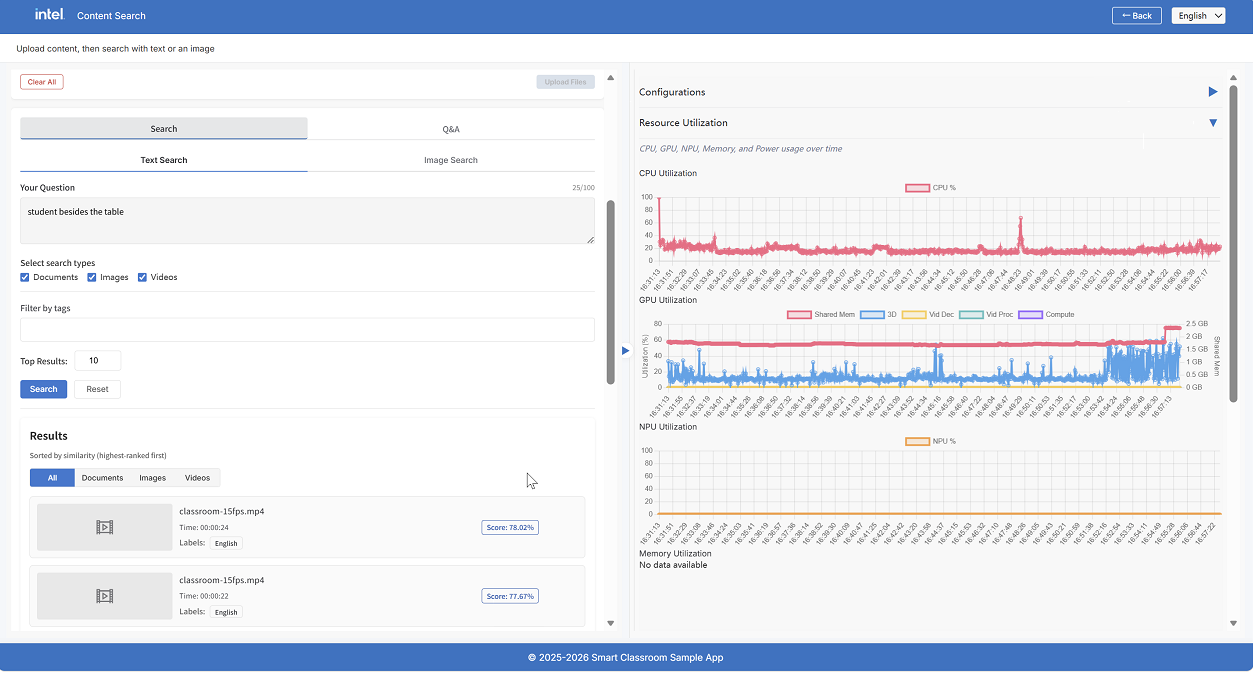
Select the Text Search tab.
Type your query in the text area (maximum: 100 characters).
Select the content types to search across: Documents, Images, and Videos (any combination).
(Optional) Filter results by tag using the Filter by tags drop-down menu.
Set the number of Top Results to return (default: 10)
Click Search
The text query feature searches both the visual collection (CLIP embeddings) and the textual collection BAAI General Embedding (BGE) embeddings. Textual results are reranked by a cross-encoder, and results from both modalities are merged using Reciprocal Rank Fusion (RRF).
Search for Images#
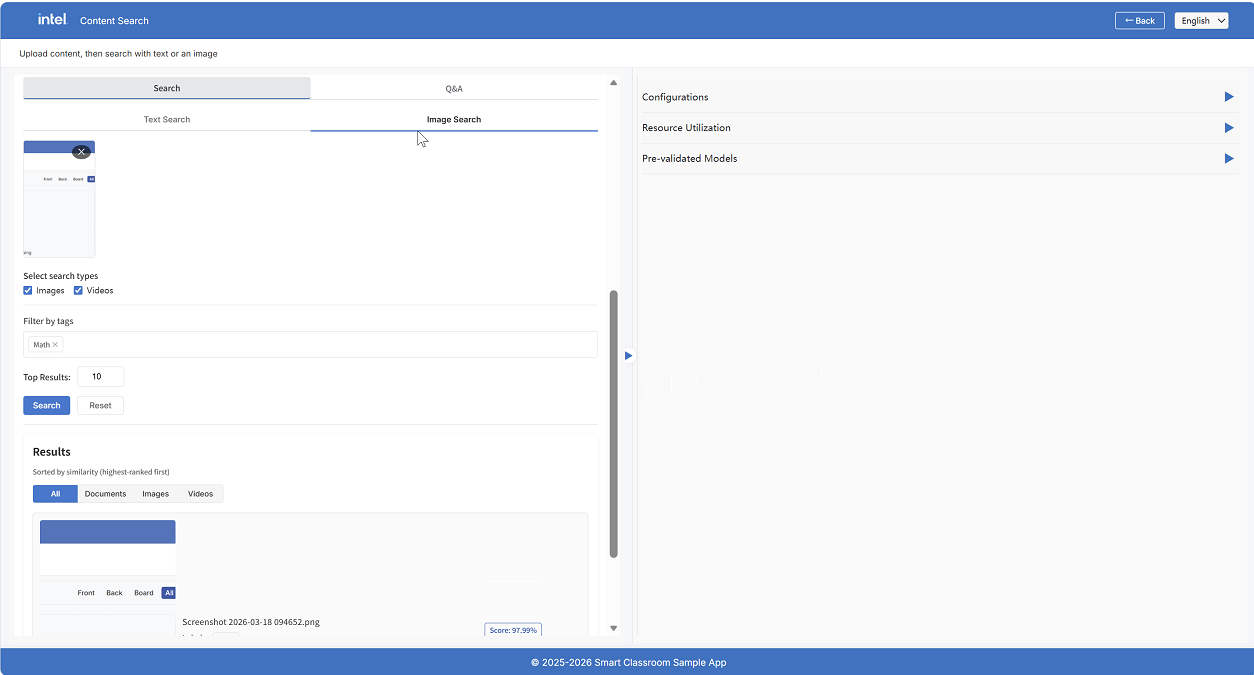
Select the Image Search tab
Drag and drop an image or click to browse (accepts
.jpg,.jpeg,.png)Select the content types to search: Images, Videos (document search is not available for image queries)
Optionally filter by tag
Click Search
The image query feature searches the visual collection by CLIP similarity, returning visually similar images and video frames:
View Search Results#
Results are displayed in a card layout with tabs for filtering by type: All, Documents, Images, and Videos.
Each result card shows:
File name and type icon
Relevance score (percentage)
Page number (for documents)
Timestamp (for video results, showing the pin time in the video)
Raw text / Summary - Expandable text snippet or VLM-generated summary
Tags - Associated labels
Click Reset to clear all search inputs and results.
Step 3: Q&A Retrieval-Augmented Generation (RAG)#
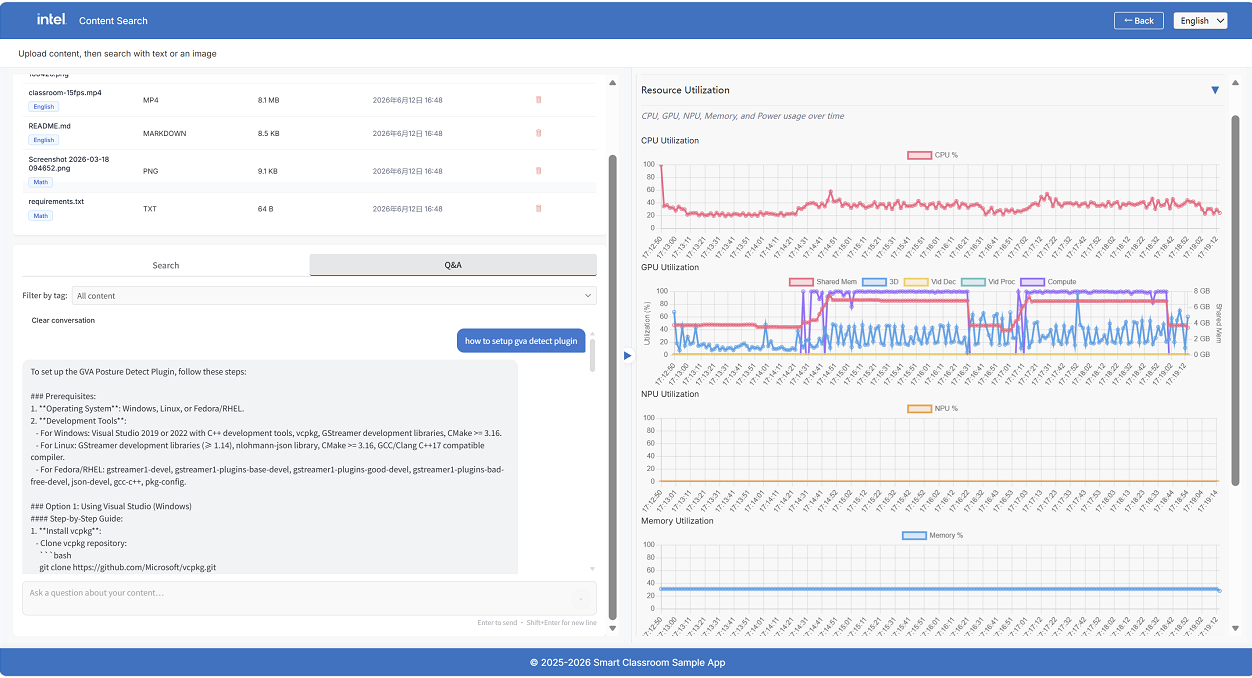
The Q&A tab provides a conversational interface for asking questions about uploaded content.
Switch to the Q&A tab.
(Optional) Select tags to narrow the context using the Filter by tag selector.
Type your question in the input area (maximum: 500 characters).
Press Enter or click the Send button.
The system retrieves the most relevant chunks from uploaded content, assembles them as context, and sends them to the VLM to generate a grounded answer. Each response includes:
Answer - The AI-generated response based on your content
Sources - Referenced files with type indicators and location (page number or video timestamp)
The conversation history is maintained within the session, allowing multi-turn follow-up questions. Click Clear conversation to reset the chat history.
Step 4: Monitor Health#
The Content Search panel automatically checks the health of backend services on load. If any service is unreachable or unhealthy, an error message appears indicating:
Backend unreachable - The Content Search API (port 9011) is not responding
Upload/search failure - One or more downstream services (File Ingest, Video Preprocess, VLM Serving, or ChromaDB vector database) have issues
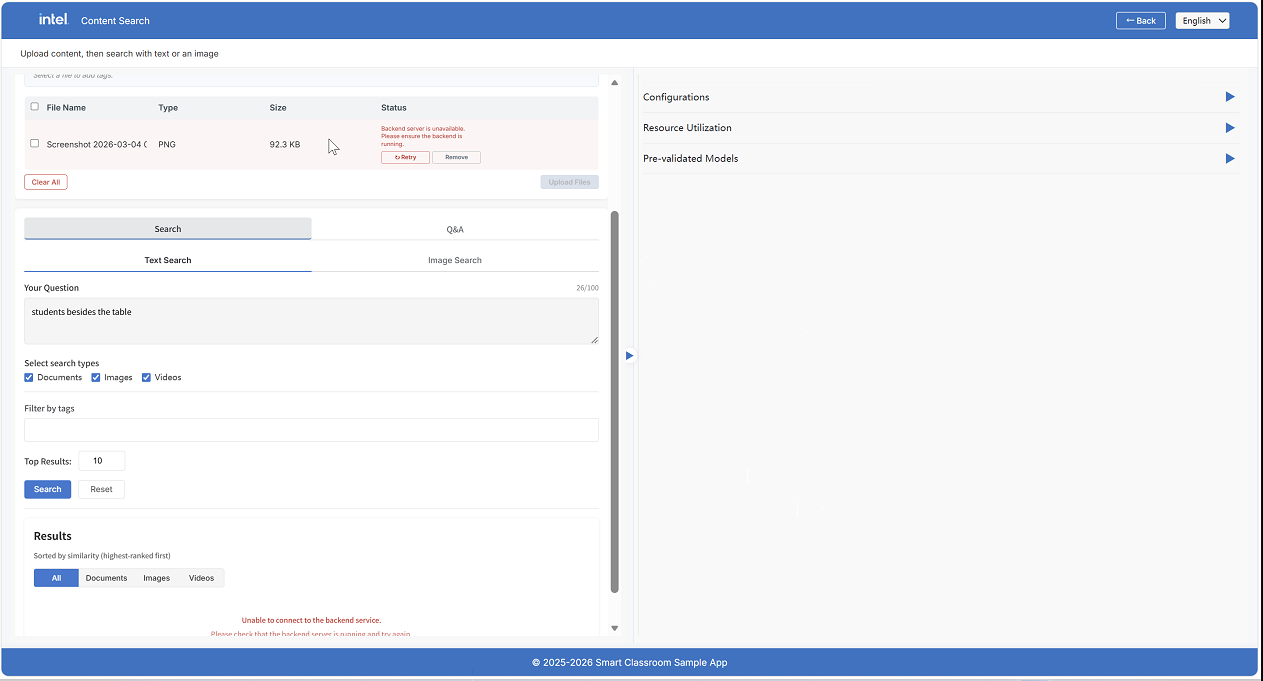
Upload and search functionality is affected until all services are healthy.
Microservices#
Service |
Port |
Role |
|---|---|---|
Content Search API |
9011 |
Orchestrator and public API |
File Ingest & Retrieve |
9990 |
Embedding, indexing, and retrieval |
Video Preprocess |
8001 |
Video chunking and VLM summarization |
VLM OpenVINO™ Serving |
9900 |
VLM inference |
ChromaDB |
9090 |
Vector database |
Learn More#
How It Works - Content Search Pipeline: Technical architecture and design details.
Application Flow: End-to-end application flow.