Deploy the vLLM Service for Defect Explanation#
This section shows how to deploy the multimodal sample application with the vLLM service enabled using the Makefile targets.
Minimum System Requirements#
In addition to the minimum requirements and software requirements of the sample application, the vLLM service requires the following:
Component |
Minimum Requirement |
|---|---|
Hardware |
Intel® Core™ Ultra Series 3 (Panther Lake/PTL) processor or newer |
RAM |
Minimum 32 GB |
Storage |
Minimum 256 GB (512 GB recommended) |
The platform check accepts Panther Lake (PTL) and newer Intel Core Ultra series,
including Nova Lake (NVL), the codename for Intel’s upcoming Core Ultra Series 4
processors. It checks the Intel vendor and Core Ultra series in the CPU model
name. For unbranded engineering samples (for example, Genuine Intel(R) 0000),
it also recognizes PTL by CPU family 6/model 204 and NVL by family 18/model 1 or 3.
Unknown unbranded platforms are rejected rather than inferred from higher CPU
family/model numbers. Run make check_hardware to check the CPU before deployment.
Passing this check does not imply platform validation. Newer platforms also require compatible GPU drivers and inference runtimes; only the hardware listed below has been validated.
Validated Platforms#
Product / Family |
Validated inference device |
|---|---|
Intel® Core™ Ultra Processors Series 3 (Intel Core Ultra 7 356H, 16 Cores, 32GB) |
iGPU |
Prerequisites#
Ensure the
.envfile is configured with valid values for:Note
If you are trying to deploy it on Ubuntu 26.04, update the
DLSTREAMER_PIPELINE_SERVER_IMAGEvalue in .env tointel/dlstreamer-pipeline-server:2026.3.0-ubuntu26-rc1before deployment.
HOST_IPINFLUXDB_USERNAME,INFLUXDB_PASSWORDVISUALIZER_GRAFANA_USER,VISUALIZER_GRAFANA_PASSWORDMTX_WEBRTCICESERVERS2_0_USERNAME,MTX_WEBRTCICESERVERS2_0_PASSWORDS3_STORAGE_USERNAME,S3_STORAGE_PASSWORDSEAWEEDFS_WEB_AUTH_USER,SEAWEEDFS_WEB_AUTH_PASSWORDVLLM_GPU_MEMORY_UTILIZATION: fraction of the memory available to the GPU that vLLM preallocates (VRAM on discrete GPU; shared system memory on integrated GPU). Set it tomemory to allocate to vLLM (GB) / total memory available to the GPU (GB). For the default setup (Qwen3.5-2B fp8 + LoRA adapter, 8192 max context), vLLM is budgeted 8.5 GB: set0.27for 32 GB,0.19for 45 GB, or0.13for 64 GB of memory.
Review the Unsloth Qwen3.5-2B license prior to deployment.
Note
The Low-Rank Adaptation (LoRA) adapter was specifically trained on a subset of the Intel Robotic Welding Multimodal Dataset and may not generalize to generic weld datasets.
Deploy the vLLM Service#
Run the Makefile target:
cd industrial-edge-insights-multimodal
make up_vllm
Note
On the first run,
make up_vllmautomatically downloads theUnsloth Qwen3.5-2Bmodel and the fine-tuned LoRA adapter through the model-download microservice intoconfigs/vllm/huggingface/Qwen3.5-2Bandconfigs/vllm/models/qwen3.5-2b-vlm-weld-explainability-lora. To re-download the models,
run
make download_model.
(Optional) To build from source instead of deploying the pre-built artifacts, run the following for a fresh build before deployment:
cd industrial-edge-insights-multimodal
make build
make up_vllm
Verify the Deployment#
Check the overall stack health:
Note
The command
make statusmay show errors in containers likeia-grafanaif you have not logged in to the Grafana dashboard for the first time, or if your session has timed out. Log in to the Grafana dashboard, and if the dashboard works correctly, ignoreuser token not foundand other minor errors in the Grafana logs.cd industrial-edge-insights-multimodal make status
Confirm that the vLLM container is running:
docker ps --filter "name=vllm-server"
Inspect vLLM logs:
docker logs -f vllm-server
Check the output in Grafana dashboard:
Use the link
https://127.0.0.1:3000to open the Grafana dashboard in a browser, preferably the Chrome browser.Log in to the Grafana dashboard using the
VISUALIZER_GRAFANA_USERandVISUALIZER_GRAFANA_PASSWORDvalues from the.envfile: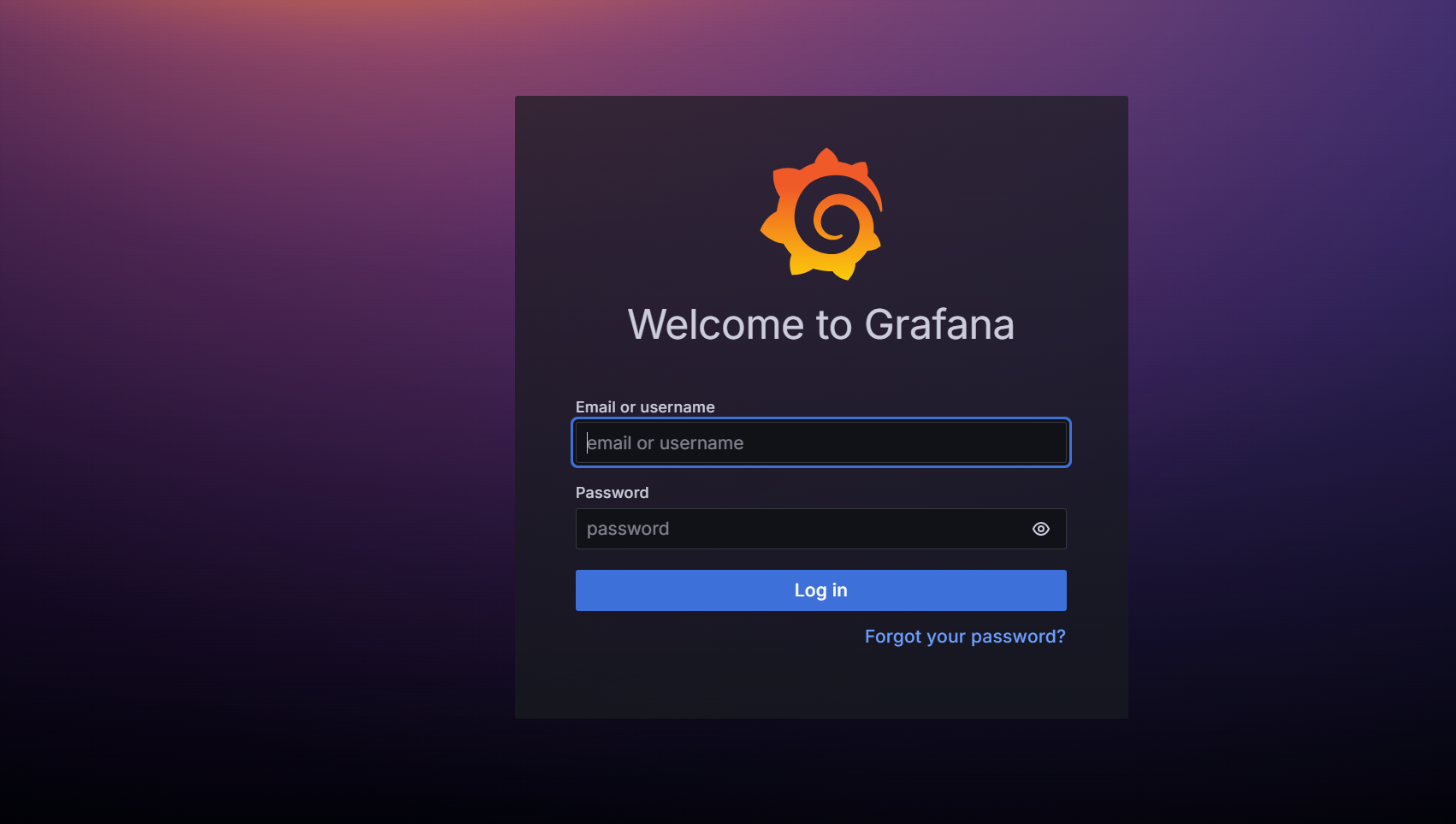
After logging in, click Dashboards:
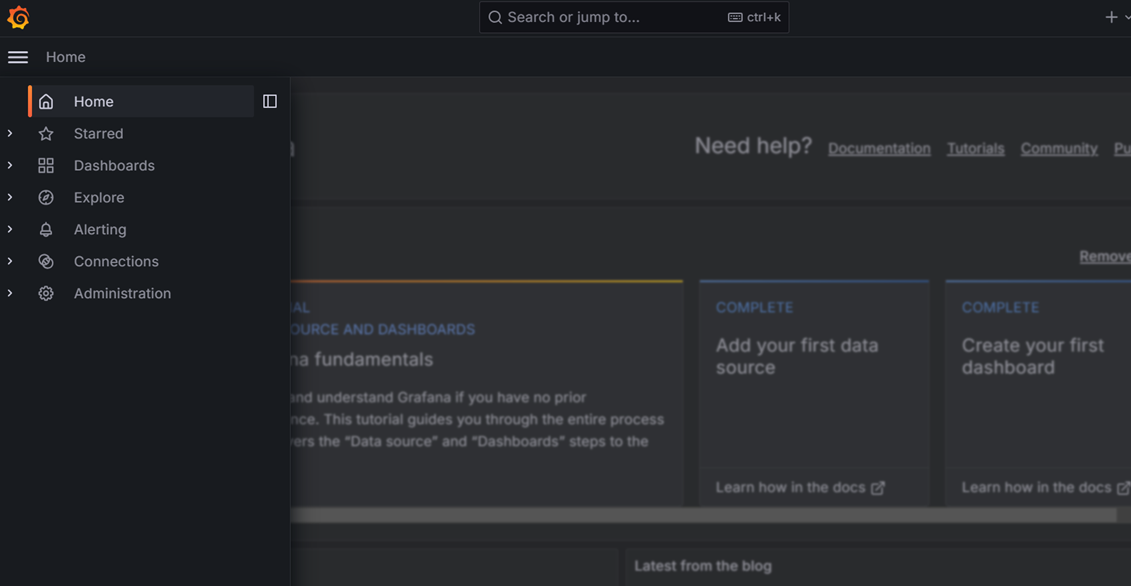
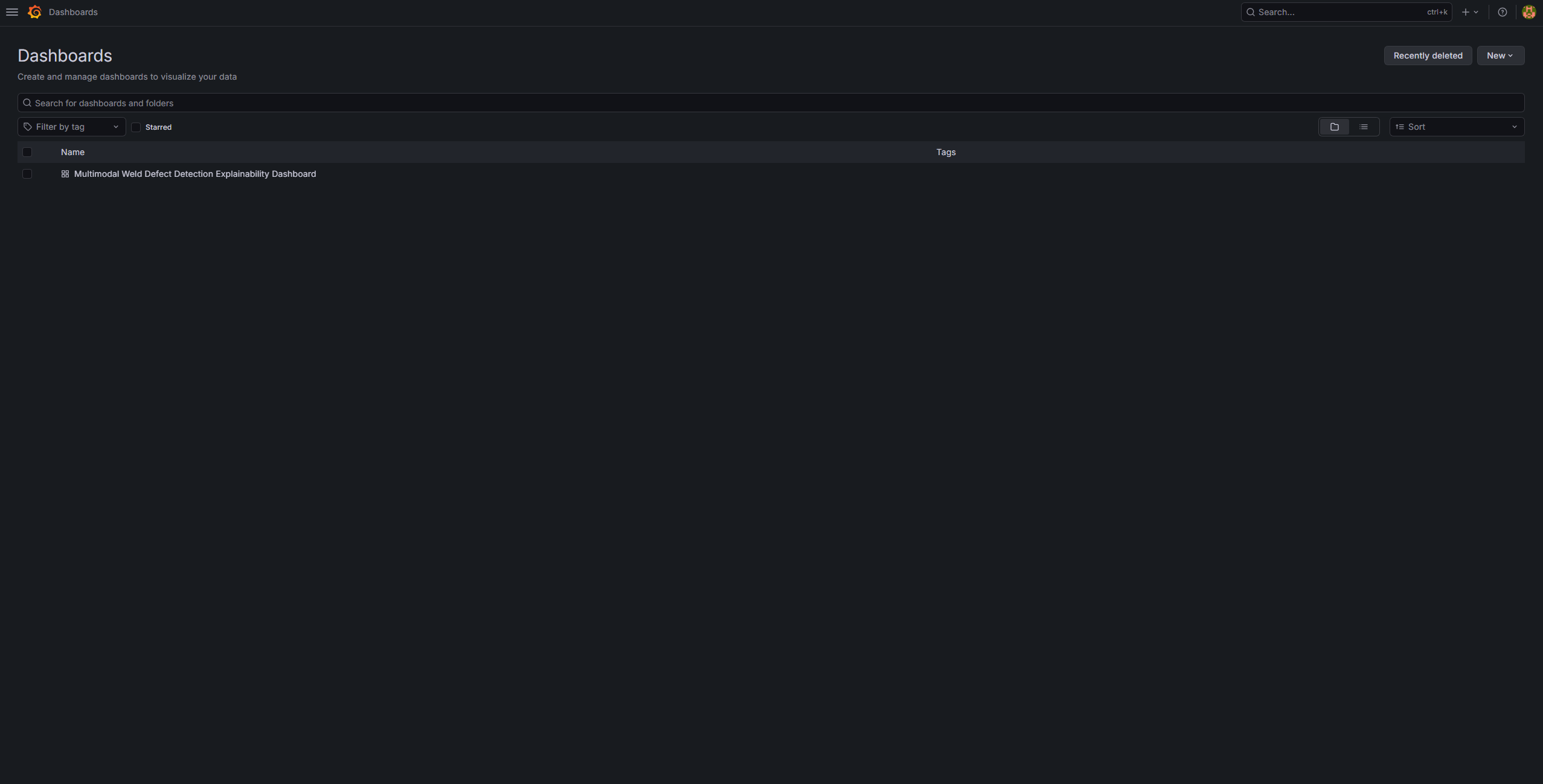
Select Multimodal Weld Defect Detection Explainability Dashboard:
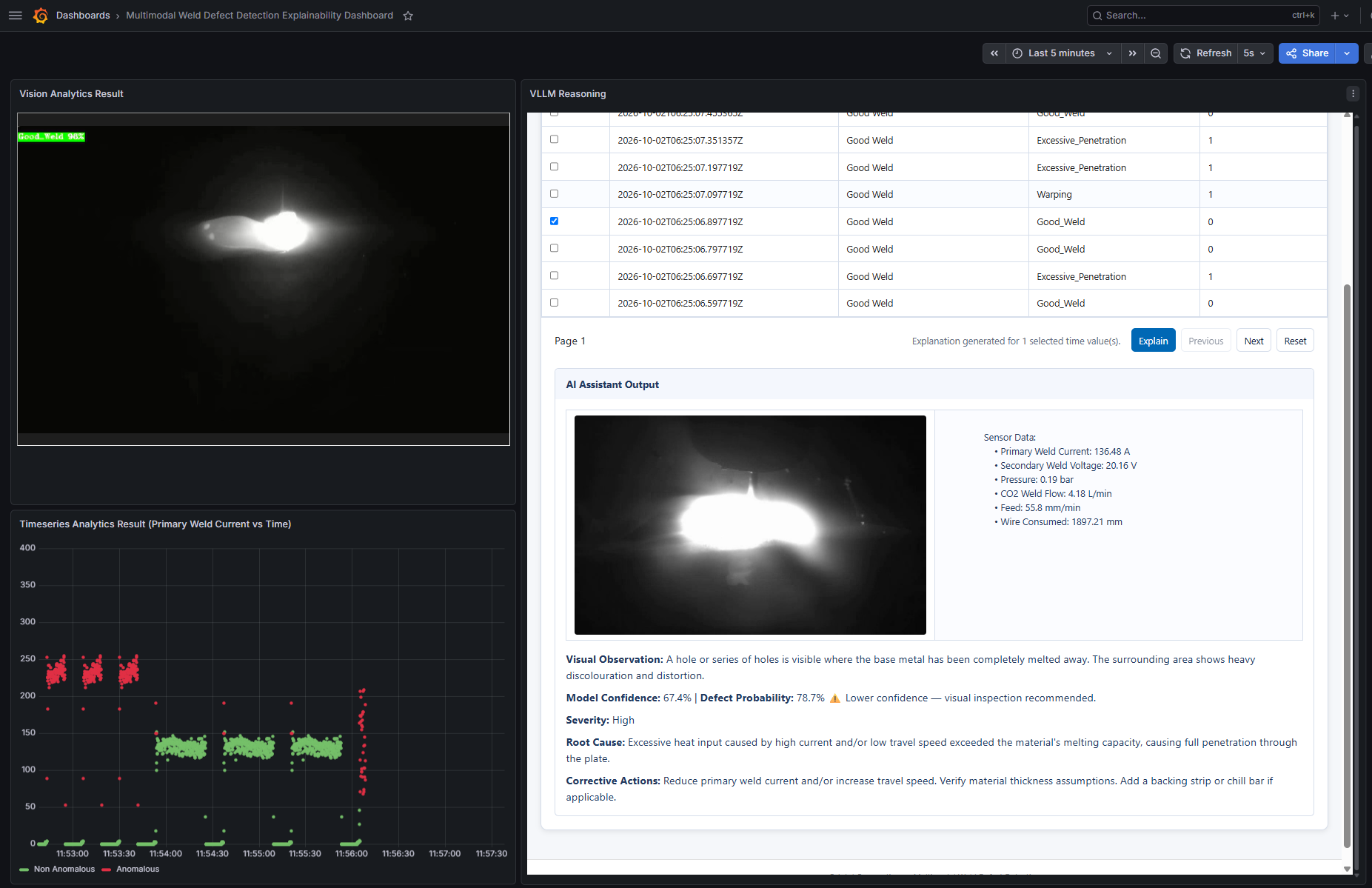
The following appears:
Stop the Deployment#
To bring down the full stack:
cd industrial-edge-insights-multimodal
make down
Troubleshooting#
vllm-serverstartup delay after deployment Thevllm-serverservice can take about 10 minutes to fully come up aftermake up_vllm. This is expected as the model initializes and loads into memory.vllm-serverfails to start with a free or insufficient memory error, orfree -hshows most memory asbuff/cacheReading the model files fills the Linux page cache. The kernel can reclaim it, but vLLM checks the free memory at startup, so cached pages can make that check fail. Free the page cache and runmake up_vllmagain:sync; echo 3 | sudo tee /proc/sys/vm/drop_caches
Note
This only drops clean cached pages, so no data is lost. The cache refills as files are read again. Use this command also if the cache memory is still blocked after
make downcommand execution.Error: configs/vllm/models directory does not exist.Runmake download_modelto download the model and adapter into the expected directories.Error: configs/vllm/models directory is empty.Runmake download_modelbefore runningmake up_vllm.ERROR: model-download-vllm service did not become ready in timeor a failed download job Inspect the service logs withdocker logs vllm-model-download. If you are behind a proxy, ensurehttp_proxy/https_proxyare set in your environment before runningmake download_model.HOST_IP is not setorHOST_IP is not a valid IPv4 address format.UpdateHOST_IPin.envwith a valid IPv4 address.Username and password validation failures from
check_env_variablesUpdate.envvalues so they match the Makefile validation rules.