Create and Manage a Scene Hierarchy in Scenescape#
A hierarchy of scenes can be created using a parent-child relationship, enabling scene analytics from multiple scenes — whether on the same system or different systems in same network running Scenescape — to be visualized within a single parent scene. This hierarchy is not limited to a single level of relationship; it can be scaled upwards, allowing for multi-level parent-child configurations. By subscribing to the parent scene’s events, you can observe the base analytics (such as regions of interest, tripwires, and sensors) of the parent scene, along with the transformed base analytics of all its child scenes, directly within the parent scene.
Single parent per child: Hierarchy is designed so each child scene has one parent scene. A parent may have many children, and trees may be multi-level (grandparent → parent → child), but the same child must not be linked under more than one parent — neither as a local child in one Manager database nor as a remote child from multiple parent Controllers. Multi-parent fan-out (for example the same intersection under both a city scene and a neighborhood scene) is unsupported: local links are one-to-one in the data model, and remote ingest / ReID write authority assume a single parent.
Same host, multiple Scene Controllers: Local children share one controller. To run several controllers on one machine and link them as remote children (including sharing or splitting a ReID database), see Deploy Multiple Controllers on One Host.
This guide provides step-by-step instructions to add local and remote child scenes, configure connections, and manage object tracking and update fidelity in a scene hierarchy. By completing this guide, you will:
Add and validate child scene links (local and remote).
Configure secure communication between systems.
Tune retrack and temporal fidelity options.
This task is essential for managing distributed scenes in Scenescape deployments.
Prerequisites#
Installed Dependencies: Scenescape deployed on both systems.
Network Access: Verify systems can resolve each other’s IP/hostname.
Permissions: Ensure access to modify
docker-compose.ymland certificates.
Steps to Add a Local Child Scene#
Launch the Scenescape UI and Log In.
Navigate to the parent scene.
Click the Children tab under the scene map.
Click + Link Child Scene.
Set Child Type to
Local.Select the scene to be added from the dropdown list.
Enter transform type and values.
Click Add Child Scene.
Expected Result: The child scene appears in the parent scene view.
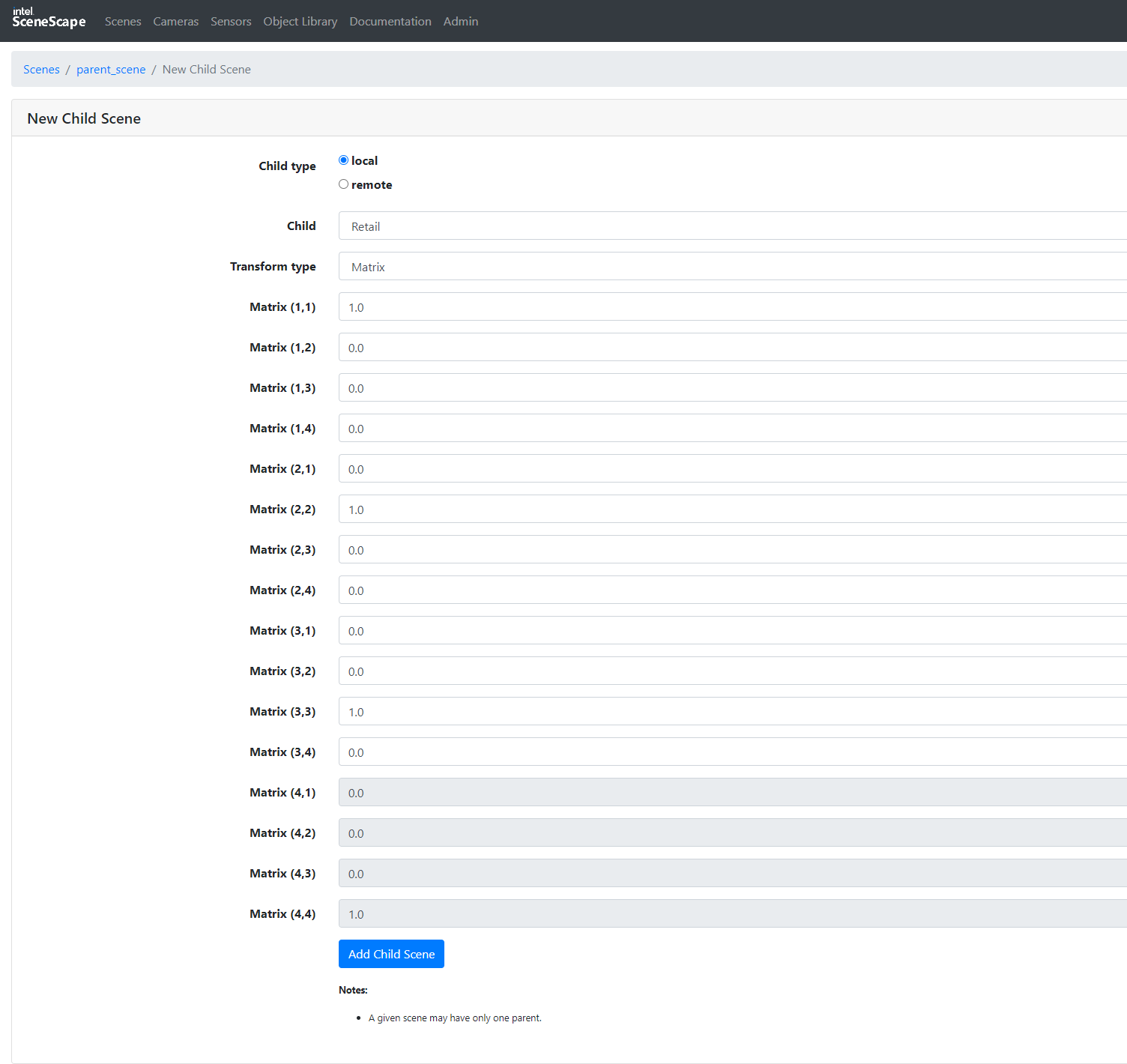
Figure 1: Creating new local child scene link.
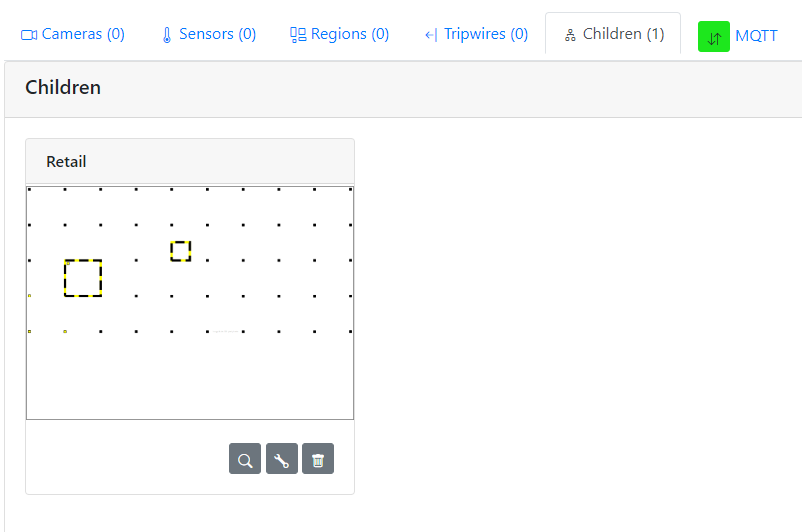
Figure 2: Local Child scene on scene detail page.
Steps to Add a Remote Child Scene#
1. Configure NTP for Synchronization#
On Parent System:
Edit
docker-compose.ymlto uncomment NTP server port.
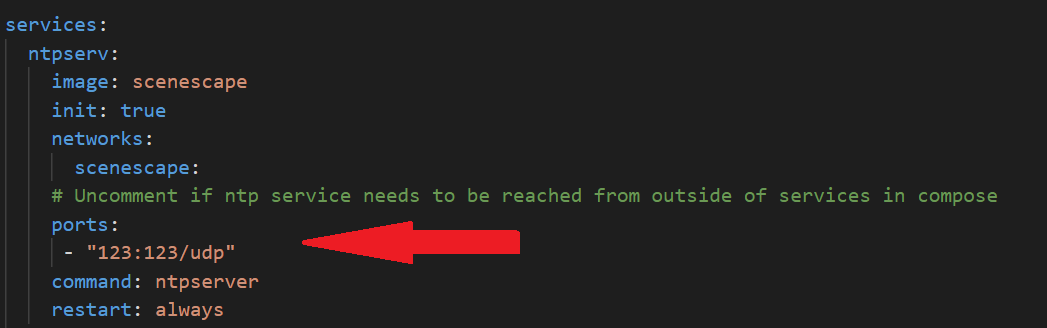
On Child System:
Edit
docker-compose.ymlto uncomment MQTT broker port.
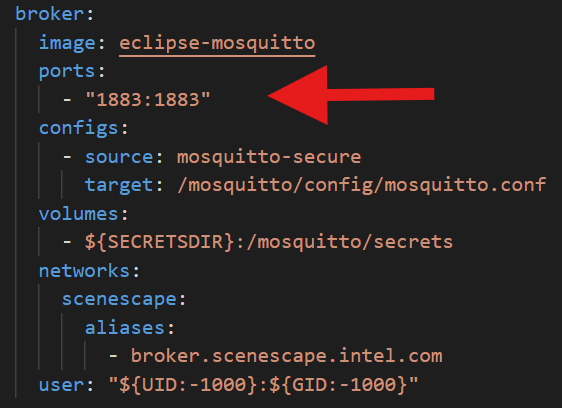
Disable NTP server service in
docker-compose.yml.Replace
ntpservwith parent IP in dependent services.
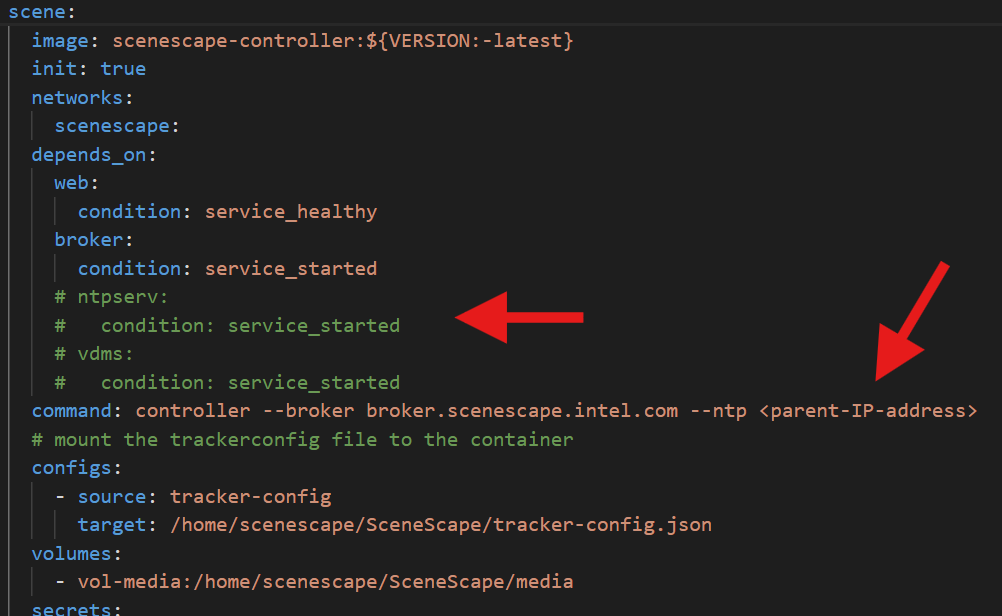
Figure 3: ntpserver config for scene controller service in docker-compose.yml.
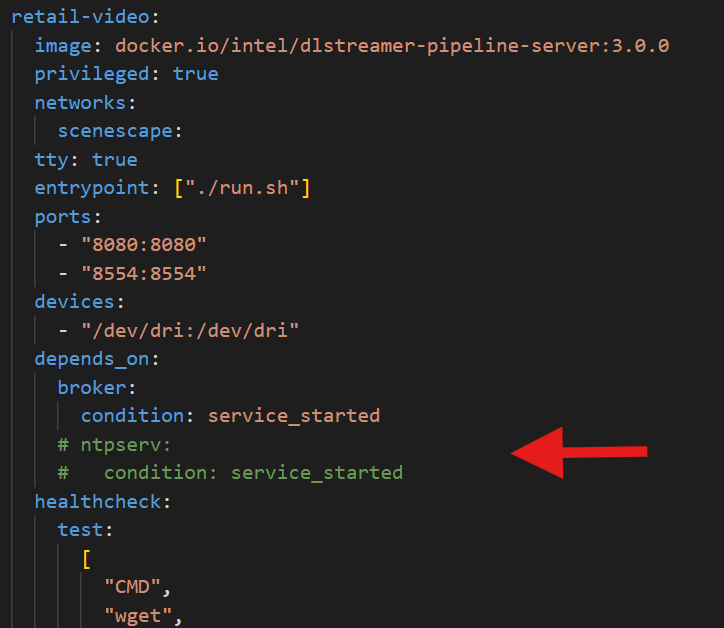
Figure 4: comment ntpserver for DL Streamer Pipeline Server in docker-compose.yml.
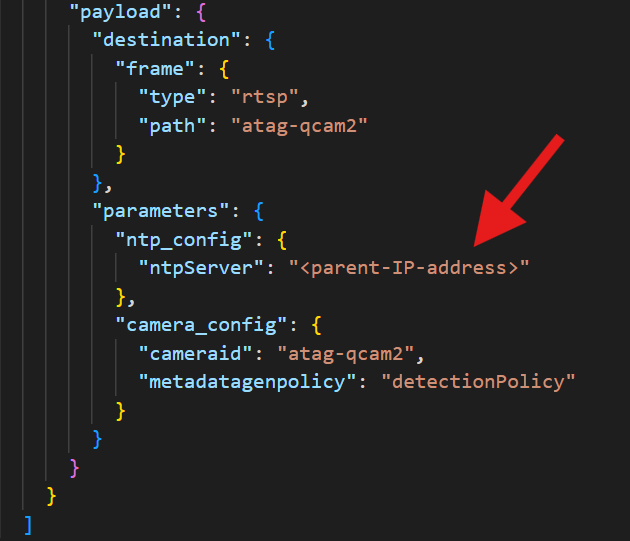
Figure 5: ntpserver config for DL Streamer Pipeline in pipeline-config.json.
Note: Use sample_data/docker-compose-dl-streamer-example.yml if
docker-compose.ymldoes not exist.
2. Set Up Secure Communication#
Note: For details on available Docker Compose profiles, see Docker Compose Profiles.
On Parent system:
./deploy.sh
docker compose --profile controller down --remove-orphans
rm manager/secrets/ca/* manager/secrets/certs/*
make -C tools/certificates/ deploy-certificates CERTPASS=<random-string>
On Child system:
Note: Ensure that there are no scenes with the same UUID present on both the parent and child systems.
./deploy.sh
docker compose --profile controller down --remove-orphans
rm manager/secrets/ca/* manager/secrets/certs/*
# Copy parent secrets:
scp parent:/path-to-scenescape-repo/manager/secrets/ca/scenescape-ca.key ./manager/secrets/ca/
scp parent:/path-to-scenescape-repo/manager/secrets/certs/scenescape-ca.pem ./manager/secrets/certs/
# Use the same CERTPASS from parent
 make -C tools/certificates/ deploy-certificates IP_SAN=<child_ip> CERTPASS=<random-string-used-in-parent>
Then restart Scenescape:
./deploy.sh
3. Link Remote Child#
Open the child system’s Scenescape UI and copy the MQTT credentials.
Open the parent system’s Scenescape UI.
Go to the Children tab in parent scene.
Click + Link Child Scene.
Select
Remoteas child type and enter:Child Name
Hostname or IP
MQTT Username/Password
Click Add Child Scene.
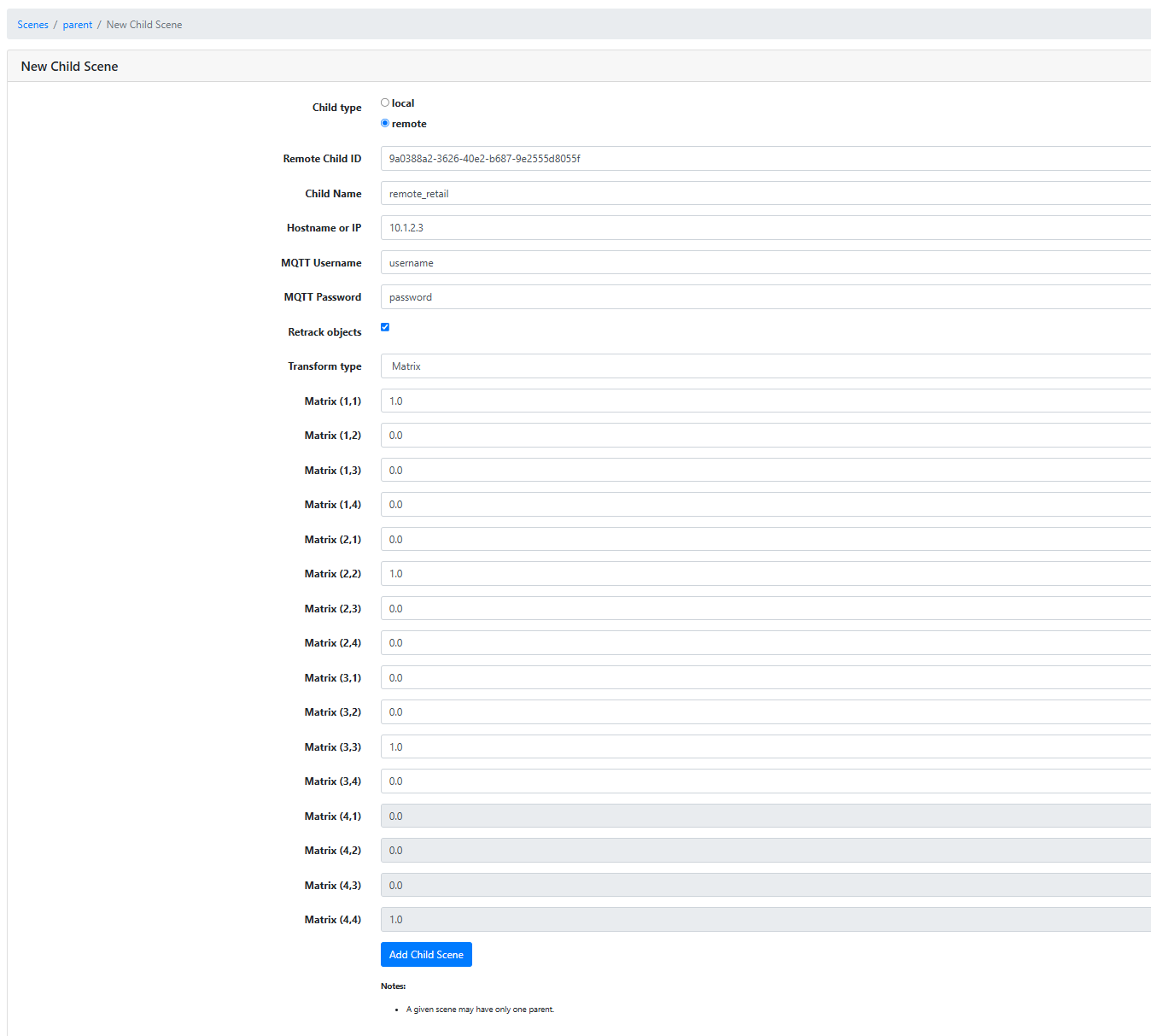
Figure 5: Creating new remote child scene link.
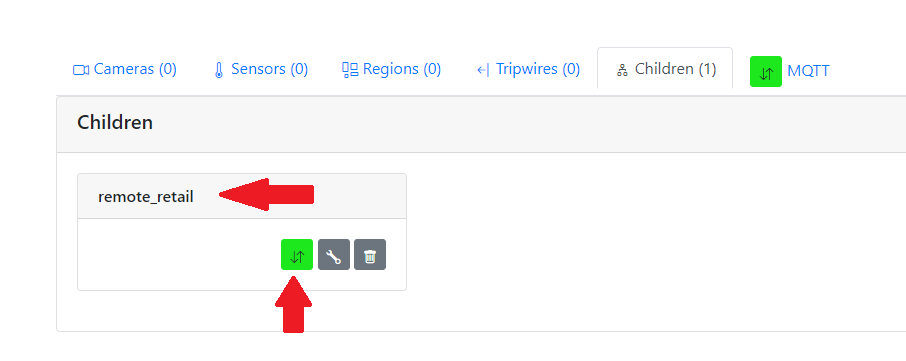
Figure 6: Remote child scene on scene detail page.
Expected Result: Remote child is listed with green/red status icon.
Note: Scene names must be unique across parent and child systems.
Retrack Objects in Parent Scene#
Open the child link config in the UI.
Toggle the Retrack option:
Disabled: Treat detections as already tracked.
Enabled: Feed detections into the parent tracker.
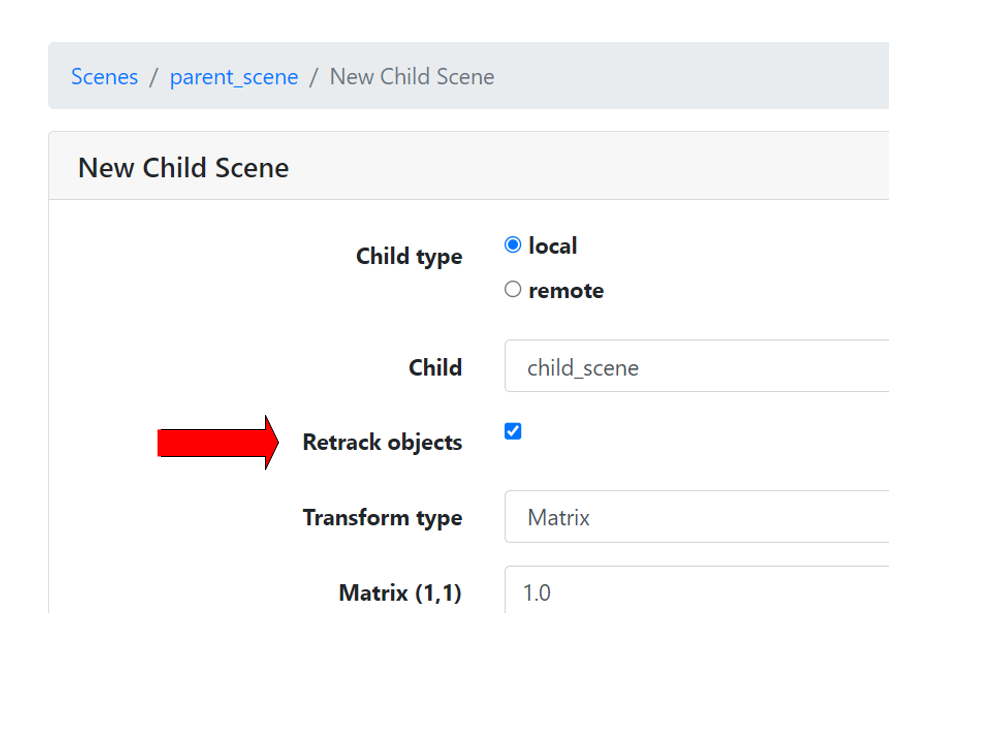
Figure 7: Toggle to re-track moving objects from child scene.
Set Temporal Fidelity of Scene Updates#
Navigate to the scene configuration.
Configure the following:
Regulate Rate (Hz): Limit updates to internal UI.Max External Update Rate (Hz): Limit updates to parent/consuming systems.
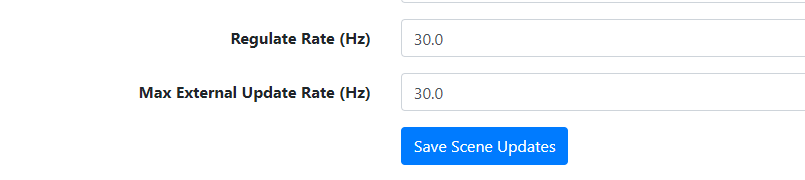
Figure 8: Set Regulate and External Update rate in scene config.
Re-identification Support in Hierarchy#
Hierarchy ReID rules (short):
Prefer local children on one controller when practical.
Unrelated controllers may share one ReID DB or run separate instances.
Under one parent, do not give different children (or child vs parent) different ReID databases if you expect one identity space.
Parent-owned cameras: parent enrolls. Child-forwarded embeddings (
retrack=True): parent queries with provenance; sole-enrolls on query-no-match when the child has no ReID (or child writes have failed and provenance has nowill_enroll); after rematch, enhances that UUID’s embedding cluster with further vetted forwarded vectors unless the child claimedwill_enroll/enrolled.When using ReID in a hierarchy and you want one identity space across children and parent cameras, enable Retrack. With Retrack off, the parent keeps child UUIDs and strips reid—no fusion—so child enrollments and parent-camera enrollments can land in the DB under different UUIDs.
Parent ReID + children without ReID (embedding passthrough) is supported: parent enrolls child-only crops on no-match and rematches siblings to that UUID.
Shared ReID on parent and children: children withhold local hierarchy reid until the schema is ready and the first DB write succeeds, then stamp
will_enrollso the parent does not double-enroll. See write authority.When children need local rematch, put parent and those children on the same shared backend.
Scenes that are not in a parent/child relationship: share or separate ReID.
How a parent scene handles identity depends on the Retrack setting of each child link:
Retrack disabled: the child’s identities are taken as final. The parent forwards child objects with the UUIDs the child assigned, strips forwarded reid, and does not re-identify them. Do not use this with ReID if you expect parent cameras and children to share one durable UUID—enable Retrack instead (details).
Retrack enabled: the parent runs its own tracker, queries its ReID database with forwarded embeddings (when present and provenance-vetted), and enrolls those crops only on query-no-match when the child did not claim
will_enroll/enrolled. Durable rematch to enrolled IDs is reliable when tracks rematch sequentially; two live parent tracks will not both adopt the same database UUID (ADR 0015). Geometric tracker merge can still collapse detections that project to the same place.
Embeddings a child forwards carry the id of the scene and camera that produced them, along with
confirmation that the crop passed the minimum_bbox_area quality gate where it was measured. A
parent uses those embeddings to match identities. The camera-owning scene with ReID enrolls the
crop; when it stamps will_enroll / enrolled, the parent still queries but does not write a
second UUID for the same embedding. Parent-only ReID (children without write intent) leaves those
flags unset so the parent may sole-enroll on no-match.
Refer to Re-identification Guide for more details. Full matrix: ReID Across Controllers.
Understanding Transform Type and Values#
The child link’s transform describes where the child scene’s origin sits inside the parent scene, and how the child’s axes are rotated and scaled relative to the parent’s. Child Type does not change this: local and remote children use the exact same Transform Type field and values.
Use the Transform Type dropdown to pick one of three representations of the same underlying transform. Switching the dropdown updates the visible fields and their labels; values you already entered for translation are carried over where possible (for example, editing the Euler translation also updates the Quaternion translation).
Matrix#
A 4x4 homogeneous transformation matrix (row-major) mapping a point in the child scene’s coordinate system to the parent scene’s coordinate system:
Column 1 |
Column 2 |
Column 3 |
Column 4 |
|
|---|---|---|---|---|
Row 1 |
Matrix (1,1) |
Matrix (1,2) |
Matrix (1,3) |
Matrix (1,4) |
Row 2 |
Matrix (2,1) |
Matrix (2,2) |
Matrix (2,3) |
Matrix (2,4) |
Row 3 |
Matrix (3,1) |
Matrix (3,2) |
Matrix (3,3) |
Matrix (3,4) |
Row 4 |
Matrix (4,1) |
Matrix (4,2) |
Matrix (4,3) |
Matrix (4,4) |
Rows 1-3, columns 1-3 (Matrix (1,1) through Matrix (3,3)) are the combined rotation-and-scale part of the transform.
Rows 1-3, column 4 (Matrix (1,4), Matrix (2,4), Matrix (3,4)) is the translation of the child origin in the parent scene, in meters, for X, Y, and Z respectively.
Row 4 (Matrix (4,1) through Matrix (4,4)) is always
[0, 0, 0, 1]and the fields are disabled/read-only. This row is a fixed requirement of the homogeneous-matrix format itself (it makes the matrix multiplication work for combined rotate+translate+scale operations) — it does not represent a rotation angle or direction, so there is nothing to configure there.
The default value is the identity matrix (Matrix (1,1), (2,2), (3,3), (4,4)
= 1, all others 0), meaning the child scene’s origin, axes, and scale
are identical to the parent’s until you change the values.
Because raw matrix values are hard to reason about, most users find it easier to select Euler or Quaternion instead and let Scenescape compute the equivalent matrix.
Euler#
X/Y/Z Translation (meters): position of the child scene’s origin in the parent scene’s coordinate system.
X/Y/Z Rotation (degrees): rotation of the child scene’s axes relative to the parent’s, applied in intrinsic
XYZorder (rotations about the child scene’s local X axis, then local Y, then local Z), in degrees. Rotation follows the right-hand rule (looking from the positive end of an axis toward the origin, a positive angle rotates counterclockwise).Scale: uniform scale factor applied to the child scene (
1= no scaling). Setting this field also updates the Y and Z scale used internally, since non-uniform scale is not exposed in this view.
Quaternion#
X/Y/Z Translation (meters): same meaning as in Euler.
X/Y/Z/W Quaternion: rotation of the child scene’s axes relative to the parent’s, expressed as a unit quaternion, using the same axis convention as Euler above.
Scale: same meaning as in Euler.
Tip: If you do not know the exact offset/rotation between the two scenes, start from the identity/default values (no translation, no rotation, scale
1), add the child scene, then adjust the values while watching the child scene’s analytics render in the parent scene map until they line up with the expected real-world position.