Deploy Edge Microvisor Toolkit via Serial over LAN (SOL)#
In this article, you will learn how to deploy Edge Microvisor Toolkit using the Serial over LAN (SOL) method.
Traditional methods such as KVM consoles, physical serial connections, or SSH have been commonly used to access and manage servers. However, they have certain limitations, especially during system boot or failure conditions. SSH depends on the operating system and network services being fully operational, while KVM requires graphical access, and physical serial connections often require direct cabling to server.
Serial Over LAN (SOL) addresses these limitations by redirecting the server’s serial console input and output over a network connection through the management controller, allowing administrators to remotely access the server’s text-based console, including BIOS and boot messages, even when the operating system is not running.
This enables remote troubleshooting and management without requiring physical access or additional serial cabling.
Testing Serial over LAN (SOL) in a BMC (Baseboard Management Controller) environment usually involves verifying that the host serial console is redirected through the BMC network interface and accessible remotely via IPMI
Below you will find the necessary configuration for SOL to work.
Prerequisites#
The BMC IP address configured.
A Management LAN cable connected to the BMC port.
ipmitool installed on the client system.
The host serial console redirection enabled.
Configure BIOS Settings on Server#
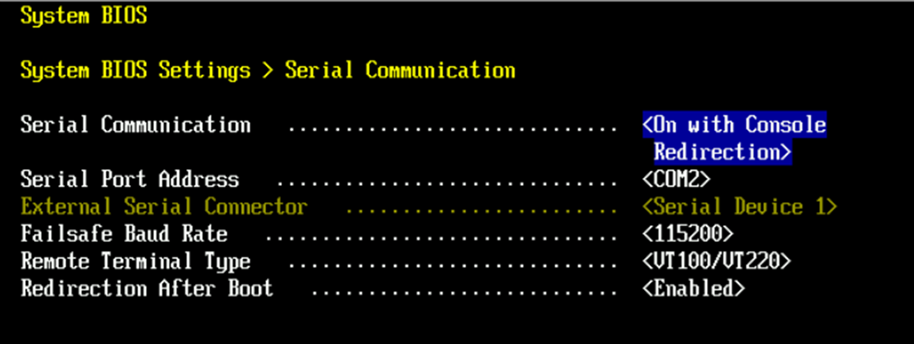
Configure BIOS for serial redirection. Navigate to System setup -> System BIOS -> Serial Communication
Configure SOL Settings on Xeon BMC#
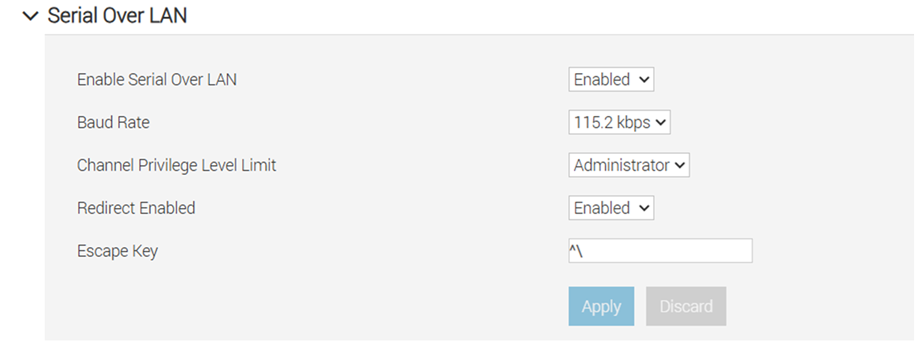
Open WebUI of BMC through BMCIP. Navigate to iDRAC Settings -> Connectivity -> Serial Over LAN.
Remote Client (ipmi) settings in XEON BMC#
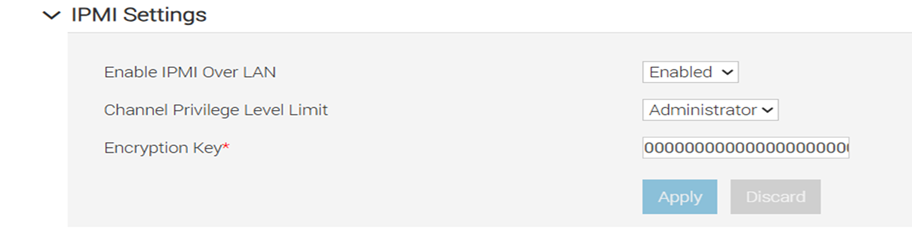
Configure the IPMI settings. Navigate to iDRAC Settings -> Connectivity -> Network -> IPMI Settings.
Set up the remote client#
Note: You should run all IPMI commands on the client machine.
To set up the remote client machine, you need to install ipmi:
sudo apt install ipmi
Manage SOL (Serial Over LAN) session#
Start a SOL session.
ipmitool -I lanplus -H <BMC-IP> -U admin -P password sol activate
Stop the SOL session.
To stop the active SOL session, run the following command:
~.
You can also stop it from another shell on the client machine by running:
ipmitool -I lanplus -H <BMC-IP> -U admin -P password sol deactivate
Check the SOL configuration.
ipmitool -I lanplus -H <BMC-IP> -U admin -P password sol info
To learn more about ipmitool commands, refer to the guides at linux.die.net or ibm.com.
Verify SOL configuration#
Note: The settings have been configured and tested on the DELL R760 server. They have been executed from a remote client and verified with the latest EMT 3.0 ISO image.
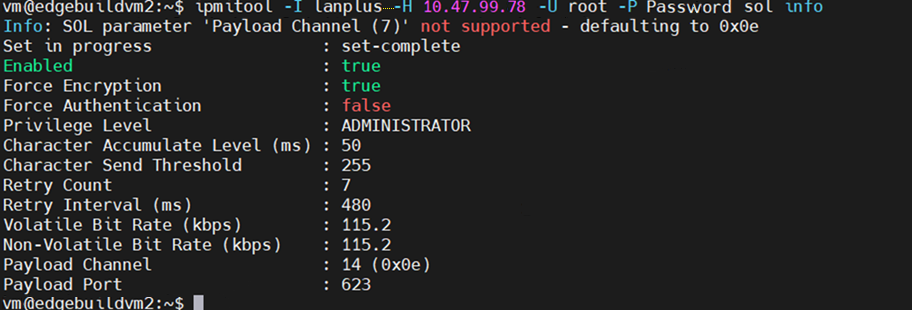
To verify the configuration, run the following command:
ipmitool -I lanplus -H <BMC-IP> -U admin -P password sol info
For system status information, run:
ipmitool -I lanplus -H 10.47.99.78 -U root -P Password chassis status
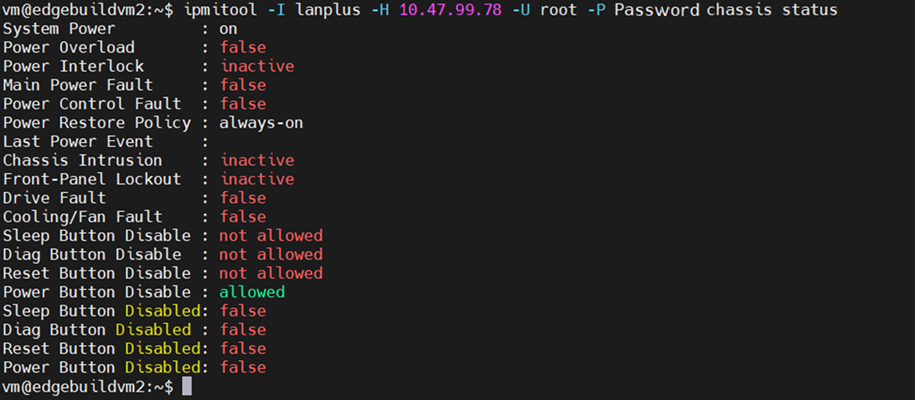
Activate the SOL session on the client and reboot the server.
vm@edgebuildvm2:~$ ipmitool -I lanplus -H 10.47.99.78 -U root -P Password sol activate
Output:
[SOL Session operational.  Use ~? for help]
KEY MAPPING FOR CONSOLE REDIRECTION:

Use the <ESC><1> key sequence for <F1>
Use the <ESC><2> key sequence for <F2>
Use the <ESC><3> key sequence for <F3>
Use the <ESC><0> key sequence for <F10>
Use the <ESC><!> key sequence for <F11>
Use the <ESC><@> key sequence for <F12>

Use the <ESC><Ctrl><M> key sequence for <Ctrl><M>
Use the <ESC><Ctrl><H> key sequence for <Ctrl><H>
Use the <ESC><Ctrl><I> key sequence for <Ctrl><I>
Use the <ESC><Ctrl><J> key sequence for <Ctrl><J>

Use the <ESC><X><X> key sequence for <Alt><x>, where x is any letter
key, and X is the upper case of that key

Use the <ESC><R><ESC><r><ESC><R> key sequence for <Ctrl><Alt><Del>

Press the spacebar to pause...
Initializing PCIe, USB, and Video... Done
PowerEdge R760
BIOS Version: 2.2.7
Console Redirection Enabled Requested by iDRAC

F2       = System Setup
F10      = Lifecycle Controller (Config
           iDRAC, Update FW, Install OS)
F11      = Boot Manager
F12      = PXE Boot
iDRAC IPV4:  10.47.99.78 [Dedicated]
Initializing Firmware Interfaces...

Enumerating Boot options...
Enumerating Boot options... Done
Loading Lifecycle Controller Drivers...
Loading Lifecycle Controller Drivers...Done
Lifecycle Controller: Collecting System Inventory...

iDRAC IPV4:  10.47.99.78 [Dedicated]
Lifecycle Controller: Done
Booting...
Booting from PCIe SSD in Slot 23 in Bay 1: Edge Microvisor Toolkit
Welcome to GRUB!
  Booting `EdgeMicrovisorToolkit GNU/Linux, with Linux 6.12.67-1.emt3'
Loading Linux 6.12.67-1.emt3 ...
Loading initial ramdisk ...
Exit the SOL session.
Use
~.in the current session, oripmitool sol deactivatefrom another active session.