QGroundControl#
Installation#
Follow the instructions in the QGroundControl documentation to install QGroundControl on your host machine where you are running the application.
Stable v5.1: Download and Install QGroundControl (Ubuntu)
Tip
If you run into connection or video-stream issues with the stable release, see Troubleshooting: QGroundControl stable release fails to connect for a fallback install option.
Enable video stream in QGroundControl#
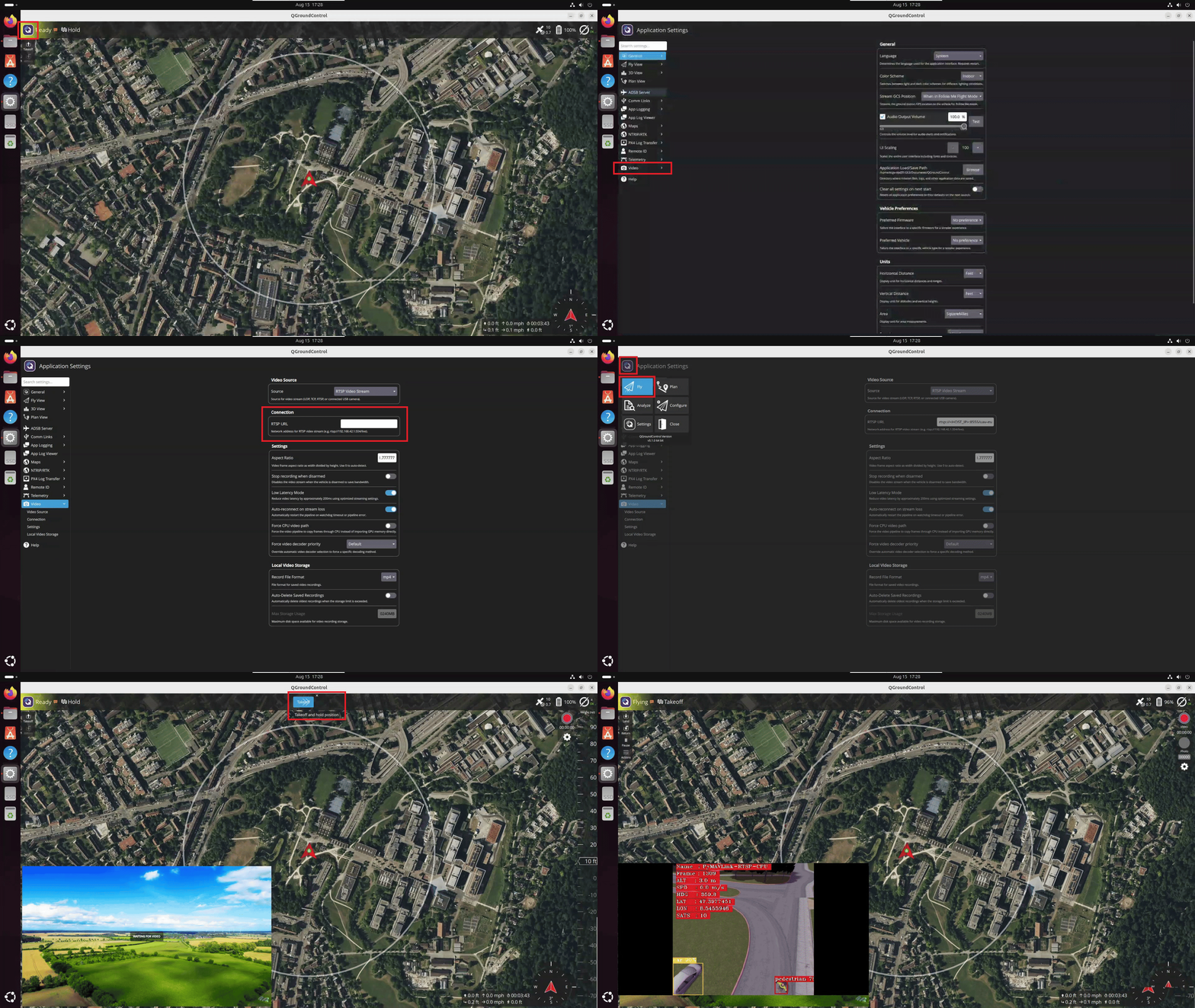
Steps to enable QGroundControl to connect to the UAV Vision Analytics application video stream.
RTSP Stream#
In QGroundControl, Click on Left top Q icon → Settings → Video → Source
→ select "RTSP Video Stream" in the dropdown. Then in RTSP URL enter the URL
for the desired pipeline.
URLs of the cameras (rtsp://<HOST_IP>:8555/uav-<camera>, one per camera of configs/cameras-pymavlink.yaml):
rtsp://<HOST_IP>:8555/uav-front-camera    # one stream per camera of configs/cameras-pymavlink.yaml
rtsp://<HOST_IP>:8555/uav-bottom-camera
rtsp://<HOST_IP>:8555/uav-back-camera
Note
If QGroundControl is running on a remote Windows machine (connecting to a
UAV host on another machine) and that Windows machine has a system/corporate
HTTP(S) proxy configured, the RTSP video stream may never render even though
telemetry/MAVLink connects fine — see
Troubleshooting: RTSP video stream does not play on a remote Windows machine
for the no_proxy fix.
Note
Make sure make start-rtsp is running in the DL Streamer Pipeline Server container before
attempting to connect QGroundControl to the RTSP stream.
Connect QGroundControl from another machine#
mavlink-router exposes a UDP endpoint on <HOST_IP>:14551 (bound to HOST_IP only,
like the other published ports). QGroundControl on a different machine does not
discover the vehicle automatically, so add a link:
In QGroundControl open
Q icon→Application Settings→Comm Links→Add.Set
TypetoUDP.Under
Server Addresses, clickAdd Serverand enter<HOST_IP>:14551.Save, select the new link, and click
Connect.
QGroundControl sends its heartbeat first and the router learns its address, then
forwards telemetry to it and commands from it to PX4. Several stations can connect
at the same time. To use a different host port, set MAVLINK_UDP_PORT in .env
before make pymav-up.
Note
The router’s TCP server (port 5760) is disabled on purpose. With the router
built into this stack it accepts a TCP connection but fails to send to it
(Error sending tcp packet (Invalid argument)), so no data reaches the client.
Warning
Anyone who can reach <HOST_IP>:14551 can command the vehicle. Keep the host on a
trusted network.