Install the Autonomous Mobile Robot on Jackal Robot’s Onboard Computer#
This section shows how to install the Autonomous Mobile Robot with the ROS 2 middleware and the Clearpath Robotics ecosystem, on the Clearpath Robotics Jackal robot’s onboard computer.
The Jackal robot runs Canonical Ubuntu 24.04 LTS (Noble) and ROS 2 Jazzy for this configuration. Intel provides a setup script that installs all required Intel and Clearpath software repositories and packages.
The Jackal robot is equipped with an onboard computer that has a pre-installed Canonical Ubuntu 22.04 LTS OS, ROS 2 Humble distribution, and the Clearpath Robotics software packages.
Intel recommends using the pre-installed software for the initial bring-up of your Jackal robot. During the initial bring-up, you must update the firmware of the MCU; see the Robot Installation page of the Clearpath Robotics documentation.
Intel recommends creating a backup of the default software installation or replace the pre-installed SATA M.2 SSD with an empty storage device, before continuing with the next steps.
Install ROS 2 Distribution and Autonomous Mobile Robot#
Set the hostname to match the robot serial number:
sudo hostnamectl set-hostname cpr-j100-<serial>
Run the Intel Robotics setup script, which installs all required repositories (ROS 2, Clearpath, Intel ECI/AMR, librealsense) and packages:
wget https://raw.githubusercontent.com/open-edge-platform/edge-ai-suites/refs/heads/release-2026.1.0/robotics-ai-suite/scripts/setup-robotics-jazzy.sh
chmod +x setup-robotics-jazzy.sh
./setup-robotics-jazzy.sh
To install the Autonomous Mobile Robot on the Clearpath Robotics Jackal robot, see the GSG Robot Guide.
Create an account with the username
administratorwhen installing the Canonical Ubuntu OS, or create and set its group membership as follows:sudo adduser administrator sudo usermod -a -G sudo administrator
To install the ROS 2 Humble distribution and the Autonomous Mobile Robot on the Clearpath Robotics Jackal robot, see the GSG Robot Guide of the Autonomous Mobile Robot.
Create an account with the username
administratorwhen installing the Canonical Ubuntu OS, or create and set its group membership as follows:sudo adduser administrator sudo usermod -a -G sudo administrator
Install the Clearpath Robotics Software Packages#
Install the ROS 2 development tools:
sudo apt-get install ros-dev-tools
Install the required Clearpath and Nav2 packages:
sudo apt-get install -y \
  ros-jazzy-clearpath-robot \
  ros-jazzy-clearpath-firmware \
  ros-jazzy-micro-ros-agent \
  ros-jazzy-nav2-bringup \
  ros-jazzy-rtabmap-ros \
  ros-jazzy-realsense2-camera \
  ros-jazzy-librealsense2-tools
Reload udev rules so the /dev/clearpath/j100 device node is created:
sudo udevadm control --reload-rules && sudo udevadm trigger
Pin Package Versions
Version mismatches between librealsense2 and ros-jazzy-realsense2-camera
cause silent communication failures. Pin the following working versions:
sudo tee /etc/apt/preferences.d/librealsense > /dev/null <<'EOF'
Package: librealsense2*
Pin: version 2.56.5-0~realsense.17055
Pin-Priority: 1001

Package: ros-jazzy-librealsense2*
Pin: version 2.56.4*
Pin-Priority: 1001

Package: ros-jazzy-realsense2*
Pin: version 4.56.4*
Pin-Priority: 1001
EOF
sudo tee /etc/apt/preferences.d/oneapi > /dev/null <<'EOF'
Package: intel-oneapi-runtime-*
Pin: version 2025.3.*
Pin-Priority: 1001

Package: intel-oneapi-compiler-*
Pin: version 2025.3.*
Pin-Priority: 1001

Package: intel-oneapi-mkl-*
Pin: version 2025.3.*
Pin-Priority: 1001
EOF
Then re-run sudo apt-get install from above to ensure pinned versions
are installed.
Build clearpath_ws from Source (micro-ROS Agent Fix)
The binary ros-jazzy-micro-ros-agent ships with a libmicroxrcedds_agent.so
that conflicts with the version expected by the Clearpath platform. Build
the workspace from source and copy the corrected library:
mkdir -p ~/clearpath_ws/src && cd ~/clearpath_ws
wget https://raw.githubusercontent.com/clearpathrobotics/clearpath_robot/jazzy/dependencies.repos
vcs import src < dependencies.repos
git clone https://github.com/micro-ROS/micro-ROS-Agent.git src/micro-ROS-Agent
rosdep install -r --from-paths src -i -y --rosdistro jazzy \
  --skip-keys="flir_ptu_description flir_ptu_driver flir_ptu_viz"
colcon build --symlink-install
Copy the built library to the system ROS install:
sudo cp ~/clearpath_ws/install/micro_ros_agent/lib/libmicroxrcedds_agent.so.2.4.3 \
        /opt/ros/jazzy/lib/libmicroxrcedds_agent.so.2.4.3
Add the workspace overlay to the Clearpath platform environment so all systemd services pick it up:
sudo cp /etc/clearpath/setup.bash /etc/clearpath/setup.bash.bak
echo 'source /home/intel/clearpath_ws/install/setup.bash' | sudo tee -a /etc/clearpath/setup.bash
Install the ROS 2 development tools, which comprises the compilers and other tools to build ROS 2 packages. See the official ROS 2 Installation Instructions:
sudo apt-get install ros-dev-tools
See the Package Install section of the Clearpath Robotics documentation. You can install the software through one of these methods:
Option 1: Install Script, which uses an automated installer.
Option 2: Manual Source Install, which provides detailed instructions on how to install the software with a higher flexibility.
Create Your Robot Configuration#
This section shows how to create the robot.yaml configuration
file for your Jackal robot with the RealSense™ camera D435i. Ensure
to complete the
Install the Clearpath Robotics Software Packages
steps.
Identify the Serial Number of your RealSense™ Camera#
You need to include the serial number of the RealSense™ camera to the
robot.yaml file.
Note: Do not run
lsusb -vto get the serial number because the serial number displayed might differ from the true serial number.
To get the serial number, connect the camera to the onboard computer of the Jackal robot and run:
ros2 launch realsense2_camera rs_launch.py
The output of this command will print the serial number. The serial number of the camera in the example below is
207522xxxx38(some digits are masked here to preserve confidentiality).[realsense2_camera_node-1] [INFO] [1709051840.999128954] [camera.camera]: RealSense ROS v4.54.1 [realsense2_camera_node-1] [INFO] [1709051840.999193090] [camera.camera]: Built with LibRealSense v2.55.0 [realsense2_camera_node-1] [INFO] [1709051840.999200850] [camera.camera]: Running with LibRealSense v2.55.0 [realsense2_camera_node-1] [INFO] [1709051841.005234011] [camera.camera]: Device with serial number 207522xxxx38 was found.
Stop the command by pressing
Ctrl-c.
Create your Robot YAML File#
To configure the
robot.yamlfile for your Jackal robot, see the Robot YAML Overview section of the Clearpath Robotics documentation.You can use the example configuration j100_sample.yaml in the Clearpath Robotics configuration repository:
Edit the
serial_numberandsystemsections in the j100_sample.yaml file as follows:Change the
serial_numberto the serial number of your robot, for examplej100-1234.In the
system/hostssection, change thehostnameto the hostname of the onboard computer of your Jackal robot.In the
system/hostssection, change theipaddress to the IP address of your Jackal robot, either a static address or a dynamic address that is assigned by the router of your network.In the
system/ros2section, set thenamespacestring.For ROS 2 Jazzy with the Clearpath platform, use the robot serial number as the namespace (without a leading slash), for example
namespace: j100_0123. This namespace is used as the prefix for all platform and sensor topics, and must match the namespace configured in the MCU (see Flash Firmware and Configure the MCU).Intel recommends using an empty namespace as used in the Autonomous Mobile Robot tutorials. An empty namespace is indicated by a slash character:
namespace: /In the
system/ros2section, add thedomain_identry and set it to a value that does not conflict with theROS_DOMAIN_IDof other ROS 2 installations in your neighborhood. The value that you use here will be propagated into the/etc/clearpath/setup.bashscript. TheROS_DOMAIN_IDenvironment variable will be set to the value you defined here.Note (Jazzy): The
wandering_jackal.shscript always readsROS_DOMAIN_IDdirectly from/etc/clearpath/robot.yamlto ensure it matches the MCU configuration, overriding any value set insetup.bash.If you have used the manual installation option in the Install Clearpath Software Packages section, add the
workspacesentry to thesystem/ros2section. This entry provides a list of setup scripts that need to be sourced. Provide the path to thesetup.bashscript of the workspace that was created when you executed the steps in the Option 2: Manual Source Install section. The path of this script is/home/administrator/clearpath_ws/install/setup.bash
Details on these configuration entries are provided on the System section of the Clearpath Robotics documentation. As an example, the following listing shows the first sections of the
robot.yamlfile:serial_number: j100-<serial> # e.g. j100-0812 version: 0 system: hosts: - hostname: cpr-j100-<serial> # must match hostnamectl username: intel ros2: namespace: j100_<serial> # e.g. j100_0812 (no leading slash) domain_id: 42 # must match MCU configuration platform: ...
serial_number: j100-1234
version: 0
system:
  hosts:
    - hostname: jackal-cfls-01
      ip: 192.168.1.78
  ros2:
    namespace: /
    domain_id: 68
    workspaces:
      - /home/administrator/clearpath_ws/install/setup.bash
platform:
  ...
Copy the
robot.yamlfile to the/etc/clearpath/folder on the onboard computer of your Jackal robot.If your
~/.bashrcscript defines aROS_DOMAIN_IDenvironment variable, remove this definition. This variable will be set by the/etc/clearpath/setup.bashscript according to thedomain_idvalue that you have defined in therobot.yamlfile.
After you have installed the Clearpath Robotics software packages and
configured your robot.yaml file, you can run
ros2 node list and ros2 topic list to verify that
the Clearpath Robotics services have started the Jackal-specific ROS 2
nodes, so that the related ROS 2 topics are published.
Add your RealSense™ Camera D435i to the Robot YAML File#
You need to define a camera in the sensors section of your robot.yaml file.
The Sensors/Cameras section of the Clearpath Robotics documentation shows an example of the data structure that defines a RealSense™ camera instance.
Intel recommends adding the following
cameraconfiguration as the first device in thesensorssection. This configuration has been tested with the Autonomous Mobile Robot:sensors: camera: - model: intel_realsense urdf_enabled: true launch_enabled: true parent: base_link xyz: [0.21, 0.0, 0.19] rpy: [0.0, 0.0, 0.0] ros_parameters: camera: camera_name: camera_0 device_type: d435i serial_no: "207522xxxx38" enable_color: true rgb_camera.profile: 640,480,30 enable_depth: true depth_module.profile: 640,480,30 pointcloud.enable: true enable_infra1: true align_depth.enable: true enable_sync: true initial_reset: true
In comparison to the example data structure in the Clearpath Robotics documentation, the following items were changed:
The
xyzposition of thecamerajoint, relative to thebase_linkhas been set to[0.21, 0.0, 0.19]. This means that the camera sits above the front fender of the Jackal robot as shown in the following figure: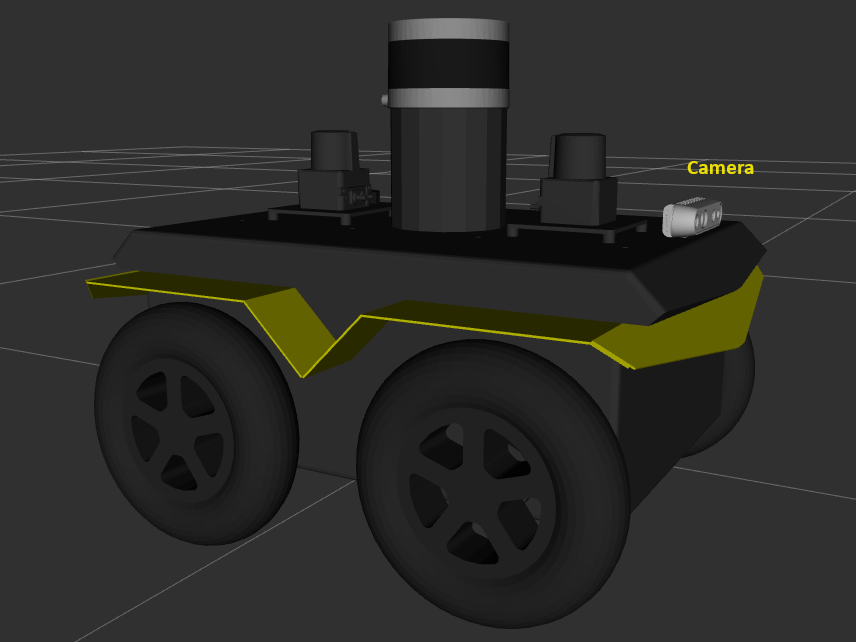
This figure is rendered through the rviz2 tool using the TF data published by the Clearpath Robotics services running on the robot.
The
device_typehas been set tod435i.The
serial_nohas been replaced with the actual serial number of the camera, which can be identified as described in the Identify RealSense Camera Serial Number section.The following features have been enabled:
enable_infra1,align_depth.enable,enable_sync, andinitial_reset.
Copy the
robot.yamlfile to the/etc/clearpath/folder on the onboard computer of your Jackal robot.Reboot the robot to propagate the new configuration.
Flash Firmware and Configure the MCU#
Flash the MCU firmware:
source /opt/ros/jazzy/setup.bash
ros2 run clearpath_robot install
The robot must be powered on and
/dev/clearpath/j100must be accessible. Verify the device node exists:ls -l /dev/clearpath/j100
After flashing, write the
domain_idand robot namespace into the MCU so it uses the correct FastDDS domain and topic prefix on next boot. Replace<serial>and<domain_id>with the values from yourrobot.yaml:source /etc/clearpath/setup.bash ros2 service call /j100_<serial>/platform/mcu/configure \ clearpath_platform_msgs/srv/ConfigureMcu \ "{domain_id: <domain_id>, robot_namespace: 'j100_<serial>'}"
Restart the platform service to apply the new MCU configuration:
sudo systemctl restart clearpath-platform
Note: Do not delete
/dev/shm/fastrtps_*files. Clearpath platform and sensor services own these FastDDS shared-memory segments. Deleting them while the robot services are running will crash all robot nodes.
See the Robot Installation page of the Clearpath Robotics documentation for firmware update instructions.
Verify the Robot Configuration#
Verify the Frames of the TF2 Tree#
If not already installed, install the ROS2 TF2 Tools:
sudo apt install ros-jazzy-tf2-tools
sudo apt install ros-humble-tf2-tools
Verify that the robot state publisher communicates the correct TF2 tree:
ros2 run tf2_tools view_frames
This command listens to the frames that are broadcast over the ROS 2 middleware, and generates a PDF file that shows how the robot’s frames are connected. Open the PDF file and verify that the TF2 tree contains the
camera_0_linkand its children, as shown in the following figures: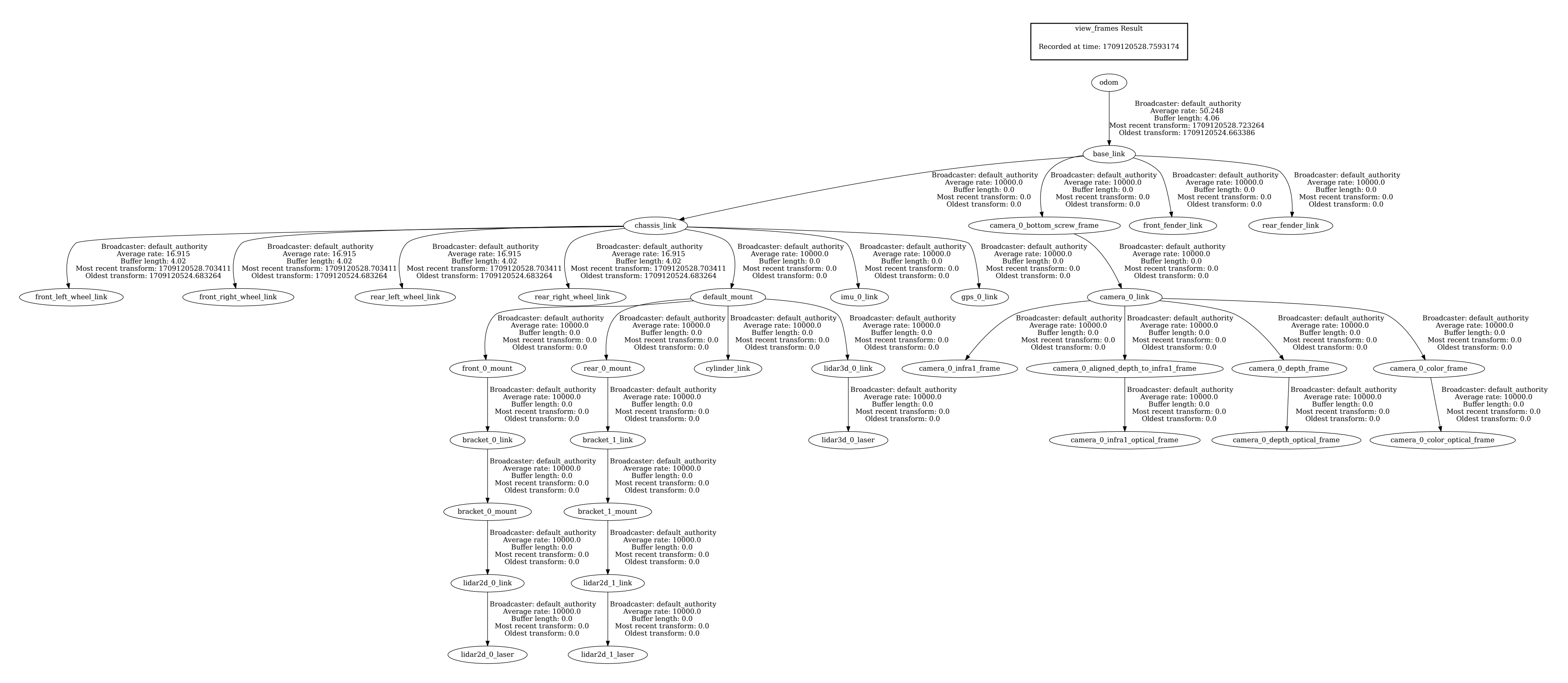
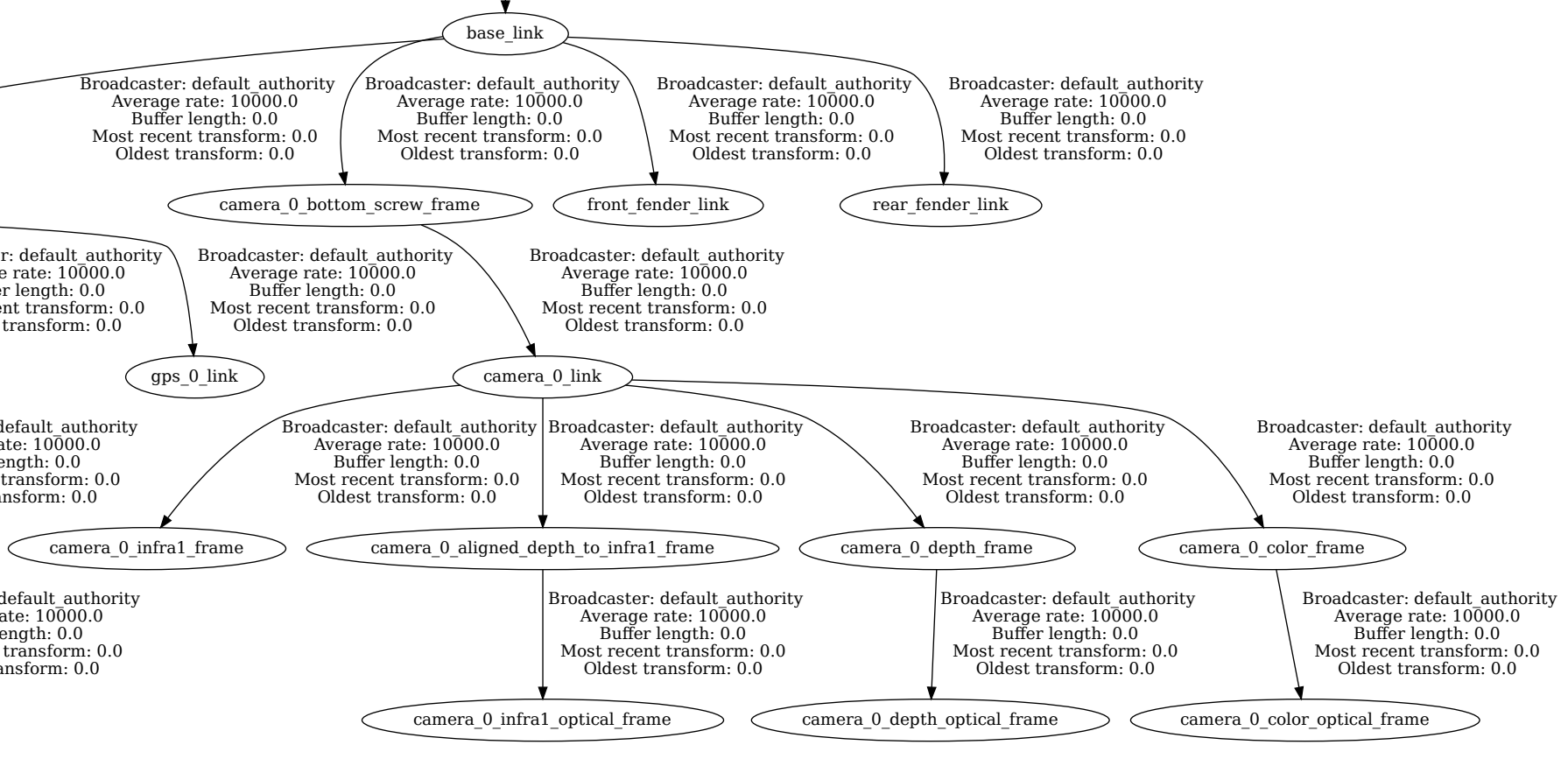
Complete TF2 tree of the Jackal robot with RealSense™ camera. To increase the figure, right-click on the image and open the image in a new browser tab. The following figure shows the TF2 tree of the Jackal robot, with a detailed view on the camera_0_link:
Verify the ROS 2 Topics#
Run
ros2 topic list
Verify that the required ROS 2 topics are published:
Note: On Jazzy, all platform and sensor topics are prefixed with the robot namespace, e.g.
/j100_<serial>/. The following list uses/j100_0123/as an example. Camera topics also depend on the installedros-jazzy-realsense2-cameraversion (4.55 vs 4.54).Note: The names of the camera-related topics depend on the version of the
ros-humble-realsense2-camerapackage on your system. The following list was created on a system with package version 4.55./j100_0123/cmd_vel /j100_0123/diagnostics /j100_0123/joint_state_broadcaster/transition_event /j100_0123/joy_teleop/cmd_vel /j100_0123/platform/bms/state /j100_0123/platform/cmd_vel /j100_0123/platform/dynamic_joint_states /j100_0123/platform/emergency_stop /j100_0123/platform/joint_states /j100_0123/platform/mcu/status /j100_0123/platform/mcu/status/power /j100_0123/platform/mcu/status/stop /j100_0123/platform/motors/cmd_drive /j100_0123/platform/motors/feedback /j100_0123/platform/odom /j100_0123/platform/odom/filtered /j100_0123/platform/safety_stop /j100_0123/rc_teleop/cmd_vel /j100_0123/robot_description /j100_0123/sensors/camera_0/camera/aligned_depth_to_color/camera_info /j100_0123/sensors/camera_0/camera/aligned_depth_to_color/image_raw /j100_0123/sensors/camera_0/camera/color/camera_info /j100_0123/sensors/camera_0/camera/color/image_raw /j100_0123/sensors/camera_0/camera/depth/camera_info /j100_0123/sensors/camera_0/camera/depth/image_rect_raw /j100_0123/sensors/camera_0/color/image /j100_0123/sensors/camera_0/depth/image /j100_0123/sensors/camera_0/points /j100_0123/sensors/imu_0/data /j100_0123/sensors/imu_0/data_raw /j100_0123/sensors/imu_0/magnetic_field /j100_0123/tf /j100_0123/tf_static /j100_0123/twist_marker_server/cmd_vel /diagnostics /parameter_events /rosout
To see the installed package version on your board, run:
apt show ros-jazzy-realsense2-camera
apt show ros-humble-realsense2-camera
The following table shows how the names of the camera-related topics depend on the package version.
Version of
ros-jazzy-realsense2-cameraCamera-related topics start with
4.55 (
ros_parameterskey:camera)/j100_<serial>/sensors/camera_0/camera/4.54 (
ros_parameterskey:intel_realsense)/j100_<serial>/sensors/camera_0/Version of
ros-humble-realsense2-cameraCamera-related topics start with
4.55
/sensors/camera_0/camera/4.54
/sensors/camera_0/
Jackal Troubleshooting#
If the output of the ros2 topic list command does not show any topics,
check that ROS_DOMAIN_ID matches the value in /etc/clearpath/robot.yaml:
grep domain_id /etc/clearpath/robot.yaml
echo $ROS_DOMAIN_ID
Ensure ROBOT_NAMESPACE is set before running any wandering scripts:
export ROBOT_NAMESPACE=/j100_<serial>
Verify the MCU is communicating by checking the platform status:
source /etc/clearpath/setup.bash
ros2 topic echo /j100_<serial>/platform/mcu/status --once
If the MCU topic is not publishing, check that no manual
micro_ros_agent process is holding the serial port and restart
the platform service:
pkill -f micro_ros_agent
sudo systemctl restart clearpath-platform
FastDDS shared memory: Do not delete
/dev/shm/fastrtps_*files while the robot services are running. If you need to clear stale segments after a crash, stop all clearpath services first:sudo systemctl stop clearpath-platform rm -f /dev/shm/fastrtps_* sudo systemctl start clearpath-platform
Verify that you are logged in as the administrator user.
If ROS 2 topics are missing (see the verify ROS topics section), check whether the required services are up and running:
sudo systemctl status clearpath-platform.service clearpath-sensors.service clearpath-robot.service
If any of these services are not active (running), check the systemd journal:
sudo journalctl -b | grep clearpath