Enable MLOps#
Applications for industrial edge insights vision can also be used to demonstrate MLOps workflow using Model Download microservice. With this feature, during runtime, you can download a new model using the microservice and restart the pipeline with the new model.
Note: To simplify this demonstration, we assume that models have already been downloaded to an accessible location (
/tmp/models) using the Model Download from a running Geti™ server before restarting the pipeline.
Contents#
Prerequisites#
We assume that Model Download service has already downloaded the model to be updated to /tmp/models.
To learn how to setup Model Download, see here
If not available, you can simulate this by downloading the sample model from the edge-ai-resources repository. Once downloaded, extract to /tmp/models directory.
Steps#
Note: If you are running multiple instances of the app, ensure to provide
NGINX_HTTPS_PORTnumber in the url for the app instance, i.e., replace<HOST_IP>with<HOST_IP>:<NGINX_HTTPS_PORT>. If you are running a single instance and using anNGINX_HTTPS_PORTother than the default 443, replace<HOST_IP>with<HOST_IP>:<NGINX_HTTPS_PORT>.
Set up the sample application to start a pipeline. A pipeline named
weld_porosity_classification_mlopsis already provided in thepipeline-server-config.jsonfor this demonstration with the Weld Porosity classification sample app.Note: Ensure that the pipeline inference element such as gvadetect/gvaclassify/gvainference should not have a
model-instance-idproperty set. If set, this would not allow the new model to be run with the same value provided in the model-instance-id.Navigate to the
[WORKDIR]/edge-ai-suites/manufacturing-ai-suite/industrial-edge-insights-visiondirectory and set up the app.cp .env_weld-porosity .env
Update the following variables in
.envfileHOST_IP= # <IP Adress of the host machine> MINIO_ACCESS_KEY= # MinIO service & client access key e.g. intel1234 MINIO_SECRET_KEY= # MinIO service & client secret key e.g. intel1234 MTX_WEBRTCICESERVERS2_0_USERNAME= # Webrtc-mediamtx username. e.g intel1234 MTX_WEBRTCICESERVERS2_0_PASSWORD= # Webrtc-mediamtx password. e.g intel1234
Run the setup script using the following command.
./setup.sh
Bring up the containers
docker compose up -d
Check to see if the pipeline is loaded is present which in our case is
weld_porosity_classification_mlops../sample_list.sh
Modify the payload in
apps/weld-porosity/payload.jsonto launch an instance for the MLOps pipeline.[ { "pipeline": "weld_porosity_classification_mlops", "payload": { "destination": { "frame": { "type": "webrtc", "peer-id": "weld" } }, "parameters": { "classification-properties": { "model": "/home/pipeline-server/resources/models/weld-porosity/deployment/Classification/model/model.xml", "device": "CPU" } } } } ]
Start the pipeline with the above payload.
./sample_start.sh -p weld_porosity_classification_mlops
Verify the pipeline is running. You can View the WebRTC streaming on
https://<HOST_IP>/mediamtx/<peer-str-id>by replacing<peer-str-id>with the value used in the original cURL command to start the pipeline.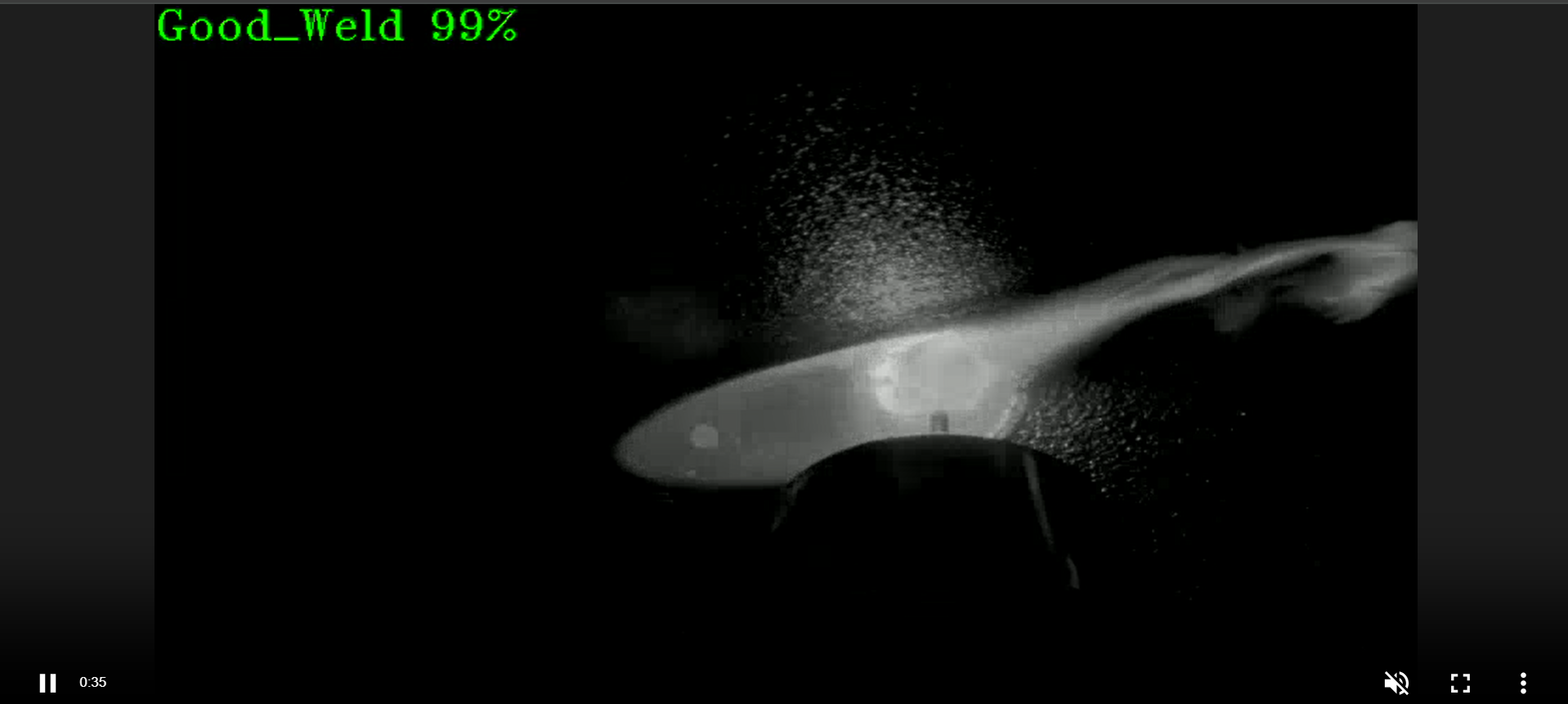
Downloading model with Model Download#
At this point, restart the pipeline with a newer model. The new model can be a retrained version of the existing model or a different model altogether. We use the Model Download microservice to help download the model. It supports downloading public models as well as Geti™ models from a running Geti™ server. To learn more about it, see here.
For our demonstration, we will assume that:
Weld Porosity Model has been retrained and is available for downloaded from a Geti™ server using the Model Download service.
the downloaded location is accessible by the dlstreamer pipeline server. In our example, it is
/tmp/modelsthe
/tmpdir is already accessible by the sample application. If not, please add it to thevolumessection ofdlstreamer-pipeline-serverservice in docker-compose file.
Stop the running pipeline by using the pipeline instance “id”.
curl -k --location -X DELETE https://<HOST_IP>/api/pipelines/{instance_id}
Start a new pipeline with this new model. Before that modify the
payload.jsonto use this new model inapps/weld-porosity/payload.json. Notice the model path in the payload has changed to the new model.[ { "pipeline": "weld_porosity_classification_mlops", "payload": { "destination": { "frame": { "type": "webrtc", "peer-id": "weld" } }, "parameters": { "classification-properties": { "model": "/tmp/models/weld-porosity/deployment/Classification/model/model.xml", "device": "CPU" } } } } ]
Run the following:
./sample_start.sh -p weld_porosity_classification_mlops
View the WebRTC streaming on
https://<HOST_IP>/mediamtx/<peer-str-id>by replacing<peer-str-id>with the value used in the original cURL command to start the pipeline.
Additional resources#
Downloading models from Geti Server#
To learn how to download models from a running Geti™ server, see here.
Note: The downloaded model(s) must be accessible to the DL Streamer pipeline server container. If necessary, add it to volumes section of
dlstreamer-pipeline-serverin compose file, and restart the DL Streamer Pipeline Server service.