Intel® vPro® Power Management#
This guide describes how to use Intel® vPro® features for power management, including activation, performing power operations, and deactivation.
Activation of Intel® vPro® Power Management#
To use Intel® vPro® power management features, the device must be provisioned and activated. Intel® vPro® activation changed to opt-in feature instead of a mandatory feature. Intel® vPro® activation moved to day 2 Operations as part of Host actions. Now Intel® vPro® can be activated for both Active Management Technology (AMT-Intel® vPro® Enterprise) and Intel Standard Manageability (ISM-Intel® vPro® Essential) devices.
Note
If the edge node is AMT/ISM-enabled, then only Intel® vPro® activation is enabled as part of Host actions.
Intel® vPro® activation and deactivation will be triggered via Host actions.
Intel® vPro® profiles are currently created using Client Control Mode (CCM).
Enabling Intel® vPro® from Host Actions:

Assumptions & Recommendations#
- BIOS Enablement: Ensure Intel® vPro® is enabled in the system
BIOS. If Intel® vPro® is not required, it is recommended to disable it in the BIOS for security and compliance. Note: Some platforms (e.g., OnLogic K804) do not provide BIOS options to enable/disable Intel® vPro®. See AMT Issues for platform-specific limitations.
- MEBx Password: For enhanced security, set a strong and unique Intel® MEBx password during initial setup.
If the default password is still in use, change it immediately to prevent unauthorized access.
- Port Enablement: Ensure that the 4433 network ports for Intel® AMT communication are open
and not blocked by firewalls.
Power Operations#
Once activated, you can perform various power operations such as power on, power off, reset, and cycle. These operations can be managed through the user interface (UI):
UI Power ON/OFF Operations Example:
Clicking ‘Start’ will power on the device, ‘Stop’ will power it off,

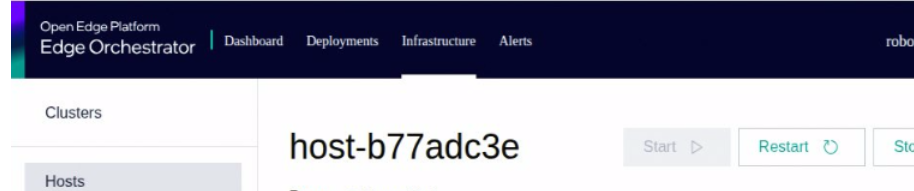
UI Power Reset Operations Example:
Clicking ‘Restart’ will Reset the device.
CLI Power Operations Example:
# Power On
orch-cli set host <host-id>  --project <project_name> --power on

# Power Off
orch-cli set host <host-id>  --project <project_name> --power off

# Reset
orch-cli set host <host-id>  --project <project_name> --power reset
Replace <host_id> and <project_name> with your actual host-id and project name.
Check the current power status of the edge node:
To check the power state of a host using the DMT-specific API, use the following curl command:
curl -X "GET" "https://mps-wss.<orch-address>/api/v1/amt/power/state/<HOST_UUID>" \
  -H "accept: application/json" \
  -H "Authorization: Bearer ${JWT_TOKEN}"
Replace <cluster-name> with your cluster domain name. Replace <HOST_UUID> with the UUID of your host and ensure ${JWT_TOKEN} is set to a valid authentication token.
This API will return the current power state of the specified.
Check the device Intel® vPro® details of the edge node:
curl -X "GET" "https://mps-wss.<cluster-name>/api/v1/devices/<HOST_UUID>" \
-H "accept: application/json" \
-H "Authorization: Bearer ${JWT_TOKEN}"
Replace <cluster-name> with your cluster domain name. Replace <HOST_UUID> with the UUID of your host and ensure ${JWT_TOKEN} is set to a valid authentication token.
Deactivation of Intel® vPro® Power Management#
To deactivate Intel® vPro® management features, the device can be deauthorized or deactivated from host-actions. Deauthorize host and Deactivate Intel® vPro® will deactivate the device and prevent from further management via Intel® vPro®.
Troubleshooting#
If you encounter issues during activation, power operations, or deactivation, refer to the logs or use the –verbose flag with orch-cli for more details.
For further assistance, consult the official documentation or contact support.