VLM Recall Search#
VLM Recall Search lets an investigator find historical footage with a plain‑English query such as:
“Show me the person in a blue shirt between 2:00–3:00 PM at the entrance camera.”
It is hybrid recall over recorded video: appearance is matched by multimodal embeddings, time is matched by a capture‑time filter, and location is matched by a per‑camera tag. Results are short video clips you can play back directly in the dashboard.
Architecture#
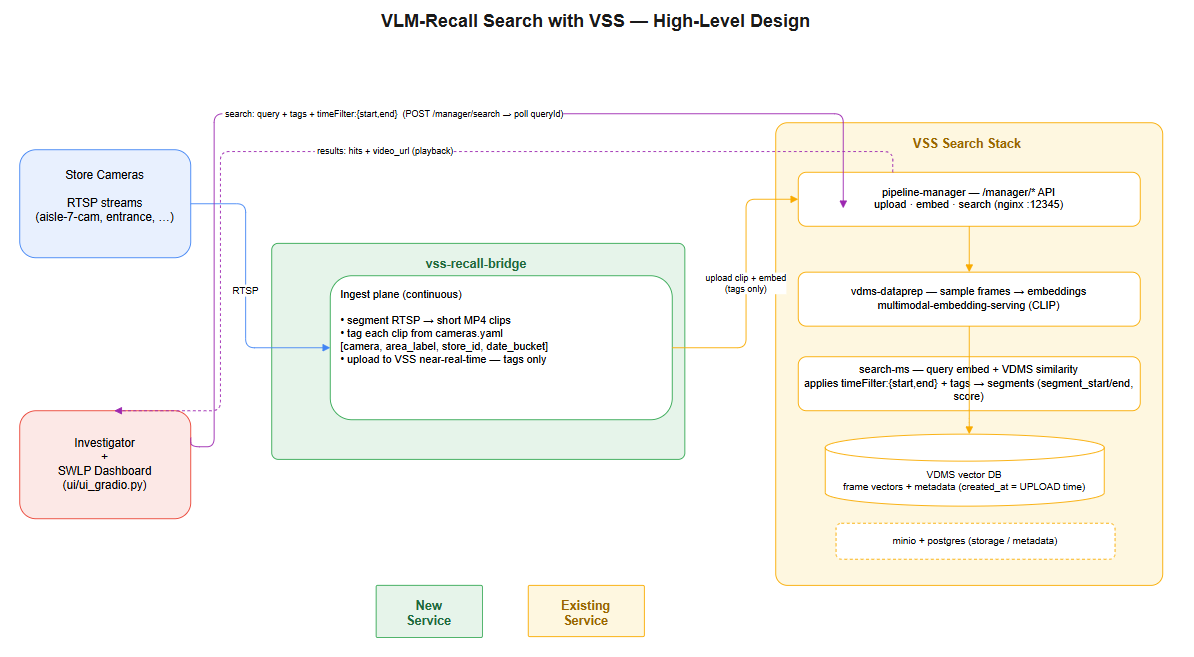
How It Works#
Recall is powered by the Video Search & Summarization (VSS) stack plus a thin recall bridge. The bridge segments each camera into short MP4 clips, tags them, and uploads them to VSS — which owns the embedding index, the time filter, and clip storage. Nothing is duplicated on the SWLP side: every field an investigator sees comes straight from VSS.
        flowchart LR
  cam[Camera<br/>RTSP / file] --> bridge[Recall Bridge]
  bridge -->|tag + upload clips| dataprep[VDMS Dataprep]
  dataprep --> embed[Multimodal<br/>Embedding Serving]
  embed --> vdb[(VDMS Vector DB)]
  ui[Dashboard /recall] -->|query| bridge
  bridge -->|search| search[Video Search]
  search --> vdb
  bridge -->|clip bytes| ui
Query part |
Example |
Matched by |
|---|---|---|
Appearance |
|
VSS multimodal frame embeddings (VDMS) |
Time |
|
VSS absolute |
Location |
|
Per‑camera upload tags |
Each search hit returns video_id, tags, created_at, segment_start/end, and a
relevance score. The bridge fetches the clip bytes by video_id and the UI streams
them with HTTP range support, so you can seek straight to the matched moment.
Services#
The recall feature adds these containers to the stack:
Service |
Role |
|---|---|
multimodal-embedding-serving |
Encodes frames and text into the same vector space ( |
vdms-dataprep |
Ingests/segments clips and writes embeddings. |
vdms-vector-db |
Stores frame embeddings for similarity search. |
video-search |
Runs the similarity + tag + time query. |
pipeline-manager |
Orchestrates ingest/search; uses the shared |
vss-recall-bridge |
Tags cameras, uploads clips, proxies search and clip playback to the UI. |
Enable and Run#
Which stack make up brings up is controlled by MODE:
Command |
What runs |
Recall UI |
|---|---|---|
|
SceneScape + Suspicious Activity only — no search |
Recall button hidden |
|
core + the search/recall stack |
|
|
only the standalone search/recall stack |
|
Search is opt-in: a plain
make updoes not start the recall stack. UseMODE=fullto include it, orMODE=searchto run search by itself.
Tear down with the matching mode:
make up MODE=full        &&  make down                # `make down` also cleans a stray search stack
make up MODE=search      &&  make down MODE=search    # (plain `make down` also cleans it, best-effort)
Overriding defaults#
The Makefile sets sensible defaults, so nothing else is mandatory. To override,
pass variables on the command line or export them first:
make up MODE=full EMBEDDING_MODEL_NAME=CLIP/clip-vit-b-32 TAG=latest
Variable |
Default |
Purpose |
|---|---|---|
|
|
|
|
|
Registry for the VSS search images. |
|
|
Image tag, shared by the LP and VSS search images. |
|
|
Multimodal model used for text+frame embeddings. |
|
|
Host port for the standalone Investigator UI ( |
Legacy aliases (still work, map onto MODE): ENABLE_SEARCH=true → MODE=full;
SEARCH_ONLY=true → MODE=search.
Postgres/MinIO credentials are optional (they default in the compose files and the
shared pgserver is used), so they don’t need exporting.
Disable Recall#
Recall is off by default — a plain make up (MODE=core) already skips it. With
search disabled:
The VSS search services and the
vss-recall-bridgeare never started.The dashboard hides the Recall button, and the
/recallpage returns “Recall Search is disabled.” — so operators don’t see a broken tab.
This is wired automatically: the UI reads ENABLE_RECALL, which the Makefile
derives from MODE (true for full/search, false for core). In standalone
MODE=search, the recall page also hides its ← Dashboard back-link, since no
dashboard is running.
Configure Cameras#
Cameras are not configured in the bridge — they are derived automatically from
SceneScape’s configs/scene-config.yaml. Every camera name listed under a scene is
segmented, uploaded, and tagged so location filtering works:
scenes:
  - scene_name: storewide loss prevention
    cameras:
      - lp-camera1
    zones:
      aisle1: HIGH_VALUE
      aisle2: CHECKOUT
For each camera name the bridge derives:
RTSP source —
${RECALL_RTSP_BASE_URL}/<camera-name>(e.g.rtsp://mediaserver:8554/lp-camera1).Tags — the camera name plus the scene’s zone names (
aisle1,aisle2), and the optionalSTORE_ID. A query filtered to any of those tags returns that camera’s clips.
Adding a camera in SceneScape (a new name under scenes[].cameras) is the only step
needed to ingest it — there is no separate camera file to edit.
Search From the UI#
Open
/recallon the dashboard.Type a description (e.g. person in a blue shirt).
Optionally set the From / To window — pick the times in the date pickers; the UI sends them as UTC, which is what VSS expects.
Matching clips load automatically and seek to the matched moment for playback.
Troubleshooting#
No results with a time filter: use the UI date pickers (they send UTC). Direct API calls with naive local timestamps are treated as UTC by VSS.
No results for a camera: check the camera name is listed under
scenes[].camerasinconfigs/scene-config.yaml; only cameras defined there are ingested./recallshows 404: rebuild the UI image (make uprebuilds it).pipeline-manager keeps restarting (
database "video_summary_db" does not exist): start withmake up, which creates the database onpgserverautomatically.