Grading Flow#
Important
Language requirement: Grading currently supports Chinese exam papers only. Before using the
Grading feature, make sure the language setting in the main program’s config.yaml is set to
zh, and enable the feature with features.grading.enabled: true.
The Grading feature automatically scores scanned exam papers. You provide a folder of papers (PDF) and a rubric, and the system renders the pages, splits them into sections, and uses a Vision-Language Model (VLM) to grade each section and produce a structured result with scores and reasoning.
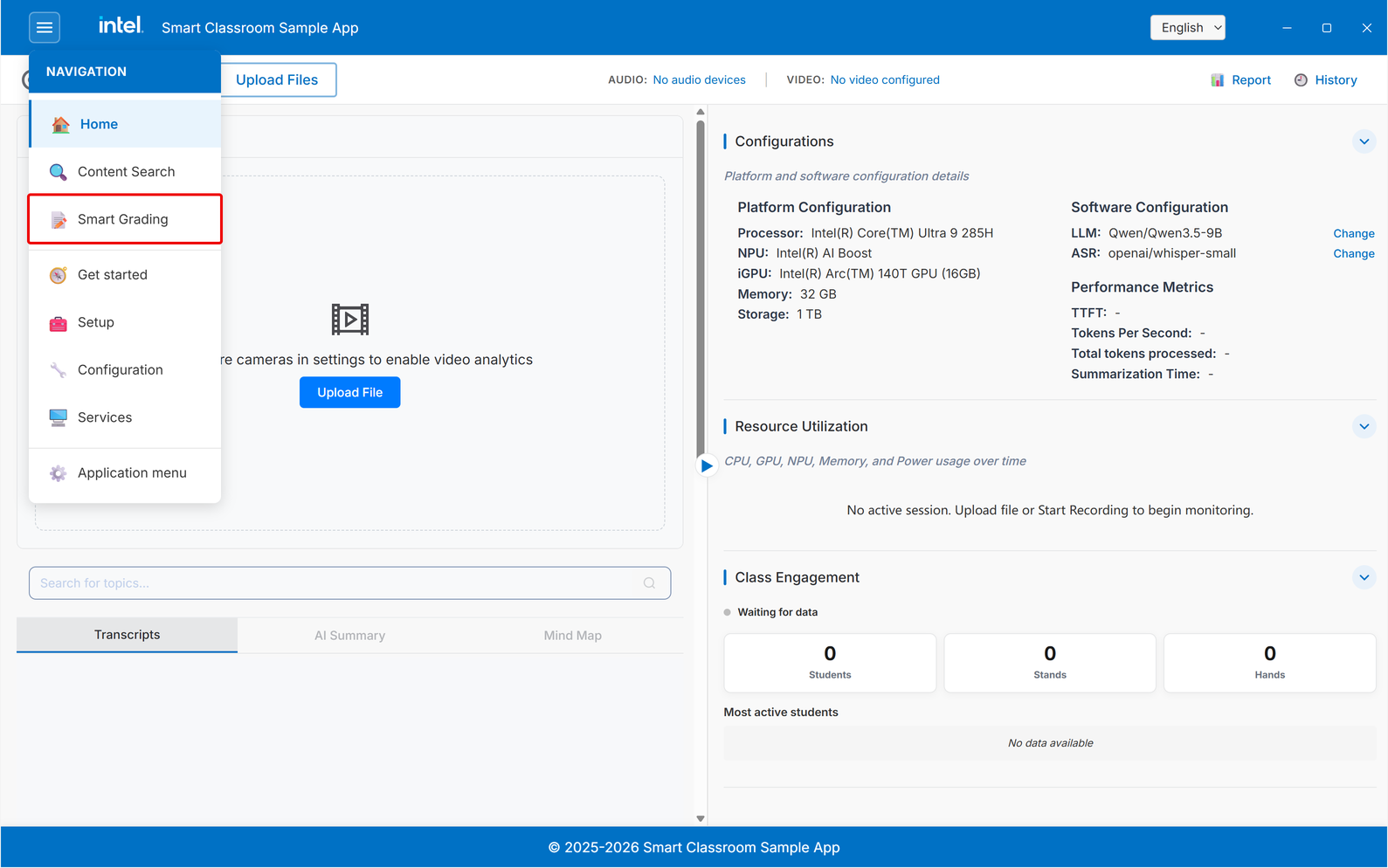
To enter the Grading view, open the ☰ menu at the top left of the Smart Classroom app and click Smart Grading:
Step 1: Prepare a Rubric#
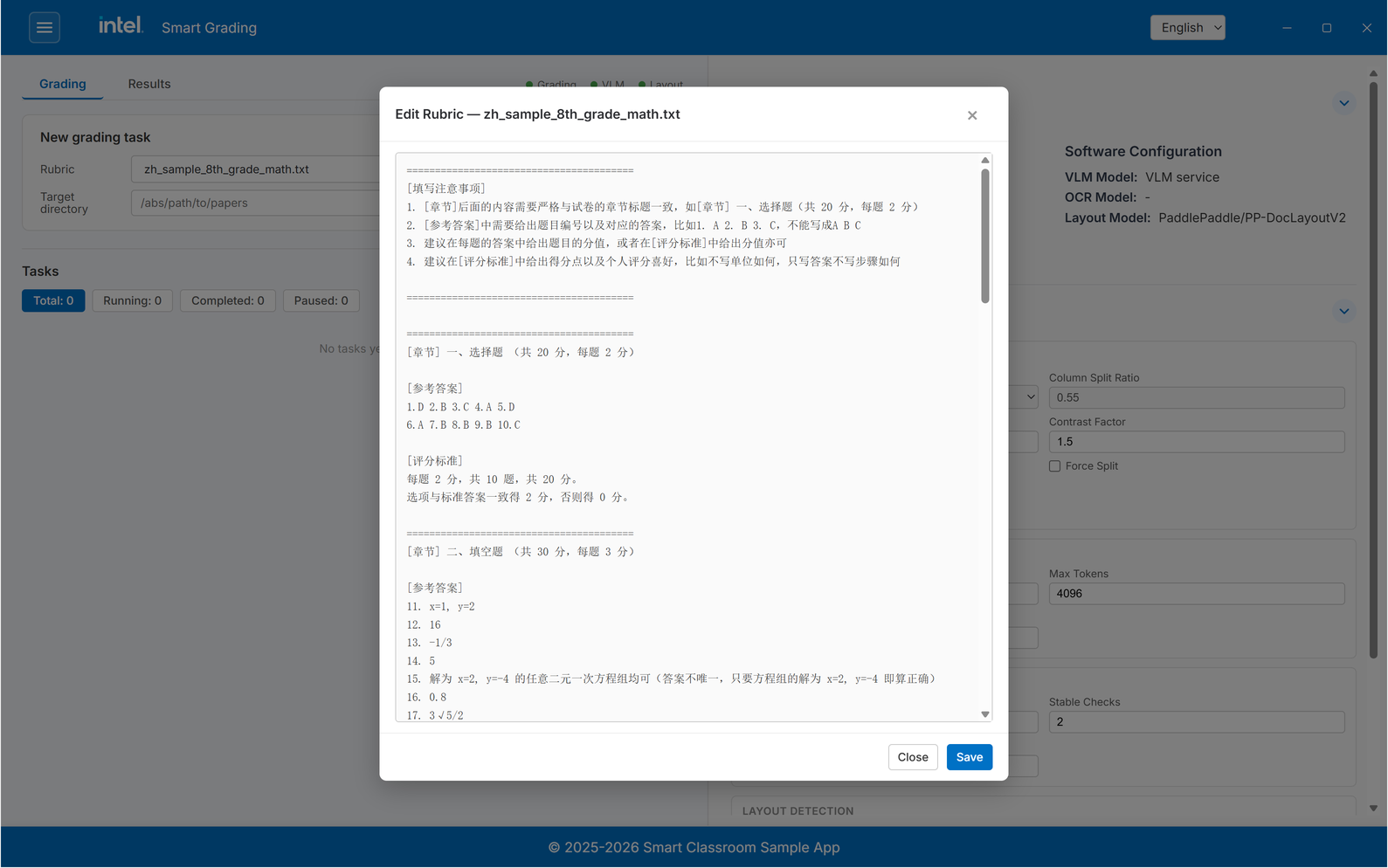
A rubric tells the model how to grade. Upload one before creating a task:
Click Upload next to the Rubric list and select a
.txtor.jsonfile.The uploaded rubric is added to the Rubric list and selected.
To change it, click Edit, edit the text, and click Save.
Step 2: Create a Grading Task#
Select the rubric to grade against in the Rubric list.
Set Target directory to the folder that holds the papers. Type the path, or click Browse to pick the folder. The folder can hold one subfolder per student (
<folder>/<student>/*.pdf) or the PDF files directly (<folder>/*.pdf).Click Start.
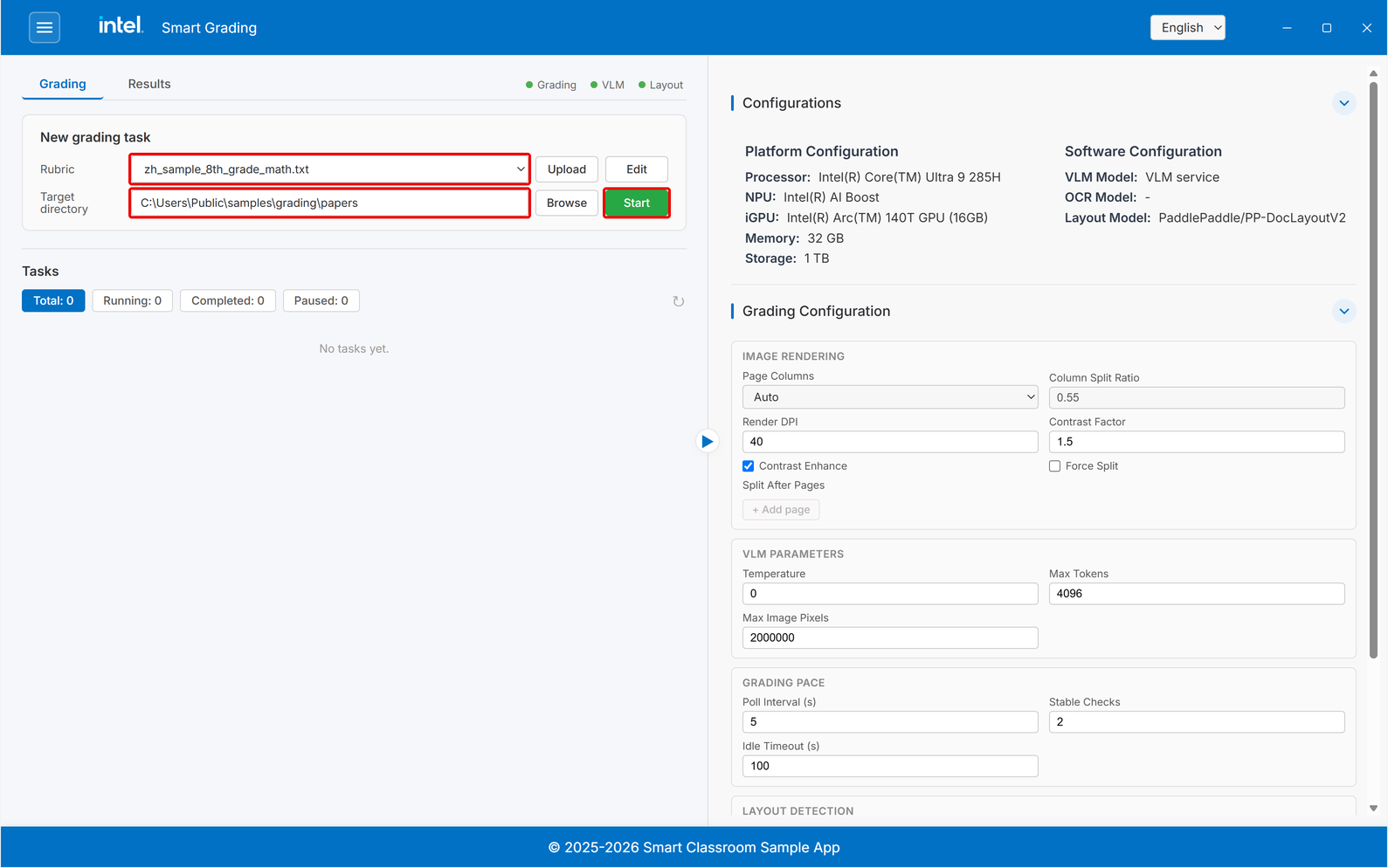
The task runs through four steps automatically:
Step |
What happens |
|---|---|
Render |
The PDF is converted to page images. |
Layout detection |
Each page is analyzed to locate text, titles, tables, and formulas. |
Section split |
Pages are grouped into question sections, stitched across page breaks. |
VLM grading |
Each section image and its rubric are sent to the VLM, which returns scores and reasoning. |
Step 3: Track Progress#
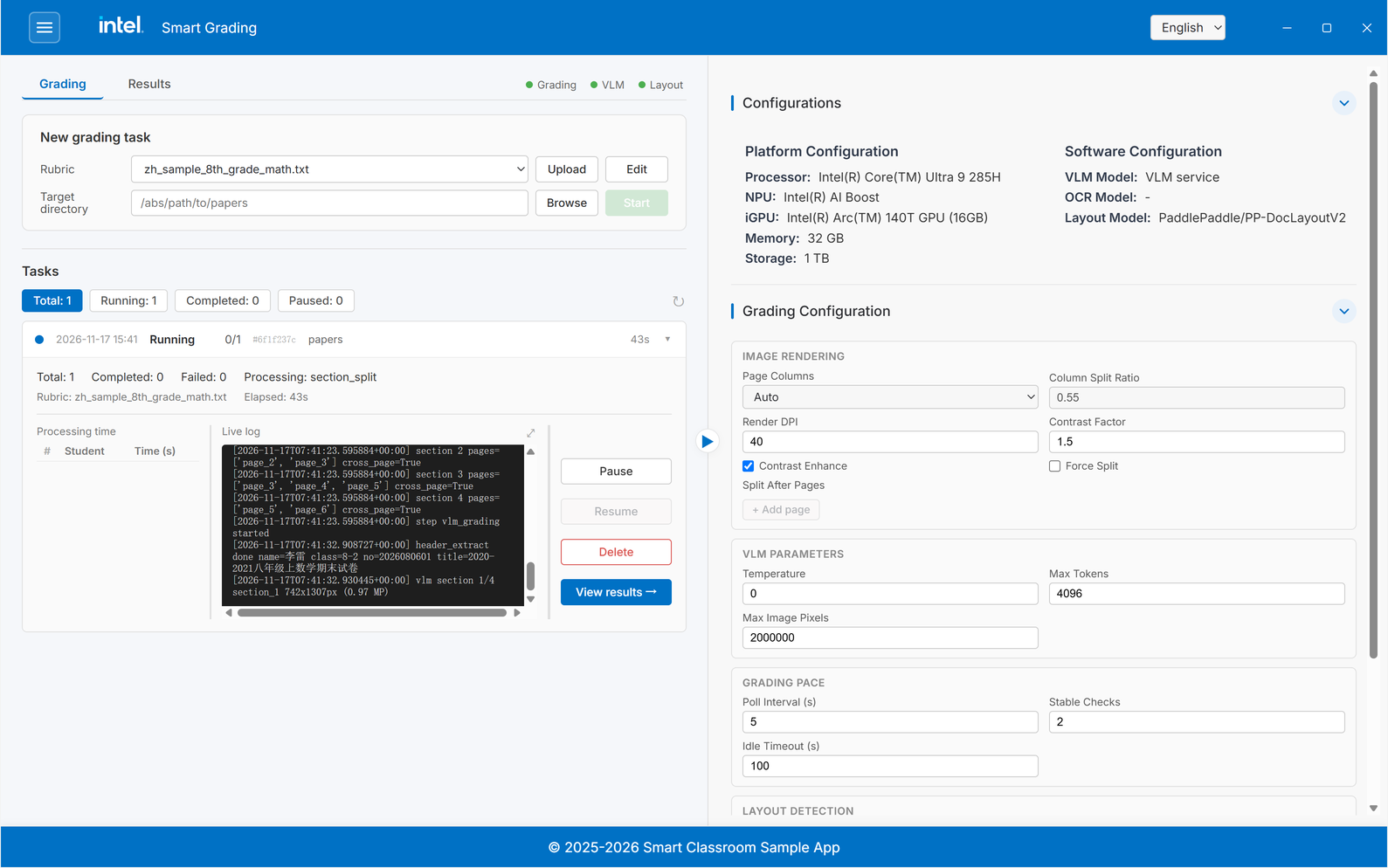
The Tasks list shows each task’s status and how many papers are done. Use the Total, Running, Completed, and Paused chips to filter the list. Click a task to expand it and see the step it is processing, the time spent per student, and a live log. Use Pause, Resume, and Delete to control the task, and View results → to open its results.
Step 4: View Results#
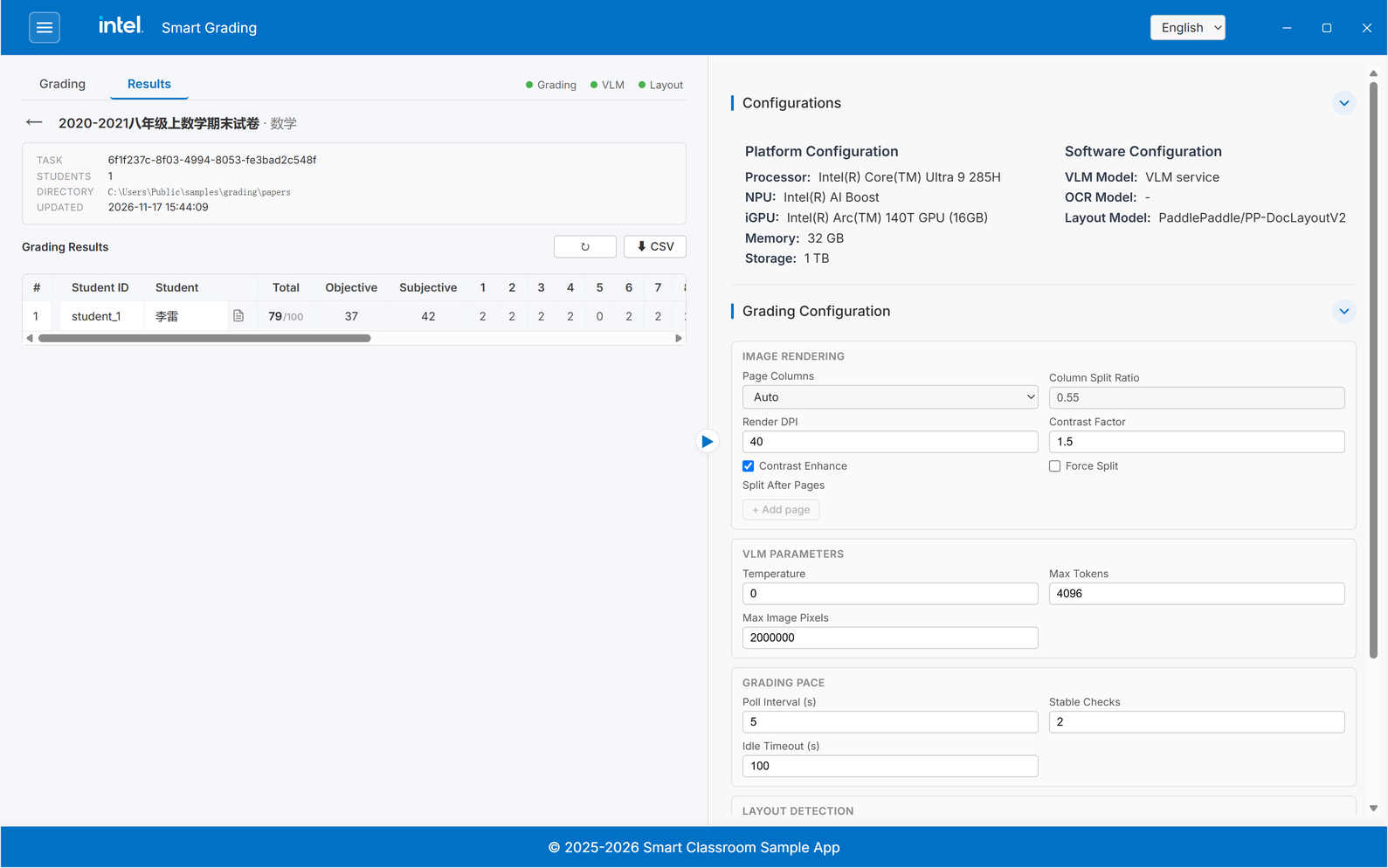
When a task completes, expand it in the Tasks list and click View results →. The results open in the Results tab:
Score summary - One row per student with the total, objective, and subjective scores, and the score of each question. Click ⬇ CSV to export the table.
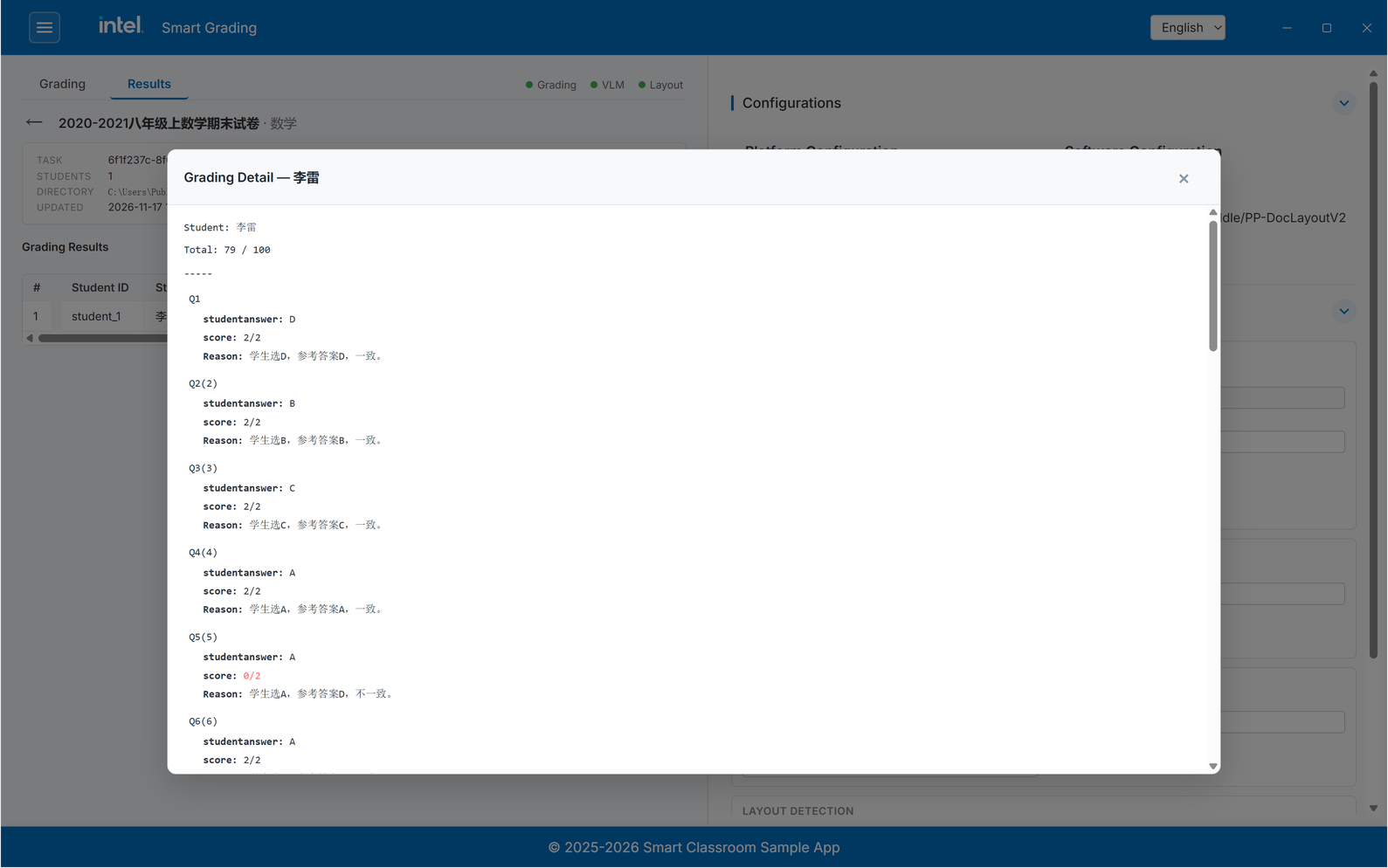
Per-question breakdown - Click the document icon next to a student’s name to open Grading Detail, with each question’s student answer, score, and the model’s reasoning.
Try a Built-in Sample#
The repository ships with a set of ready-to-grade sample exams under
components/grading/samples/ (a copy is provided for both the Linux and
Windows layouts). Use them to try the Grading feature end-to-end before you
prepare your own material.
Included samples#
Subject |
Layout |
Paper |
Rubric |
|---|---|---|---|
Chinese |
Single column |
|
|
Math |
Double column |
|
|
English |
Double column |
|
|
Physics |
Single column |
|
|
For example, to try the 5th-grade Chinese sample:
Copy the rubric into the grading directory. The rubric list is loaded only from the grading component’s own
components/grading/rubrics/directory (its root, not a subfolder). Copy the sample rubric there:cp components/grading/samples/rubrics/zh_sample_5th_grade_chinese.txt \ components/grading/rubrics/
It now appears in the Rubric list. You can also add it with the Upload button instead of copying it.
Create a task as described above, and select:
Rubric:
zh_sample_5th_grade_chinese.txt(from the rubric list)Target directory:
components/grading/samples/exam/zh_5th_grade_chinese_single_column
The page layout (single vs double column) is detected automatically — the Page Columns setting defaults to Auto, so there is nothing to choose. Leave it at Auto.
Enter the full path of the folder under samples/exam/, or pick it with Browse.
Add your own sample#
To run a rubric against your own material, follow the same convention:
Copy the rubric file into
components/grading/rubrics/— the only location the system loads rubrics from at its root, not nested in a subfolder. Only.txtand.jsonfiles in that root directory are listed (.jsonfiles must be valid JSON). Follow the same sectioned rubric structure as the bundled samples: each question section carries a title header, an answer-key block, and a scoring-criteria block. The exact block labels are localized, so copy one of the bundled rubric files and edit it as a starting point rather than inventing new labels.Put the scanned papers in a folder, one subfolder per student or the PDF files directly, and set that folder as the Target directory when creating the task.
Page layout (single vs double column) is detected automatically by default
(page_columns: auto in components/grading/config.yaml). You only need to
override it if automatic detection is wrong for a particular paper — set
Page Columns to 1 or 2 in the grading panel.
Models#
Model |
Role |
Device |
|---|---|---|
PP-DocLayout |
Page layout detection |
NPU |
PP-OCR |
Read section titles |
CPU |
Qwen VLM |
Grade sections |
GPU |
Learn More#
Application Flow: End-to-end application flow.
How It Works: Technical architecture and design details.