Get Started: SceneScape#
This guide explains how to run Intel® SceneScape on a TSN network and evaluate tracking quality under baseline, congestion, and TSN-shaped conditions. The workflow supports either Basler GigE cameras with IEEE 1588v2 PTP hardware timestamps or RTSP cameras that rely on NTP-based synchronization.
How It Works#

This use case streams video from either Basler or RTSP cameras through the DL Streamer Pipeline Server for AI inference (person detection). The SceneScape controller consumes the inference results and produces 3D multi-camera tracking output. By injecting background traffic and then enabling TSN features, this demonstration shows how TSN preserves tracking accuracy even under network congestion — quantified using HOTA, MOTA, and IDF1 metrics.
Hardware Requirements#
Component |
Details |
|---|---|
Basler ace 2 Camera (A2440-20GM) |
GigE Vision camera with IEEE 1588v2 PTP hardware timestamping support |
AXIS RTSP Camera P3265-LVE |
General RTSP camera with optional support of NTP |
MOXA TSN Switch |
Managed switch supporting IEEE 802.1AS (gPTP), IEEE 802.1Qbv (Time-Aware Shaper), and IEEE 1588v2 |
Arrow Lake Host Machine |
Linux-based system with an Intel i226 TSN-capable network card |
Note: You can use either Basler cameras or RTSP cameras for this workflow. Basler cameras provide hardware PTP timestamps, while RTSP cameras rely on software timestamps or NTP synchronization.
Network Topology#

The MOXA switch carries both camera traffic and background traffic. In the Basler camera setup, the switch also acts as the PTP Grandmaster for the host and cameras.
Logical Roles#
Machine |
Role |
|---|---|
Arrow Lake Host (Machine 1) |
Runs SceneScape and the DL Streamer inference pipeline |
Traffic Injector (Machine 2) |
Injects background traffic with |
Prerequisite: Choose Your Camera Setup#
Option 1: RTSP Camera with NTP Synchronization#
SceneScape supports NTP-synchronized RTSP cameras by default. Set the following in scenescape/dlstreamer-pipeline-server/queuing-config.json for both qcam1 and qcam2 pipelines:
"frame_ntp_config": {
    "useFrameNtpTimestamp": true
},
Option 2: Basler Camera with IEEE 1588v2 PTP Synchronization#
Basler cameras provide hardware PTP timestamps, but require additional setup for the camera, switch, host, and SceneScape containers.
Before continuing, complete the following steps in order:
End-to-End Testing#
Step 1: Set Up VLANs on the Host#
Create VLAN interfaces to isolate critical camera traffic from best-effort traffic on the TSN switch.
Note: First configure VLAN IDs on the MOXA switch as described in the MOXA VLAN Configuration Guide.
# Replace enp1s0 with your i226 interface name
sudo ip link add link enp1s0 name enp1s0.1 type vlan id 1
sudo ip link set enp1s0.1 type vlan egress-qos-map 0:1
sudo ifconfig enp1s0.1 192.168.127.31 up

sudo ip link add link enp1s0 name enp1s0.5 type vlan id 5
sudo ip link set enp1s0.5 type vlan egress-qos-map 0:5
sudo ifconfig enp1s0.5 192.168.5.31 up
Note: if you are using 1588v2 PTP for the time synchronization, make sure to assign any IP address to the default host interface (e.g.,
enp1s0) that is within the same subnet as the camera and switch to ensure the PTP daemon can discover the Grandmaster over UDP.
For detailed instructions, refer to the HOST VLAN Configuration Guide.
Step 2: Run SceneScape#
git clone https://github.com/open-edge-platform/scenescape
cd scenescape
git checkout 2026.1.0-rc1 -b 2026.1.0-rc1
make demo
Note: Use the instructions in the SceneScape prebuilt containers guide to use the prebuilt images.
Basler camera users: If you completed the Basler prerequisite steps above, the Docker Compose file has already been patched and the custom DL Streamer image with Basler support has been built. Start SceneScape with
make demoas usual — the patched compose file will be picked up automatically.
Step 3: Inject Background Traffic#
Use iPerf3 to simulate network congestion over VLAN 5. Start an iperf3 server on Machine 1 and a client on Machine 2:
# Machine 1 — receive congestion traffic on VLAN 5
iperf3 -s -B <machine1-vlan5-ip>

# Machine 2 — inject UDP traffic toward Machine 1
iperf3 -c <machine1-vlan5-ip> -u -b 960M -t 60
Observe the SceneScape controller logs for signs of packet loss and video stream degradation as best-effort traffic competes with the camera stream. You may also see visual frame corruption in the camera stream panel of the SceneScape dashboard.
Step 4: Enable TSN Traffic Shaping#
Configure the Time-Aware Shaper (IEEE 802.1Qbv) on the MOXA switch to schedule and prioritize the camera traffic, protecting it from background congestion.
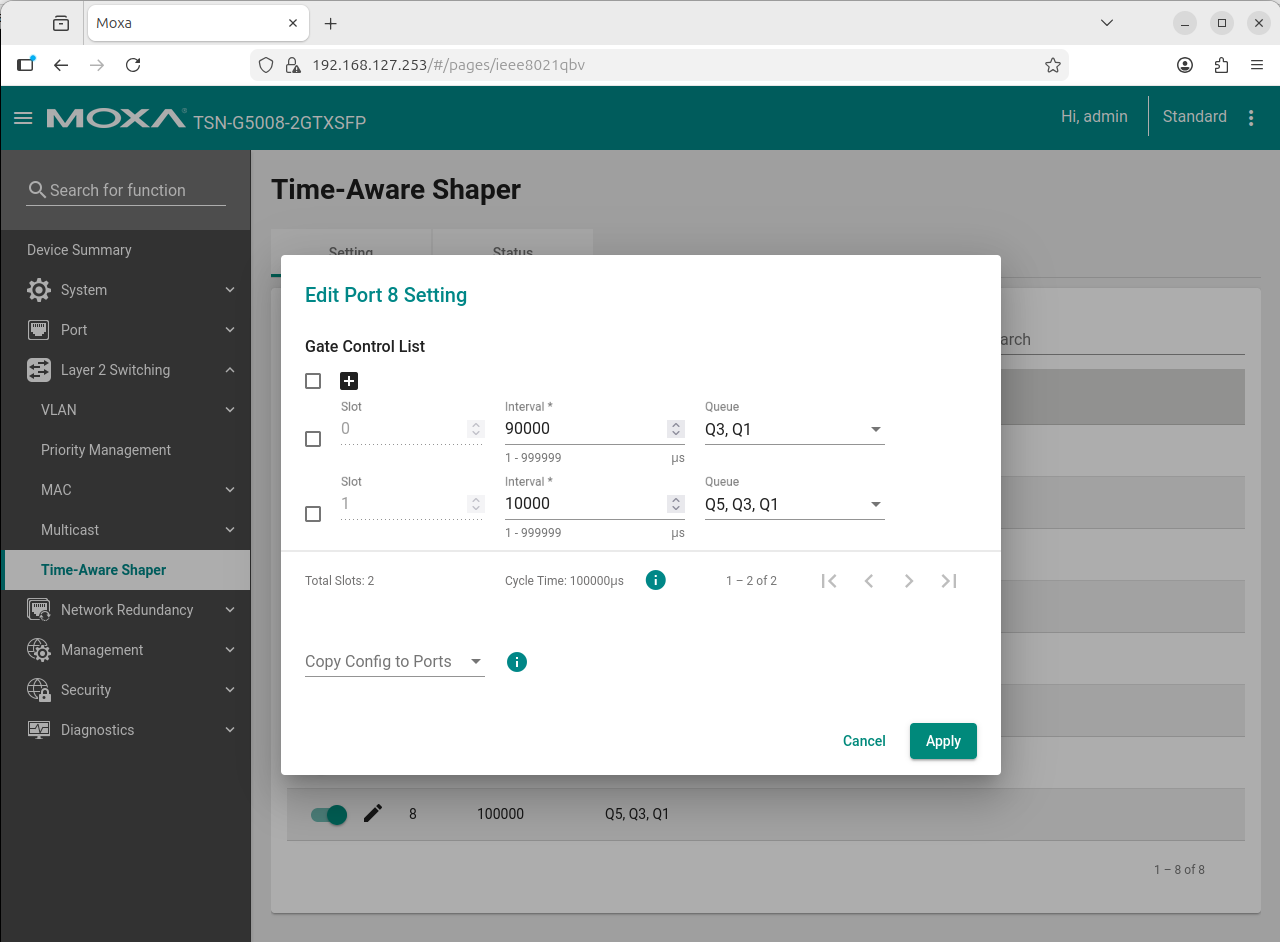
Note: Apply the port setting on the switch port that connects to the host running SceneScape.
For detailed instructions, refer to the TSN Traffic Shaping Guide.
Step 5: HOTA Metrics and Observability#
After validating TSN shaping behavior under load, measure tracking quality and timing consistency to quantify the end-to-end impact.
Use the HOTA workflow to compare baseline behavior (without shaping) versus TSN-aware traffic scheduling.
For the full procedure, metric definitions, and example commands, see: