Metro Vision AI SDK - Tutorial 2#
This tutorial demonstrates advanced video processing capabilities using Intel’s hardware-accelerated video decoding and composition. You’ll learn to decode multiple video streams simultaneously and display them in a tiled layout on a 4K monitor using VAAPI (Video Acceleration API) and GStreamer.
Overview#
Multi-stream video processing is essential for applications like video surveillance, broadcasting, and media production. This tutorial showcases how the Intel® integrated GPU (iGPU) can efficiently decode and composite 16 simultaneous video streams into a single 4K display output, demonstrating the power of Intel® Quick Sync Video technology. The entire media pipeline — decode, scale, compose, and display — runs on the iGPU.
Recommended Device: Integrated GPU (iGPU)
Media pipelines achieve the best throughput and lowest latency when running on the Intel® integrated GPU. The iGPU provides dedicated hardware-accelerated media decode/encode engines and parallel compute units purpose-built for real-time video processing. CPU and NPU are not recommended for media-intensive pipelines like multi-stream video decode and composition.
Platform Compatibility This tutorial requires Intel® Core™ or Intel® Core™ Ultra processors with integrated graphics. Intel® Xeon® processors without integrated graphics are not supported for this specific use case.
Time to Complete#
Estimated Duration: 15-20 minutes
Learning Objectives#
Upon completion of this tutorial, you will be able to:
Configure hardware-accelerated video decoding with VAAPI
Create complex GStreamer pipelines for multi-stream processing
Implement tiled video composition for 4K display output
Monitor video decoding performance and frame rates
Understand Intel® Quick Sync Video acceleration benefits
Deploy containerized video processing applications
Prerequisites#
Before starting this tutorial, ensure you have:
Metro Vision AI SDK installed and configured
Intel® Core™ or Intel® Core™ Ultra processor with integrated graphics
4K monitor or display capable of 3840x2160 resolution
Docker installed and running on your system
X11 display server configured
Basic familiarity with GStreamer concepts
System Requirements#
Operating System: Ubuntu 22.04 LTS or Ubuntu 24.04 LTS (Desktop edition required)
Processor: Intel® Core™ or Intel® Core™ Ultra with integrated graphics
Memory: Minimum 8GB RAM (16GB recommended for smooth performance)
Display: 4K monitor (3840x2160) or compatible display
Storage: 2GB free disk space for video files
Graphics: Intel® integrated GPU (iGPU) with VAAPI support — required (this pipeline cannot run on CPU or NPU)
Important Display Requirements This tutorial requires Ubuntu Desktop with a local physical display and active graphical session. It will not work properly with:
Ubuntu Server (no GUI)
Remote SSH sessions (even with X11 forwarding)
Remote Desktop/VNC connections
Headless systems
Why Remote Connections Don’t Work: Streaming 16 simultaneous 4K video streams requires extremely high bandwidth (~150-200 Mbps) and low latency. Remote desktop protocols (SSH/X11, VNC, RDP) compress video heavily and introduce significant latency, resulting in:
Severe frame drops and stuttering
Poor visual quality due to compression artifacts
Inability to accurately measure hardware acceleration performance
Network congestion and timeouts
You must be physically logged into a local desktop session with a directly connected monitor to experience proper performance and validate hardware acceleration capabilities.
Tutorial Steps#
Step 1: Verify Intel Integrated GPU Availability#
Before proceeding, verify that your system has an Intel integrated GPU and that VAAPI support is properly configured:
# Check for Intel GPU device
lspci | grep -i "VGA.*Intel"

# Expected output should show Intel graphics, for example:
# 00:02.0 VGA compatible controller: Intel Corporation Raptor Lake-P [Iris Xe Graphics]

# Verify VAAPI device availability
ls -la /dev/dri/

# Expected output should show renderD128 (or similar):
# drwxr-xr-x  3 root root         100 Dec  2 10:00 .
# drwxr-xr-x 20 root root        4420 Dec  2 10:00 ..
# drwxr-xr-x  2 root root          80 Dec  2 10:00 by-path
# crw-rw----  1 root video  226,   0 Dec  2 10:00 card0
# crw-rw----  1 root render 226, 128 Dec  2 10:00 renderD128

# Check VAAPI driver information
vainfo

# Expected output should show Intel iHD or i965 driver with supported profiles
Troubleshooting:
If
lspcishows no Intel graphics, this tutorial cannot proceed on your systemIf
/dev/dri/renderD128is missing, install drivers:sudo apt install intel-media-va-driver-non-freeIf
vainfocommand is not found:sudo apt install vainfoEnsure your user is in the
videoandrendergroups:sudo usermod -aG video,render $USER(requires logout/login)
Step 2: Create Working Directory and Download Video Content#
Create a dedicated workspace and download the sample video for multi-stream processing:
# Create working directory structure
mkdir -p ~/metro/metro-vision-tutorial-2/videos/
cd ~/metro/metro-vision-tutorial-2

# Download Big Buck Bunny sample video (Creative Commons licensed)
wget -O videos/Big_Buck_Bunny.mp4 "https://archive.org/download/BigBuckBunny_124/Content/big_buck_bunny_720p_surround.mp4"
Step 3: Create Multi-Stream Video Processing Script#
Create a GStreamer pipeline script that will decode and compose 16 video streams into a 4x4 tiled display:
# Create the decode script
cat > decode.sh << 'EOF'
#!/bin/bash

# Video input file path
VIDEO_IN=videos/Big_Buck_Bunny.mp4

# Verify video file exists
if [ ! -f "$VIDEO_IN" ]; then
    echo "Error: Video file $VIDEO_IN not found!"
    exit 1
fi

echo "Starting 4x4 tiled video decode pipeline..."
echo "Video source: $VIDEO_IN"
echo "Target resolution: 3840x2160 (4K)"
echo "Individual tile size: 960x540"

# GStreamer pipeline for 4x4 tiled video composition
gst-launch-1.0 \
    vacompositor name=comp0 \
        sink_1::xpos=0    sink_1::ypos=0    sink_1::alpha=1 \
        sink_2::xpos=960  sink_2::ypos=0    sink_2::alpha=1 \
        sink_3::xpos=1920 sink_3::ypos=0    sink_3::alpha=1 \
        sink_4::xpos=2880 sink_4::ypos=0    sink_4::alpha=1 \
        sink_5::xpos=0    sink_5::ypos=540  sink_5::alpha=1 \
        sink_6::xpos=960  sink_6::ypos=540  sink_6::alpha=1 \
        sink_7::xpos=1920 sink_7::ypos=540  sink_7::alpha=1 \
        sink_8::xpos=2880 sink_8::ypos=540  sink_8::alpha=1 \
        sink_9::xpos=0    sink_9::ypos=1080 sink_9::alpha=1 \
        sink_10::xpos=960 sink_10::ypos=1080 sink_10::alpha=1 \
        sink_11::xpos=1920 sink_11::ypos=1080 sink_11::alpha=1 \
        sink_12::xpos=2880 sink_12::ypos=1080 sink_12::alpha=1 \
        sink_13::xpos=0    sink_13::ypos=1620 sink_13::alpha=1 \
        sink_14::xpos=960  sink_14::ypos=1620 sink_14::alpha=1 \
        sink_15::xpos=1920 sink_15::ypos=1620 sink_15::alpha=1 \
        sink_16::xpos=2880 sink_16::ypos=1620 sink_16::alpha=1 \
    ! vapostproc ! xvimagesink display=$DISPLAY sync=false \
\
    filesrc location=${VIDEO_IN} ! qtdemux ! vah264dec ! gvafpscounter ! vapostproc scale-method=fast ! video/x-raw,width=960,height=540 ! comp0.sink_1 \
    filesrc location=${VIDEO_IN} ! qtdemux ! vah264dec ! gvafpscounter ! vapostproc scale-method=fast ! video/x-raw,width=960,height=540 ! comp0.sink_2 \
    filesrc location=${VIDEO_IN} ! qtdemux ! vah264dec ! gvafpscounter ! vapostproc scale-method=fast ! video/x-raw,width=960,height=540 ! comp0.sink_3 \
    filesrc location=${VIDEO_IN} ! qtdemux ! vah264dec ! gvafpscounter ! vapostproc scale-method=fast ! video/x-raw,width=960,height=540 ! comp0.sink_4 \
\
    filesrc location=${VIDEO_IN} ! qtdemux ! vah264dec ! gvafpscounter ! vapostproc scale-method=fast ! video/x-raw,width=960,height=540 ! comp0.sink_5 \
    filesrc location=${VIDEO_IN} ! qtdemux ! vah264dec ! gvafpscounter ! vapostproc scale-method=fast ! video/x-raw,width=960,height=540 ! comp0.sink_6 \
    filesrc location=${VIDEO_IN} ! qtdemux ! vah264dec ! gvafpscounter ! vapostproc scale-method=fast ! video/x-raw,width=960,height=540 ! comp0.sink_7 \
    filesrc location=${VIDEO_IN} ! qtdemux ! vah264dec ! gvafpscounter ! vapostproc scale-method=fast ! video/x-raw,width=960,height=540 ! comp0.sink_8 \
\
    filesrc location=${VIDEO_IN} ! qtdemux ! vah264dec ! gvafpscounter ! vapostproc scale-method=fast ! video/x-raw,width=960,height=540 ! comp0.sink_9 \
    filesrc location=${VIDEO_IN} ! qtdemux ! vah264dec ! gvafpscounter ! vapostproc scale-method=fast ! video/x-raw,width=960,height=540 ! comp0.sink_10 \
    filesrc location=${VIDEO_IN} ! qtdemux ! vah264dec ! gvafpscounter ! vapostproc scale-method=fast ! video/x-raw,width=960,height=540 ! comp0.sink_11 \
    filesrc location=${VIDEO_IN} ! qtdemux ! vah264dec ! gvafpscounter ! vapostproc scale-method=fast ! video/x-raw,width=960,height=540 ! comp0.sink_12 \
\
    filesrc location=${VIDEO_IN} ! qtdemux ! vah264dec ! gvafpscounter ! vapostproc scale-method=fast ! video/x-raw,width=960,height=540 ! comp0.sink_13 \
    filesrc location=${VIDEO_IN} ! qtdemux ! vah264dec ! gvafpscounter ! vapostproc scale-method=fast ! video/x-raw,width=960,height=540 ! comp0.sink_14 \
    filesrc location=${VIDEO_IN} ! qtdemux ! vah264dec ! gvafpscounter ! vapostproc scale-method=fast ! video/x-raw,width=960,height=540 ! comp0.sink_15 \
    filesrc location=${VIDEO_IN} ! qtdemux ! vah264dec ! gvafpscounter ! vapostproc scale-method=fast ! video/x-raw,width=960,height=540 ! comp0.sink_16

EOF
Understanding the GStreamer Pipeline#
The script creates a complex pipeline with these key components:
Pipeline Architecture:
Input Sources: 16 identical video file streams
Decoder:
vah264dec- Hardware-accelerated H.264 decoding using VAAPIScaling:
vapostproc- Hardware-accelerated video post-processing and scalingComposition:
vacompositor- Hardware-accelerated video compositionOutput:
xvimagesink- X11-based video display
Tiled Layout Configuration:
┌─────────┬─────────┬─────────┬─────────┐
│ Stream1 │ Stream2 │ Stream3 │ Stream4 │  ← Row 1 (y=0)
│  0,0    │ 960,0   │1920,0   │2880,0   │
├─────────┼─────────┼─────────┼─────────┤
│ Stream5 │ Stream6 │ Stream7 │ Stream8 │  ← Row 2 (y=540)
│  0,540  │ 960,540 │1920,540 │2880,540 │
├─────────┼─────────┼─────────┼─────────┤
│ Stream9 │Stream10 │Stream11 │Stream12 │  ← Row 3 (y=1080)
│ 0,1080  │960,1080 │1920,1080│2880,1080│
├─────────┼─────────┼─────────┼─────────┤
│Stream13 │Stream14 │Stream15 │Stream16 │  ← Row 4 (y=1620)
│ 0,1620  │960,1620 │1920,1620│2880,1620│
└─────────┴─────────┴─────────┴─────────┘
Performance Optimizations:
VAAPI Acceleration: Hardware-accelerated decoding, scaling, and composition
Fast Scaling:
scale-method=fastfor optimal performanceAsync Display:
sync=falseto prevent frame dropping
Step 4: Prepare Environment and Permissions#
Configure the execution environment for the containerized video processing:
# Make the script executable
chmod +x decode.sh

# Enable X11 forwarding for Docker containers
xhost +local:docker

# Verify GPU device availability
ls -la /dev/dri/
Step 5: Execute Multi-Stream Video Processing#
Launch the containerized multi-stream decode and composition pipeline. The --device /dev/dri flag gives the container access to the Intel® integrated GPU, which handles all decode, scaling, and composition in hardware:
Running on iGPU: Every stage of this pipeline — H.264 decode (
vah264dec), scaling (vapostproc), and composition (vacompositor) — executes on the integrated GPU via VAAPI. The CPU only orchestrates the pipeline; all heavy media processing is offloaded to the iGPU.
# Set up GPU device access
export DEVICE=/dev/dri/renderD128
export DEVICE_GRP=$(ls -g $DEVICE | awk '{print $3}' | xargs getent group | awk -F: '{print $3}')

# Execute the multi-stream video processing
docker run -it --rm --net=host \
  -e no_proxy=$no_proxy \
  -e https_proxy=$https_proxy \
  -e socks_proxy=$socks_proxy \
  -e http_proxy=$http_proxy \
  -v /tmp/.X11-unix:/tmp/.X11-unix:rw \
  --device /dev/dri --group-add ${DEVICE_GRP} \
  -e DISPLAY=$DISPLAY --ipc=host \
  -v $HOME/.Xauthority:/home/dlstreamer/.Xauthority:ro \
  -v $PWD/videos:/home/dlstreamer/videos:ro \
  -v $PWD/decode.sh:/home/dlstreamer/decode.sh:ro \
  intel/dlstreamer:2026.0.0-ubuntu24 \
  /home/dlstreamer/decode.sh
Step 6: Monitor Performance and Results#
The application will display a 4x4 tiled video composition on your 4K monitor. You should see:
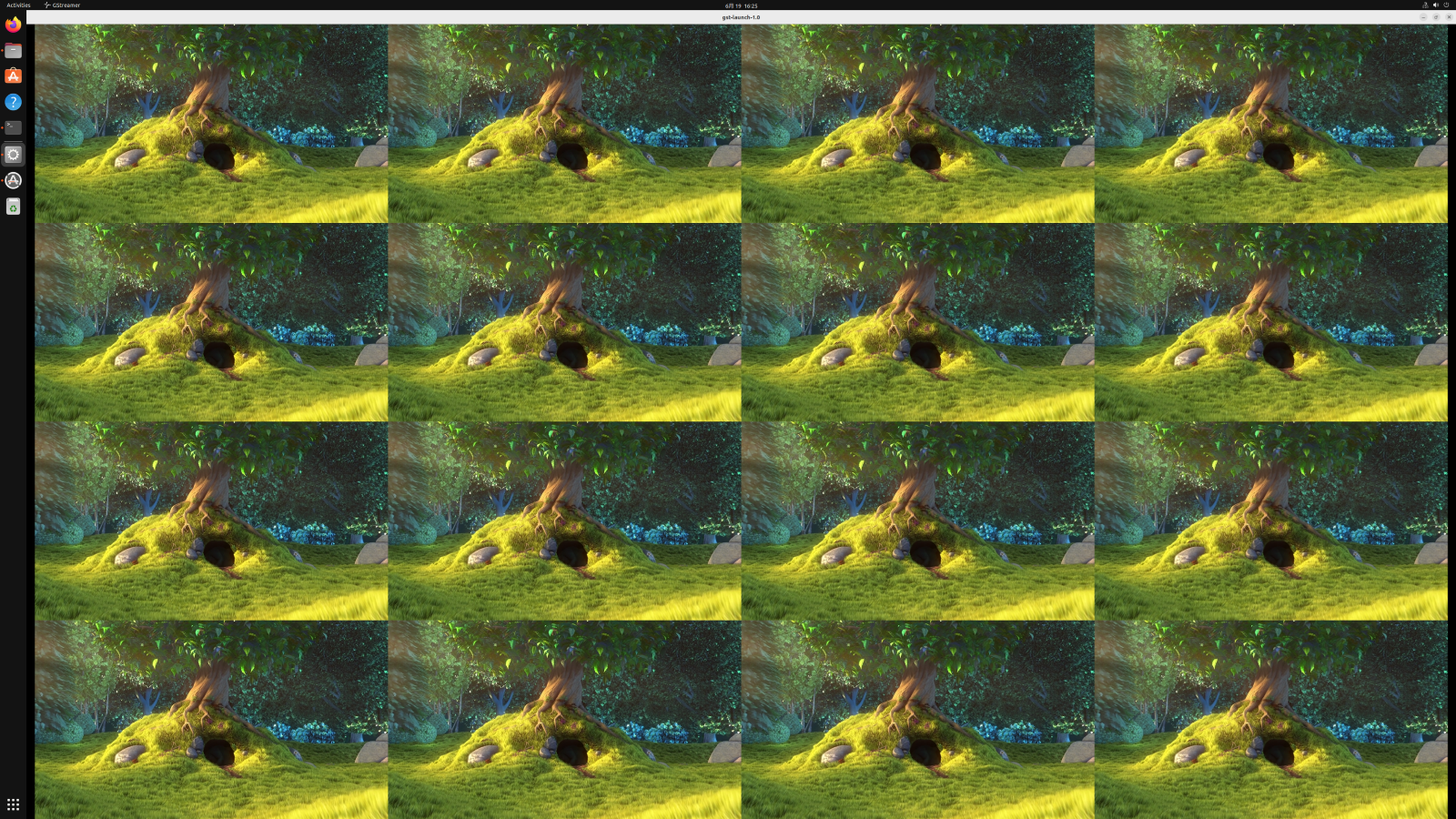
Performance Monitoring: Monitor system resources during playback:
# In a separate terminal, monitor GPU utilization
sudo intel_gpu_top
# Monitor CPU and memory usage
htop
Step 7: Stop the Application#
To stop the video processing pipeline:
# Press Ctrl+C in the terminal running the Docker container
# Or use Docker commands to stop
docker ps  # Find the container ID
docker stop <container_id>
Clean up the environment:
# Restore X11 security (optional)
xhost -local:docker

# Clean up any temporary files
docker system prune -f
Understanding the Technology#
Intel® Quick Sync Video Technology#
This tutorial leverages the Intel® integrated GPU’s hardware-accelerated video processing capabilities. Media pipelines like this one are best run on the iGPU — not on CPU or NPU — because the iGPU contains dedicated fixed-function media engines designed specifically for video decode, encode, and processing.
Why iGPU for Media Pipelines?
Dedicated Video Engines: The iGPU contains separate silicon (multi-format codec engines) for video decode/encode operations that far exceed CPU software decode performance
CPU Offloading: Running the media pipeline on the iGPU frees CPU cores for other computational tasks such as application logic or AI post-processing
Power Efficiency: Hardware media engines consume significantly less power than CPU-based software decoding
Parallel Processing: Multiple decode engines on the iGPU can process many streams simultaneously
Not suitable for CPU/NPU: CPU software decode lacks the throughput for multi-stream real-time 4K composition; NPU is designed for AI inference workloads, not media decode/encode
VAAPI Integration#
Video Acceleration API (VAAPI) provides:
Hardware Abstraction: Unified interface across Intel graphics generations
Pipeline Optimization: Direct GPU memory access without CPU copies
Format Support: Hardware acceleration for H.264, H.265, VP9, and AV1 codecs
Scaling Operations: Hardware-accelerated resize and format conversion
GStreamer Pipeline Architecture#
The tutorial demonstrates advanced GStreamer concepts:
Element Types:
Source Elements:
filesrc- File inputDemuxer Elements:
qtdemux- Container format parsingDecoder Elements:
vah264dec- Hardware-accelerated decodingTransform Elements:
vapostproc- Hardware scaling and format conversionCompositor Elements:
vacompositor- Multi-stream compositionSink Elements:
xvimagesink- Display output
Pipeline Benefits:
Zero-Copy Operations: Direct GPU memory transfers
Parallel Processing: Concurrent decode of multiple streams
Dynamic Reconfiguration: Runtime pipeline modifications
Error Recovery: Robust handling of stream issues