Getting Started Guide - Metro Gen AI SDK#
Overview#
The Metro Gen AI SDK provides a comprehensive development environment for generative AI applications using Intel’s optimized tools and microservices. This guide demonstrates the installation process and provides a practical question-answering implementation using retrieval-augmented generation (RAG) capabilities.
Learning Objectives#
Upon completion of this guide, you will be able to:
Install and configure the Metro Gen AI SDK
Deploy generative AI microservices for document processing and question-answering
Understand the architecture of RAG-based applications using Intel’s AI frameworks
System Requirements#
Verify that your development environment meets the following specifications:
Operating System: Ubuntu 24.04 LTS or Ubuntu 22.04 LTS
Memory: Minimum 64GB RAM (recommended for LLM operations)
Storage: 100GB available disk space for models and data
Network: Active internet connection for package downloads
Installation Process#
Execute the automated installation script to configure the complete development environment:
curl https://raw.githubusercontent.com/open-edge-platform/edge-ai-suites/refs/heads/release-2026.0.0/metro-ai-suite/metro-sdk-manager/scripts/metro-gen-ai-sdk.sh | bash
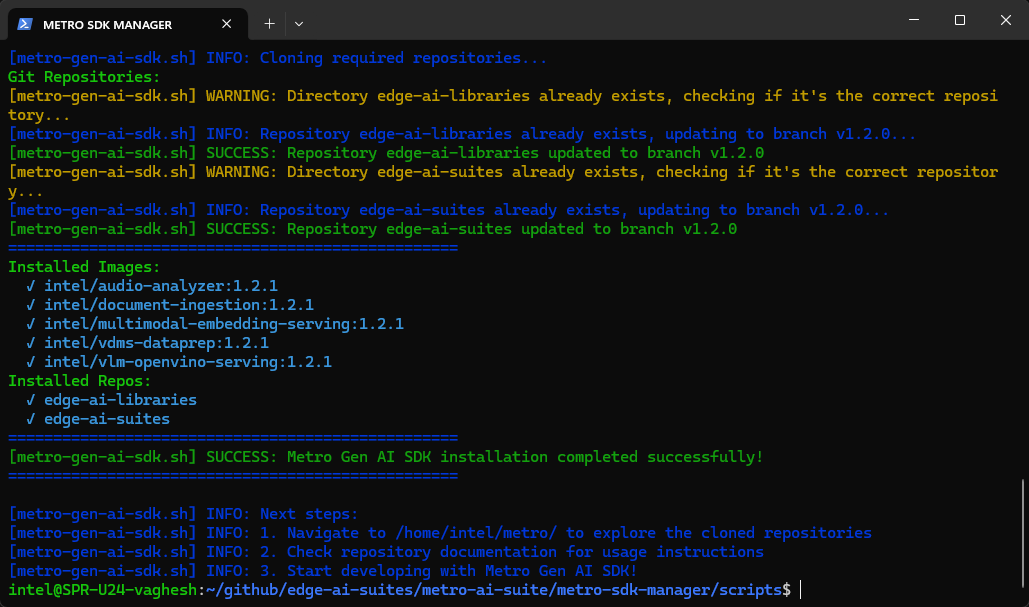
Question-Answering Application Implementation#
This section demonstrates a complete RAG (Retrieval-Augmented Generation) application workflow using the installed Gen AI components.
Step 1: Setup Model Download Service#
Configure and start the Model Download service to manage LLM and embedding model downloads:
cd $HOME/metro/edge-ai-libraries/microservices/model-download
export REGISTRY="intel/"
export TAG=1.2.0
export HUGGINGFACEHUB_API_TOKEN=<your-huggingface-token>
source scripts/run_service.sh up --plugins openvino --model-path $HOME/metro/models/
Note: Keep this terminal open while the model download service is running. Open a new terminal to continue with the next steps.
Update the <your-huggingface-token> to your Access Token from Hugging Face. To learn more, follow this guide.
Step 2: Configure Environment and Dependencies#
Set up the Python virtual environment and install required dependencies:
cd $HOME/metro/edge-ai-libraries/sample-applications/chat-question-and-answer
# Configure application environment variables
export HUGGINGFACEHUB_API_TOKEN=<your-huggingface-token>
export LLM_MODEL=Qwen/Qwen2.5-7B-Instruct
export EMBEDDING_MODEL_NAME=Alibaba-NLP/gte-large-en-v1.5
export RERANKER_MODEL=BAAI/bge-reranker-base
export DEVICE="CPU"
export REGISTRY="intel/"
export TAG=2.1.0-rc2
export MODEL_DOWNLOAD_HOST=localhost
export MODEL_DOWNLOAD_PORT=8200
source setup.sh llm=OVMS embed=OVMS
Step 3: Deploy the Application#
Start the complete Gen AI application stack using Docker Compose:
export ALLOWED_HOSTS="*.intel.com,en.wikipedia.org,*.wikipedia.org,*.github.com"
docker compose up
Step 4: Verify Deployment Status#
Run below command in another terminal to check that all application components are running correctly:
docker ps
Step 5: Access the Application Interface#
Open a web browser and navigate to the application dashboard:
http://localhost:8101
Additional Resources#
Technical Documentation#
Audio Analyzer - Comprehensive documentation for multimodal audio processing capabilities
Document Ingestion - pgvector - Vector database integration and document processing workflows
Multimodal Embedding Serving - Embedding generation service architecture and API documentation
Visual Data Preparation For Retrieval - VDMS integration and visual data management workflows
VLM OpenVINO Serving - Vision-language model deployment and optimization guidelines
Edge AI Libraries - Complete development toolkit documentation and microservice API references
Edge AI Suites - Comprehensive application suite documentation with Gen AI implementation examples
Support Channels#
GitHub Issues - Technical issue tracking and community support for Gen AI applications