Cameras#
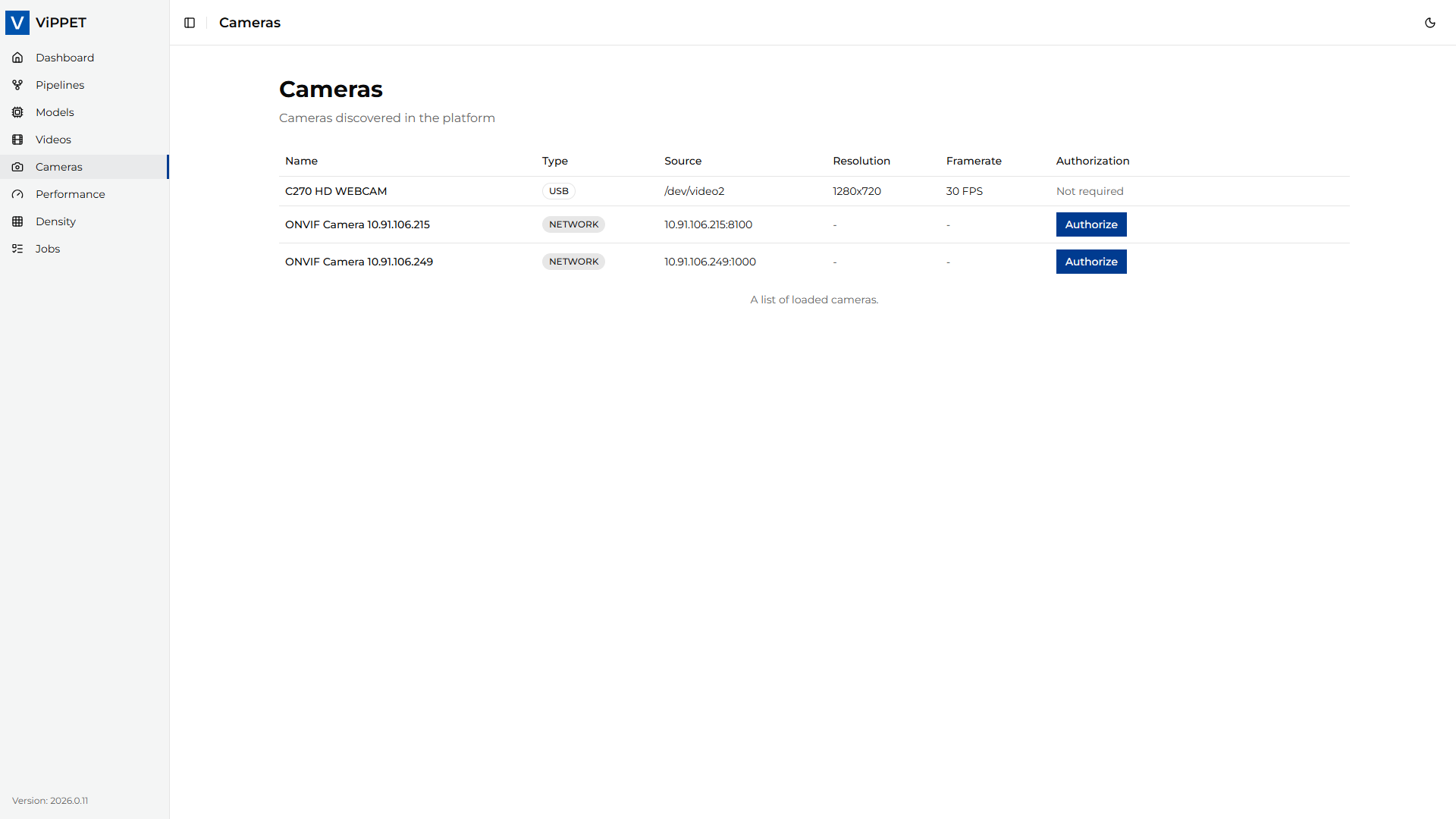
This article explains how to use the Camera module in ViPPET to detect and connect to cameras. From the left-side menu, choose Cameras to open the camera management page.
ViPPET supports three types of cameras: USB cameras, network cameras, and GigE Vision cameras. USB cameras are detected automatically via plug-and-play, network cameras are discovered using the ONVIF standard, and GigE Vision cameras are discovered using Aravis.
USB Cameras#
Connecting a USB camera requires no additional configuration. Simply plug the camera into the host machine. ViPPET automatically detects the device and displays it in the Cameras tab.
Network Cameras#
Network camera discovery#
Network cameras are discovered using the ONVIF standard. Before ViPPET can detect a network camera, you must configure it correctly:
Enable the ONVIF service on the camera. Refer to the camera manufacturer’s documentation for instructions on how to do this.
Create an ONVIF media profile on the camera, defining the desired stream settings (resolution, encoding, frame rate, and so on).
Connect the camera to the same subnet as the host machine running ViPPET. The Sensor Manager service uses multicast to find cameras, so the camera must be reachable within the local network segment.
Once the camera is properly configured and connected to the network, ViPPET automatically discovers and displays it in the Cameras tab.
Note
If a network camera does not appear in the Cameras tab, verify that the ONVIF service is enabled, a valid media profile exists, and the camera is on the same subnet as the host machine.
Network camera authorization#
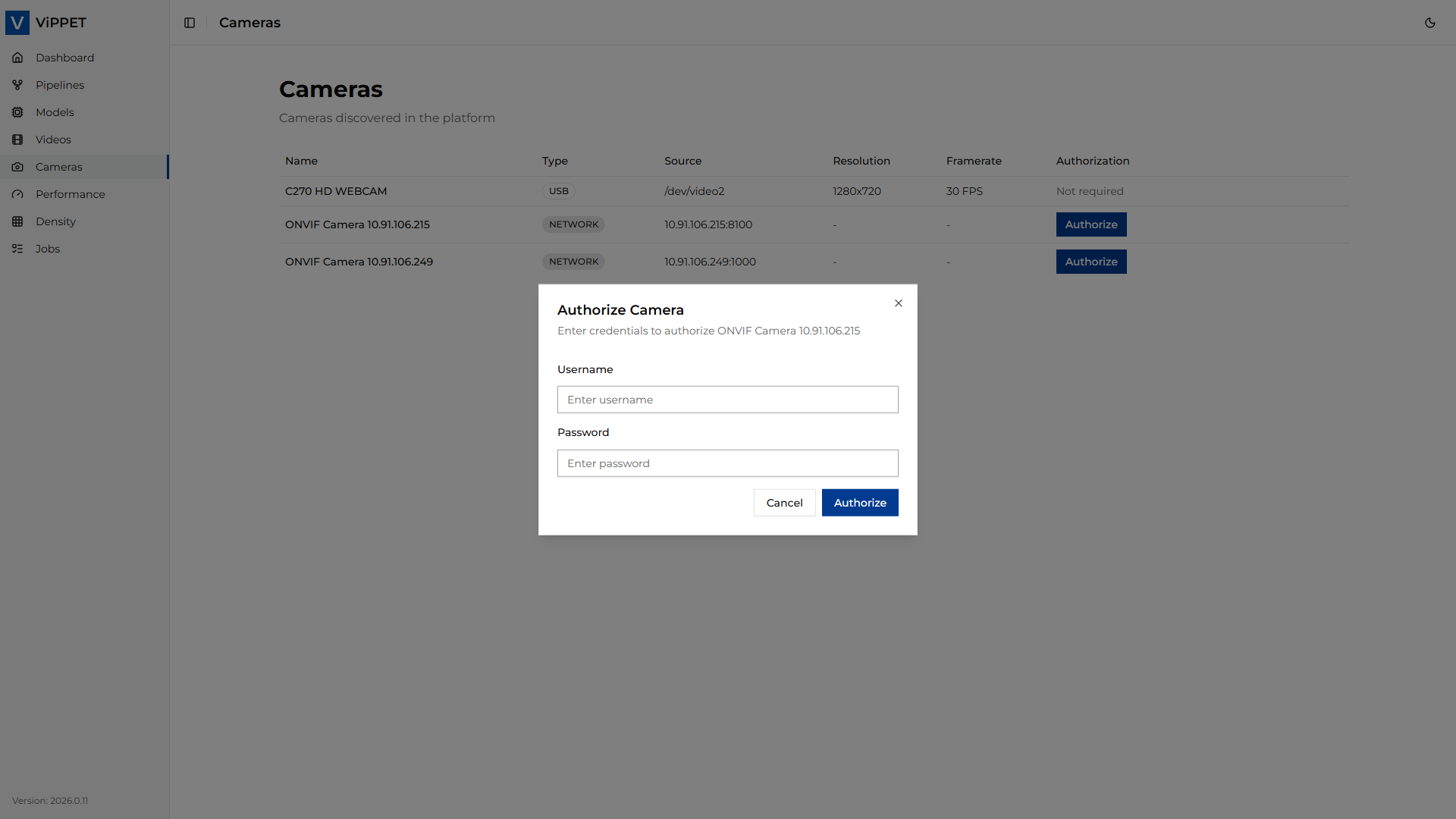
After a network camera is discovered, authorization is required before it can be used. An Authorize button appears next to the camera entry in the Cameras tab.
To authorize a camera:
Click the Authorize button next to the camera.
Enter the camera’s Username and Password.
Confirm. If the credentials are accepted, the camera status changes to Authorized.
Note
If authorization fails, verify that the username and password are correct, and ensure that the clock on the camera is synchronized with the clock on the host machine. Time skew between the camera and the host is a common cause of ONVIF authentication failures.
GigE Vision Cameras#
GigE Vision camera discovery#
GigE Vision (GenICam) machine vision cameras are discovered automatically by the Sensor Manager service. Connect the camera to a network interface of the host machine and make sure that the camera has an IP address in the same subnet as that interface (for example, a persistent IP address or a link-local address). No authorization is required.
The Cameras tab shows the camera IP address, serial number, and the resolution, pixel format, and frame rate currently configured on the camera. ViPPET uses the camera’s current configuration; change it with the camera vendor’s tools if needed.
Note
The vendor, model, serial number, and capture settings are read once, when the camera is first found. If the camera is streaming to another application at that moment, only its IP address is shown.
Streaming from GigE Vision cameras#
Pipelines run on DL Streamer Pipeline Server 2.0, whose image does not include the Aravis GStreamer
plugin (aravissrc). ViPPET ships the plugin with its custom elements, and the server loads it from
the vippet-gst-plugins volume. The plugin comes from the vippet image (Ubuntu 24.04), so it works
with a server image on the same base, which the default deployment provides. See
Known limitations.
GigE Vision cameras send video as UDP packets directly to the receiving host. The default ViPPET
deployment runs on a Docker bridge network, which cannot receive these packets, so streaming from
GigE Vision cameras requires running the pipeline server (the dlstreamer-pipeline-server
container) with host networking:
make build run GIGE=1
This applies the compose.gige.yml overlay. GIGE=1 is also supported by make run-prebuilt
and make run-dev. Use make stop to stop the services as usual.
Frames in uncompressed pixel formats such as Mono8, RGB8, BGR8, or YUV422_8 are converted
with videoconvert, and frames in 8-bit Bayer formats (BayerRG8, BayerBG8, BayerGR8,
BayerGB8) are converted to color with bayer2rgb.
A GigE Vision camera can be used by only one pipeline stream at a time, and it is not supported in density tests.
Use cameras in pipelines as input sources#
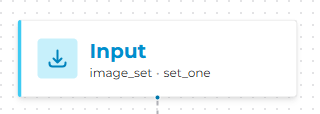
To use a camera as pipeline input, open the Pipeline Builder and click the Input block to see the properties.
From the Source Type dropdown, select Cameras.
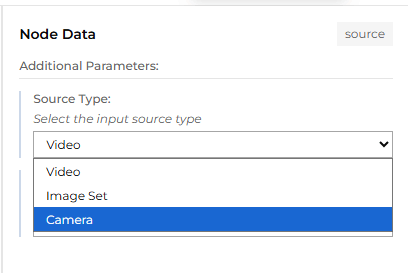
Then, from the Source dropdown, select the desired camera.
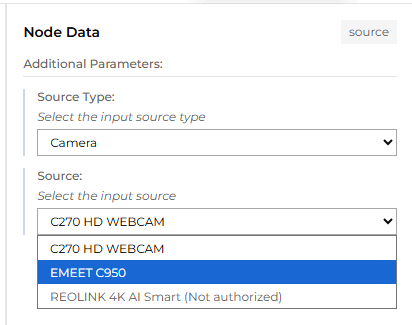
The selected camera will now be used as the pipeline input.
Note
A network camera that has not been authorized yet appears grayed out in the list and cannot be selected. To authorize the camera first, follow the steps in the Network camera authorization section.
GigE Vision cameras are identified in pipelines by their IP address (gige://<IP address>), so
assign a persistent IP address to the camera. In the advanced pipeline view, the camera is shown as
an aravissrc element with the camera-name property set to the IP address.
Use a custom RTSP stream as input source#
Any RTSP stream (for example, from a non-ONVIF camera, an NVR, or a media server) can be used as pipeline input, even if it is not listed on the Cameras page.
Open the Pipeline Builder and click the Input block.
From the Source Type dropdown, select Camera.
From the Source dropdown, select Custom RTSP URL….
Enter the stream URL, for example
rtsp://192.168.1.20:8554/stream.
In the advanced pipeline view, the stream is shown as an rtspsrc element with the location
property set to the URL.
When the pipeline starts, ViPPET probes the stream with gst-discoverer-1.0 to detect its video
codec (H.264, H.265, or MJPEG) and selects a decoder that matches the inference device. If the
codec cannot be detected (the stream is unreachable, the probe times out, or the codec is not
supported), the pipeline falls back to decodebin3. The probe timeout is set with the
RTSP_PROBE_TIMEOUT_S environment variable of the vippet service (default: 5 seconds).
Custom RTSP URLs have the following limitations:
Only the
rtsp://scheme is supported.Credentials are not supported. URLs with
user:password@are rejected, so the stream must not require authentication. For ONVIF cameras that require credentials, use Network camera authorization instead.Whitespace, quotes, and the characters
!,,,(,),*,$, and\are not allowed in the URL. Percent-encode them if the stream path requires them.The stream must be reachable from the ViPPET containers.
localhostrefers to the container itself, so use the host IP address orhost.docker.internalfor streams served on the host. If you work behind a proxy, add the stream host tono_proxyin the.envfile and restart ViPPET.Like other live cameras, an RTSP stream is not looped, and live preview runs until the pipeline is stopped.