Managing Jobs#
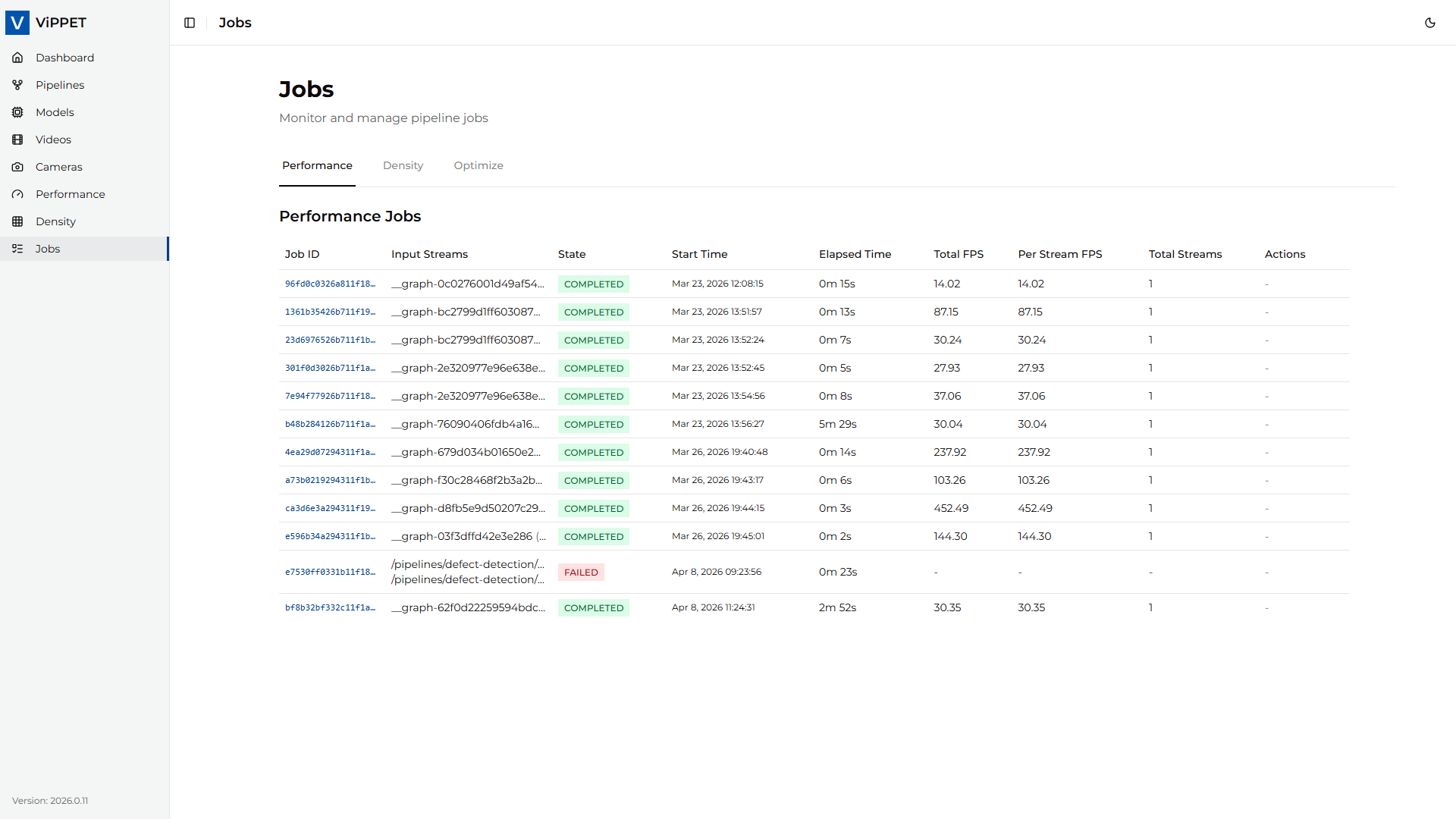
Every performance test, density test, and managed Audio pipeline run creates a job — a tracked unit of work with a unique ID, state, timing information, and results. The Jobs page lets you monitor running work, review completed results, and stop supported test jobs that are no longer needed. The Audio list is ordered from oldest to newest, matching the Vision job list.
Job states#
Each job transitions through the following states:
State |
Description |
|---|---|
RUNNING |
The job is currently executing. |
COMPLETED |
The job finished successfully. Results are available in the job detail view. |
FAILED |
The job terminated with an error. |
Job information#
The Jobs page displays the following information for each job:
Field |
Description |
|---|---|
Job ID |
Unique identifier assigned when the job is created |
Type |
Performance, Density, Optimize, or Audio |
State |
Current lifecycle state |
Start time |
When the job was created |
Elapsed time |
Duration from start to current time, or to the terminal state |
Details |
Type-specific status, metrics, pipeline, variant, device, or artifact metadata |
Viewing job results#
Click on a completed job to view its detailed results:
Performance jobs — Total FPS, Per Stream FPS, stream count, output video paths, and live stream URLs.
Density jobs — Maximum sustainable stream count, per-stream FPS at that count, and stream distribution across pipelines. In mixed density mode the pinned pipeline always reports its fixed
streamsvalue while the other pipeline reports the highest count that still metfps_floor.Audio jobs — Pipeline, operation, variant, device, state, timestamps, and service latency. A completed Speech to Text detail shows its transcript. A completed Text to Speech detail links to its WAV artifact. The Audio jobs list excludes transcript and TTS input content, uploaded filenames, and local filesystem paths.
Latency metrics — If latency metrics were enabled for the job, the results include avg/min/max latency values (in milliseconds) per reporting interval.
Audio job retention#
Audio job state is process-local and is cleared when the ViPPET backend restarts. The manager retains every active Audio job and at most 500 terminal jobs. The list remains ordered from oldest to newest among retained jobs. When an older terminal Text to Speech job is evicted, ViPPET removes its managed WAV artifact. Other Audio Analyzer storage and deployment cleanup remain governed by the retention guidance in the Audio Pipelines guide.
Stopping a running test job#
To stop a performance or density job that is currently running:
Locate the job in the list (state = RUNNING).
Click the Stop button.
The job will be terminated.
Behavior after stopping:
Performance tests — If the pipeline had already started processing frames, partial results (FPS, output videos) may be preserved and the job state transitions to COMPLETED. If no frames were processed, the job transitions to FAILED.
Density tests — Cancelled density tests always transition to FAILED because partial results from an incomplete search algorithm are not meaningful.
Note
Stopping a job stops its pipeline instances on DL Streamer Pipeline Server 2.0. The actual termination may take a few seconds while pipelines flush their buffers.
Audio jobs can be stopped while they are RUNNING. Click Stop in the Audio job row, or Stop in the Audio pipeline workflow. The job ends as COMPLETED without a transcript or WAV artifact, or as FAILED if stopping it raised an error.
API endpoints#
Jobs can also be managed programmatically via the REST API:
Operation |
Endpoint |
Method |
|---|---|---|
List all performance jobs |
|
GET |
Get performance job status |
|
GET |
Stop performance job |
|
DELETE |
List all density jobs |
|
GET |
Get density job status |
|
GET |
Stop density job |
|
DELETE |
List all Audio jobs |
|
GET |
Get Audio job status |
|
GET |
Stop Audio job |
|
DELETE |
For full API documentation, see the auto-generated OpenAPI docs at /docs on the backend service.