Grading Flow#
Language requirement: Grading currently supports Chinese exam papers only. Before using the Grading feature, make sure the
languagesetting in the main program’sconfig.yamlis set tozh.
The Grading feature automatically scores scanned exam papers. You provide a paper (PDF) and a rubric, and the system renders the pages, splits them into sections, and uses a Vision-Language Model (VLM) to grade each section and produce a structured result with scores and reasoning.
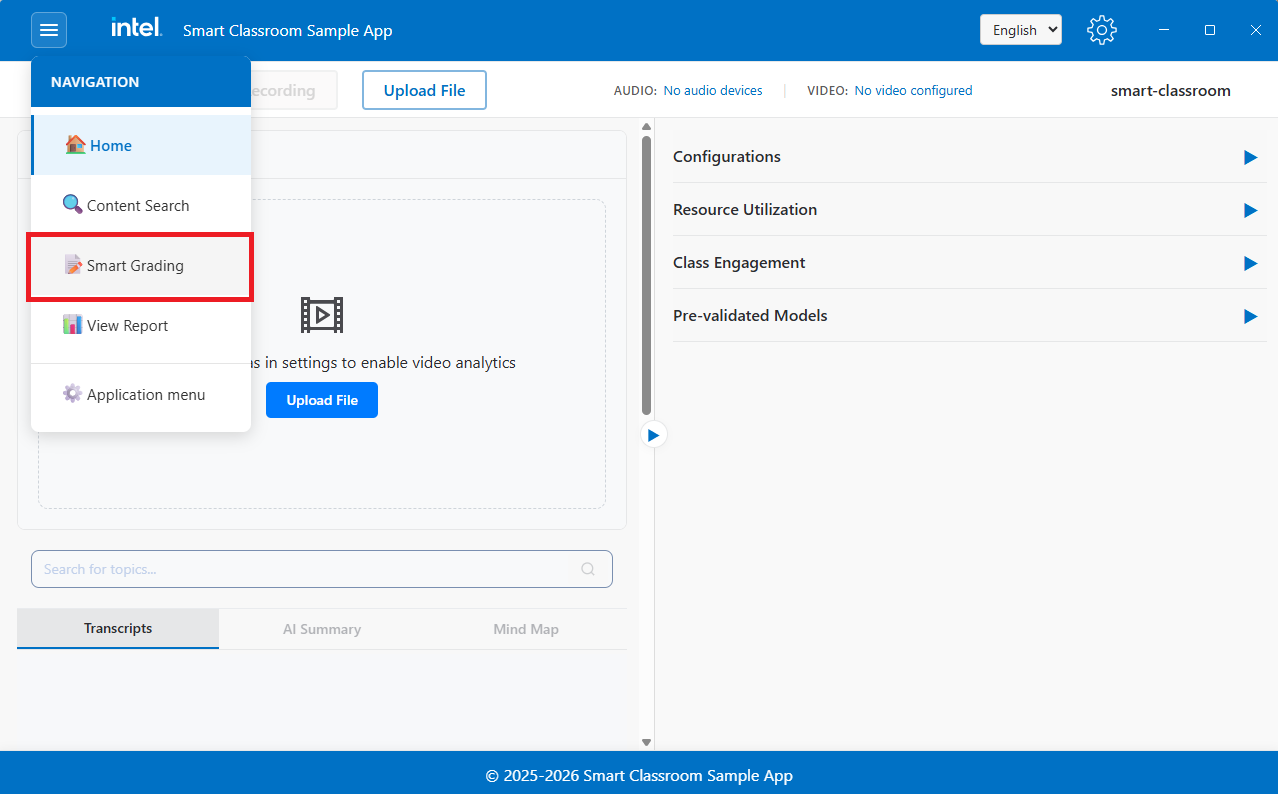
To enter the Grading view, click the Grading button in the top navigation bar on the Smart Classroom main screen:
Step 1: Prepare a Rubric#
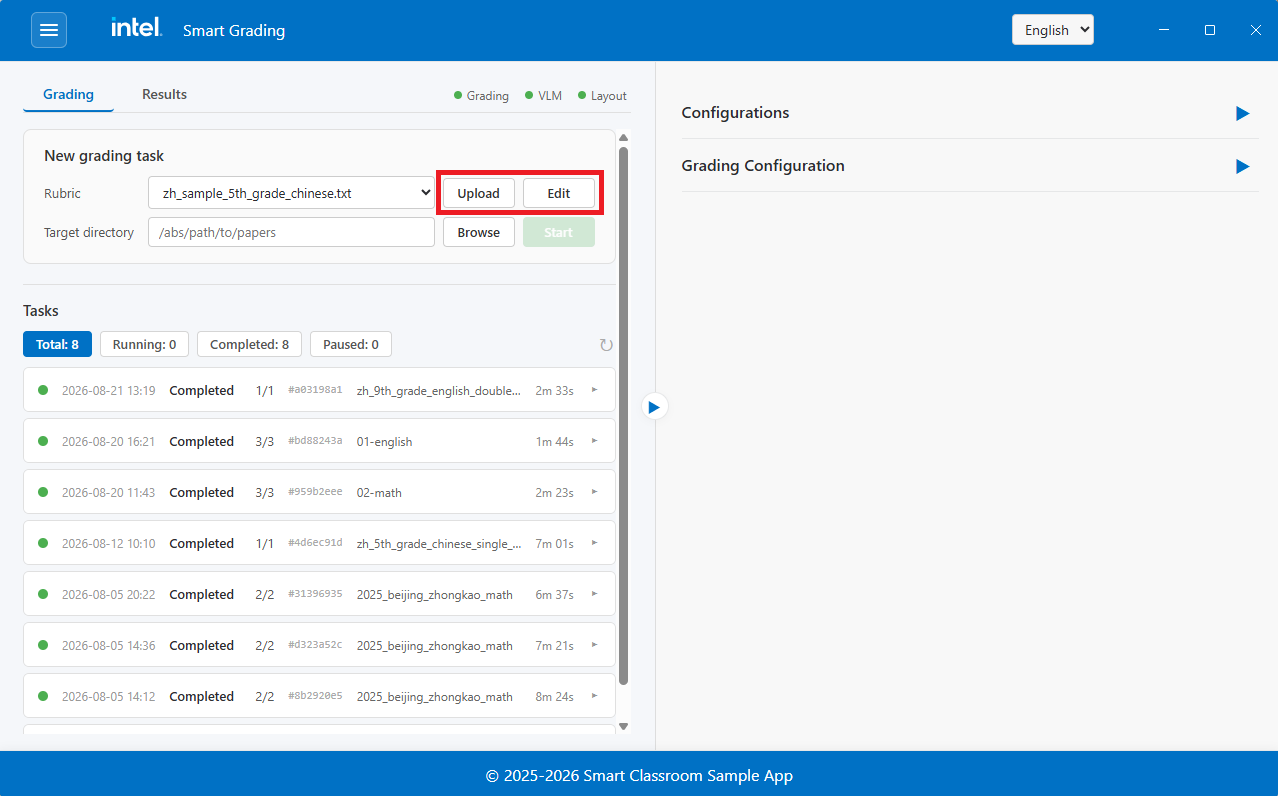
A rubric tells the model how to grade. Upload one before creating a task:
Click Upload Rubric and select a
.txtfile.The uploaded rubric appears in the rubric list and can be edited in place.
Step 2: Create a Grading Task#
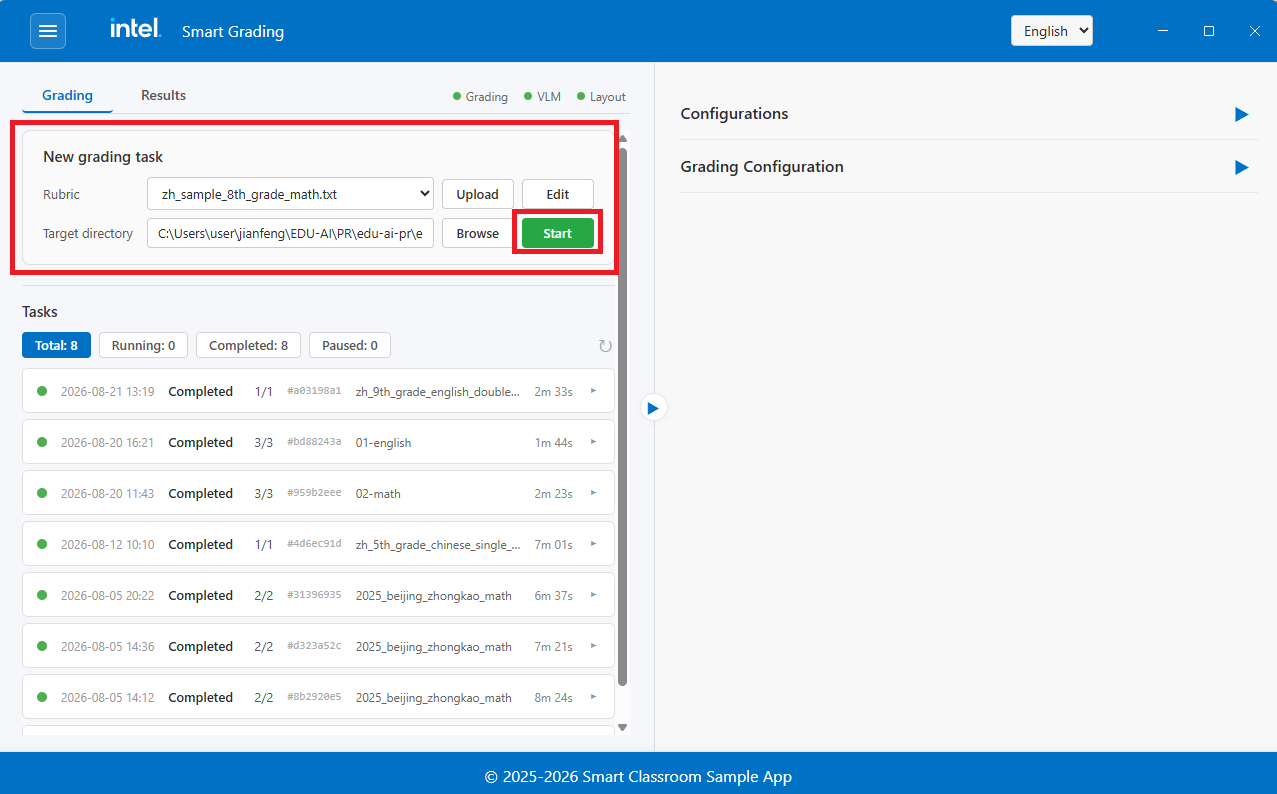
Browse and select the exam paper (
.pdf).Select the rubric to grade against.
Click Start Grading.
The task runs through four steps automatically:
Step |
What happens |
|---|---|
Render |
The PDF is converted to page images. |
Layout detection |
Each page is analyzed to locate text, titles, tables, and formulas. |
Section split |
Pages are grouped into question sections, stitched across page breaks. |
VLM grading |
Each section image and its rubric are sent to the VLM, which returns scores and reasoning. |
Step 3: Track Progress#
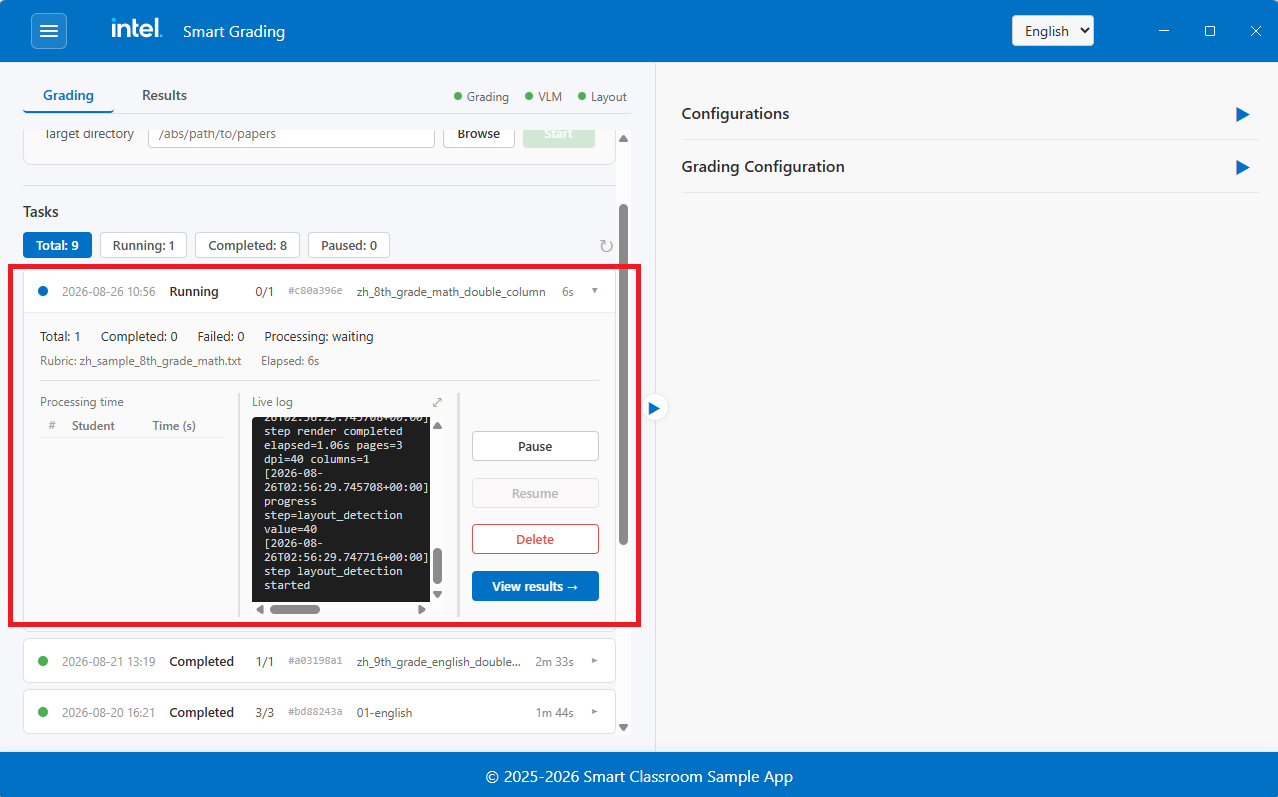
The task list shows each task’s status and progress. You can pause, resume, or cancel a running task, and delete finished ones.
Step 4: View Results#
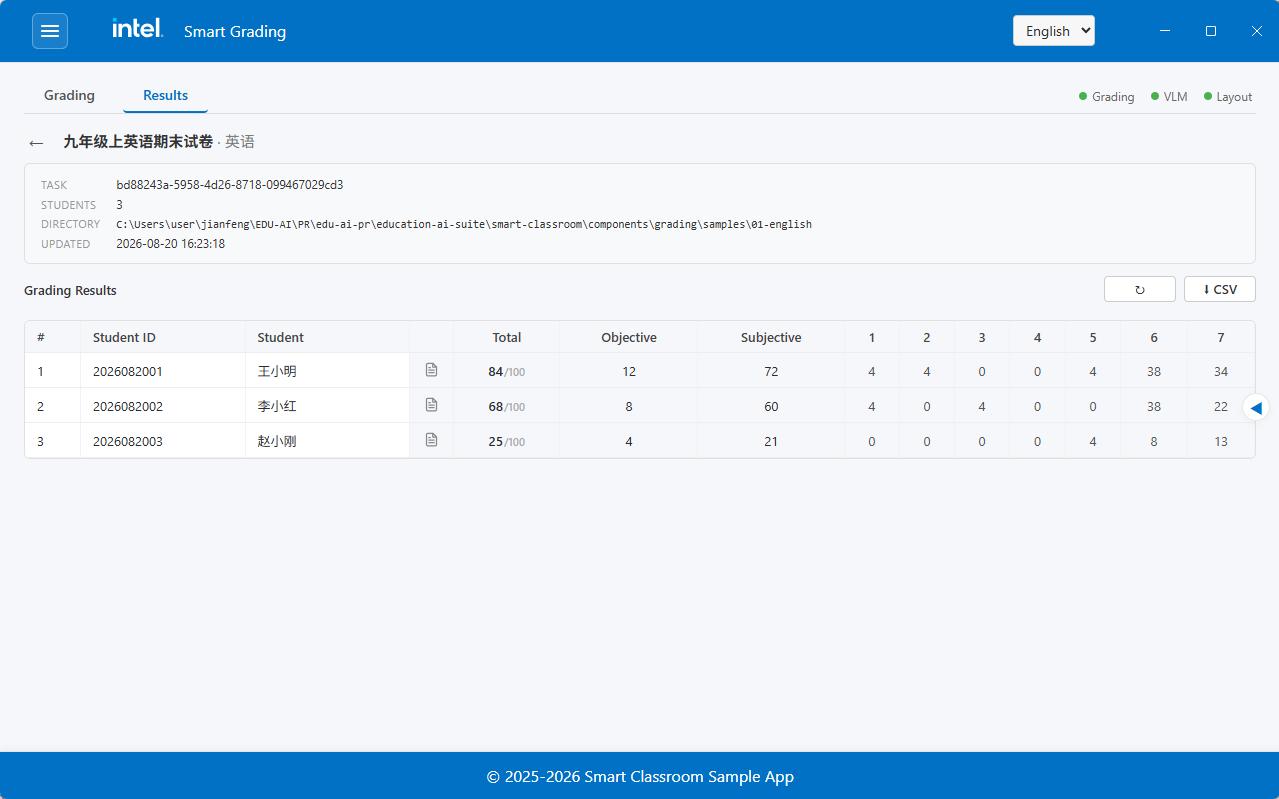
When a task completes, open it to see the graded result:
Score summary - Objective, subjective, and total scores.
Per-question breakdown - Each question’s score, the student’s answer, and the model’s reasoning.
Models#
Model |
Role |
Device |
|---|---|---|
PP-DocLayout |
Page layout detection |
NPU |
PP-OCR |
Read section titles |
CPU |
Qwen VLM |
Grade sections |
GPU |
Learn More#
Application Flow: End-to-end application flow.
How It Works: Technical architecture and design details.