API Reference#
Camera Pose Lock#
Camera create/update requests and camera responses, including cameras nested in
scene responses, expose pose_locked. Manager stores posed perceptual sensors as
Cam entities; the same lock and ephemeral MQTT pose/optics rules apply to RGB,
depth, LiDAR/radar detectors, and similar modalities registered as cameras and
publishing on scenescape/data/camera/{id}. External-source publishers (ADR 16)
use a separate ephemeral TTL pose/intrinsics cache and do not use pose_locked.
false(default for new cameras): stored calibration initializes the runtime pose. Valid observation extrinsics replace it in cache only; missing or invalid extrinsics retain the last valid pose. Configuration refreshes preserve observed transforms and MQTT optics while unlocked.true(default for calibrated cameras in the UI, and for existing cameras after migration): only stored calibration controls the runtime pose and optics. Incoming camera-message extrinsics and optics (intrinsics,distortion,resolution) cannot override it.
Use the Pose locked checkbox on the camera creation or calibration form, or
send a lock-only update such as {"pose_locked": true} to /api/v1/camera/{id}.
Omitted fields on updates preserve the current value; non-boolean values are
rejected. The additive migration backfills existing database cameras as locked;
new creates default unlocked. Scene archives preserve the field when present.
Controller and Analytics use the same rules. Switching to locked reloads stored calibration when each consumer refreshes configuration. Unlocking starts from that calibration until another valid observation. Saving calibration alone does not reset an already observed pose. Observations never overwrite durable calibration. Live poses have no expiry and are discarded on camera removal, scene reassignment, or process restart. Retention is local to each running scene instance; lock changes are not an instantaneous distributed cutover for queued messages.
Cam create/update and nested scene camera payloads also expose
calibration_origin (durable writer identity; default manager.rest) and a
read-only pose_provenance object derived from it for Manager config.
Regulated MQTT camera entries publish runtime pose_provenance (class +
origin) for the effective pose only. Intrinsics / distortion / resolution
have no provenance field; optics-only MQTT updates do not stamp
pose_provenance. The 3D UI follows poses when pose_provenance.class is
live (and the camera is unlocked). The deprecated dynamic_pose flag remains
as an alias of class === "live" during migration. See
ADR 18 and
Analytics data formats.
Upgrade Manager, the shared library, Controller, and Analytics together before
relying on lock enforcement. Apply the additive camera lock migration to
existing databases; it backfills existing cameras as locked and does not migrate
calibration values. Older workers ignore the lock. Apply the
calibration_origin migration so Manager can stamp durable provenance origins
(manager.rest, manager.mesh, manager.import).
Source Map Errors#
Source-map activation requires the explicit
POST /api/v1/scene/{scene_id}/maps/{method}/activate path; POST on the map
resource itself returns HTTP 405. Activation and deletion
(DELETE /api/v1/scene/{scene_id}/maps/{method}) return safe,
actionable messages in the JSON error field for rejected operations, while
preserving the HTTP status code. For example, deleting the default map returns
HTTP 409 with {"error": "Cannot delete the default map"}. Concurrent mapping
changes also return HTTP 409, with a distinct retry message. Unclassified errors
return a generic message without internal implementation details.
API Specification Viewing Instructions#
docs/user-guide/api-docs/api.yaml covers the token-authenticated REST API under /api/v1. It does not cover browser-session endpoints used by the Manager UI.
Follow the steps below, or see the Swagger UI Installation Guide for full instructions.
1. Pull Swagger UI image#
docker pull swaggerapi/swagger-ui
2. Run the Swagger UI container#
Use a configuration that loads the Scenescape docs/user-guide/api-docs/api.yaml definitions.
General Syntax:
docker run -p 80:8080 --user $(id -u):$(id -g) -e SWAGGER_JSON=/mnt/api.yaml -v <full path to parent directory of api.yaml>:/mnt swaggerapi/swagger-ui
See the Swagger UI Configuration Guide.
Example:
docker run -p 80:8080 --user $(id -u):$(id -g) -e SWAGGER_JSON=/mnt/api.yaml -v ~/scenescape/docs/user-guide/api-docs:/mnt swaggerapi/swagger-ui
Note: Ensure that for the -v option you use the correct path to where Scenescape repository was cloned (
~/scenescape/in the example above).
3. View API docs via a browser#
Navigate to http://localhost
Note:
https:is not supported.localhostcan be replaced with the ip address.
It should look something like this example:
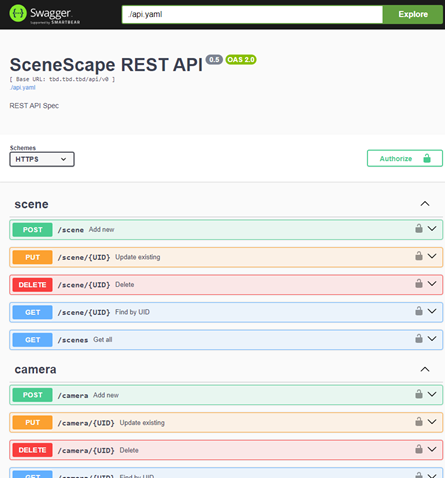
Open API#
Version: 1.3.0: