Application Flow#
This documentation provides the end-to-end flow of the application, helps you initiate the setup, and guides you in observing and validating the results.
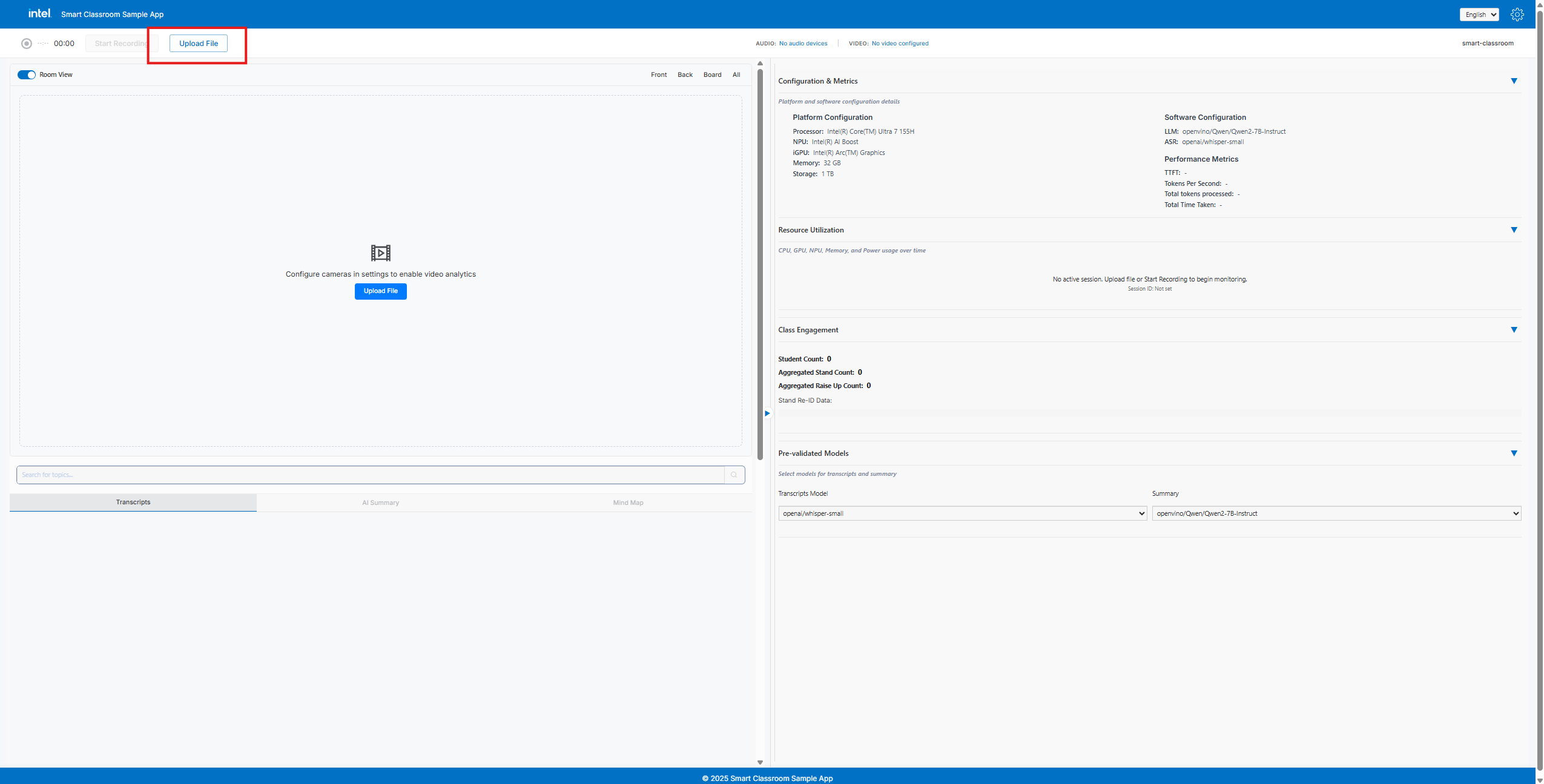
The application can be initiated either by using Upload Files or by clicking Start Recording. This documentation will guide you with upload files.
Step 1: Upload Files#
Clicking any one of the upload file buttons will open a modal for audio and video files inputs.
Note: Base Directory Path should be folder path of video files (user should manually add/copy the path).
Accepted file formats:
Audio: .mp3 or .wav or .m4a
Video: .mp4
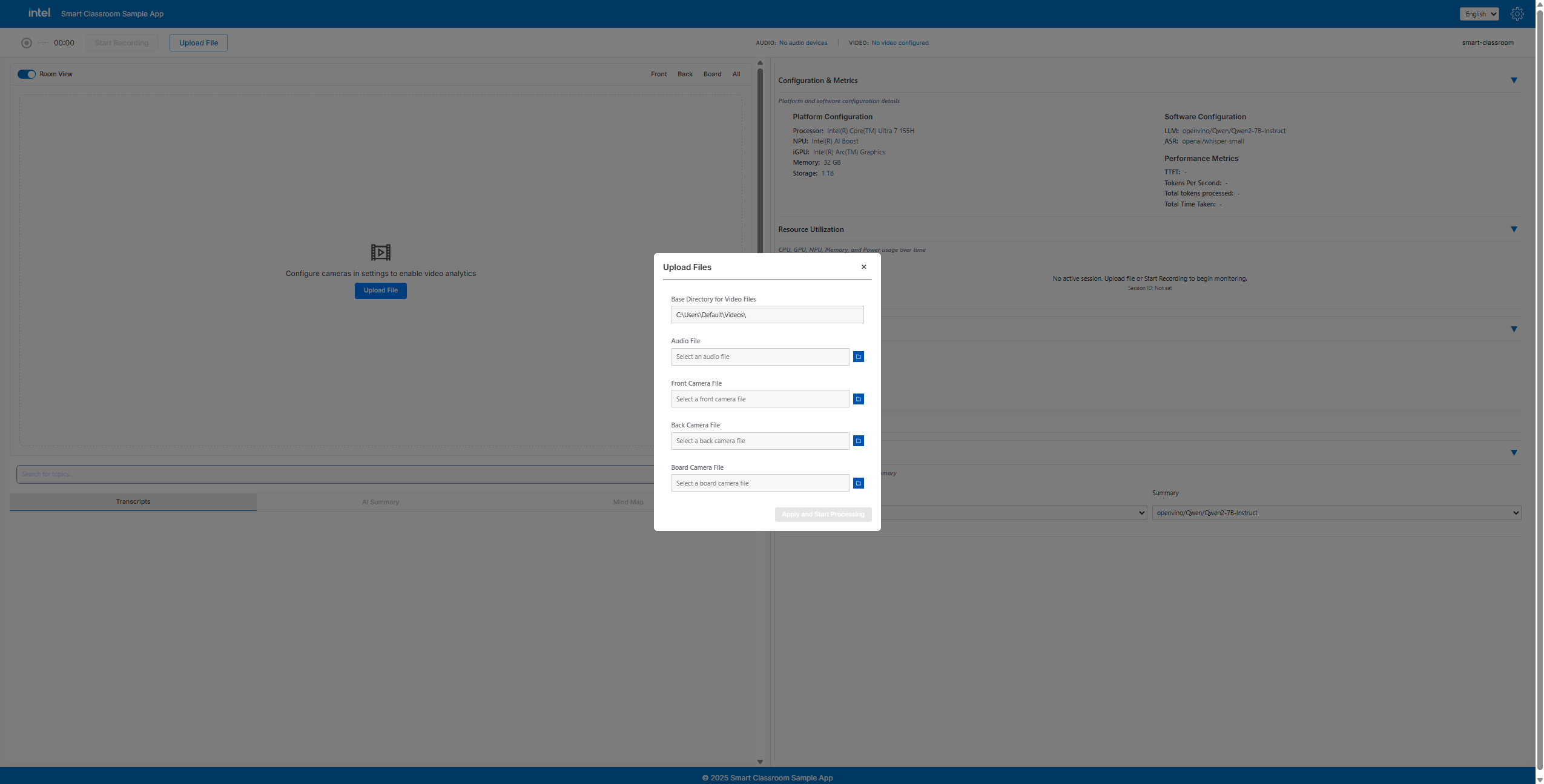
After successful upload click Apply & Start Processing
Note: Search is enabled only after content segmentation.
Step 2: Audio Analysis and Video Streaming#
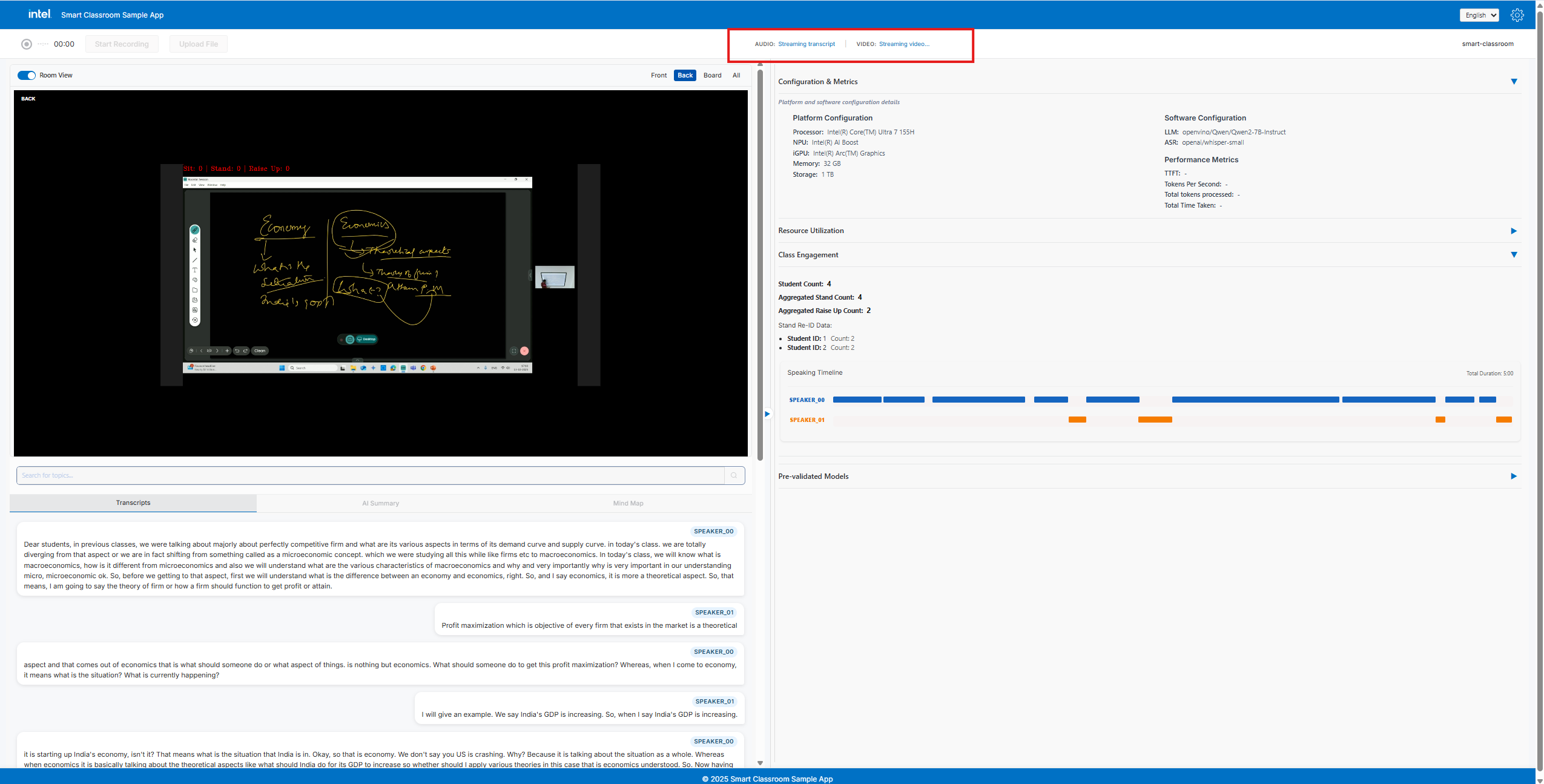
Application will start transcription after analyzing the audio and videos will get stream parallelly as below.
Right Panel#
Configuration Metrics - Details about the platform and software configuration along with performance metrics of summarization
Resource Utilization - Live monitoring of CPU, GPU, NPU, Memory and Power Utilization
Class Engagement - Statistics of student engagement and speaker’s timeline during the class (real-time)
Pre-Validated Models - Shows the models being used for transcription and summarization
Step 3: Tabs Switch#
The user can switch between tabs as shown below.
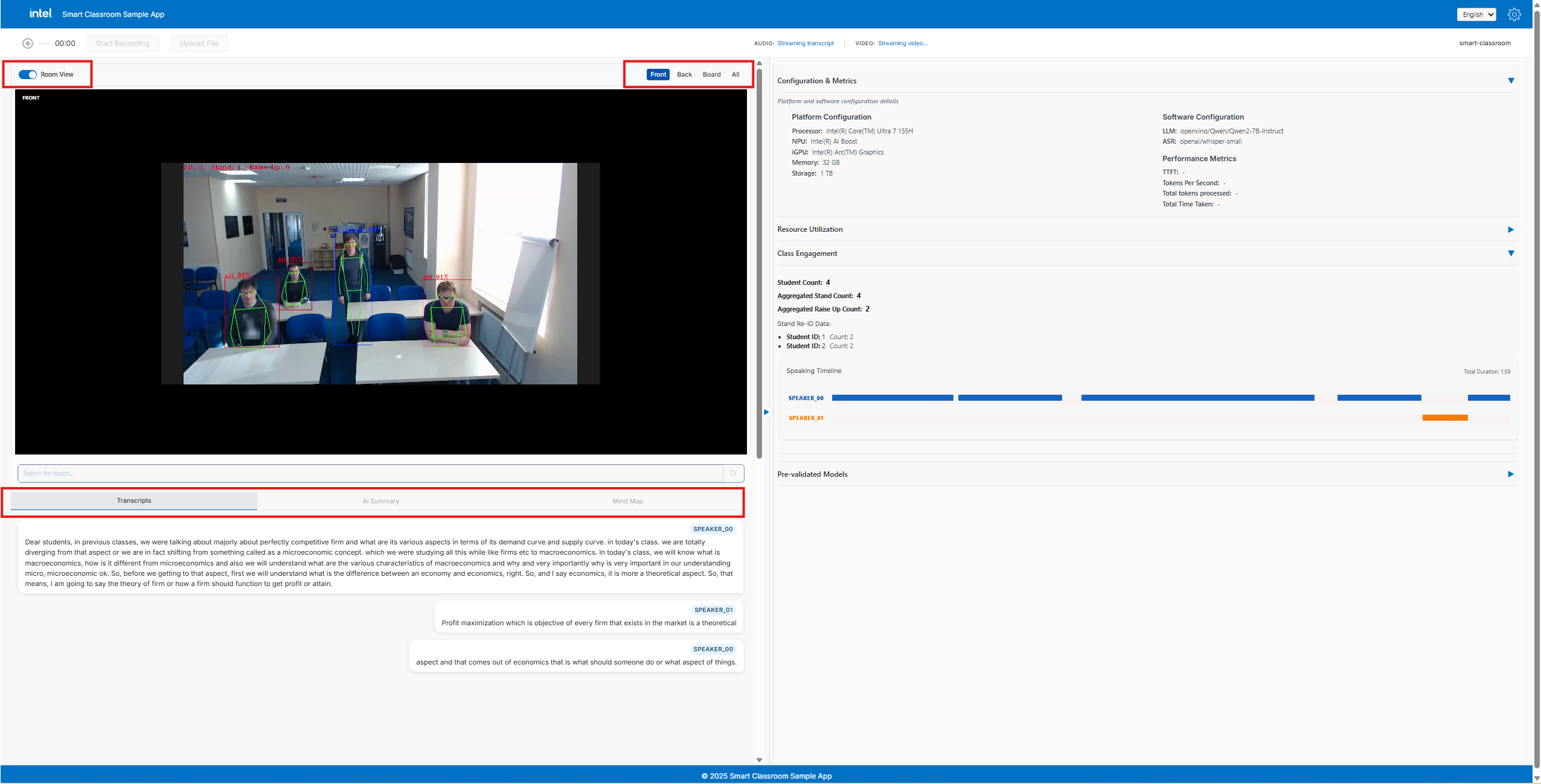
The Room View toggle allows the user to switch between full audio–video mode and audio-only mode. When disabled, the video component is hidden and only the audio panel remains visible.
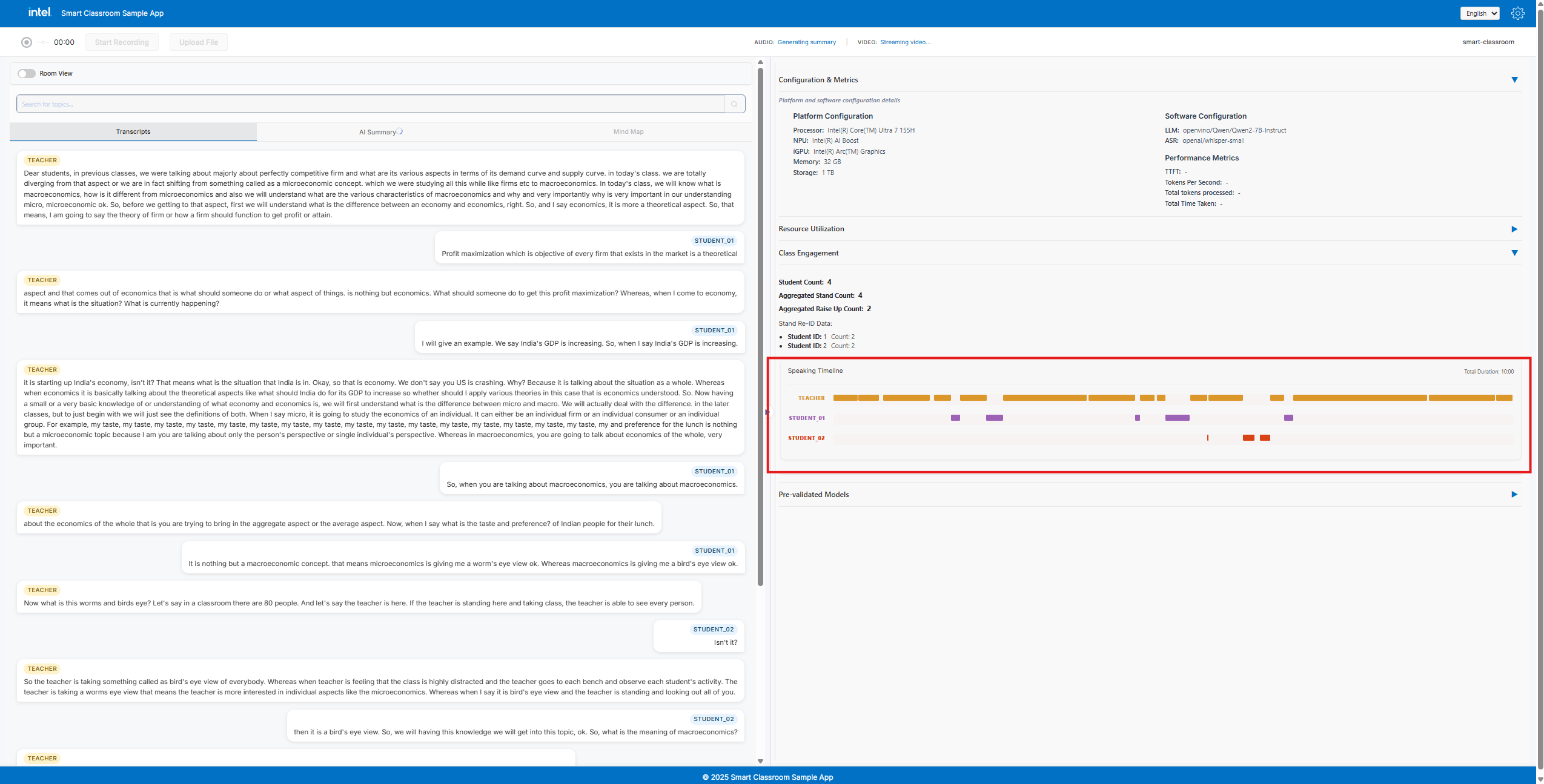
Step 4: Transcription and Speaker Timeline#
Once the Teacher is identified, labels are updated accordingly
Step 5: Content-Segmentation#
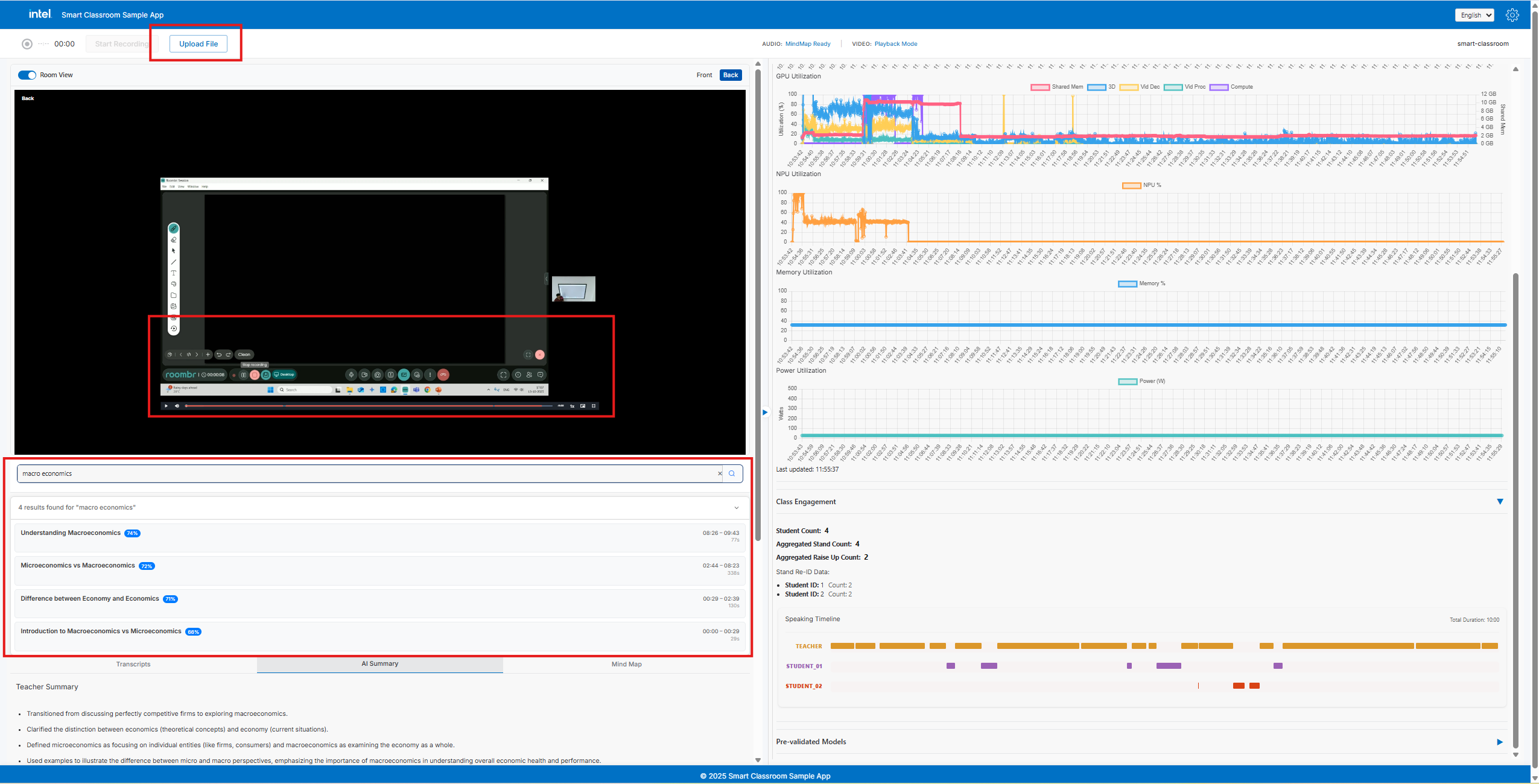
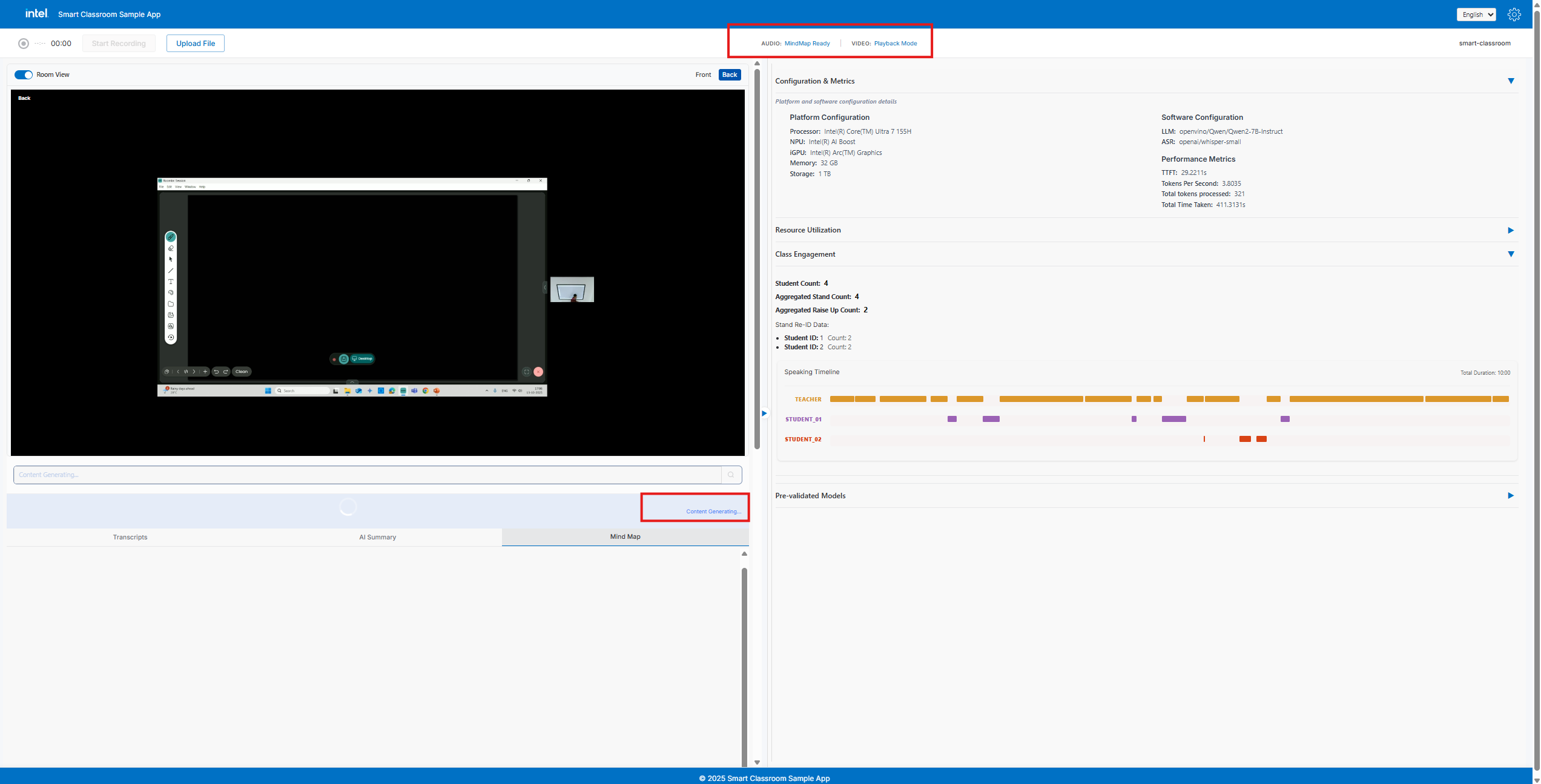
After mindmap is generated and video processing completed, Content segmentation starts and video playback is enabled for video search
Audio+Video: content segmentation is enabled after the MindMap is generated and video processing completed.
Step 6: Final State#
Audio: After transcription and post summary, MindMap gets generated
Video: After video Processing playbackMode is enabled and based on the topic-search the results are shown
VideoSearch: Based on search results the video timeline is highlighted on the respective time-stamps of topic